

Solution for Excel Not Displaying Completely Due to Insufficient System Resources
2014-04-30How to Fix Windows Update Error 0x8007000d
2014-05-02Win10 Boot Blue Screen: Recovery Error Code 0xc000000e Repair Method
The error code 0xc000000e in Windows 10 typically appears during boot-up as a blue screen of death (BSOD), indicating a problem with the boot configuration data (BCD). This BCD is a firmware-independent database that stores boot-time configuration data, replacing the older boot.ini file used in previous Windows versions. The error often stems from corrupted or missing boot files, which can occur due to improper shutdowns, hardware failures like a faulty hard drive or loose connections, disk errors, or even malware infections. It prevents the system from loading the operating system properly, showing a message like “Your PC needs to be repaired” or “A required device isn’t connected or can’t be accessed.” Breaking it down further, the “0xc” prefix points to a critical system error, while “000000e” specifically relates to boot device accessibility issues, such as when the BCD can’t locate the Windows installation or when there’s a mismatch in the boot path.
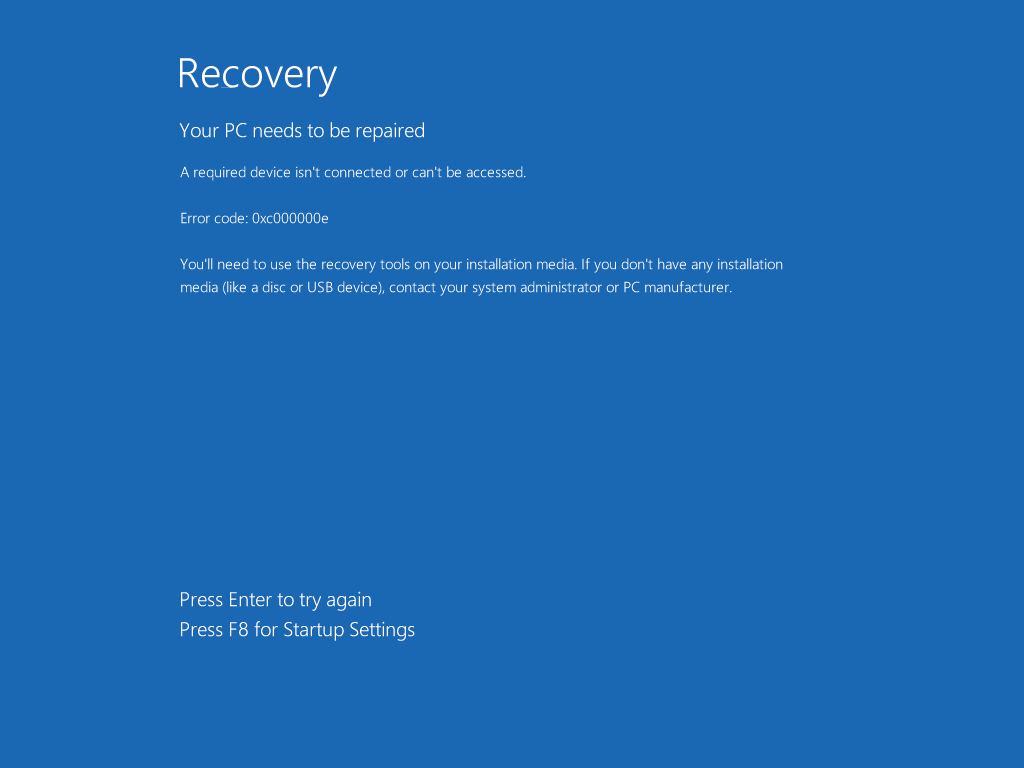
0xc000000e: The selected entry could not be loadedNeoSmart …
One common question is: What are the primary causes of the 0xc000000e error? This error is frequently triggered by hardware problems, such as a disconnected or failing hard drive, corrupted system files from power outages, or issues with the boot loader after dual-booting setups. Another related question is: Is data loss inevitable with this error? Not necessarily; the error affects boot files rather than user data, so repairs can often be done without erasing files, though backing up data beforehand is always recommended if possible.
Fixing the 0xc000000e error restores your system’s boot functionality, allowing you to access your files and applications without the need for a full Windows reinstallation, which saves significant time and effort. It also prevents further complications, such as escalating hardware failures if the issue is related to disk errors, and helps maintain system stability by addressing underlying boot configuration problems early.
Step 1: Prepare a Bootable Windows 10 Installation Media If your PC isn’t automatically entering recovery mode, create a bootable USB drive using the Windows Media Creation Tool on another computer. Download the tool from Microsoft’s website, run it, and select “Create installation media for another PC.” Insert a USB drive with at least 8GB capacity and follow the prompts to make it bootable. Then, insert the USB into the affected PC and restart, entering BIOS (usually by pressing F2, Del, or Esc) to set the USB as the first boot device.
Step 2: Boot into Windows Recovery Environment (WinRE) Restart your PC with the bootable media inserted. If it boots directly to the blue screen, it may automatically enter WinRE after a few failed attempts. Otherwise, from the installation media, select your language and click “Next,” then choose “Repair your computer” in the bottom left corner to access the recovery options.
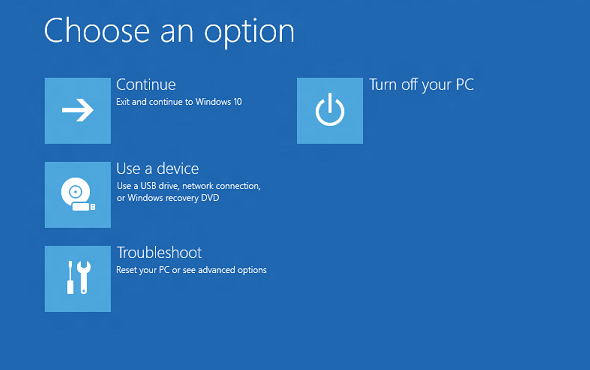
Windows Recovery Environment (Windows RE) | Microsoft Learn
Step 3: Select Troubleshoot In the WinRE main menu, click on “Troubleshoot” to proceed to the repair tools designed for boot and system issues.
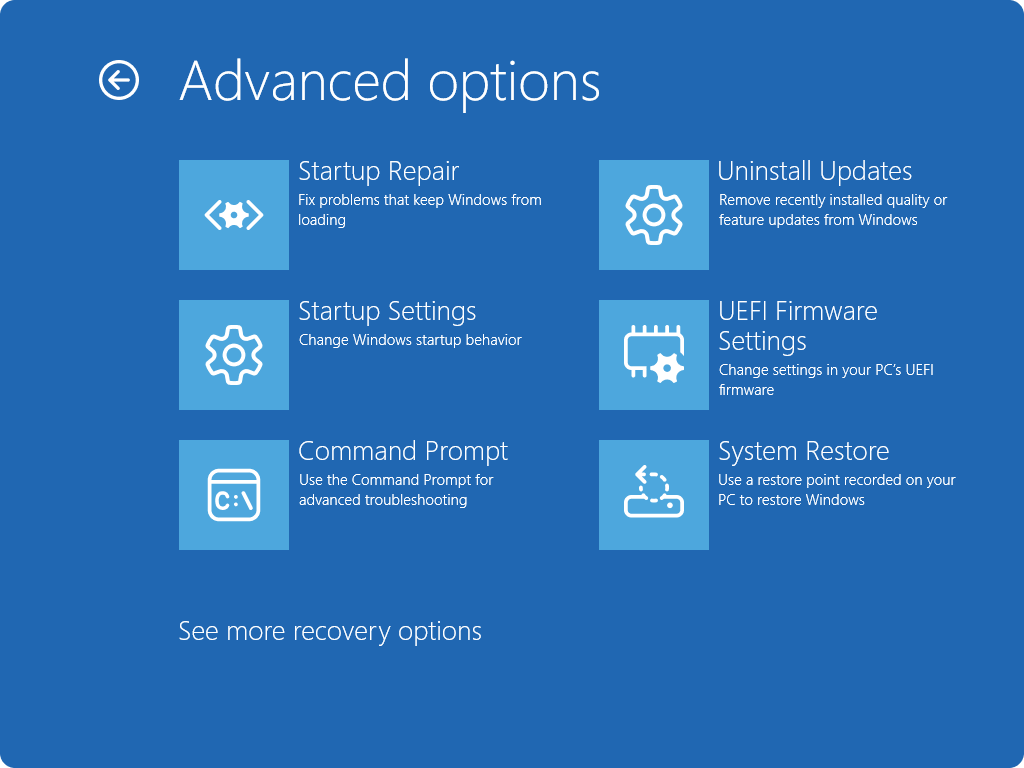
Windows Recovery Environment – Microsoft Support
Step 4: Choose Advanced Options From the Troubleshoot screen, select “Advanced options” to view more detailed repair utilities.
Windows Recovery Environment – Microsoft Support
Step 5: Run Startup Repair Click on “Startup Repair” and let the tool scan and attempt to fix boot issues automatically. This may resolve the 0xc000000e error if it’s due to minor corruptions.
Startup Repair – Microsoft Support
Step 6: Open Command Prompt if Startup Repair Fails If Startup Repair doesn’t work, return to Advanced options and select “Command Prompt” to manually repair the boot records.
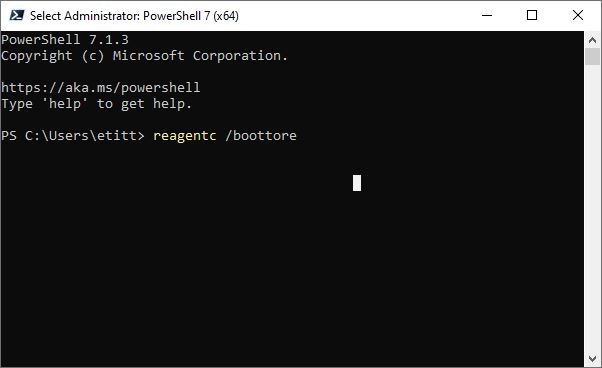
Two Commands Boot Into WinRE – Ed Tittel
Step 7: Execute bootrec /fixmbr In Command Prompt, type “bootrec /fixmbr” and press Enter. This repairs the Master Boot Record (MBR), which is essential for locating the boot partition.
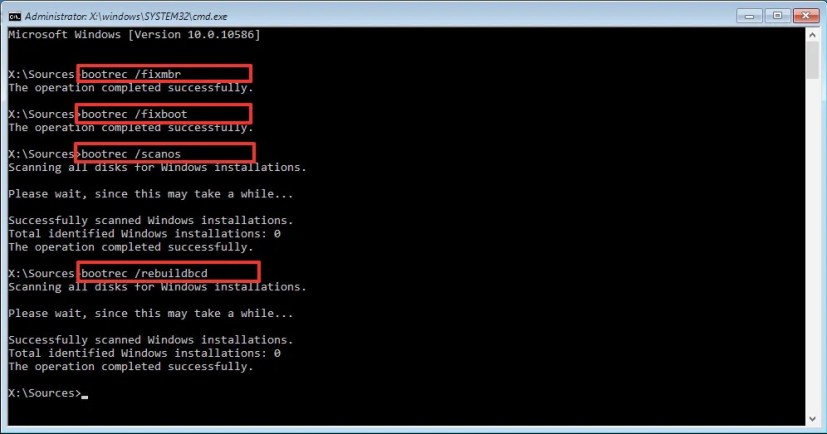
How to repair Master Boot Record (MBR) on Windows 10 – Pureinfotech
Step 8: Execute bootrec /fixboot Next, type “bootrec /fixboot” and press Enter to write a new boot sector to the system partition, addressing access issues.
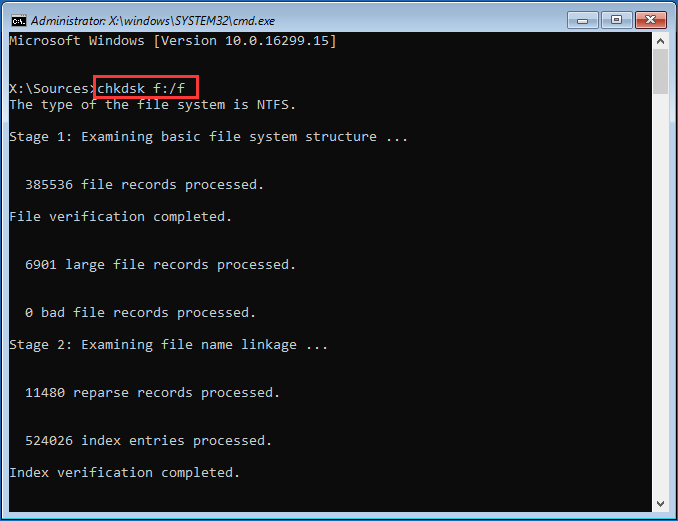
Quickly Fix: Bootrec /Fixboot Access Is Denied in Windows 10 …
Step 9: Execute bootrec /scanos Type “bootrec /scanos” and press Enter to scan for Windows installations that might not be detected.
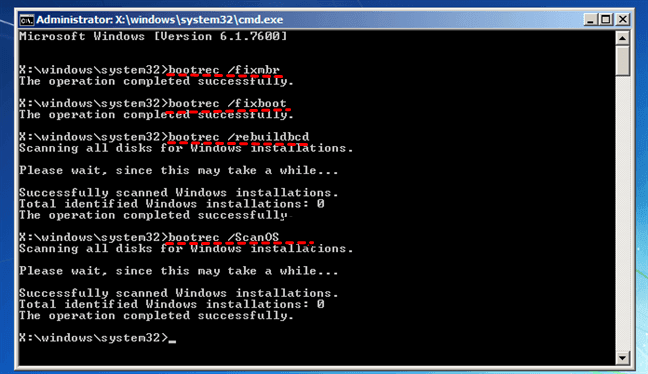
Bootrec or Bcdboot Command Prompt Fix Issues with Your Boot Records
Step 10: Execute bootrec /rebuildbcd Finally, type “bootrec /rebuildbcd” and press Enter to rebuild the Boot Configuration Data. If prompted, add the installation to the boot list by typing “Y” or “All.”
:max_bytes(150000):strip_icc()/010_how-to-rebuild-the-bcd-in-windows-2624508-5c47877246e0fb0001ad6a59.jpg "Win10 Boot Blue Screen: Recovery Error Code 0xc000000e Repair Method 10")
Rebuild BCD in Windows: Fix Boot Issues Quickly
Step 11: Exit and Restart Type “exit” to close Command Prompt, then select “Continue” to boot into Windows. Remove the USB if used.
In one practical case, a user with a corrupted BCD due to a sudden power loss followed these steps and successfully booted into Windows 10 without data loss, reporting normal operation after a system update. Another instance involved a hardware-related issue where reconnecting the hard drive cables before running the repairs fixed the error, allowing the PC to start up in under 10 minutes. A third example saw the error resolved via Command Prompt commands after Startup Repair failed, preventing the need for professional service and saving repair costs.
