

How to Move Desktop Folder to Another Drive on Windows: Step-by-Step Guide
2026-01-21How to Merge Data from Multiple Excel Worksheets: Step-by-Step Guide
2026-01-23Where Are Screenshots Saved on Windows 10: How to Find the Folder Location
On Windows 10, screenshots captured using built-in tools like the Snipping Tool, Snip & Sketch, or the Windows key + Print Screen shortcut are automatically saved to a specific default folder for easy access and organization. This location is typically the Screenshots subfolder within the Pictures directory, found at C:\Users\YourUsername\Pictures\Screenshots, where “YourUsername” is your account name. Key concepts include: the automatic creation of this folder upon first screenshot; file formats like PNG for clarity; integration with OneDrive if enabled, which may sync or redirect saves; and variations based on capture method—clipboard-only for plain Print Screen vs. file saves for modified shortcuts. This setup leverages the user’s profile folder structure in Windows, ensuring screenshots are stored locally unless cloud settings alter it, and allows for quick retrieval without manual naming each time.
What if the Screenshots folder is missing in Pictures? It usually appears after taking your first screenshot with auto-save features; if not, check for OneDrive redirection or search your PC for *.png files modified recently to locate them.
Can screenshots be saved to a different folder by default? Windows 10 doesn’t offer a direct setting to change it, but you can use registry edits or third-party apps like Greenshot for custom paths, or manually move files post-capture.
Knowing where screenshots are saved on Windows 10 simplifies file management by allowing quick access to captures without searching the entire drive, enhances productivity for tasks like tutorials or bug reports, and prevents data loss by centralizing images in an organized spot. It also aids in freeing up space by easily archiving or deleting old screenshots, and improves workflow integration with tools like email or editing software.
- Open File Explorer Press Windows key + E to launch File Explorer.
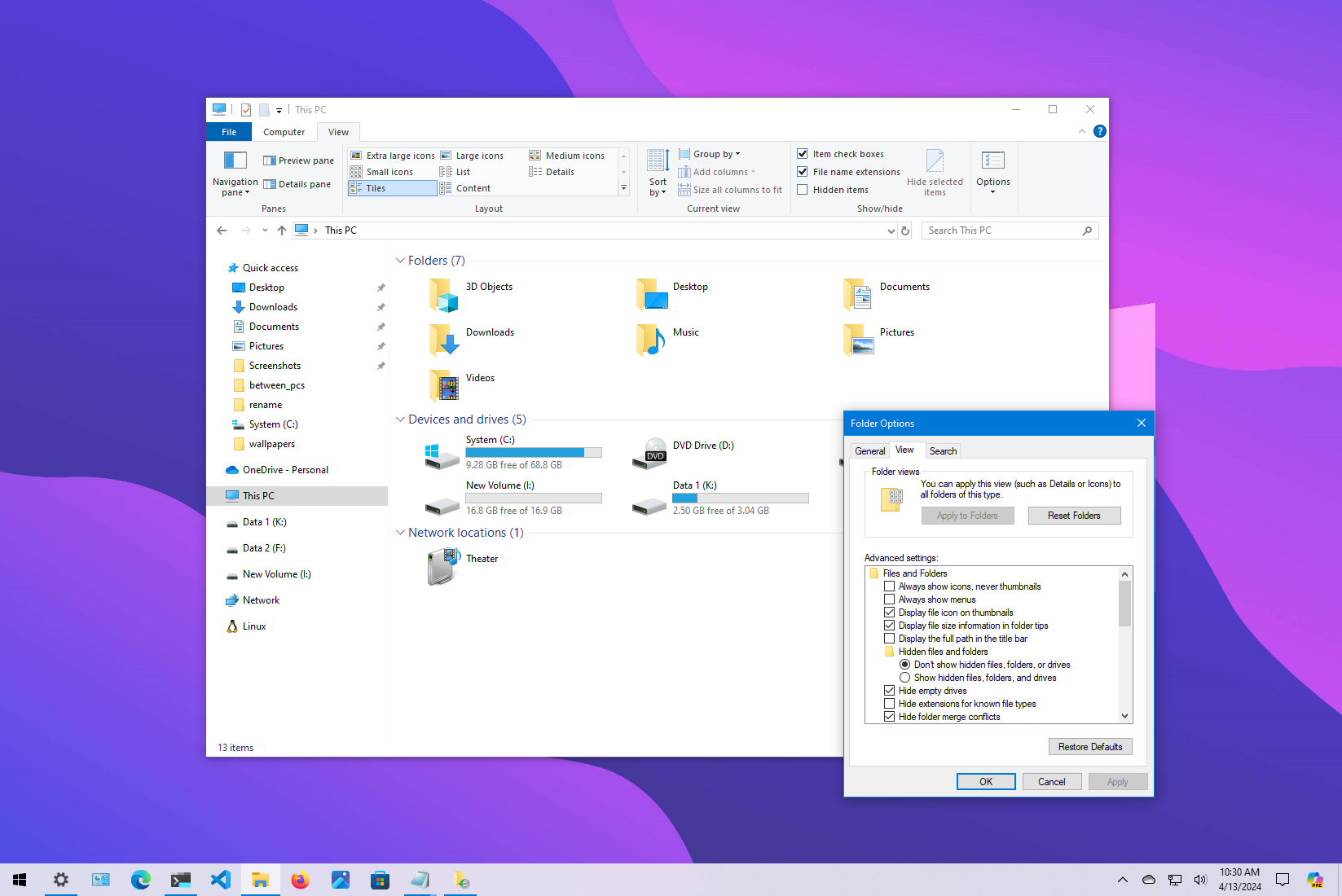
How to get the most out of File Explorer on Windows 10 | Windows …
- Navigate to Pictures Folder In the left pane, click This PC, then double-click Pictures.
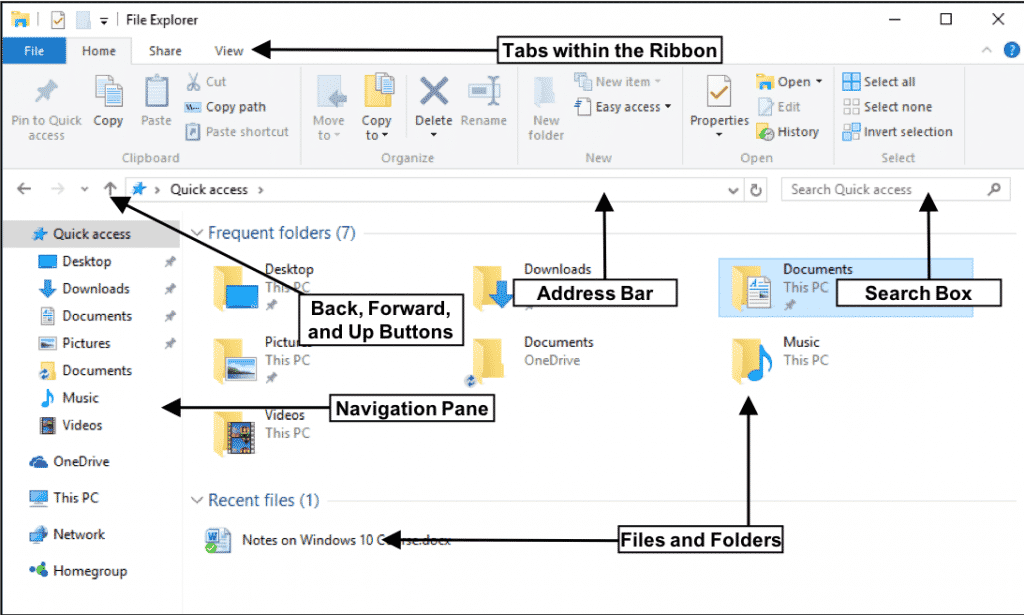
File Explorer in Windows 10 – Instructions and Video Lesson
- Locate the Screenshots Folder Scroll through the Pictures directory and find the Screenshots subfolder.
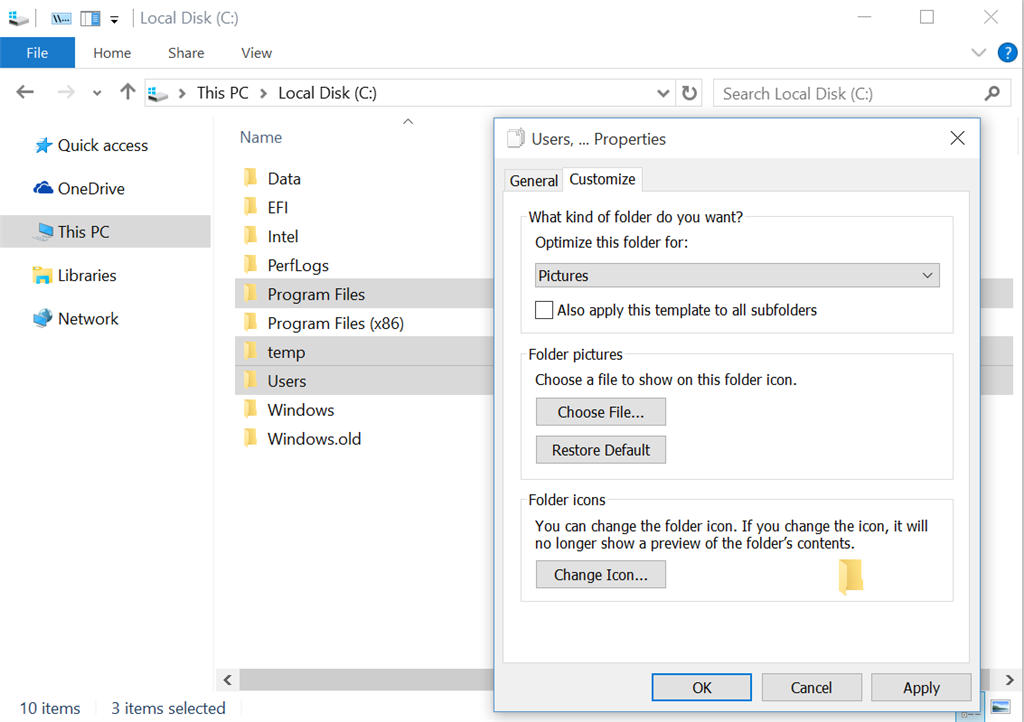
Any way to apply folder view settings specifically to …
- Open the Screenshots FolderDouble-click the Screenshots folder to view your saved images.
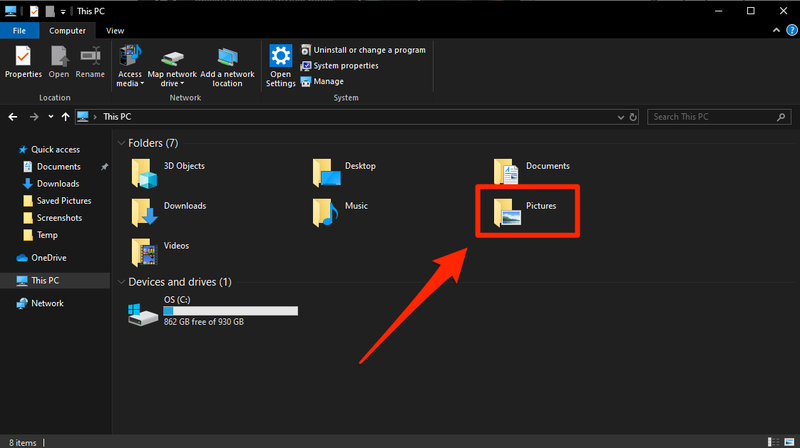
How to Find Screenshots on a Windows 10 PC in 3 Ways
- Search for the Folder if Needed In File Explorer’s search bar, type Screenshots and press Enter to locate it quickly.
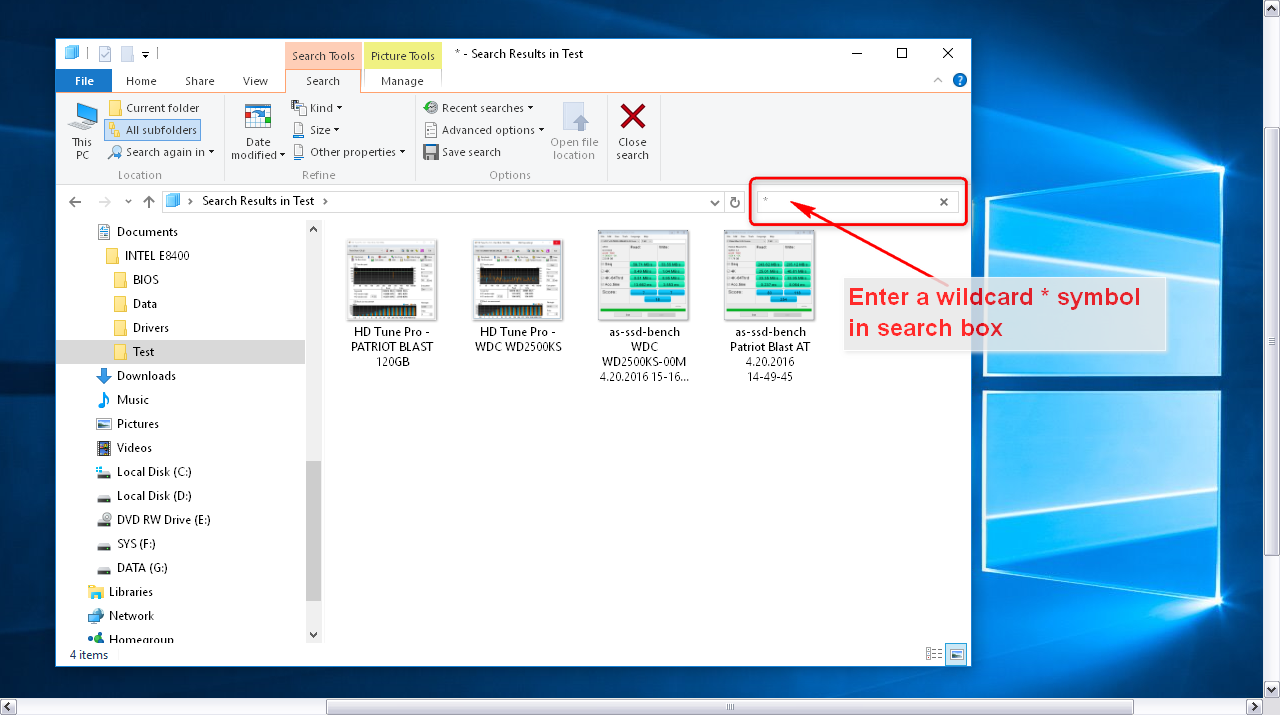
Microsoft Windows 10 – How To Search & Find All Files within …
- Use Run Dialog for Quick Access Press Windows key + R, type %userprofile%\Pictures\Screenshots, and press Enter.
Windows 10 Screenshots Are Not Being Saved in Pictures Folder FIX
A student quickly found weeks of lecture screenshots in the default folder, organizing them into subfolders and avoiding reprint costs. In a remote work scenario, an employee accessed error captures for IT support, resolving issues faster without recreating screenshots. A gamer located high-score images for social sharing, enhancing community engagement after discovering the centralized save spot.
