

Win10 Boot Blue Screen 0xc000021a Error: Causes Analysis and Repair Methods
2014-05-07What to Do If Photoshop’s Color Settings Cannot Be Synchronized and Won’t Run?
2014-05-09What to Do If Excel Can’t Sort?
Excel’s sorting feature is a powerful tool that allows users to organize data in ascending or descending order based on specific columns, such as numbers, text, or dates. It works by rearranging rows while keeping the data integrity across columns. However, sorting can fail due to several common issues. Breaking it down: First, merged cells disrupt the uniform grid structure Excel needs for sorting, as they combine multiple cells into one, preventing row-based operations. Second, applied filters can restrict the visible data range, causing Excel to sort only filtered items or block the function entirely. Third, non-contiguous data ranges—meaning gaps like blank rows or columns—confuse the sorting algorithm, as it expects a solid block of data. Fourth, inconsistent data types, such as numbers stored as text, can lead to unexpected sorting behavior or errors. Finally, protected worksheets or shared workbooks may disable sorting to prevent unauthorized changes.
One common question is: Why does Excel display an error like “This operation requires the merged cells to be identically sized” when trying to sort? This happens because sorting treats each row as a unit, and merged cells spanning uneven rows or columns break this uniformity. To resolve it, you need to unmerge the cells first, then sort, and re-merge if necessary afterward. Another question is: What should I do if the sort option is grayed out and unavailable? This often occurs due to worksheet protection or active filters. Check if the sheet is protected under the Review tab and unprotect it with the password if needed, or clear filters to enable the option.
Addressing Excel sorting issues offers several benefits. It enhances data analysis by allowing quick organization, such as alphabetizing names or ranking sales figures, leading to faster insights and decision-making. It also reduces errors in reports, ensuring accuracy in professional or academic work. Additionally, it saves time by avoiding manual rearrangements, improving overall productivity in handling large datasets.
Step 1: Check for Merged Cells Select the entire data range by clicking and dragging over your table. Go to the Home tab, then in the Alignment group, click the Merge & Center button and choose Unmerge Cells if any are merged. This ensures all cells are individual for proper sorting.
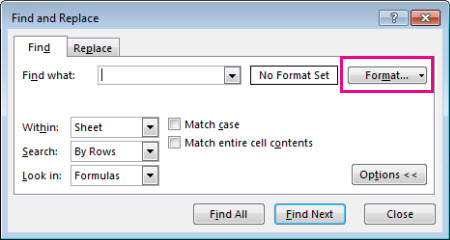
Find merged cells
Step 2: Remove Any Applied Filters Click on any cell within your data range. Under the Data tab, locate the Sort & Filter group and click Clear to remove any existing filters. This will show all data and enable full sorting.
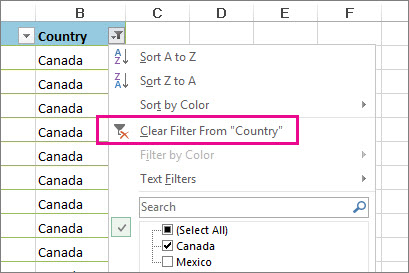
Clear or remove a filter
Step 3: Ensure Data is in a Contiguous Range Highlight your data by selecting from the top-left cell to the bottom-right, avoiding any blank rows or columns in between. If there are gaps, delete or fill them to create a solid block.
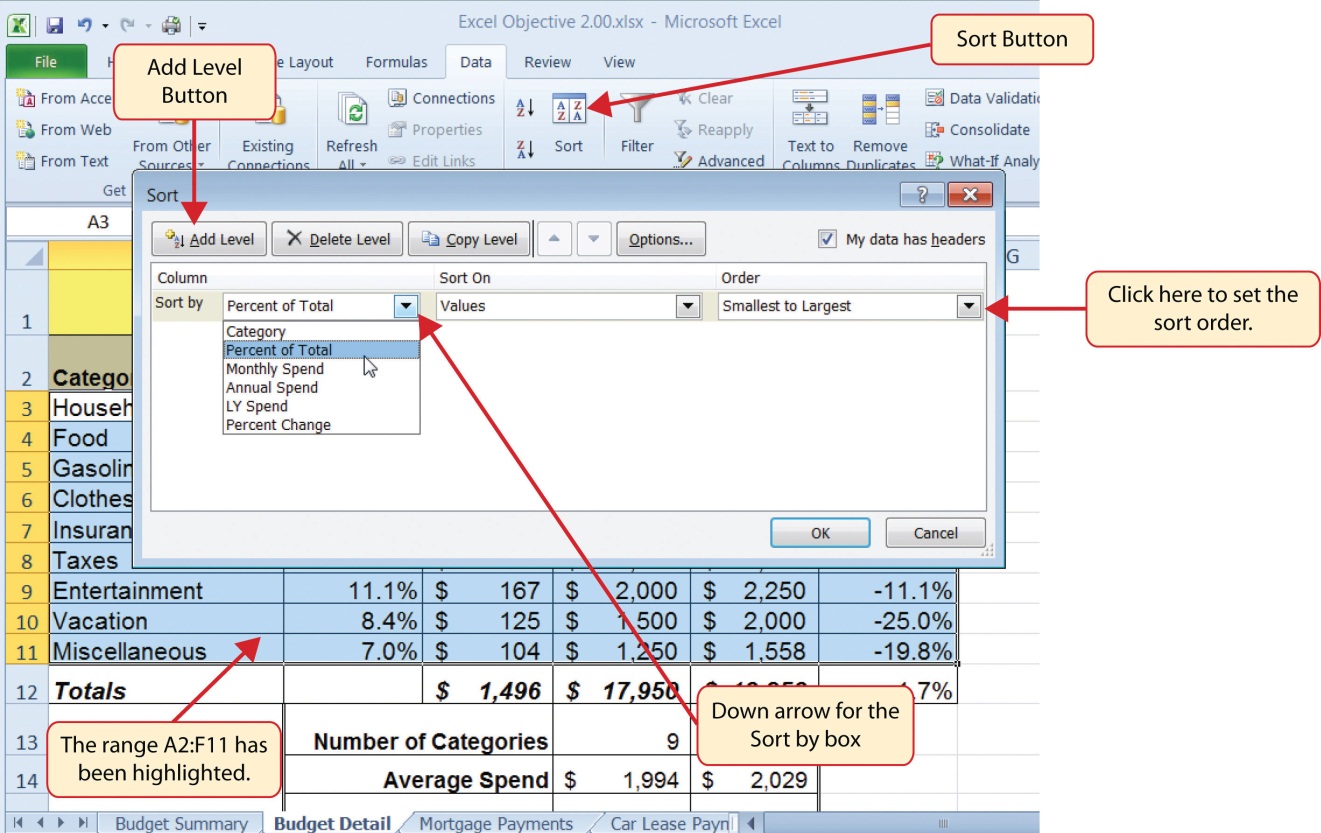
2.4 Sorting Data – Excel For Decision Making
Step 4: Verify Data Types Inspect columns for inconsistencies, like numbers formatted as text (indicated by a green triangle in the cell corner). Select the column, go to the Data tab, and use Text to Columns to convert them properly.
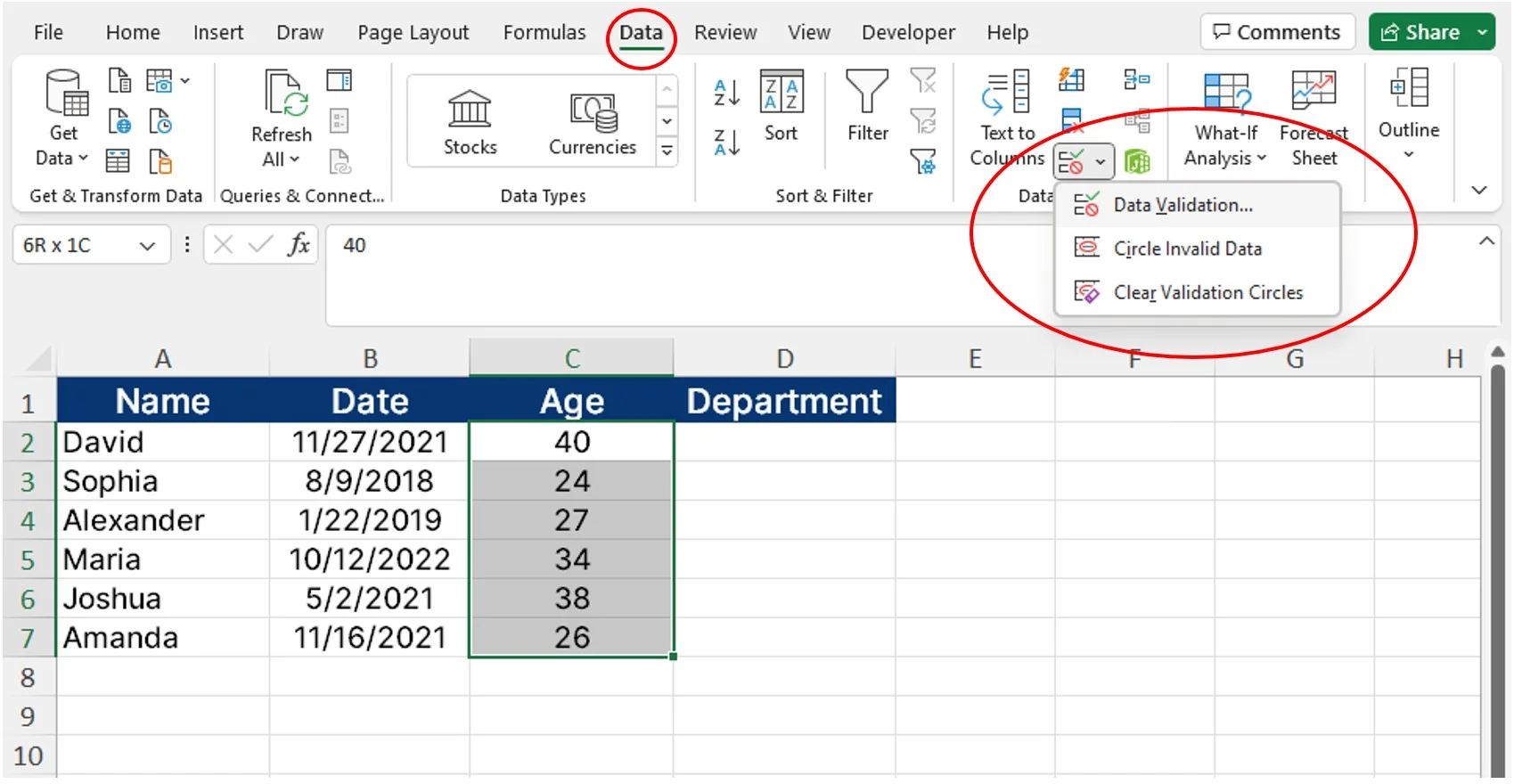
Excel Data Validation (With Examples) | Career Principles
Step 5: Attempt to Sort the Data With fixes applied, select your data range again. Go to the Data tab, click Sort, choose your column and order (e.g., A to Z), and apply. This should now work without issues.
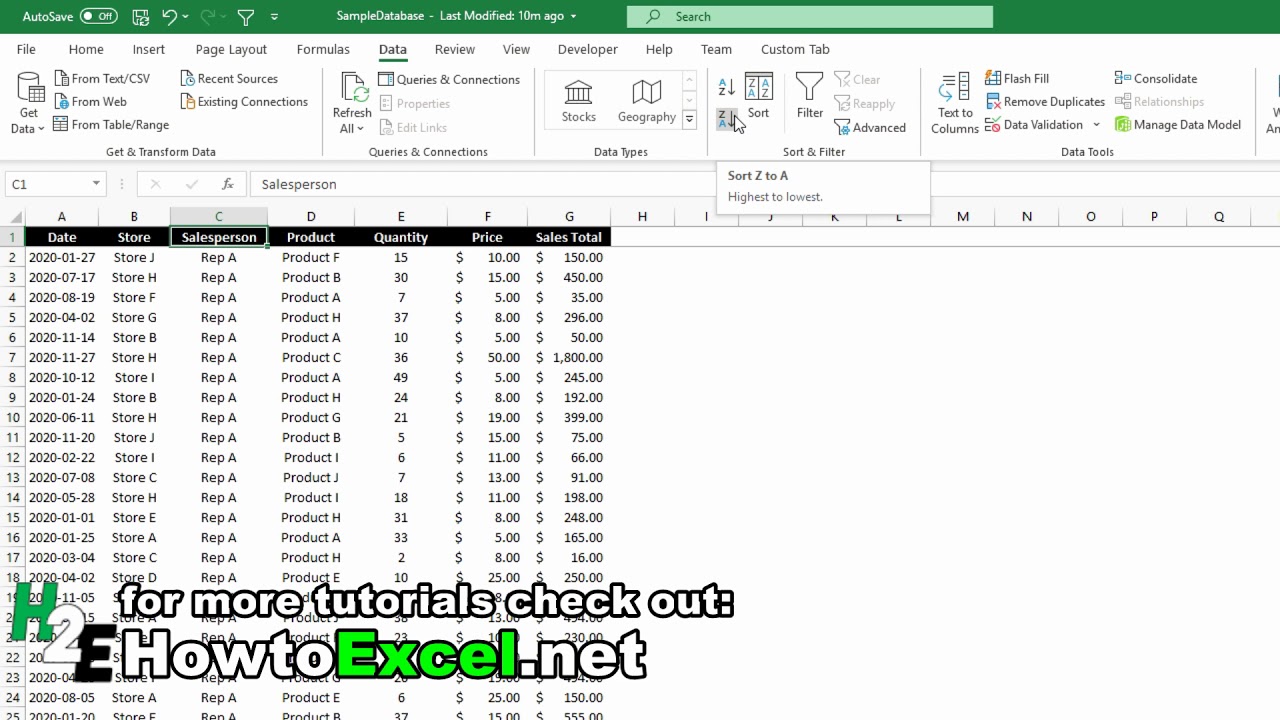
How to Sort Data in Excel Without Messing Up Formulas
In practice, these steps have proven effective in various scenarios. For instance, in a monthly sales report with over 500 entries, unmerging cells and removing filters allowed sorting by revenue, revealing top performers instantly and aiding in quick performance reviews. Another case involved a student grade sheet where data types were mismatched; after conversion, sorting by scores helped identify trends, improving class analysis. Finally, in an inventory list for a small business, ensuring a contiguous range fixed the issue, enabling alphabetical sorting of items and streamlining stock checks.
