

How to Fix CPU Always at 100% Usage
2026-01-15
Excel Can’t Copy and Paste? How to Fix It Step-by-Step
2026-01-16What Does “Object Error” Mean When Opening a Web Page?
When you encounter an “object error” while opening a web page, it typically refers to a JavaScript-related issue in your browser. This error can manifest as a pop-up message like “[object Object]” or “Object Expected,” indicating that the browser is trying to access or execute an object (such as a script variable or function) that isn’t properly defined, loaded, or accessible. Breaking it down further, “object error” often stems from scripting problems where the code expects a certain object to exist but encounters something undefined or null. Common triggers include outdated browser versions, corrupted cache data, conflicting extensions, or even flaws in the website’s JavaScript code itself. In older browsers like Internet Explorer, this was particularly prevalent due to compatibility issues with modern web standards, but it can still appear in current browsers like Chrome or Edge under specific conditions.
One common question related to object error is: What are the primary causes of this issue? The main culprits include accumulated browser cache that interferes with fresh page loading, incompatible or faulty browser extensions that alter script execution, outdated browser software unable to handle modern JavaScript, or server-side problems where the website’s code fails to deliver expected objects properly. Another frequent query is: Does object error only occur in specific browsers? While it’s most notorious in Internet Explorer due to its handling of ActiveX objects and legacy scripts, similar errors can appear in any browser if there’s a mismatch between the page’s code and the browser’s environment, though modern browsers like Chrome often provide more detailed console logs to diagnose it.
Addressing an object error brings several benefits, including smoother web browsing experiences without disruptive pop-ups that force you to close tabs or restart your session. It enhances website functionality, allowing interactive elements like forms or dynamic content to load correctly, which is crucial for tasks such as online banking or form submissions. Additionally, fixing this can improve security by ensuring you’re using an updated browser that patches vulnerabilities, reducing the risk of malware exploitation through faulty scripts. Overall, resolving object errors leads to faster page loads, fewer frustrations, and a more reliable online interaction.
Step 1: Clear Your Browser Cache Start by clearing your browser’s cache to remove temporary files that might be causing the object error. In Google Chrome, for example, go to Settings > Privacy and security > Clear browsing data, select Cached images and files, and click Clear data. This step often resolves issues from corrupted data.
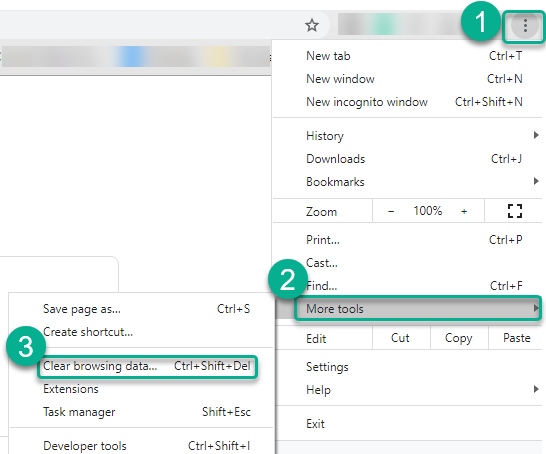
Clearing Browser Cache in Chrome : SCC’s Technical Support
Step 2: Update Your Browser Ensure your browser is up to date, as outdated versions can struggle with JavaScript objects. In Chrome, click the three-dot menu > Help > About Google Chrome, and it will automatically check for and install updates if available. Restart the browser afterward to apply changes.
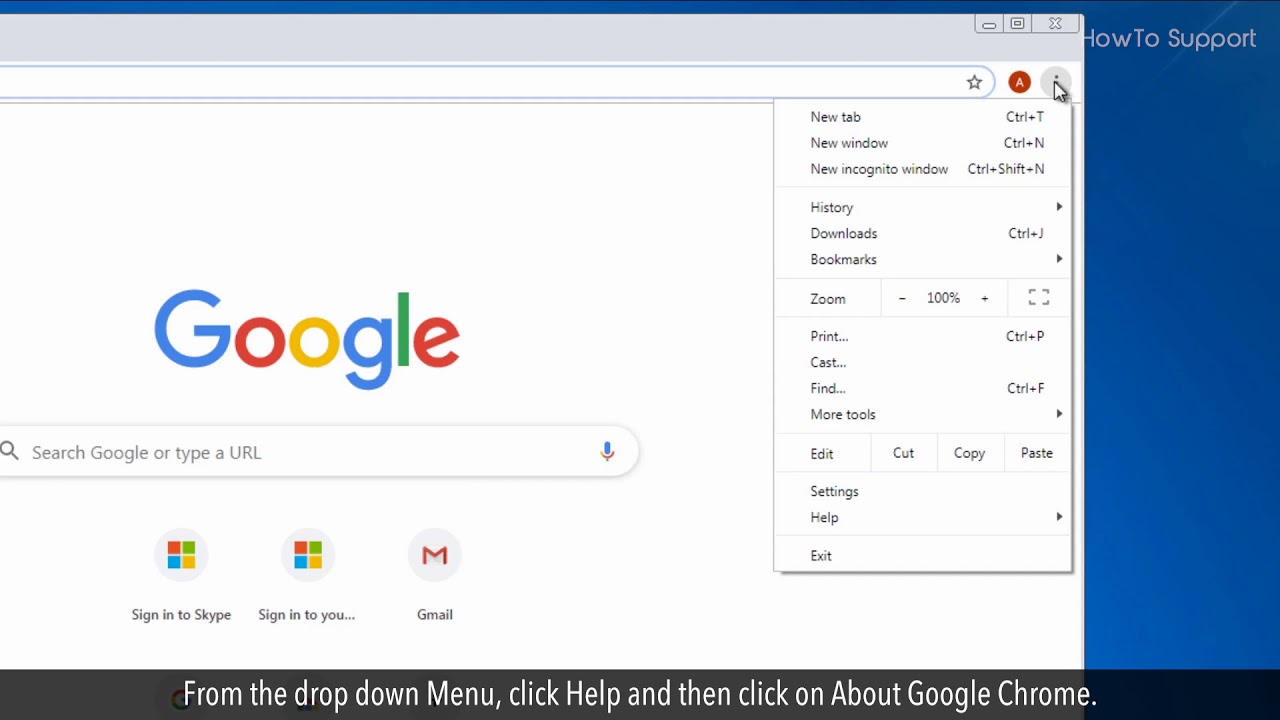
How to update Google Chrome :Tutorial
Step 3: Disable Browser Extensions Conflicting extensions can trigger object errors by interfering with scripts. Access your extensions in Chrome via the three-dot menu > Extensions > Manage extensions, then toggle off any non-essential ones and reload the problematic page to test.
:max_bytes(150000):strip_icc()/B2-DisableExtensionsandPlug-insinGoogleChrome-annotated-4f4848b6c2594dbba0389834e65d068a.jpg "What Does \"Object Error\" Mean When Opening a Web Page? 7")
How to Disable Extensions and Plug-ins in Google Chrome
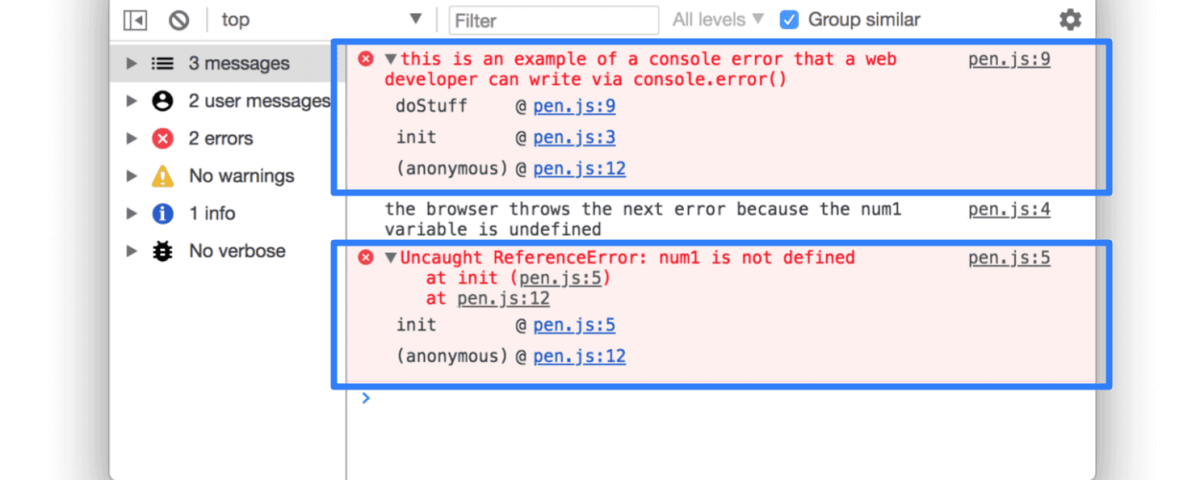
Step 4: Check JavaScript Console for Errors If the issue persists, open the developer tools (press F12 in most browsers) and navigate to the Console tab to inspect detailed error messages. Look for lines mentioning “object expected” or similar, which can guide further fixes like contacting the site owner if it’s a code issue.
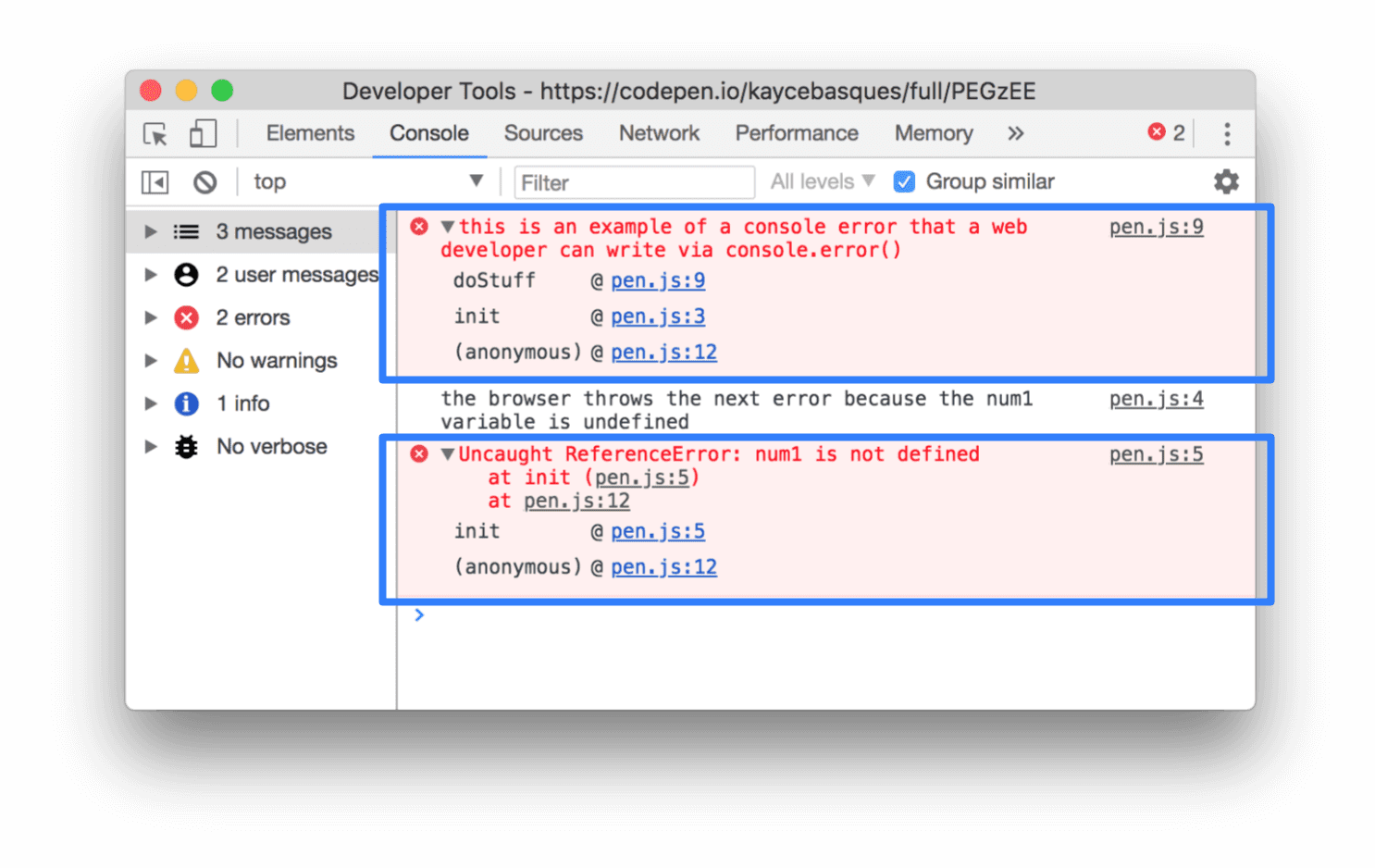
Browser errors were logged to the console
In practice, one user reported encountering object error on a banking site; after clearing cache and updating Chrome, the pop-up vanished, allowing seamless access to account details without further interruptions. Another case involved a government form submission where [object Object] appeared—disabling ad-blocker extensions resolved it instantly, enabling the form to submit successfully. Finally, a developer troubleshooting a custom web app found console logs revealing a script mismatch; fixing the code based on the error details eliminated the issue across multiple browsers, improving site performance for all users.
