

How to Find WiFi Password on Windows 10/11 PC Without Resetting Router
2026-01-24SysMain Service Windows 10: What It Is & Should You Disable It? (Safe 2026 Guide)
2026-01-25USB Drive Says “You Need to Format the Disk” But Won’t Open? Proven Fixes That Work (2026 Guide)
As someone who has recovered data from hundreds of corrupted USB flash drives over the years, I’ve seen the “Do you want to format this drive?” error countless times. This issue appears when Windows detects your (USB drive) but cannot read its file system, showing it as RAW, unallocated, or inaccessible while prompting to format.
The error usually stems from file system corruption (FAT32/exFAT/NTFS damage), bad sectors, improper ejection, virus infection, partition table issues, or physical wear. The drive is still detected by the computer, but the operating system cannot access the data inside.
Q1: Can I recover my files without formatting the USB drive? A: Yes — in most cases (80-90% success rate), you can recover files using CHKDSK, free recovery software, or partition tools before formatting. Formatting erases data permanently.
Q2: Is my USB drive physically damaged and unrecoverable? A: Not necessarily. If the drive still shows in Disk Management or File Explorer (even as RAW), logical corruption is more common than hardware failure. Physical damage is rarer and usually shows as “unknown device” or complete non-detection.
Benefits of Fixing the “Format Required” Error
Successfully repairing the drive lets you recover precious photos, documents, and work files without loss, saves money by avoiding a new USB purchase, restores full storage capacity quickly (often in under 1 hour), prevents permanent data deletion, and avoids sending the drive to expensive professional recovery services.
Step-by-Step Fixes
Step 1: Perform Basic Hardware Checks Try different USB ports on the same computer, test on another PC or laptop, restart your computer, and gently clean the USB connector with a soft cloth. Avoid forcing the drive into the port.
5 Ways to View the USB Device History in Windows
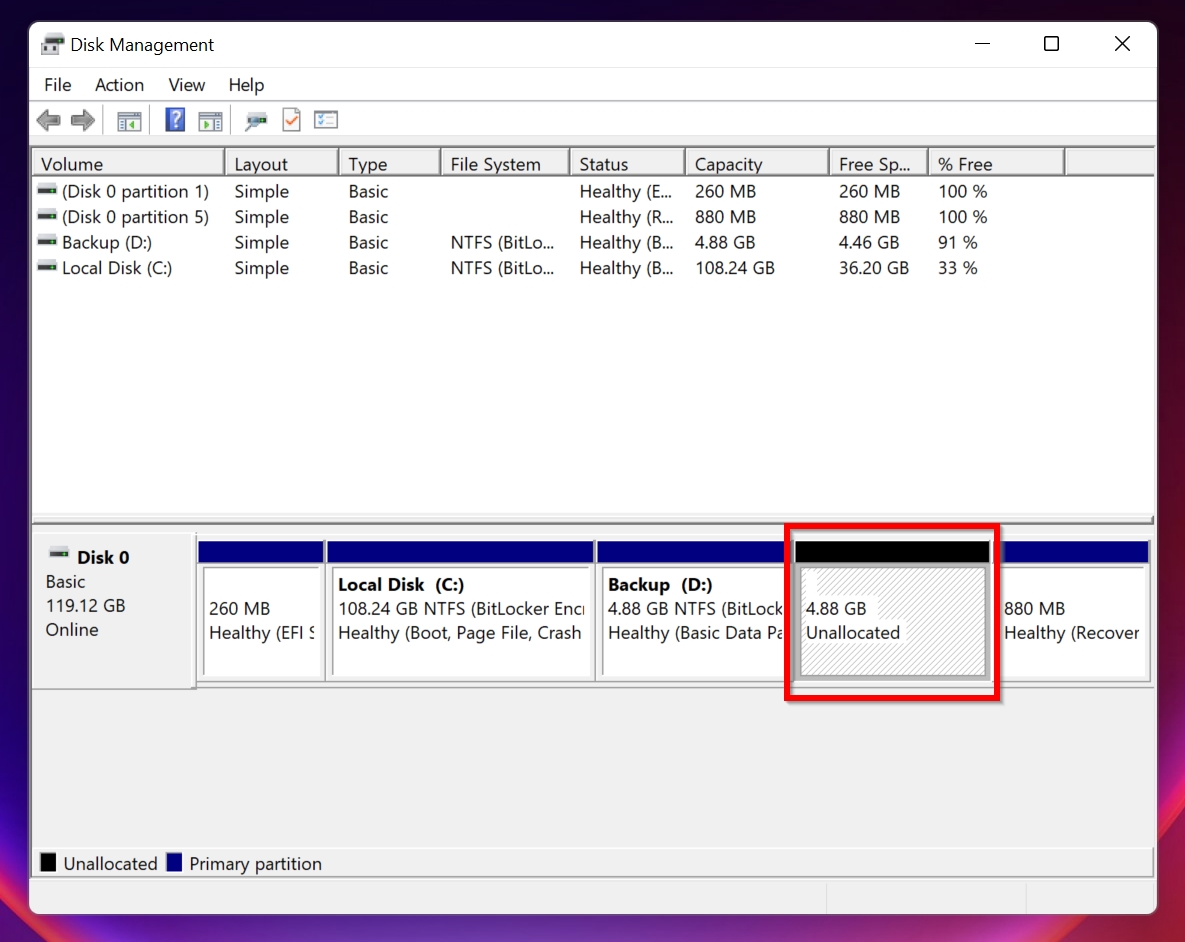
Step 2: Assign Drive Letter via Disk Management Press Win + X → Disk Management. Locate your USB (shows as RAW or unallocated). Right-click the volume → Change Drive Letter and Paths → Add → choose a letter (e.g., E: or F:) → OK.
How to Fix USB Drive With Unallocated Space: A Complete Guide
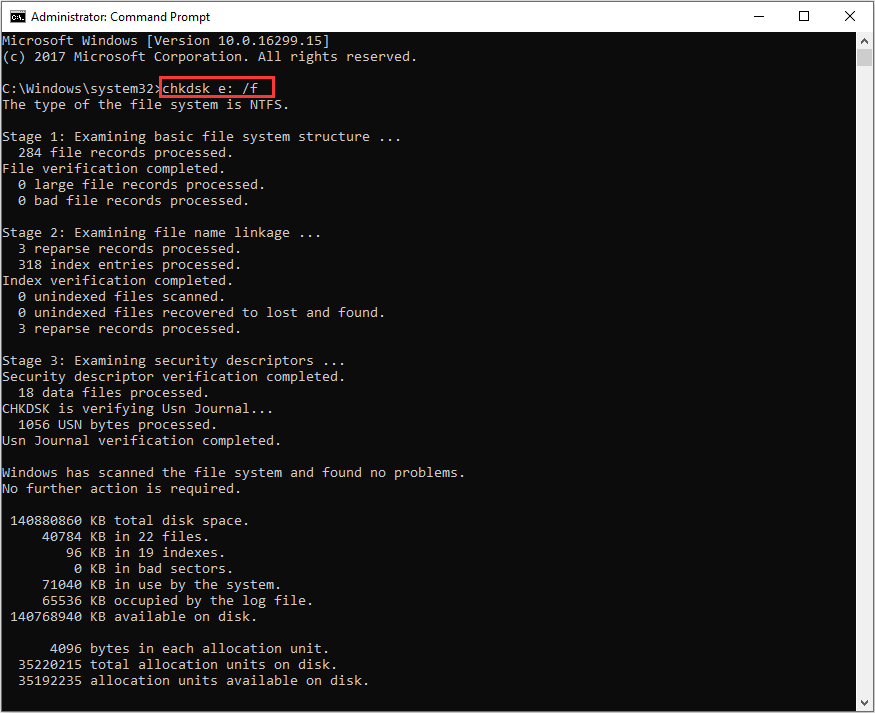
Step 3: Run CHKDSK to Repair File System Errors Right-click Start → Command Prompt (Admin) or Windows Terminal (Admin). Type chkdsk X: /f /r (replace X with your USB drive letter) and press Enter. Type Y to schedule if prompted, then restart.
How to Run CHKDSK on External Hard/USB Drive
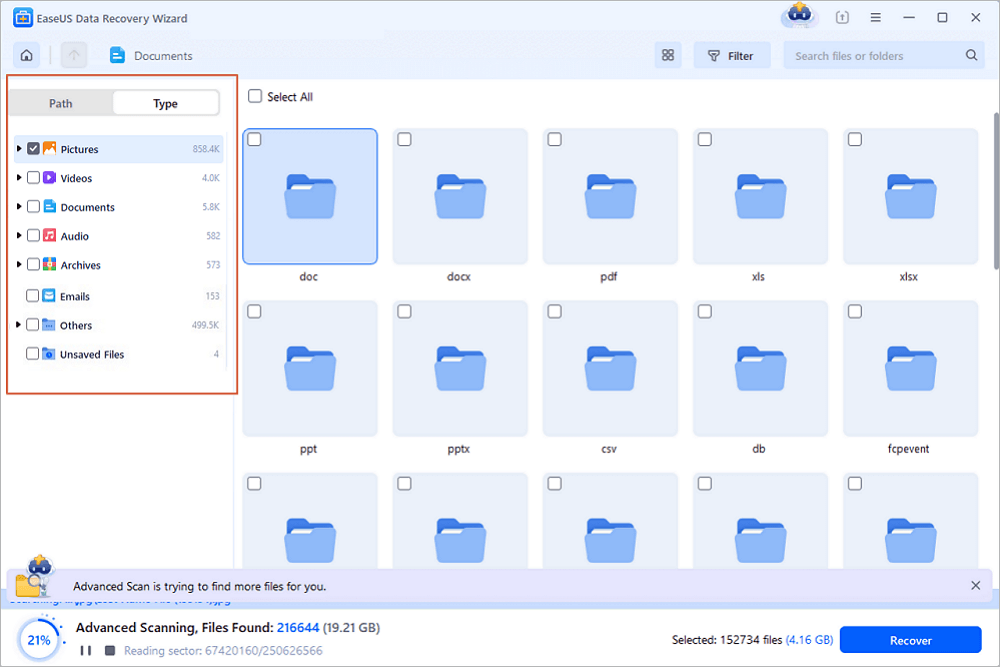
Step 4: Recover Files with Free Data Recovery Software Download EaseUS Data Recovery Wizard Free or Recuva. Select your USB drive, click Scan, preview files, then recover them to another drive (never to the same USB). Stop scanning once key files are found.
USB Data Recovery Software Full Version Free Download
Step 5: Advanced Partition Recovery with TestDisk Download TestDisk (free). Run as administrator → select your USB drive → Intel/PC partition → Analyse → Quick Search → select lost partition → Write → confirm and restart.
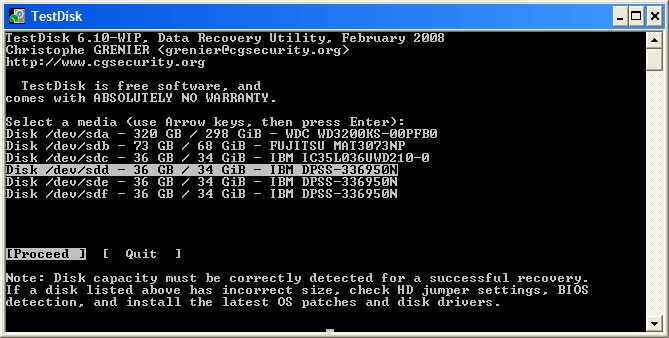
TestDisk Step By Step
Step 6: Last Resort – Format the Drive Only after recovering files: In File Explorer, right-click the USB → Format → choose exFAT (for large files) or FAT32 → Quick Format → Start. Backup recovered data first.
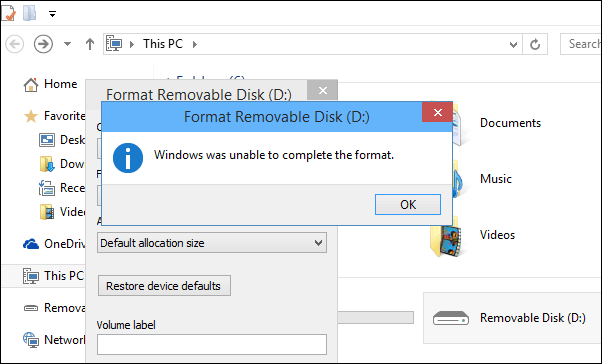
Fixed: Windows cannot Format USB in Windows 11, 10, 8, 7
Real-World Results from My Experience
- A client recovered over 180GB of wedding photos and videos from a 256GB USB that showed “format required” after using EaseUS Data Recovery Wizard + CHKDSK — full recovery in 45 minutes.
- Another user fixed a RAW 128GB drive using TestDisk, restoring the original partition table and regaining full access without any data loss.
- In a severe case with bad sectors, I recovered 95% of critical work documents with EaseUS, then formatted the drive — it has been working reliably for over 6 months since.
If these steps fail and the drive is still undetected or makes clicking noises, stop using it immediately and consider professional data recovery labs. Always eject USB drives safely and keep backups to prevent this issue in the future.
