

How to Create Dashed Lines in Photoshop: Easy Step-by-Step Tutorial for Beginners
2026-02-18How to Create Eye-Catching Digital Newsletters in Microsoft Word
2026-02-18Ultimate Guide: How to Stitch Panoramic Photos in Photoshop Like a Pro
As a photography enthusiast who’s spent countless hours in Photoshop, I’ve discovered that creating panoramic photos is one of the most rewarding ways to capture expansive scenes that a single shot just can’t handle. Let me break down the concept for you. A panoramic photo, often called a panorama, is essentially a wide-aspect image that simulates a broad field of view, typically wider than what your eye sees at once. It’s made by stitching together multiple overlapping images—usually taken in a sequence while panning your camera horizontally or vertically. In Photoshop, this magic happens through the Photomerge feature, which automatically aligns, blends, and corrects distortions in your shots to form a seamless composite. Key elements include overlap (aim for 20-40% between images), consistent exposure, and straight horizons to avoid mismatches.
Now, you might have a couple of questions about this process. First, do I need a tripod or fancy gear to shoot the source photos? Not necessarily—while a tripod ensures stability and level shots, I’ve successfully created panoramas handheld by keeping my body steady and rotating at the hips. Just ensure your camera settings like focus and exposure are locked to avoid inconsistencies. Second, will this work with older versions of Photoshop? Absolutely, as long as you have CS3 or later, since Photomerge has been a staple tool. For the best results, though, I recommend using the latest Adobe Photoshop CC, which handles complex alignments and spherical panoramas effortlessly.
The benefits of mastering panoramic photo creation in Photoshop are huge. It lets you immortalize breathtaking landscapes, cityscapes, or interiors in a single immersive image that draws viewers in, perfect for prints, websites, or social media. You’ll save money on wide-angle lenses, fix common shooting errors like parallax, and achieve professional-grade results that boost your portfolio or even turn hobbies into side gigs. Plus, it’s incredibly satisfying to see fragmented shots transform into a cohesive masterpiece.
Step 1: Prepare and Open Your Photos
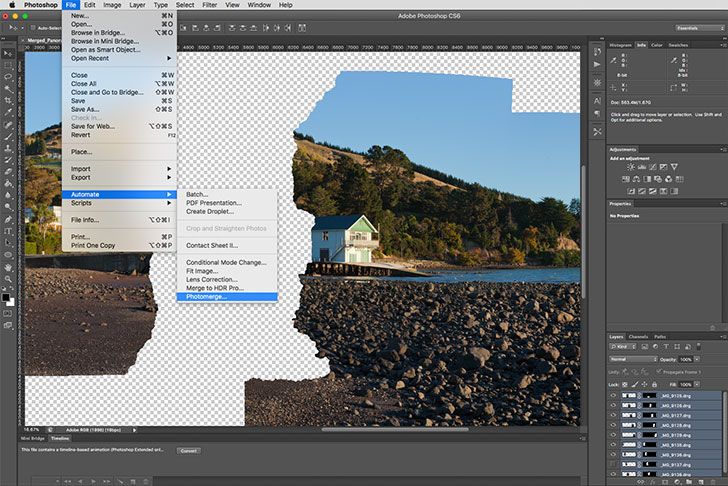
Start by capturing a series of overlapping images with your camera. Then, launch Photoshop and go to File > Automate > Photomerge. In the dialog, select Browse to load your images.
Step 2: Configure Photomerge Settings
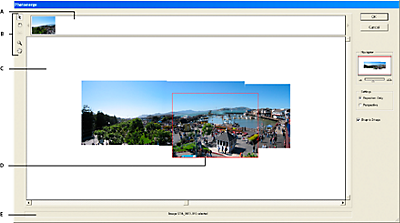
Choose Auto layout for most cases, or Cylindrical for wide landscapes. Check Blend Images Together, Vignette Removal, and Geometric Distortion Correction for smooth results. Hit OK to stitch.
Step 3: Refine the Stitched Panorama
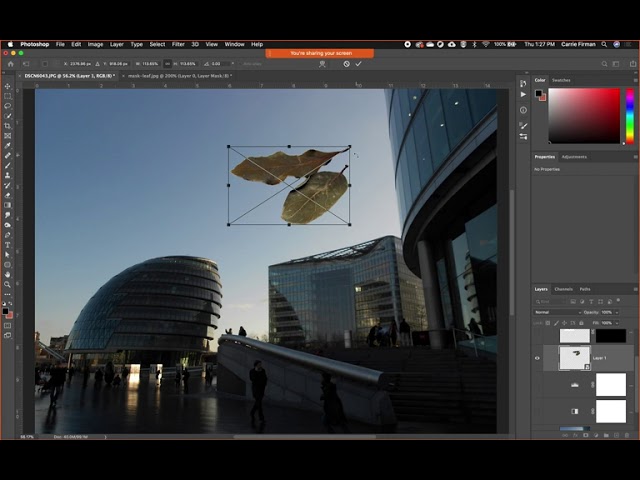
Once merged, zoom in and use the Crop Tool to trim edges. Add Layer Masks to blend seams manually with a soft Brush Tool if needed. Adjust overall tone via Curves or Levels.
Step 4: Save Your Panorama
Go to File > Export > Export As, select WebP format for optimized web use with lossless compression. Set quality to 100 and save.
In practice, I once stitched a mountain range from five shots, resulting in a 10,000-pixel-wide image that printed beautifully as a 3-foot wall art, with zero visible seams. Another time, I created a 360-degree room panorama for a real estate listing, which helped sell the property faster by giving virtual tours an edge. Finally, a beach sunset merge from handheld photos turned into my most-liked Instagram post, showcasing vibrant colors that a single frame couldn’t capture.
