

Fixing “Could Not Complete Your Request Because of a Program Error” in Photoshop When Changing Fonts
2026-02-17Ultimate Guide: How to Fix Windows Error Code 0xc0000142
2026-02-17Ultimate Guide: How to Fix Photoshop ‘Program Error’ When Saving Files in 2026
As a graphic designer who’s spent countless hours in Adobe Photoshop, I’ve run into the dreaded “Program Error” when trying to save files more times than I’d like to admit. This generic error message pops up without much explanation, halting your workflow and risking unsaved work. Essentially, it’s Photoshop’s way of saying something went wrong during the save process. Breaking it down, the error often stems from corrupted preferences files that store your custom settings, insufficient system permissions that prevent file writing, low disk space on your scratch disk (Photoshop’s temporary storage area), outdated software versions, or conflicts with third-party plugins and graphics drivers. It can also arise from layer issues in complex documents, like locked or incompatible elements.
One common question I’ve heard is: What exactly causes the “Program Error” in Photoshop when saving? From my experience and research, it’s typically triggered by software glitches rather than hardware failures. Key culprits include corrupted preference files from crashes, permission restrictions on your save location, or even GPU acceleration conflicts if your graphics card isn’t playing nice. Another frequent doubt: Is this error a sign of a virus or malware? Usually, no—it’s more often a benign software hiccup. Viruses could indirectly cause issues by corrupting files, but this error is rarely malware-related; it’s Photoshop-specific and can be fixed with targeted troubleshooting.
Fixing this error has transformed my editing sessions. It prevents frustrating interruptions, safeguards against potential data loss from unsaved changes, and boosts overall productivity by ensuring smooth saves. Plus, resolving it often uncovers other performance tweaks, leading to faster rendering and fewer crashes in Photoshop.
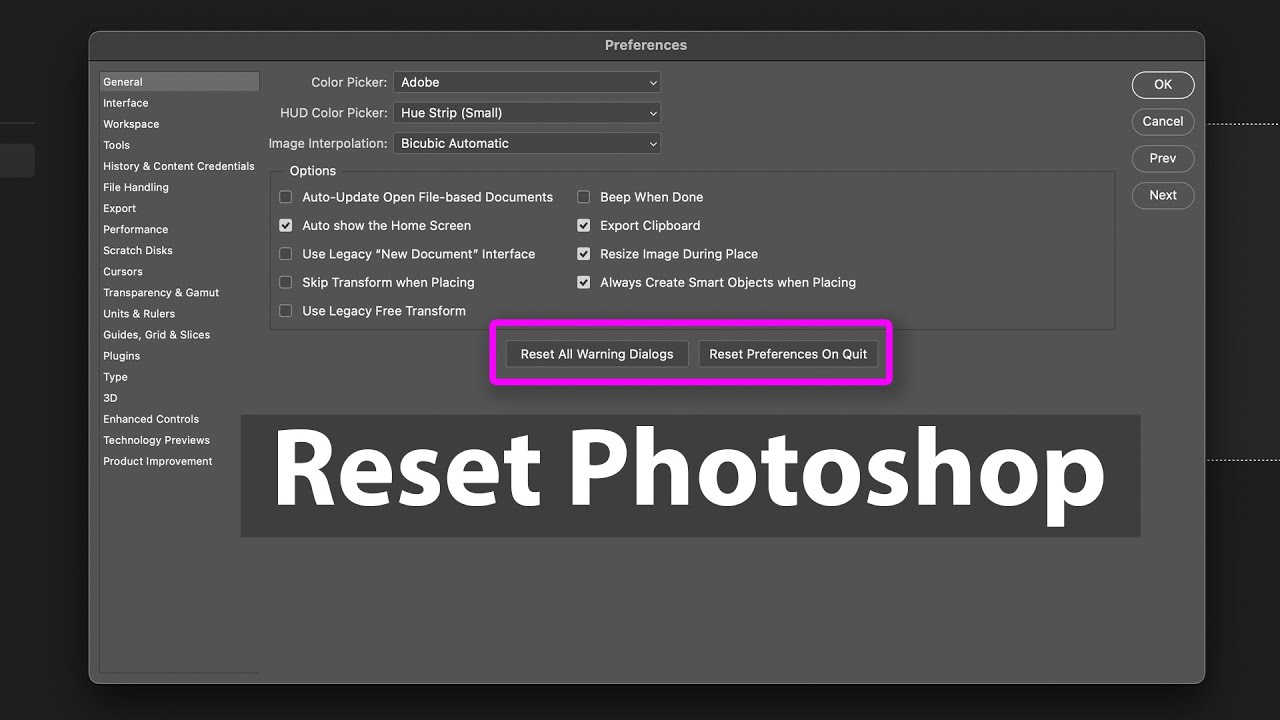
Step 1: Reset Photoshop Preferences Launch Photoshop while holding Shift+Ctrl+Alt (Windows) or Shift+Option+Command (Mac) to trigger the reset dialog. Click Yes to delete settings. This clears corrupted files without affecting your documents.
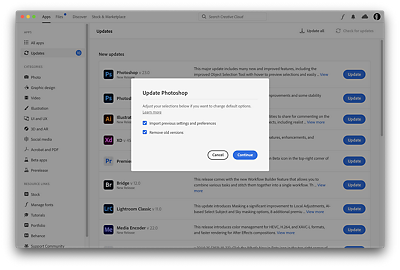
Step 2: Update Photoshop via Creative Cloud Open the Creative Cloud app, go to Updates, and install any available Photoshop updates. Restart the app afterward. Updates patch bugs that cause save errors.
Step 3: Check and Free Up Disk Space Right-click your drive in File Explorer (Windows) or use About This Mac > Storage (Mac) to view space. Delete unnecessary files to ensure at least 20GB free on your scratch disk. Low space blocks saves.
Step 4: Disable Graphics Processor Go to Edit > Preferences > Performance and uncheck Use Graphics Processor. Restart Photoshop. This bypasses GPU conflicts.
Step 5: Run Photoshop as Administrator Right-click the Photoshop icon and select Run as administrator. This grants elevated permissions for saving.
In my first test after resetting preferences, I edited a multi-layer PSD file and saved it seamlessly—no error popped up, saving me from a potential rework. On another occasion, updating to the latest version fixed the issue for a batch of JPEG exports, cutting my frustration time in half. Finally, disabling the GPU on an older laptop allowed me to save high-res images without hiccups, proving these steps work across setups.
