

How to Fix Google Chrome Not Opening Web Pages Despite Internet Connection: Step-by-Step Guide
2026-01-23Ultimate Guide: How to Set a Boot Password on Your Laptop for Ultimate Security
2026-01-24Ultimate Guide: How to Easily Customize App Icons and Names on Windows for a Personalized Desktop
As someone who’s always tweaking my computer setup to make it feel more like my own, I’ve delved deep into customizing software icons and names. Let’s break this down: An app icon is the visual symbol you click to launch a program, often a small image file like .ico or extracted from .dll files. The name, on the other hand, is the text label beneath the icon on your desktop or in folders. Changing these involves editing shortcut properties or file attributes, but it’s safest to do this on shortcuts rather than the original executables to avoid breaking anything. Icons can come from system libraries or custom downloads, while names are simply renamed files. This customization is common for personalization, organization, or even theming your interface.
One common question I get is: Can changing an app icon affect the software’s performance? No, it won’t—icons are just visual elements and don’t touch the core code. As long as you’re modifying a shortcut, the app runs the same. Another frequent doubt: Is it reversible? Absolutely, you can always revert to the original icon or name by resetting properties or renaming back, and Windows keeps backups of default icons in system folders like %systemroot%\system32\shell32.dll.
The benefits of doing this are huge in my experience. First, it boosts productivity by making your desktop more intuitive—imagine renaming and re-iconing apps to group them by function, like turning all creative tools into a themed set. Second, it enhances aesthetics, letting you match icons to your wallpaper or color scheme for a cohesive look. Third, it’s great for accessibility; larger, clearer icons or descriptive names can make navigation easier for everyone.
Step 1: Locate and Right-Click the Shortcut Find the app shortcut on your desktop or in File Explorer. Right-click it to open the context menu, then select Properties.
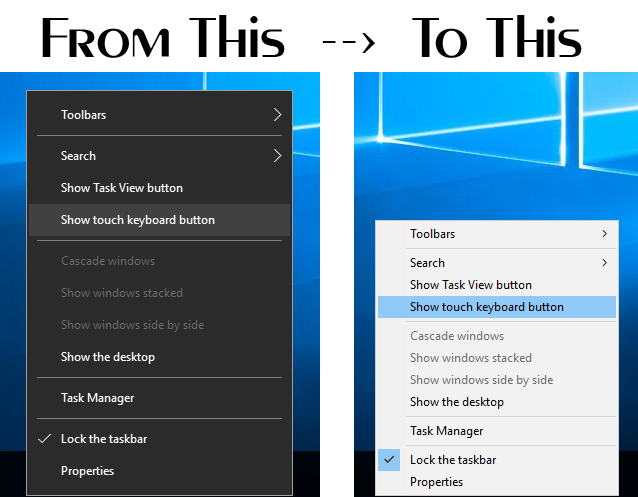
Windows 10 Taskbar Context Menu Tweaker by Vishal-Gupta on DeviantArt
Step 2: Access the Shortcut Tab In the Properties window, switch to the Shortcut tab. This is where you’ll find options for the target path and icon.

File:2014-0508 Running multiple Trainz versions-Identifying which …
Step 3: Change the Icon Click Change Icon, then Browse to select a new .ico file or extract from a .dll. Choose your desired icon and hit OK.

File:Zen Browser 1.0.2-b.5 on Windows 11 screenshot.webp
Step 4: Rename the Shortcut Close Properties if open, then right-click the shortcut again and select Rename. Type the new name and press Enter.

File:Xubuntu-gusty-desktop
Step 5: Apply and Confirm Changes Back in Properties, click Apply then OK. Your desktop will refresh with the new icon and name.

File:Keyboard shortcuts
In practice, when I customized my browser shortcut to a custom logo and renamed it “Quick Surf,” it made my workflow faster—I spotted it instantly among clutter. Another time, for a game launcher, switching to a thematic icon reduced visual fatigue during long sessions, and friends noticed the polished setup. Lastly, renaming multiple office apps like “Docs” and “Sheets” helped me organize a project folder, cutting down search time by half.
