

Master Image Cutouts with Color Range and Channels for Flawless Results
2026-03-02Ultimate Guide: How to Customize File and Folder Icons in Windows 11 and 10
Tired of staring at the same boring default icons on your Windows desktop every day? If you’ve already switched themes or fonts, why not take personalization further by changing file and folder icons to match your style or improve organization?
Customizing icons in Windows 11 and 10 offers several benefits: it enhances visual appeal, makes navigation quicker by using distinctive icons for frequently used items, improves productivity through better organization, allows for thematic consistency across your setup, and gives you full control over your digital workspace without needing third-party software.
Before diving into the steps, gather custom icons. Download free ones from reliable sites like Flaticon, which offers millions of vector icons in ICO format, or Noun Project for high-quality, editable icons. Other great options include Lucide for minimal UI icons and Phosphor Icons for flexible weights.
To create your own icons, use free tools like GIMP or Paint.net. Open an image, resize to 256×256 pixels, and export as ICO. Online converters like Convertio can turn PNGs into ICO files quickly.
Note: Icons should be in ICO, DLL, or EXE format for best compatibility. In Windows 11, some steps may vary slightly from Windows 10, but both are covered.
1. Change Desktop Icons
Right-click an empty spot on the desktop and select Personalize.
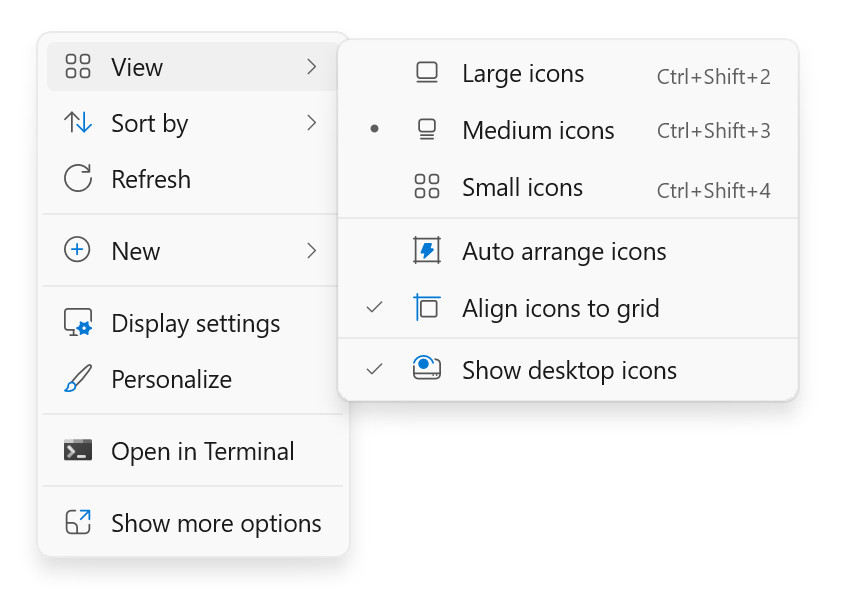
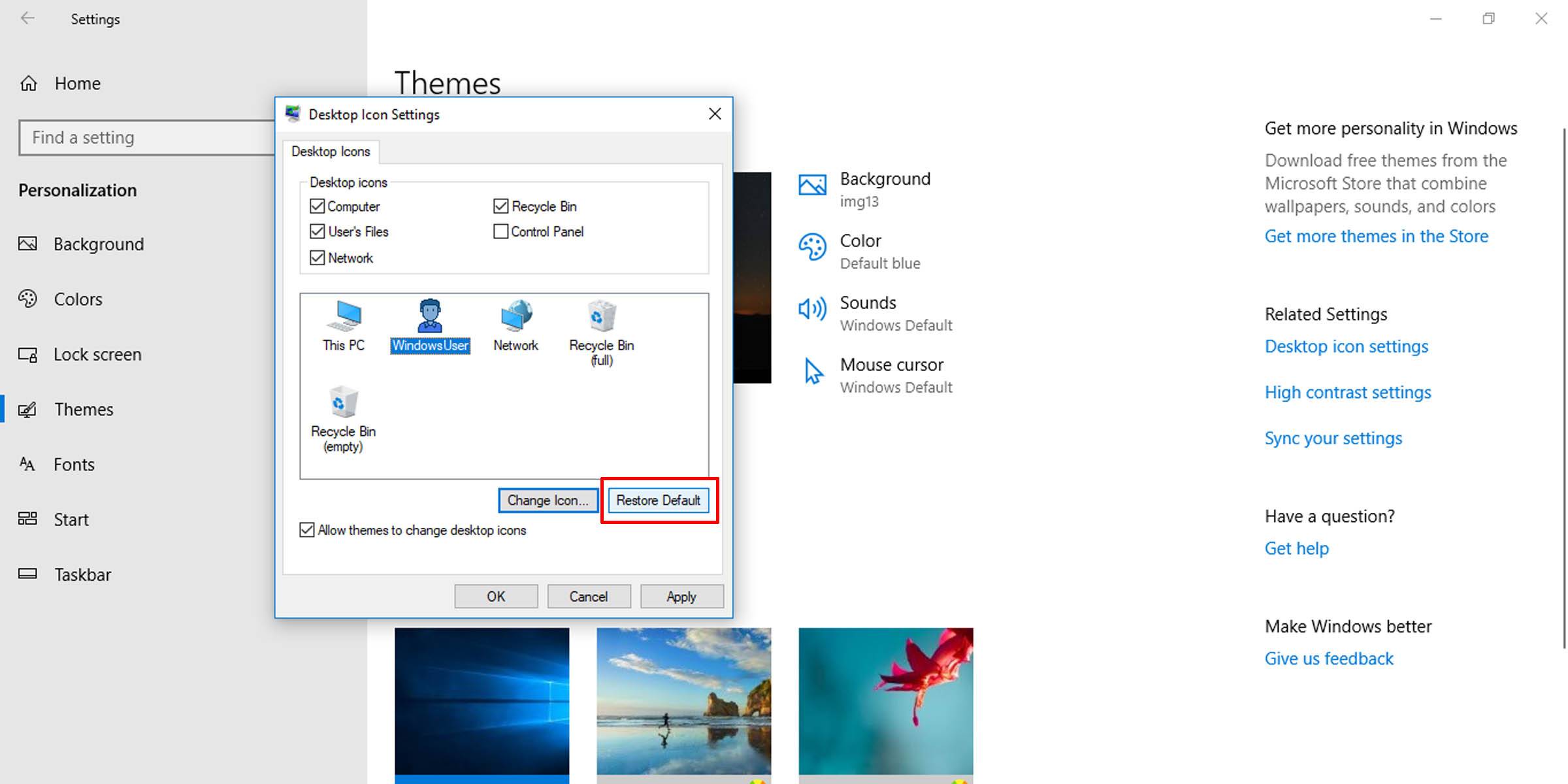
Go to Themes > Desktop icon settings.
Select the icon (e.g., This PC or Recycle Bin).
Click Change Icon.
Browse and select your custom ICO file.
Click OK and Apply.
Repeat for other system icons.
Refresh the desktop if needed.
2. Change Shortcut Icons
Right-click the shortcut and select Properties.
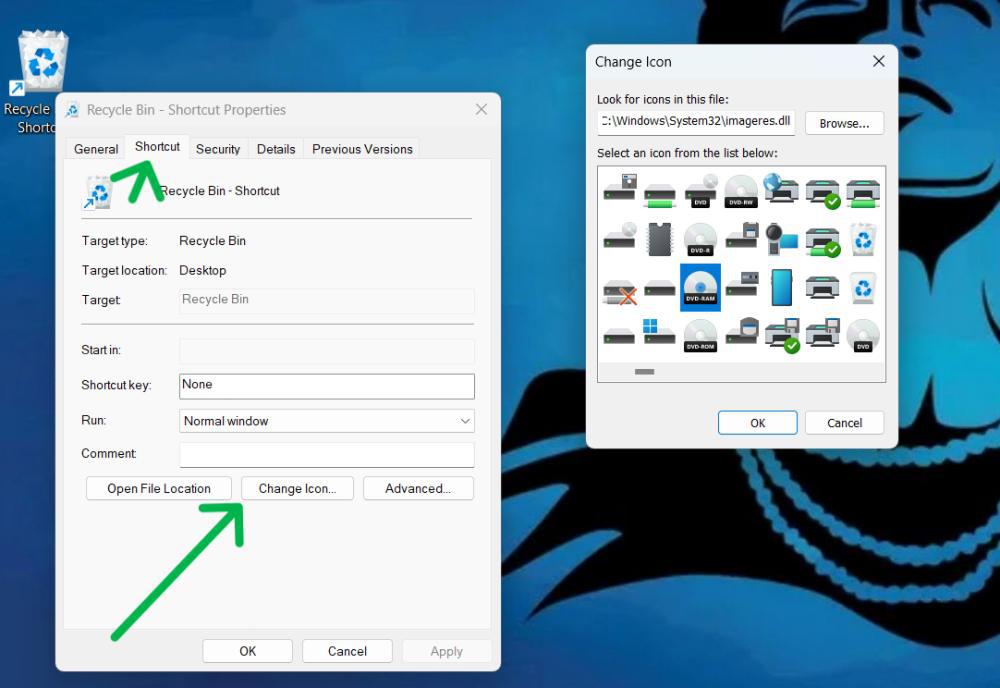
Go to the Shortcut tab.
Click Change Icon.
Browse for your custom icon.
Click OK and Apply.
3. Change Taskbar Icons
For pinned apps, close the program first.
Right-click the taskbar icon and select Unpin from taskbar.
:max_bytes(150000):strip_icc()/AA-CustomizeYourWindows11Taskbar-annotated-f9c636d075be4f609337f409576fdd35.jpg "Ultimate Guide: How to Customize File and Folder Icons in Windows 11 and 10 3")
Change the shortcut icon as above.
Repin the updated shortcut to the taskbar.
Note: Only pinned items can be customized this way; running apps revert to defaults.
4. Change Folder Icons
Right-click the folder and select Properties.
:max_bytes(150000):strip_icc()/Rectangle14-89b4023640b24373bae5666653d5e908.jpg "Ultimate Guide: How to Customize File and Folder Icons in Windows 11 and 10 4")
Go to the Customize tab.
Click Change Icon.
Select your custom ICO.
Click OK and Apply.
5. Change File Icons (Specific Types)
Press Win + R, type regedit, and hit Enter.
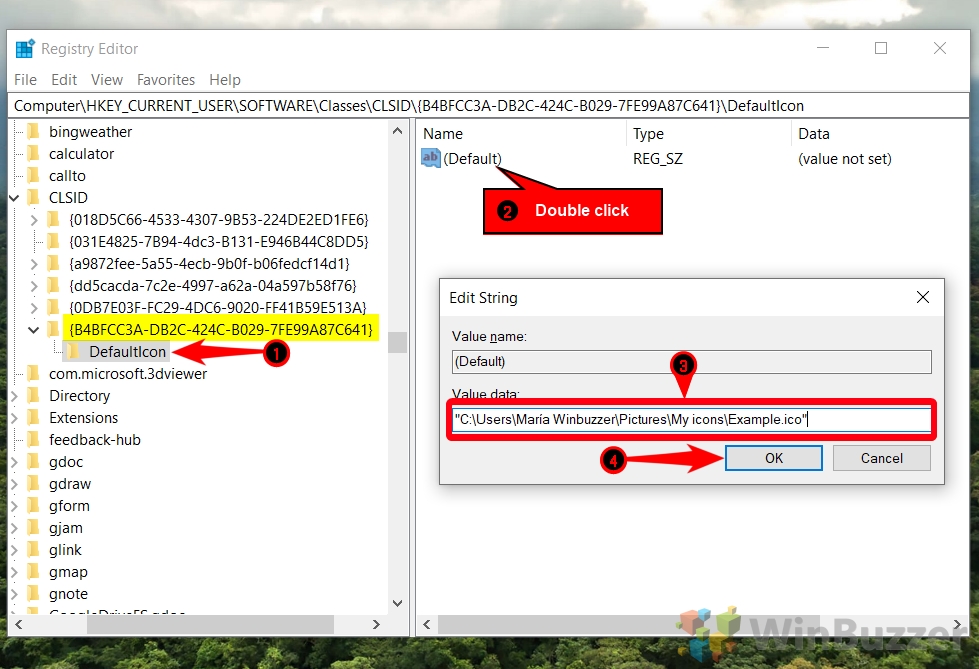
Navigate to HKEY_CLASSES_ROOT\extension\DefaultIcon (e.g., .txt for text files).
Double-click (Default).
Enter the path to your ICO file.
Click OK and restart Explorer.
Caution: Back up the registry first to avoid issues.
6. Change Drive Icons
Create an autorun.inf file in Notepad.
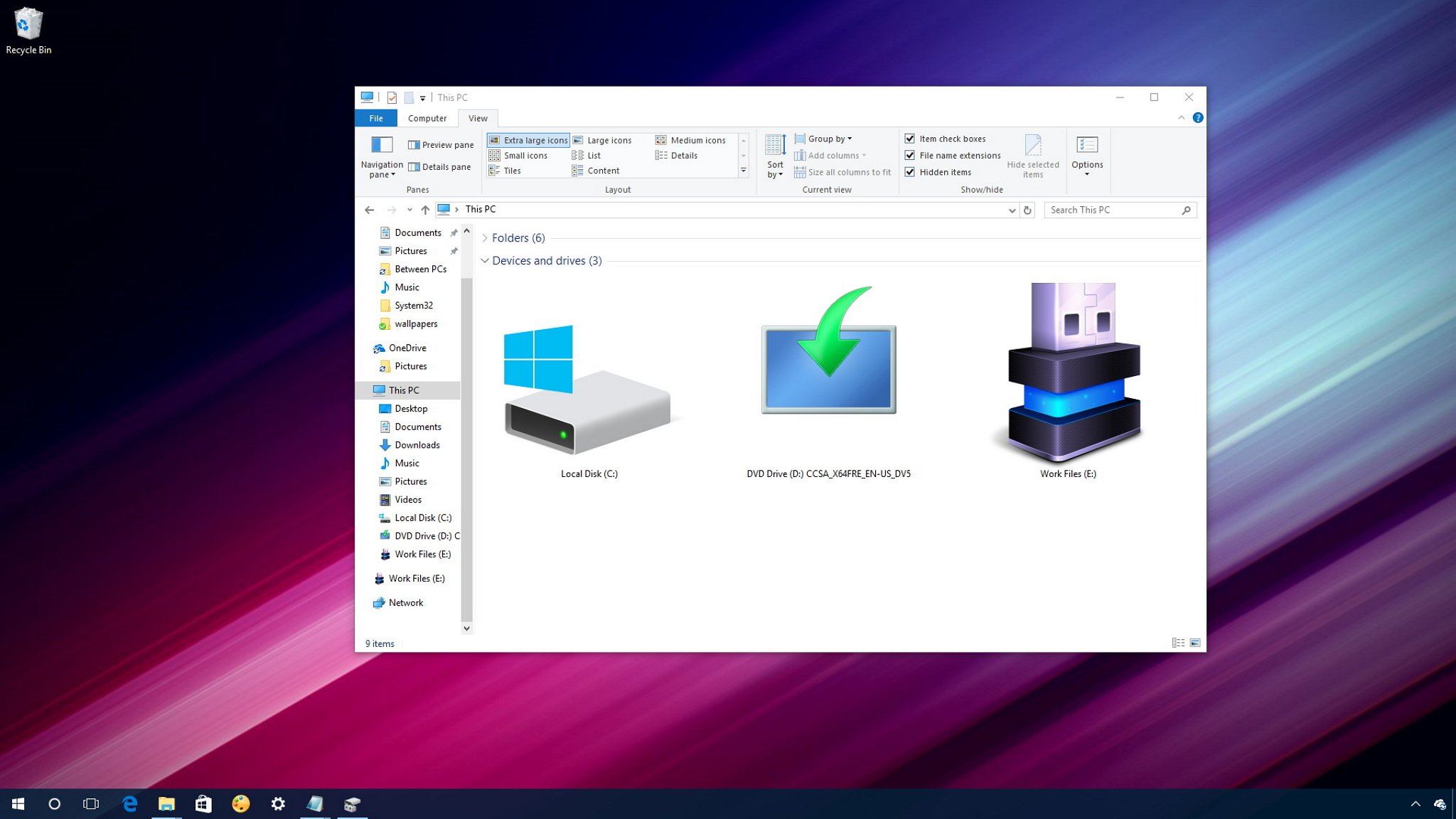
Add: [autorun] ICON=youricon.ico.
Save it to the drive’s root.
Copy your ICO file there too.
Safely eject and reinsert the drive.
Note: This works for removable drives; internal drives may require registry edits.
To restore any default icon, go back to the respective settings and click Restore Default.
For broader customization, explore File Explorer themes or third-party tools like IconPackager, but stick to built-in methods for safety.
With these steps, your Windows 11 or 10 setup will feel fresh and tailored to you. Experiment and enjoy the personalized touch!
