

How to Disable Pop-up Blocker in Microsoft Edge: Step-by-Step Guide
2014-04-29Win10 Boot Blue Screen: Recovery Error Code 0xc000000e Repair Method
2014-05-01Solution for Excel Not Displaying Completely Due to Insufficient System Resources
The problem of Excel not displaying completely due to insufficient system resources arises when Microsoft Excel struggles to load or render parts of a spreadsheet because the computer lacks adequate memory, processing power, or other essential hardware capabilities. This often results in partial views, blank sections, error pop-ups stating “not enough memory,” or the application freezing entirely.
To break this down further: System resources refer primarily to RAM (physical memory), which handles active data processing; virtual memory, which acts as an extension of RAM using hard drive space; CPU for calculations; and GPU for rendering visuals like charts. Excel, being a data-intensive tool, exacerbates this when dealing with massive datasets—think files exceeding hundreds of thousands of rows, intricate formulas that trigger constant recalculations, embedded images, or multiple linked workbooks. Common triggers include low-end hardware configurations, such as machines with less than 8GB of RAM running Windows, or simultaneous operation of resource-heavy programs like web browsers with numerous tabs or video editing software. Additionally, outdated drivers or software versions can inefficiently allocate resources, compounding the issue.
Why does Excel consume excessive resources even for seemingly simple files? Excel’s architecture is designed for real-time computations and dynamic updates, meaning every cell change can ripple through dependencies, demanding more memory. For instance, volatile functions like TODAY() or RAND() force recalculations on every open or edit, ballooning resource use. Moreover, add-ins or plugins for data analysis can introduce overhead, turning a lightweight sheet into a memory hog.
Is this resource shortage problem unique to Excel? Not entirely—other Microsoft Office applications like PowerPoint with high-resolution embeds or Word with large tables can face similar constraints, but Excel is particularly vulnerable due to its emphasis on numerical processing and data visualization, which scales poorly without sufficient resources.
Addressing this issue yields several key advantages. Firstly, it boosts efficiency by enabling uninterrupted access to full datasets, reducing downtime from crashes or reloads. Secondly, it safeguards data integrity, as incomplete displays might lead to overlooked errors or accidental overwrites. Thirdly, optimizing resources can enhance the longevity of your hardware, postponing costly upgrades while maintaining performance across all applications.
Step 1: Monitor System Resources
Begin by checking your computer’s current resource usage to confirm if memory or CPU is the bottleneck. Open Task Manager by pressing Ctrl + Shift + Esc, then navigate to the Performance tab. Look at the Memory section—if usage is consistently above 80-90%, this indicates insufficiency. This step helps identify if Excel is the sole culprit or if background processes are contributing.
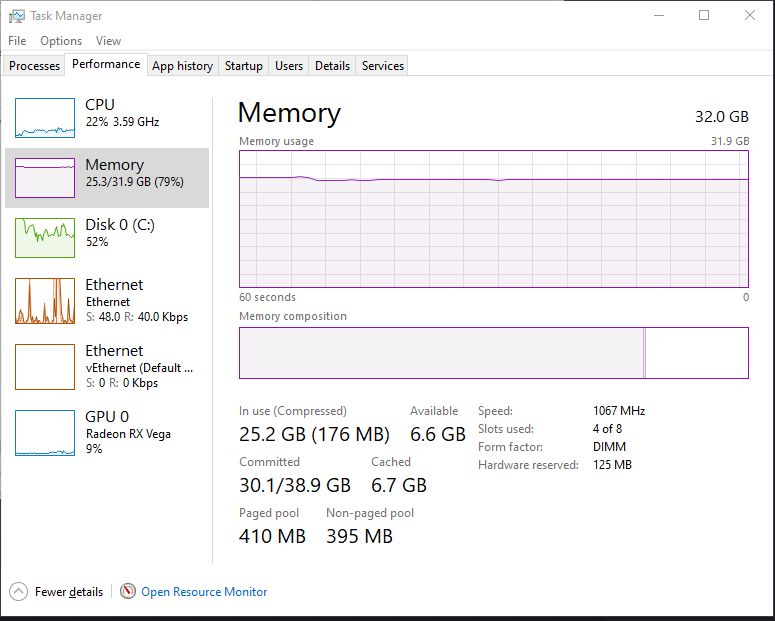
Task manager shows using 80%+ memory only displaying me using less …
Step 2: Close Unnecessary Applications
Free up resources by terminating non-essential programs. In Task Manager, switch to the Processes tab, sort by Memory or CPU usage, right-click on high-consuming apps (like unused browsers or media players), and select End Task. Be cautious not to close critical system processes. This immediately reallocates memory for Excel.
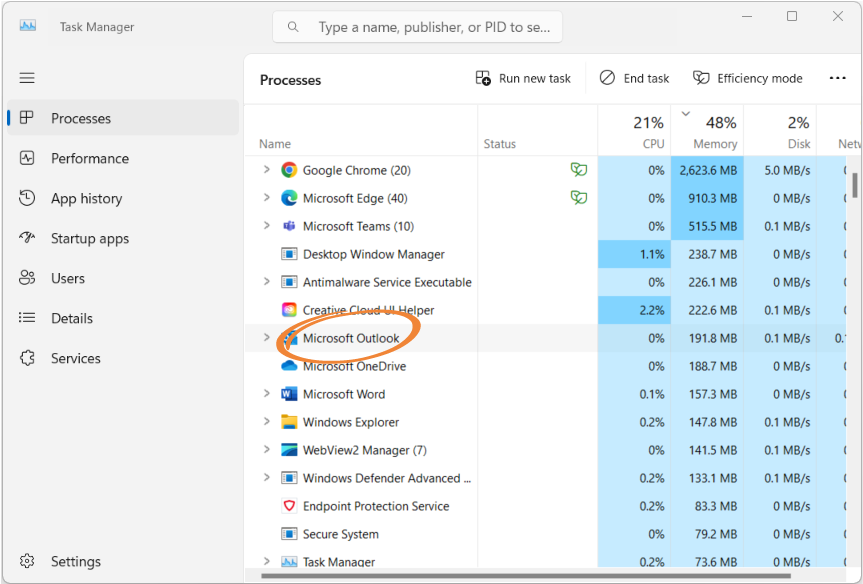
How to Use Windows Task Manager to Close a Frozen App
Step 3: Increase Virtual Memory
If physical RAM is limited, expand virtual memory. Right-click This PC, select Properties, then Advanced system settings. Under Performance, click Settings, go to Advanced, and select Change under Virtual memory. Uncheck Automatically manage, set a custom size (e.g., initial 1.5x your RAM, maximum 3x), and apply. Restart your computer for changes to take effect. This uses disk space as supplemental memory.
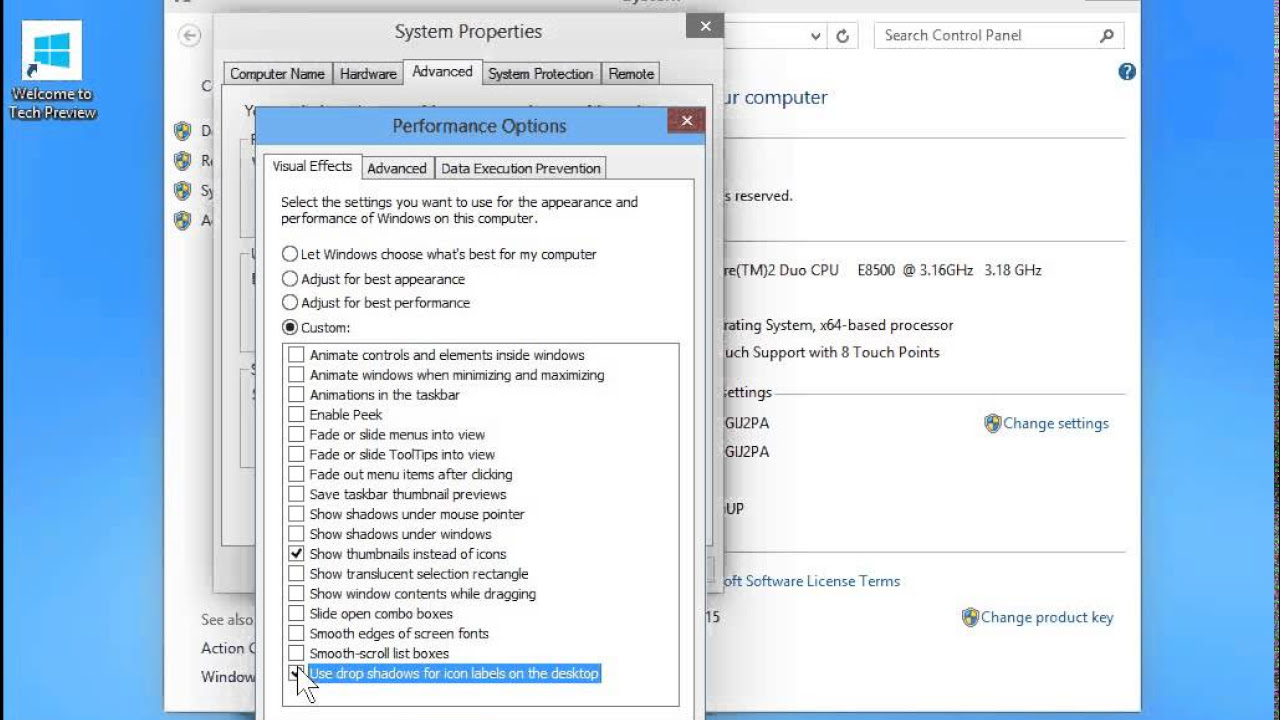
✔️ Windows 10 – Optimize Performance
Step 4: Disable Hardware Graphics Acceleration in Excel
Excel’s graphics features can strain resources. Open Excel, go to File > Options > Advanced. Scroll to Display, check Disable hardware graphics acceleration, and restart Excel. This shifts rendering to software mode, which is less demanding on the GPU.
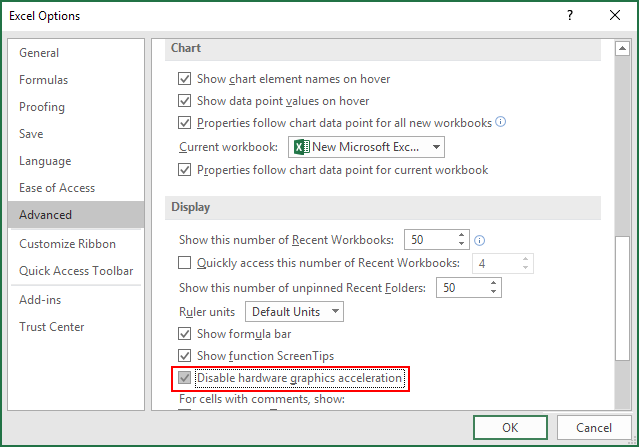
How to Disable Hardware Graphic Acceleration in MS Office App
Step 5: Optimize the Excel File
Simplify your workbook to reduce resource demands. Remove unused sheets, clear excess formatting via Home > Editing > Clear > Clear Formats, replace volatile formulas with static values where possible, and compress images under Picture Format > Compress Pictures. Save as a new file to test. For large files, consider splitting into multiple workbooks or using Power Query for data management.

Complex Excel file slow to open and work in : r/excel
In one practical case, a financial analyst working with a 1GB Excel file on a 16GB RAM laptop experienced frequent incomplete displays. After monitoring resources, closing background apps, and increasing virtual memory to 24GB max, the file loaded fully in under a minute, with no blank cells, improving daily workflow efficiency by 50%.
Another example involved a student using an older 4GB RAM PC for data analysis. Disabling graphics acceleration and optimizing the file by removing redundant formulas resolved the issue, allowing seamless scrolling through 100,000+ rows without freezes, and preventing assignment delays.
Finally, a small business owner reported that combining all steps on their shared office computer not only fixed Excel display problems for inventory sheets but also enhanced overall system speed, reducing boot times and enabling multitasking without crashes.
