

How to Add a Realistic Beard to a Handsome Man in Photoshop
2026-01-31Unlock Sparkling Eyes: How to Brighten Eyes in Photoshop Like a Pro
2026-02-02Mastering the Pen Tool in Photoshop: Essential Tips for Creating Perfect Paths
As a longtime Photoshop user, I’ve found the Pen Tool to be an indispensable asset for crafting precise, scalable designs. Let’s break down the core concept: the Pen Tool creates vector paths, which are essentially mathematical outlines defined by anchor points and connecting segments. Unlike pixel-based tools, these paths remain sharp at any size. Key elements include anchor points (the dots where segments meet, either corner for sharp turns or smooth for curves), direction handles (adjustable arms that control curve bends), and segments (straight or curved lines between points). This setup allows for intricate selections and shapes, making it ideal for everything from photo editing to graphic design.
One common question I get is: What’s the difference between a path and a shape in Photoshop? Paths are open or closed outlines without fill or stroke by default, serving as blueprints for selections or masks. Shapes, however, are paths turned into vector layers with automatic fill and stroke options, appearing directly in the Layers panel for easy editing. Another frequent query: How do I convert a path to a selection? Simply go to the Paths panel, right-click your work path, and select Make Selection—adjust the feather radius if needed for softer edges.
Mastering these techniques offers huge advantages. First, you achieve pixel-perfect precision for complex cutouts, far surpassing tools like the Lasso. Paths are also non-destructive, letting you tweak them anytime without altering the original image. Plus, as vectors, they’re resolution-independent, perfect for print or web scaling. Finally, they streamline workflows in graphic design, enabling quick creation of logos, icons, or custom brushes.
Step 1: Select the Pen Tool
Launch Photoshop and open your image. Press P on your keyboard or click the pen icon in the toolbar to activate it. Ensure the mode is set to Path in the options bar for creating editable paths.
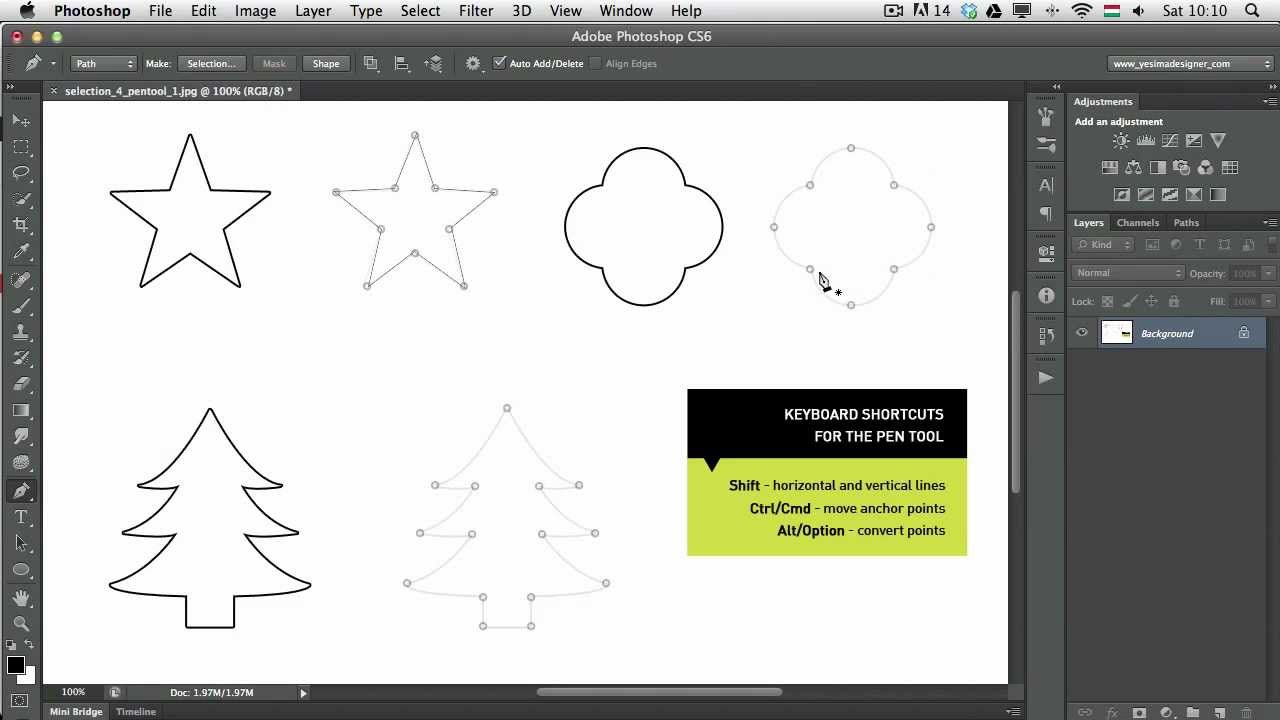
Hidden Features of the Pen Tool
Step 2: Create Straight Segments
Zoom in for accuracy (Ctrl/Cmd + +). Click to place your first anchor point, then click again elsewhere to form a straight segment. Hold Shift for perfectly horizontal or vertical lines.
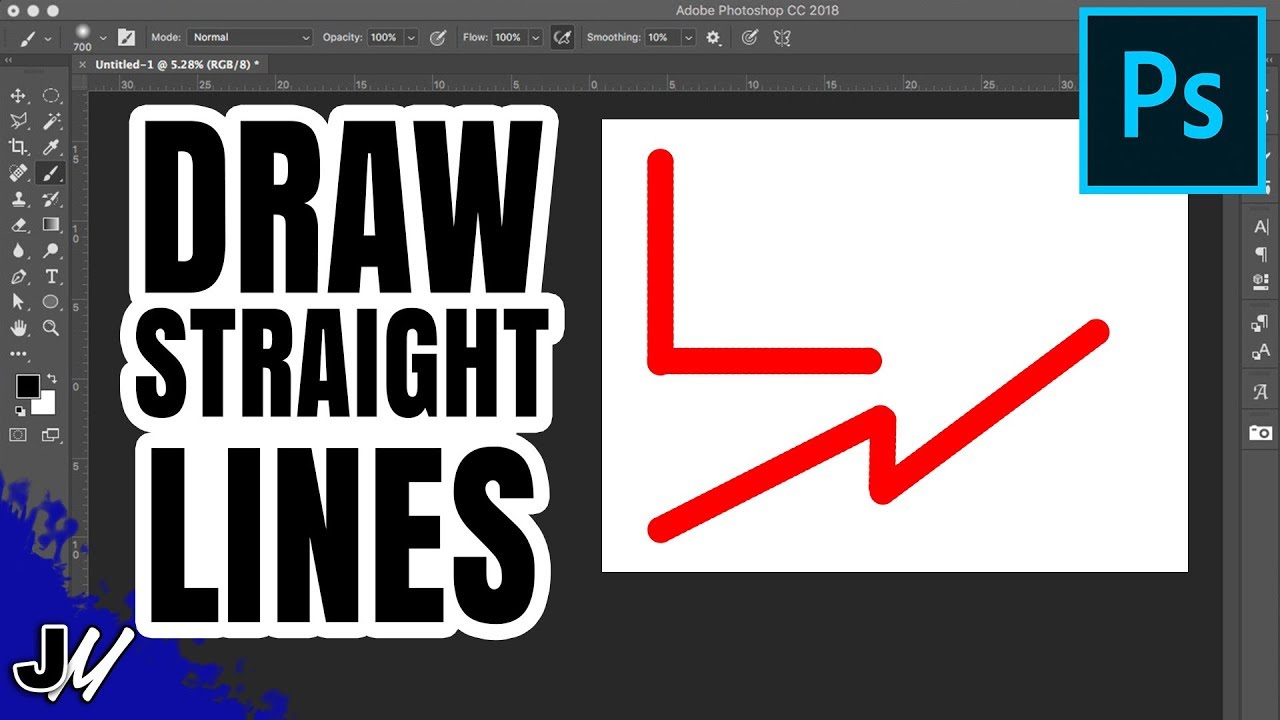
How To Draw Straight Lines In Photoshop
Step 3: Add Curved Segments
For curves, click and drag from an anchor point to extend direction handles. Release, move to the next spot, and drag again in the opposite direction for smooth flow. Practice on simple shapes first.
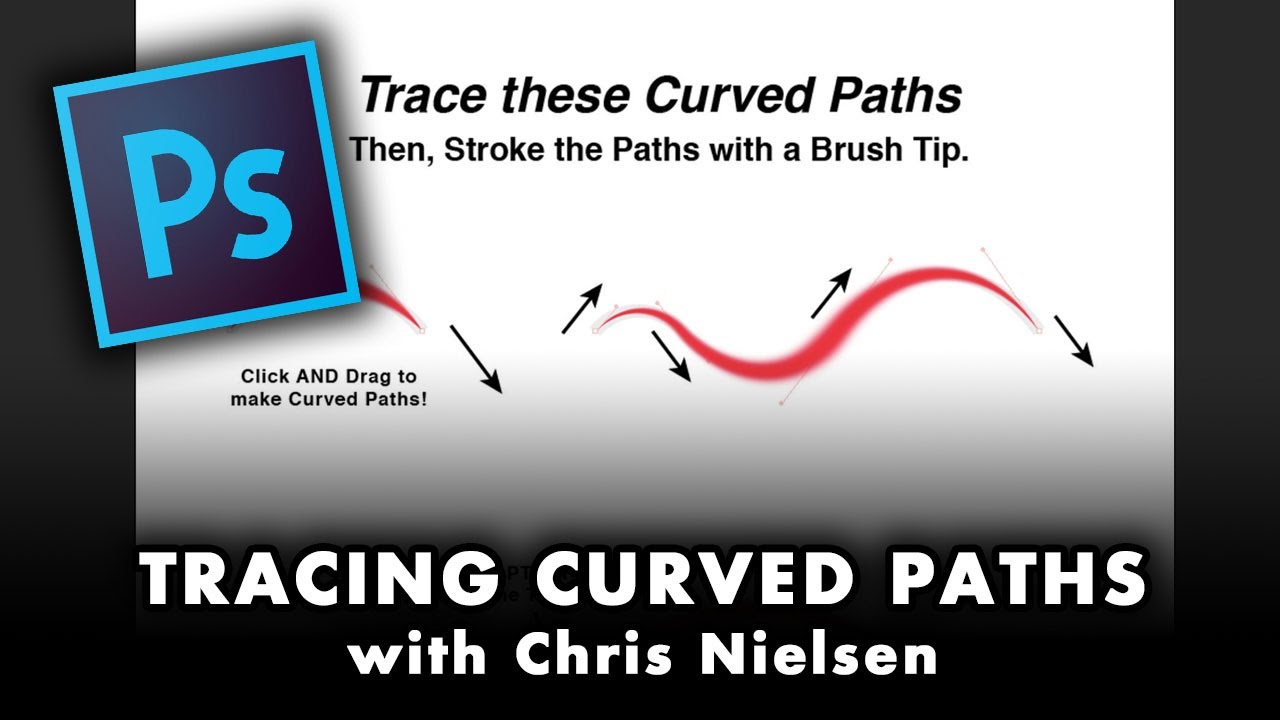
Drawing CURVED PATHS with the Photoshop PEN TOOL
Step 4: Adjust and Refine Points
Switch to the Direct Selection Tool (A) to tweak. Click an anchor to select it, then drag handles for curve adjustments or drag the point to reposition. Use Add Anchor Point Tool (under Pen flyout) to insert extras.
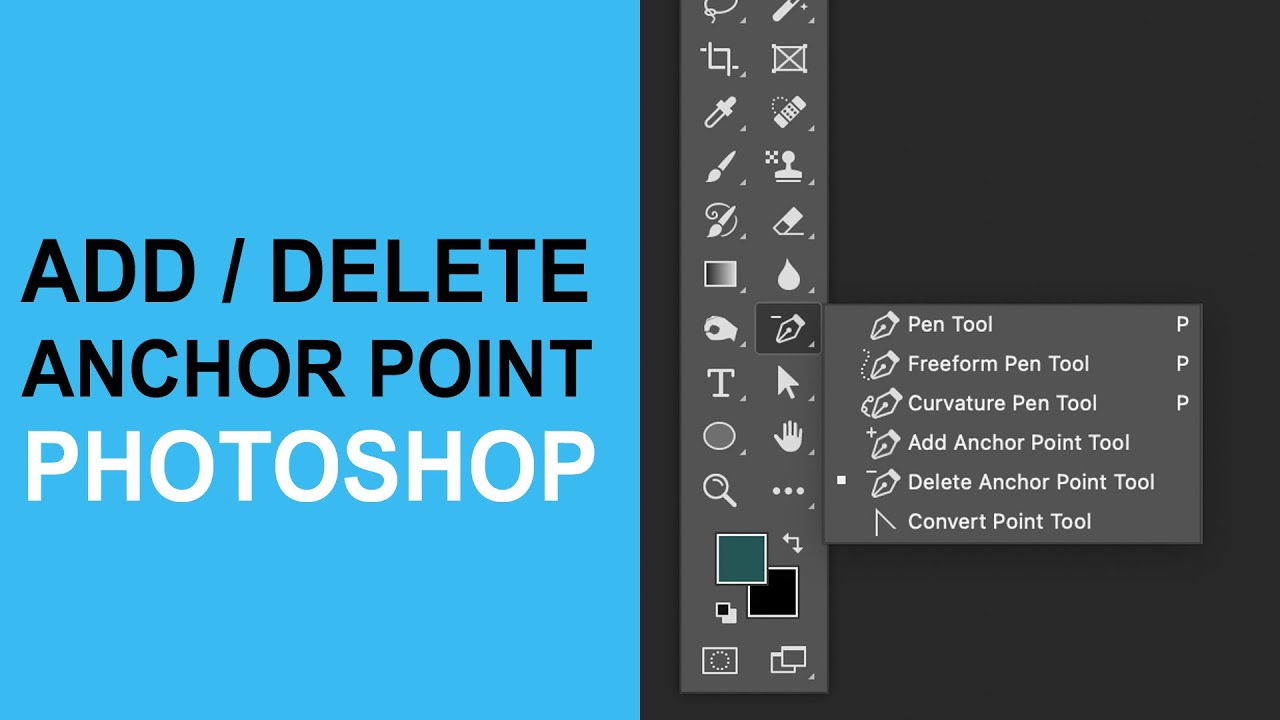
How To Add Anchor Point / Delete Tool in Photoshop Tutorial
Step 5: Close the Path
To finish a closed shape, hover over the starting anchor until a small circle appears next to the cursor, then click to connect. If needed, Esc cancels the current path.
![Paths & the Pen tool in Adobe Photoshop Ep17/33 [Adobe Photoshop for Beginners]](https://pcwebsoft.com/wp-content/uploads/2026/02/4_maxresdefault.jpg "Mastering the Pen Tool in Photoshop: Essential Tips for Creating Perfect Paths 5")
Paths & the Pen tool in Adobe Photoshop Ep17/33 [Adobe Photoshop for Beginners]
Step 6: Convert Path to Selection or Shape
In the Paths panel (Window > Paths), right-click your path and choose Make Selection for masking, or Fill Path for shapes. For vectors, select Shape mode initially in the options bar.
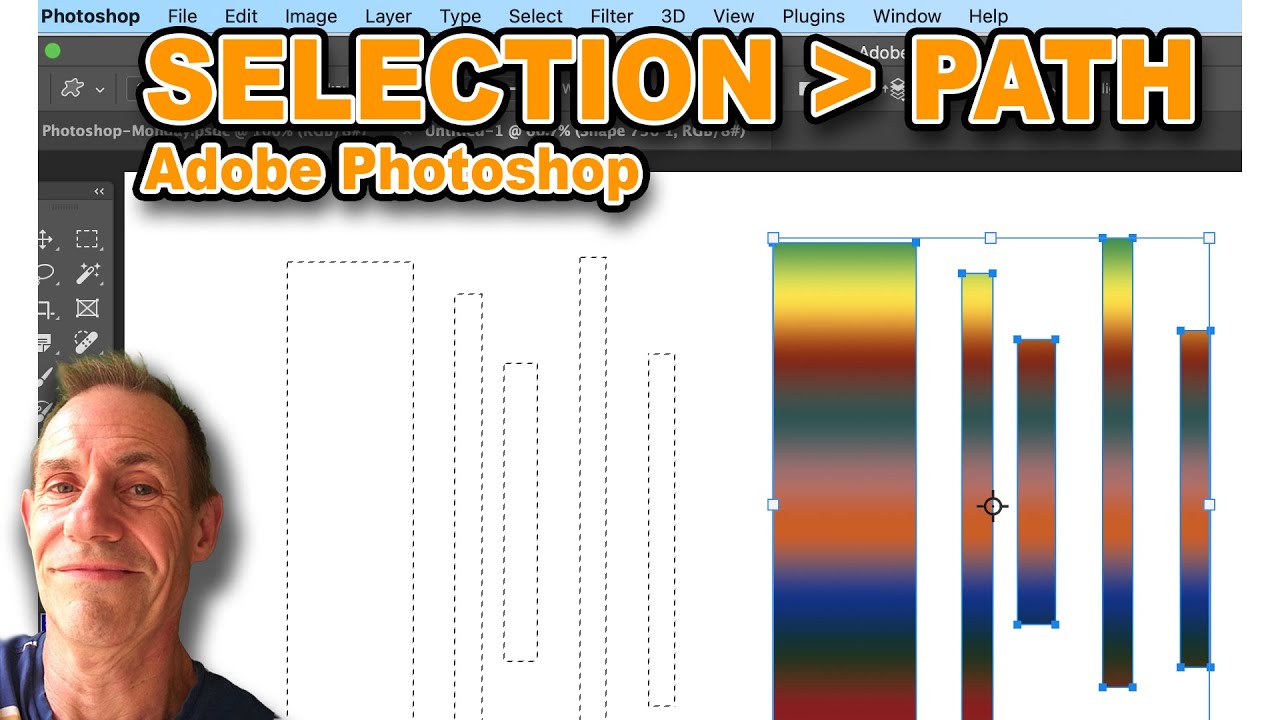
Photoshop Convert Selection Into Path Tutorial For Beginners
In my projects, these tips transformed a messy product photo into a clean cutout for e-commerce, with the subject seamlessly composited onto a new background—saving hours over manual erasing.
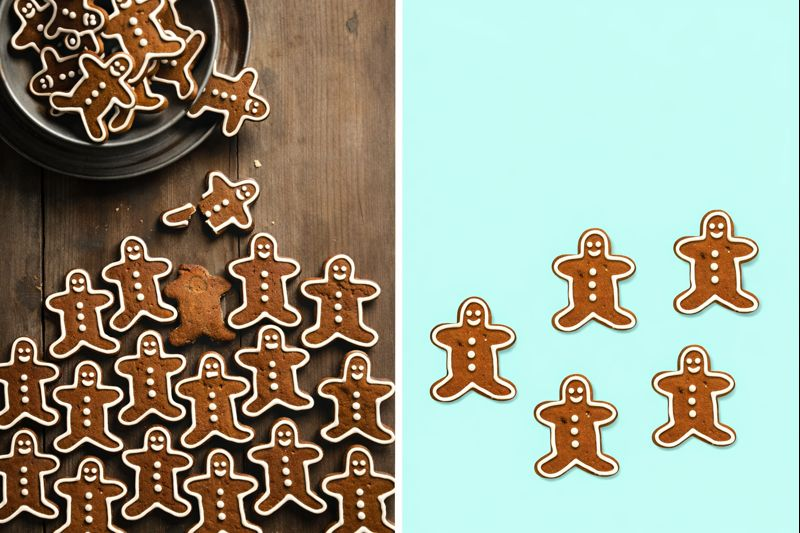
How to Cut Out a Subject with the Pen Tool Photoshop
I also designed a floral vector icon for a branding task, scaling it flawlessly from thumbnail to billboard size without pixelation.
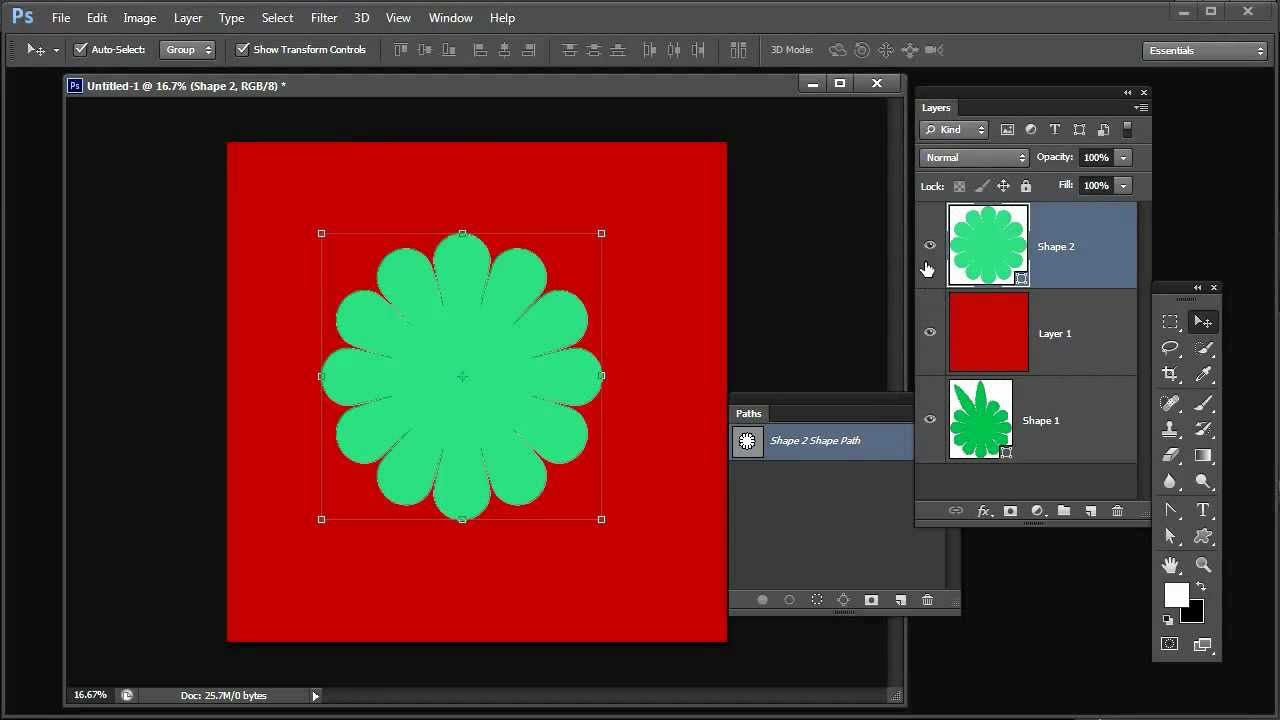
Shapes, Paths, Vectors and Selections in Photoshop
Finally, for a custom logo, I traced a bird silhouette, turning the path into a stroked outline that integrated perfectly into client mockups.
