

Master Photoshop Batch Processing: Quick and Easy Tutorial to Automate Image Editing
2026-02-02How to Convert Color Photos to Stunning Black and White in Photoshop
2026-02-05Master Precise Photoshop Cutouts: Using Color Range and Channels for Professional Results
As someone who’s spent countless hours editing images in Photoshop, I’ve found that mastering cutouts—also known as removing backgrounds or isolating subjects—is a game-changer for any designer or photographer. The process, often called “PS抠图” in some communities, involves selecting and separating specific parts of an image from the rest. Here, I’ll break down the key concepts: Color Range is a selection tool that targets areas based on color similarities, allowing for quick isolation of subjects with uniform hues, like skies or clothing. Channels, on the other hand, represent the individual color components (Red, Green, Blue) of an image, which can be manipulated to create high-contrast masks for precise edges, especially useful for complex subjects like hair or fur.
One common question I get is: What if the subject and background have similar colors? In that case, Color Range might not be perfect alone, but combining it with Channels helps by leveraging contrast in specific color layers—adjust the Fuzziness slider carefully and refine manually. Another frequent doubt: Is this better than the Magic Wand tool? Absolutely, as Color Range offers more control over sampled colors and fuzziness, while Channels provide non-destructive masking for finer details, making the combo superior for professional results.
Using Color Range and Channels for cutouts saves time compared to manual tracing, yields cleaner edges without halos, and keeps your workflow non-destructive so you can tweak selections later. It also enhances image compositing, allowing seamless integration into new backgrounds for marketing materials or creative projects.
Step 1: Open Your Image Launch Photoshop and go to File > Open to load your image. Ensure it’s in RGB mode via Image > Mode > RGB Color for full channel access.
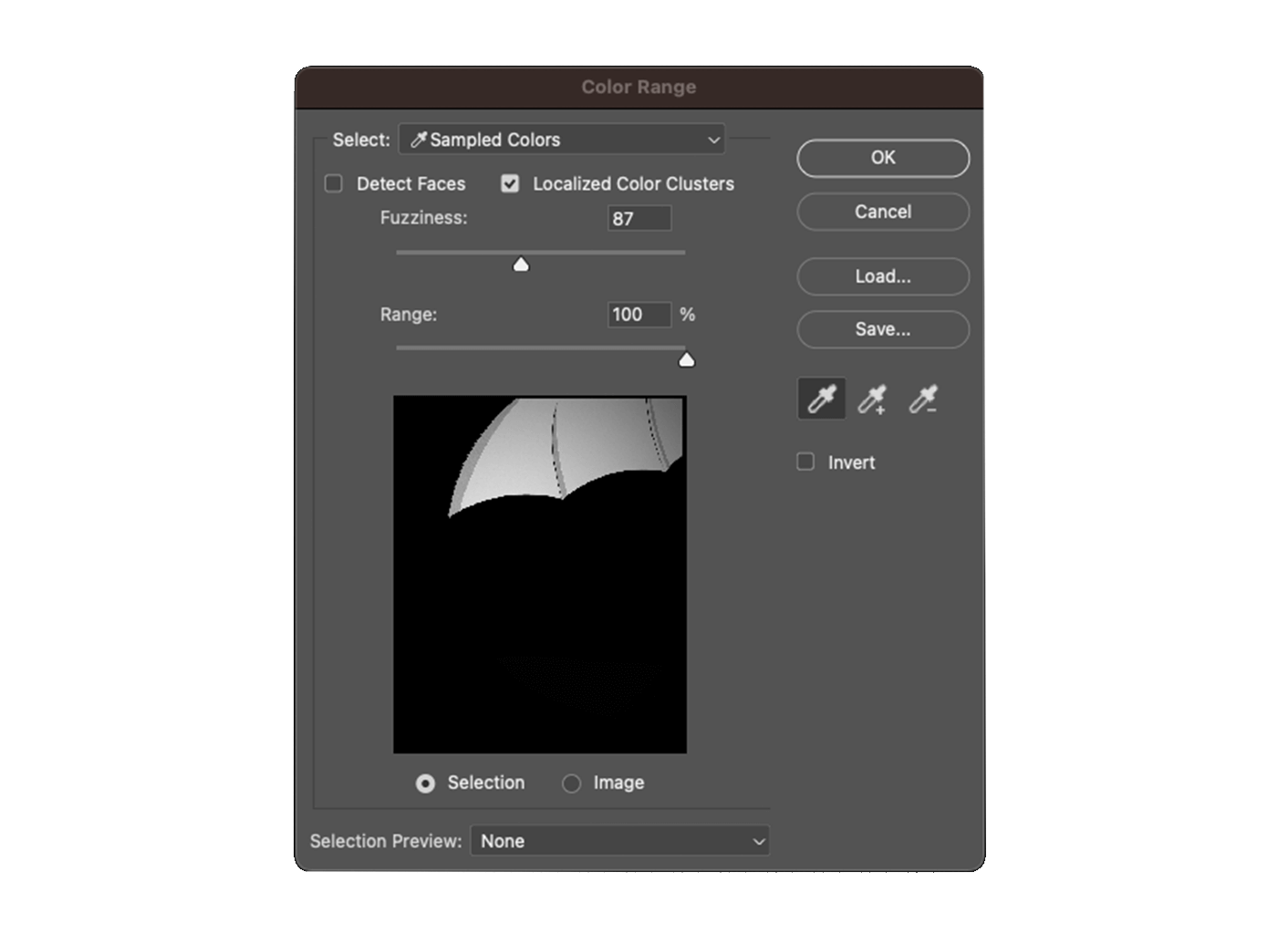
Step 2: Use Color Range for Initial Selection Navigate to Select > Color Range. Click the eyedropper on your subject, adjust Fuzziness to include similar tones, and preview in the dialog box. Hit OK to create the selection.
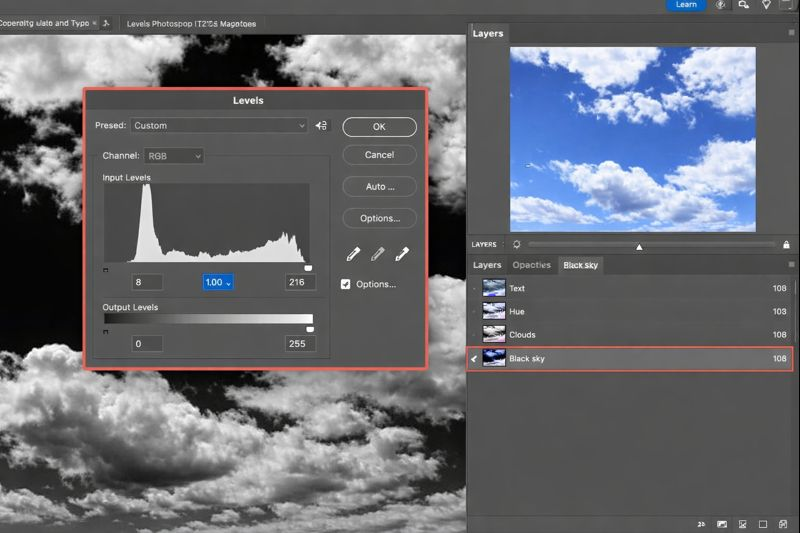
Step 3: Refine with Channels Open the Channels panel (Window > Channels). Duplicate the channel with the best contrast (e.g., Blue for green backgrounds) by right-clicking and selecting Duplicate Channel. Use Levels (Image > Adjustments > Levels) to boost contrast, making the subject black and background white.
Step 4: Create and Apply Mask Ctrl/Cmd-click the duplicated channel thumbnail to load as selection. Go back to Layers panel, add a Layer Mask via the mask icon. Invert if needed with Image > Adjustments > Invert for transparency.
Step 5: Fine-Tune Edges Select the mask, use Refine Edge brush or Select > Select and Mask to smooth fringes. Brush over edges with Refine Radius Tool for hair or fuzzy areas.
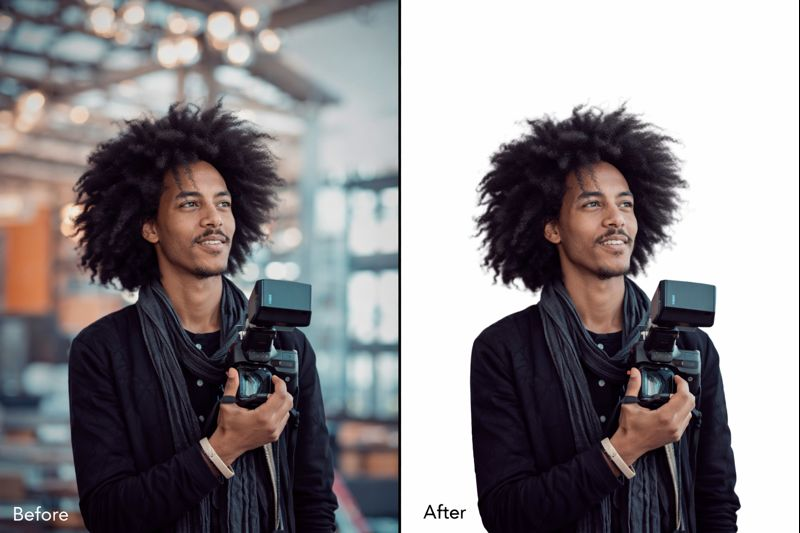
In one practice run, I applied this to a portrait with curly hair against a busy background—the result was a clean cutout with natural strands intact, as seen in this before-and-after.
Another time, on a product shot with similar tones, the method isolated the item flawlessly without artifacts, perfect for e-commerce.

Finally, for a nature photo, it quickly removed the sky, allowing me to composite a new scene seamlessly.
