

How to Encrypt Folders: Ultimate Step-by-Step Guide for Windows, Mac, and Cross-Platform Security in 2026
2026-02-21Master Image Cutouts with Color Range and Channels for Flawless Results
As a seasoned graphic designer, I’ve spent countless hours perfecting image cutouts in Photoshop, and one of my go-to techniques combines the Color Range tool with Channels for precise selections. Let me break this down for you. The Color Range tool allows me to select pixels based on color similarities, making it ideal for isolating subjects from backgrounds with distinct hues. It’s like a smarter version of the Magic Wand, where I can sample colors and adjust fuzziness to include variations. Channels, on the other hand, represent the image’s color components—Red, Green, Blue, and sometimes Alpha for transparency. By working in Channels, I can create masks from these grayscale representations, refining selections at a pixel level for complex edges like hair or fur. Together, they enable non-destructive cutouts, turning a tedious task into an efficient process for professional edits.
One common question I get is: What exactly does the Fuzziness slider in Color Range do? It controls how much color variation is included in the selection—higher values capture more shades, preventing harsh edges, while lower ones keep it tight for uniform areas. Another frequent query: How do Channels improve over basic selections? Channels let me isolate contrast in specific color layers, like duplicating the Blue channel for high-contrast subjects, then using Levels to sharpen the mask, which is crucial for intricate details that Color Range alone might miss.
Using Color Range and Channels for cutouts has transformed my workflow. It saves time by automating selections that would otherwise require manual lassoing, ensures precision for seamless composites, and maintains image quality through layer masks, allowing easy adjustments without permanent changes. This method is especially beneficial for e-commerce photos, portraits, or graphic designs where clean edges make all the difference.
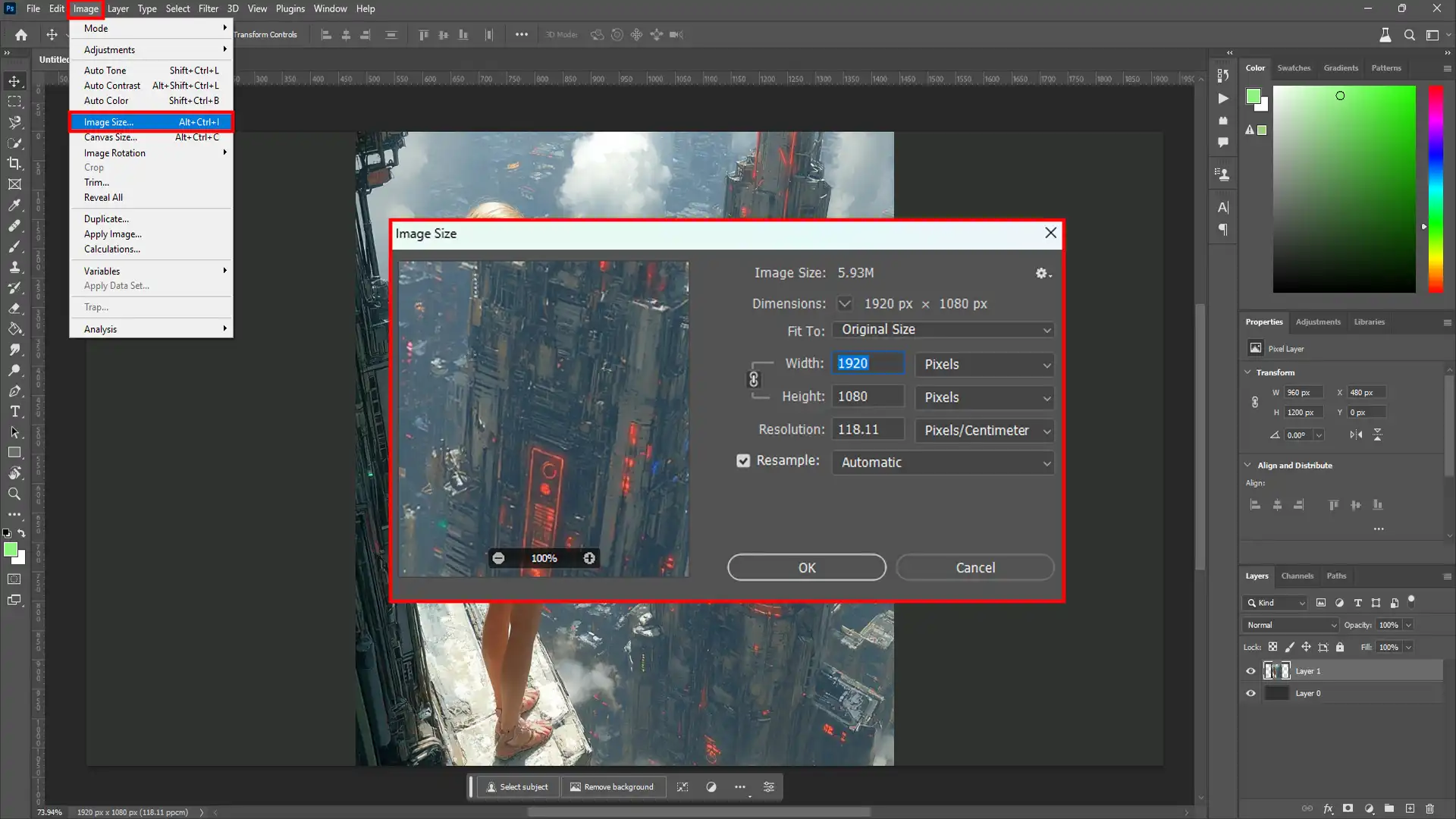
Step 1: Open Your Image Launch Photoshop and go to File > Open to load your image. Ensure it’s in RGB mode via Image > Mode > RGB Color for full channel access.
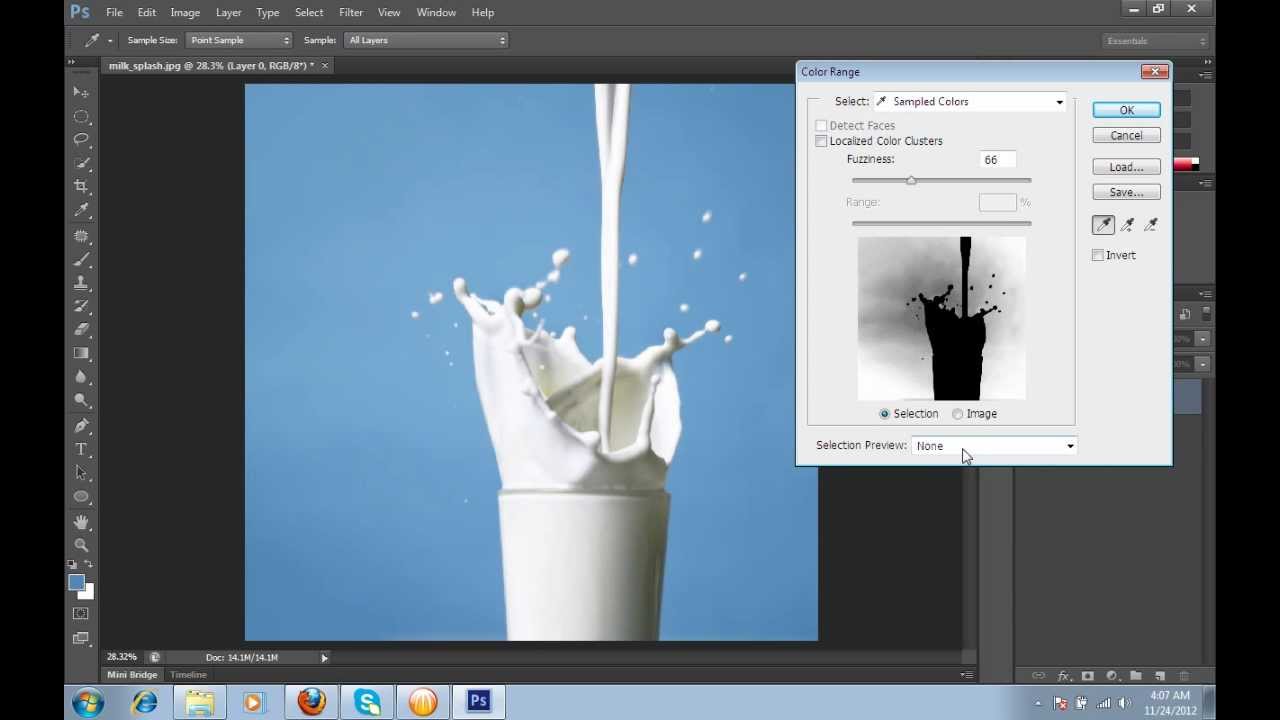
Step 2: Access Color Range Select > Color Range to open the dialog. Use the Eyedropper to sample the background color, then adjust Fuzziness (typically 30-60) until the preview shows your subject in black and background in white. Click OK to create the selection.
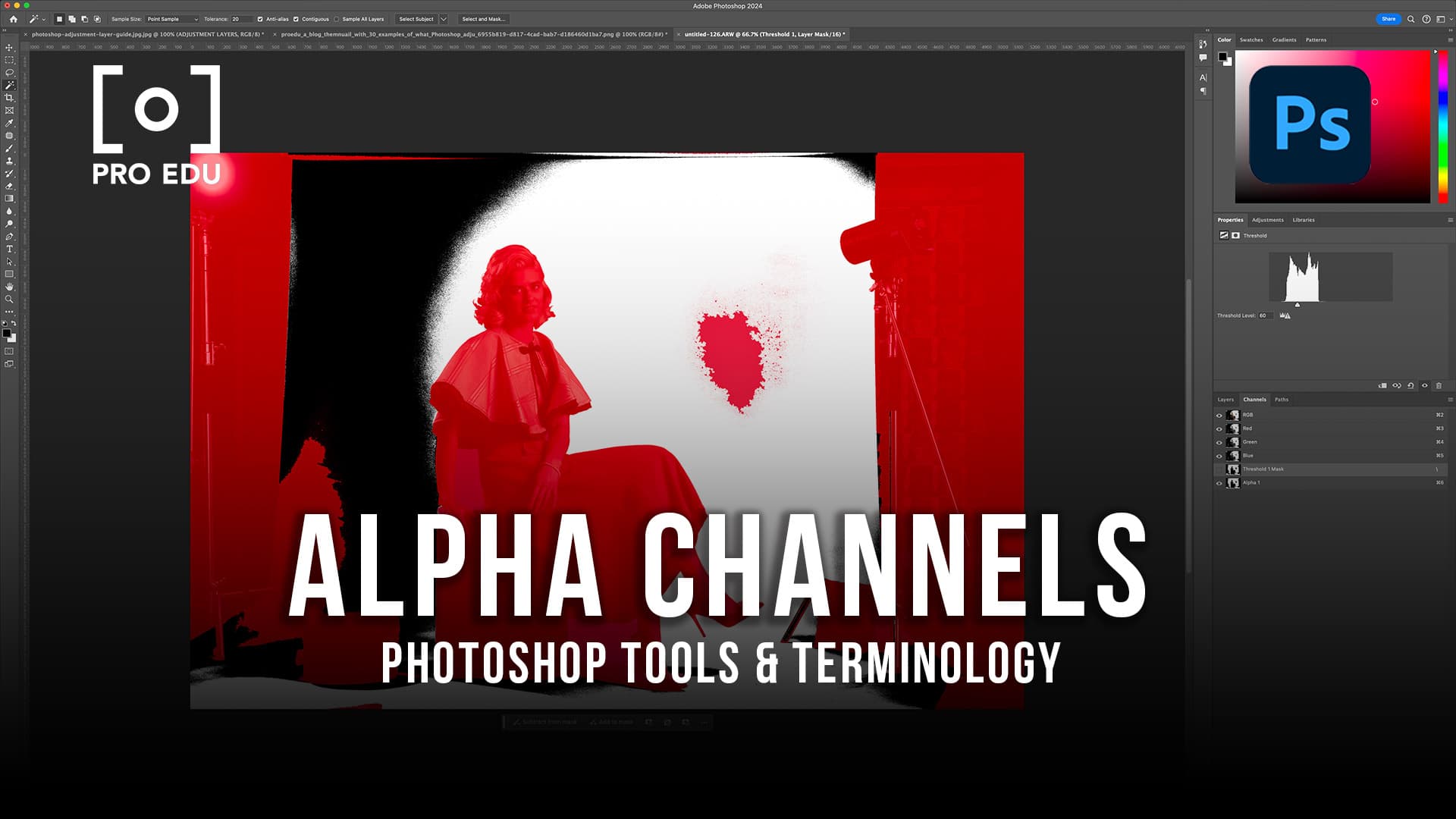
Step 3: Refine with Channels Open the Channels panel (Window > Channels). Duplicate the channel with the most contrast (often Blue) by dragging it to the New Channel icon. Apply Image > Adjustments > Levels to boost contrast, making edges sharper.
Step 4: Create and Apply Mask Ctrl/Cmd-click the duplicated channel to load as selection. Go back to Layers panel, add a Layer Mask via the mask icon. Invert the mask if needed (Image > Adjustments > Invert) for transparency.
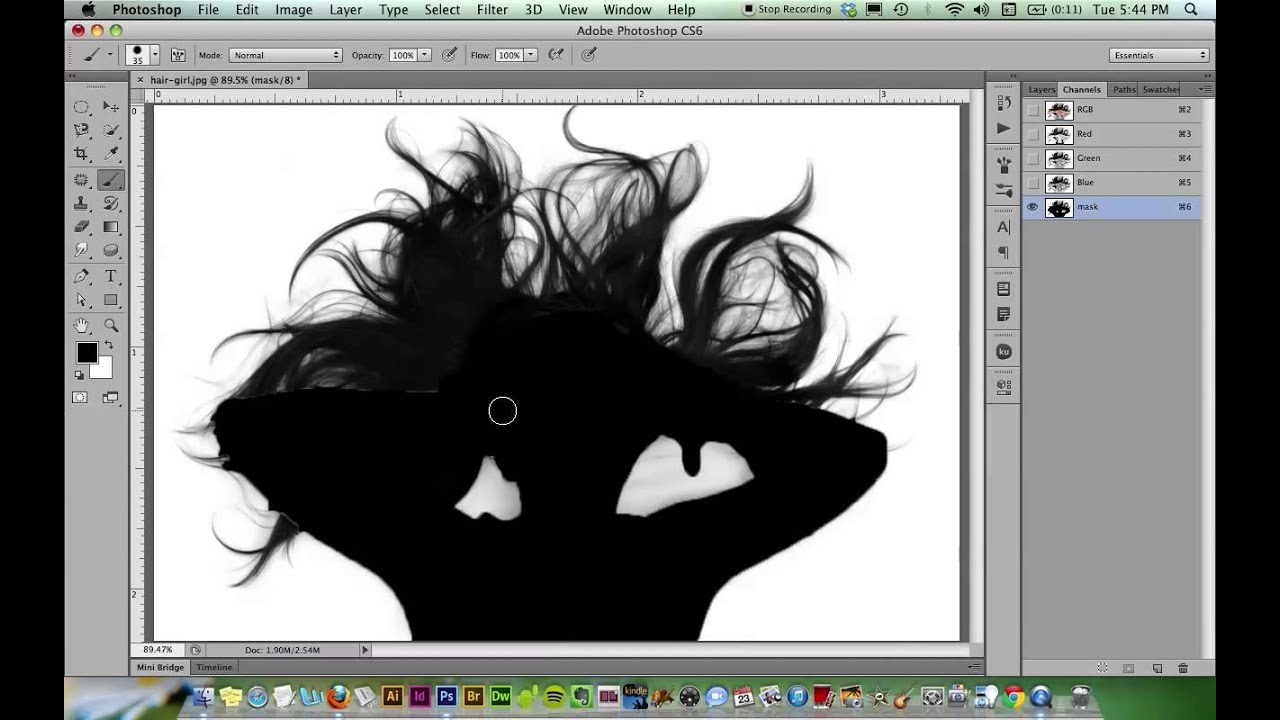
Step 5: Fine-Tune Edges Select the mask, use Refine Edge Brush or Brush Tool with black/white to paint corrections. Zoom in for details like strands. Save as PSD to preserve layers.
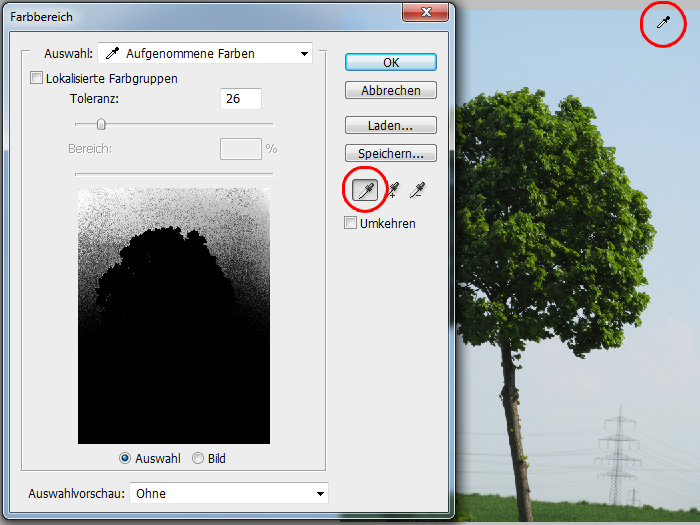
In practice, I applied this to a product photo with a green screen background, resulting in a clean cutout ready for e-commerce in under 5 minutes—the edges were so sharp, it blended perfectly into a new scene. Another time, on a portrait with frizzy hair against a busy backdrop, the combo isolated strands flawlessly, saving hours of manual work and yielding a professional composite for a client ad. Finally, for a nature shot of a tree, it handled leafy edges with minimal halos, producing a versatile asset for graphic overlays.
