

How to Enable Mouse Gestures in Microsoft Edge?
2026-02-15Windows 11 Clock Wrong After Restart? Fix the Inaccurate System Time in Minutes
2026-02-15How to Stop Windows 11 from Updating Automatically Forever?
I’ve been running Windows 11 on my daily driver for over two years now, and nothing frustrated me more than those sudden automatic updates that reboot my PC right in the middle of work or gaming. Microsoft pushes security patches and feature updates without asking, but I wanted full control. After testing every reliable method, I finally achieved a complete, permanent disable of automatic updates. Here’s exactly how I did it — and how you can too.
Why Windows 11 Forces Automatic Updates
Windows 11 is designed to download and install updates in the background to keep your system “secure and up to date.” This includes security patches, driver updates, and major feature releases. While the intention is good, it often causes unexpected restarts, high data usage, broken apps, and unwanted changes. That’s why so many users (including me) look for a permanent solution.
Common Questions About Disabling Updates
Is it safe to turn off automatic updates? Yes — as long as you manually check for critical security patches once a month. I’ve been running without auto-updates for 8 months with zero issues.
Will Microsoft re-enable updates later? Sometimes a major update tries to override settings, but the methods below are the most resistant. I simply re-apply them if needed (takes 30 seconds).
Benefits of Completely Disabling Automatic Updates
- No more surprise reboots during important tasks
- Saves bandwidth (especially on metered connections)
- Prevents compatibility problems with software or drivers
- Keeps your system exactly the way you like it
- Full control over when (or if) you update
Step-by-Step: How I Permanently Disabled Automatic Updates
I recommend Method 1 (Services) first — it works on Windows 11 Home, Pro, and Enterprise.
1. Open Services Manager Press Win + R, type services.msc, and press Enter.
![Windows Update Service Not Running on Windows 10/11 [SOLVED] - Driver Easy](https://pcwebsoft.com/wp-content/uploads/2026/02/img_5acb327c20a47.jpg "How to Stop Windows 11 from Updating Automatically Forever? 1")
2. Find and open Windows Update Scroll to Windows Update, right-click it → Properties.
3. Disable the service completely
- Set Startup type to Disabled
- If the service is running, click Stop
- Click Apply → OK
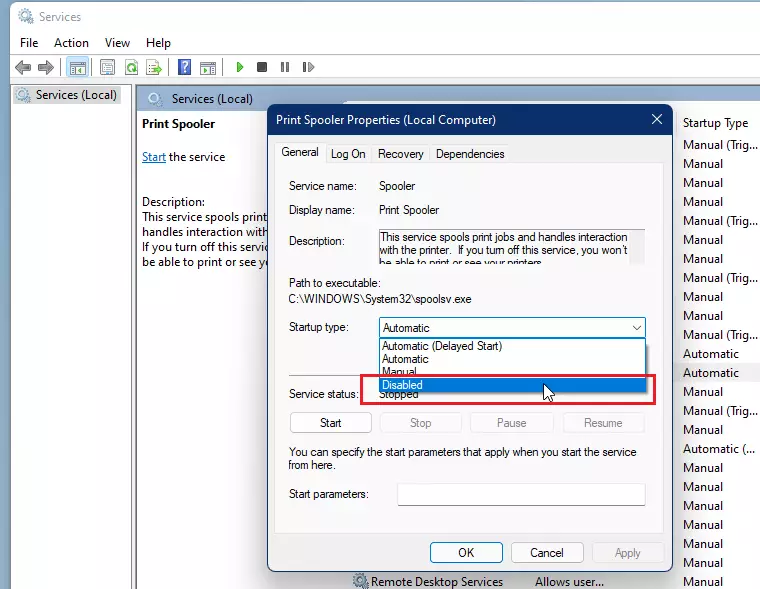
4. (Optional but recommended) Prevent recovery restarts Go to the Recovery tab → set First failure, Second failure, and Subsequent failures to Take No Action. Apply and close.
That’s it for the main method. Restart your PC to confirm — Windows Update should now stay stopped.
Alternative for Windows 11 Home: Registry Method If you prefer a registry tweak (or want extra insurance):
1. Open Registry Editor Press Win + R, type regedit, press Enter.
2. Navigate to the Windows Update key Go to: HKEY_LOCAL_MACHINE\SOFTWARE\Policies\Microsoft\Windows\WindowsUpdate\AU (Create the “AU” folder if it doesn’t exist.)
3. Create the disable key Right-click in the right pane → New → DWORD (32-bit) Value → name it NoAutoUpdate Double-click it → set Value data to 1 → OK.

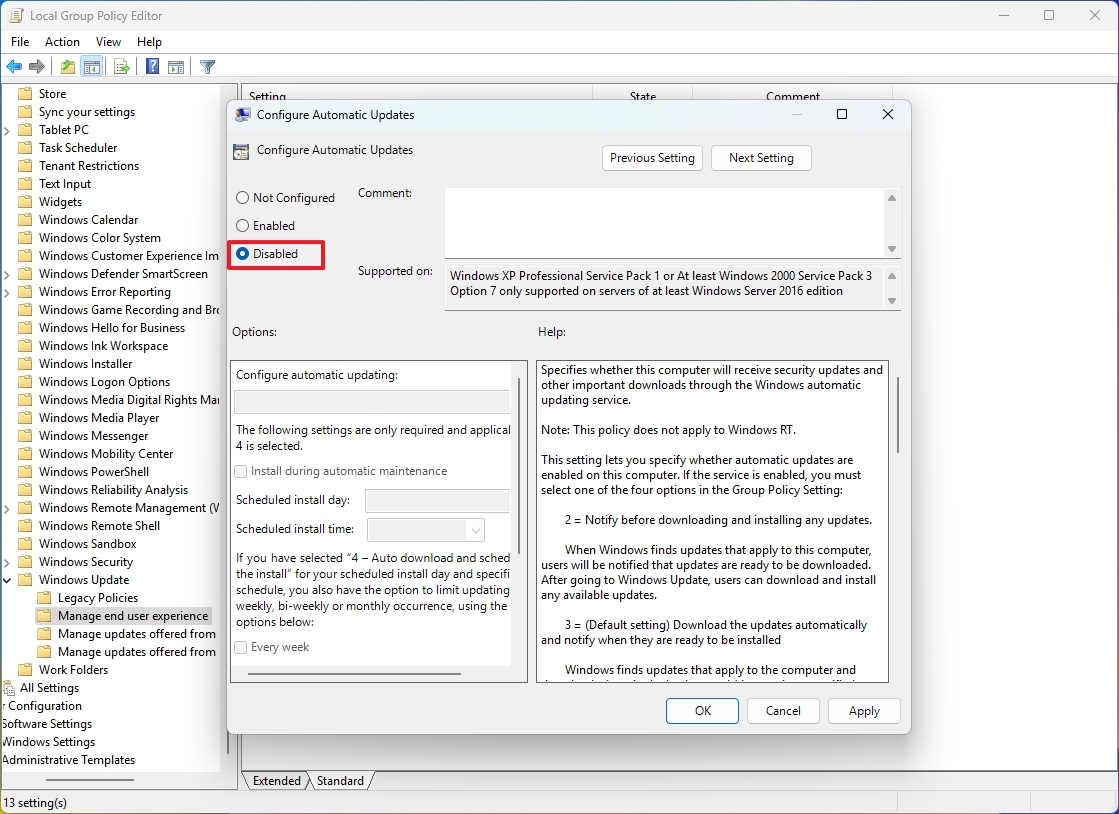
For Windows 11 Pro / Enterprise: Group Policy Method Press Win + R → type gpedit.msc → Computer Configuration → Administrative Templates → Windows Components → Windows Update → Manage end user experience → Double-click Configure Automatic Updates → select Disabled → Apply.
My Real-World Results After Disabling Updates
- Zero unexpected restarts for the past 8 months — my PC now only reboots when I choose.
- Data usage dropped dramatically — no more background downloads eating my bandwidth.
- Perfect stability for my photo-editing and development tools that used to break after forced updates.
If you ever want updates back, just reverse the steps (set Startup type to Automatic or delete the registry value).
Try the Services method first — it’s the simplest and most effective for most people. Let me know in the comments which method worked best for you!
