

How to Match Identical Data in Two Excel Tables: Step-by-Step Guide
2026-01-21Where Are Screenshots Saved on Windows 10: How to Find the Folder Location
2026-01-21How to Move Desktop Folder to Another Drive on Windows: Step-by-Step Guide
Moving the Desktop folder to another drive on Windows relocates the default storage location for all desktop icons, files, and shortcuts from the system drive (typically C:) to a different internal or external drive, such as D: or E:. This process uses the folder’s Properties dialog to update the path in the Windows registry, automatically copying existing contents to the new spot while ensuring future items save there. Key breakdowns include: the original path under C:\Users\YourUsername\Desktop; creating or selecting a target folder on the desired drive to avoid conflicts; and the system’s handling of the move, which maintains accessibility via the desktop interface without disrupting user experience. This feature is built into Windows 10 and 11, leveraging NTFS file system links for efficiency, and can be reversed if needed.
What if I move the Desktop to an external drive? It works fine for portability, but if the drive is disconnected, desktop items may appear missing or cause errors—use internal drives for reliability or ensure the external is always connected.
Can I move the Desktop folder back to the original drive? Yes, simply repeat the process in the Location tab and select Restore Default, or manually enter the original path to revert without losing files.
Relocating the Desktop folder to another drive frees up valuable space on your system drive, preventing slowdowns and crashes from low storage. It optimizes performance by offloading large files like downloads or media to bigger drives, simplifies backups by centralizing user data, and enhances organization in multi-drive setups for better workflow efficiency.
- Open File Explorer Press Windows key + E to launch File Explorer.
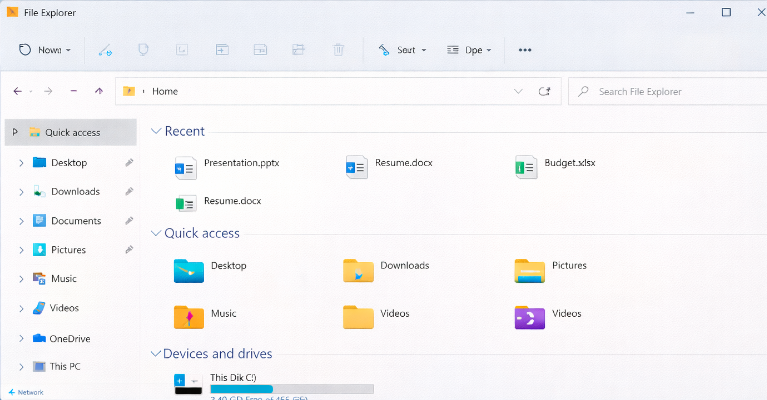
Windows 11 Open File Explorer to This PC, OneDrive or Downloads
- Navigate to the Users Folder In File Explorer, go to C:\Users\YourUsername (replace YourUsername with your actual username).
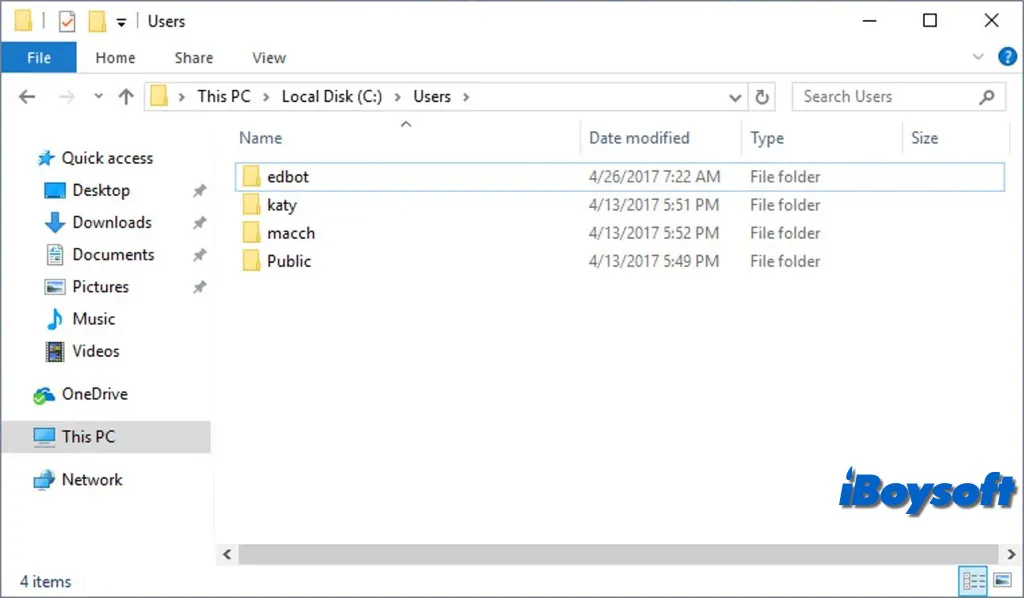
An Introduction to the User Folder on Windows 10/11
- Access Desktop PropertiesRight-click the Desktop folder and select Properties.
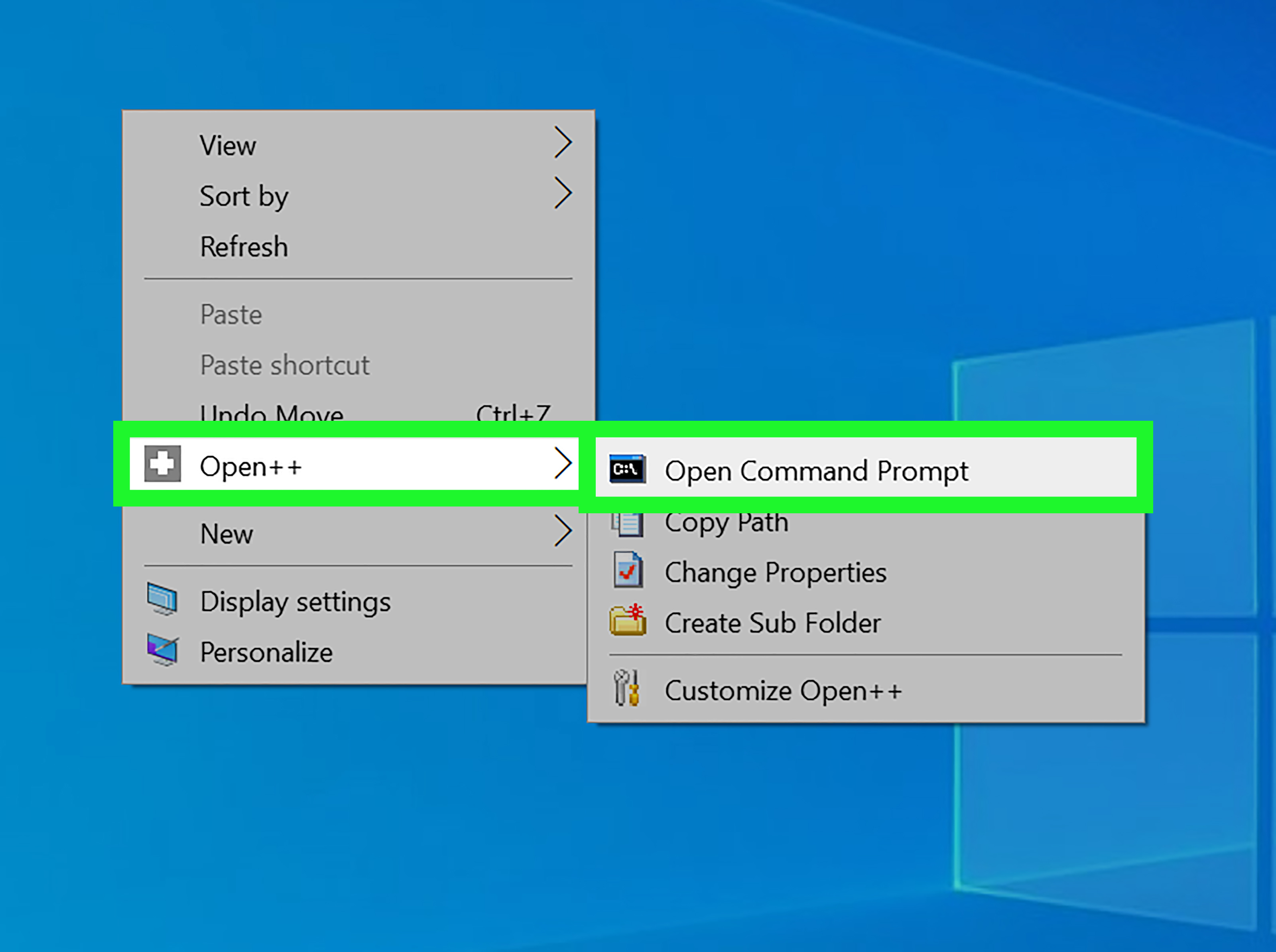
How to Add New Options to the Right Click Menu in Windows
- Switch to Location Tab In the Properties window, click the Location tab.
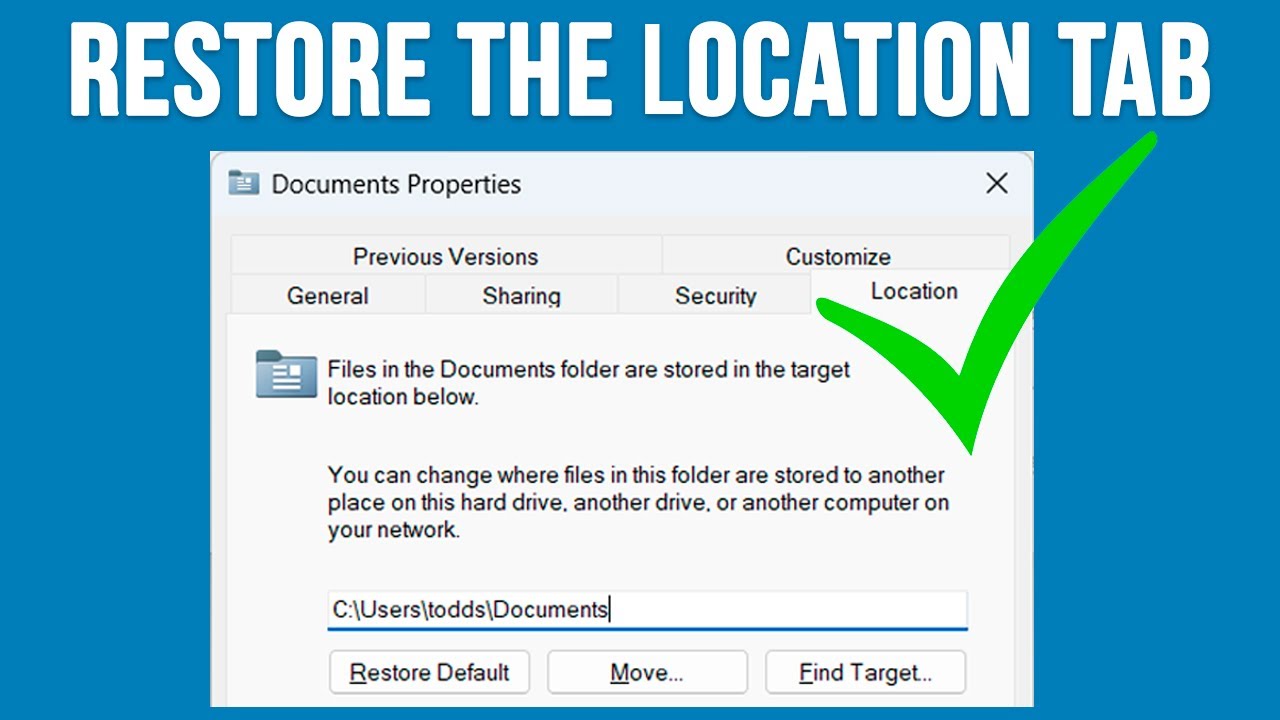
How to Fix the Missing Location Tab for Your Folder Properties
- Move the FolderClick Move, browse to the new location on another drive (e.g., D:), create a new folder if needed, and select it.
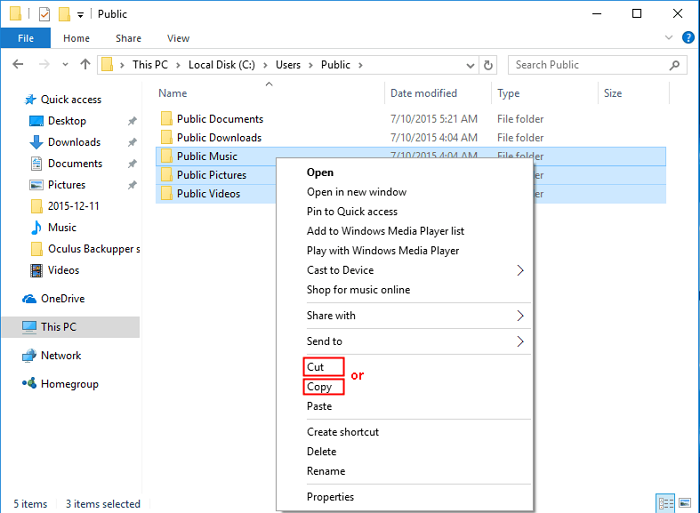
How to Move Files From C Drive to D Drive in Windows 10/11
- Apply ChangesClick OK or Apply, then Yes to confirm moving files.
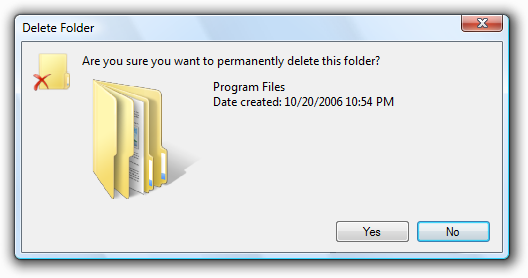
Confirmations – Win32 apps
A user with a nearly full C: drive moved their Desktop to a spacious D: partition, reclaiming 15GB of space and noticing faster system boot times within minutes. In a professional setup, an graphic designer relocated the folder to an SSD, reducing file access delays and improving productivity during large project workflows. For a home PC with multiple users, this change organized shared files on an external drive, simplifying backups and preventing accidental data clutter on the main OS drive.
