

How to Resize a Table in Microsoft Word: 3 Quick & Easy Methods
2026-02-10How to Merge Multiple PDFs into One?
2026-02-10How to Install Fonts in Microsoft Word: Easy Step-by-Step Guide for Beginners
As someone who’s spent countless hours crafting documents in Microsoft Word, I’ve often found myself limited by the default fonts. Installing custom fonts in Word isn’t about adding them directly to the app; it’s about integrating them into your operating system so Word can access them seamlessly. Fonts are digital typefaces that define how text appears—think of them as the visual style for your words, from elegant scripts to bold sans-serifs. Common formats include .TTF (TrueType Font) and .OTF (OpenType Font), which are compatible with most systems. This process enhances your creativity by expanding your typography options beyond basics like Arial or Times New Roman.
One common question I get is: Are all fonts free to use in Word? Not necessarily—while many are available for free from sites like Google Fonts or DaFont, some require licenses for commercial use. Always check the terms to avoid copyright issues. Another frequent doubt: Will installing too many fonts slow down my computer? In my experience, yes, if you overload with hundreds, but a moderate number (under 50) usually doesn’t impact performance noticeably, as modern systems handle them efficiently.
Adding custom fonts to Word brings several advantages. First, it allows for personalized branding, making your resumes, reports, or invitations stand out with unique styles. Second, it boosts productivity by matching fonts to specific needs, like using a professional serif for business docs or a fun handwritten one for creative projects. Finally, it ensures consistency across documents, especially when sharing files, as embedded fonts travel with the file if properly installed.
Step 1: Download Your Desired Font Locate a reliable source like Google Fonts or Font Squirrel. Search for the font name, click download, and save the .ZIP or font file to your Downloads folder.
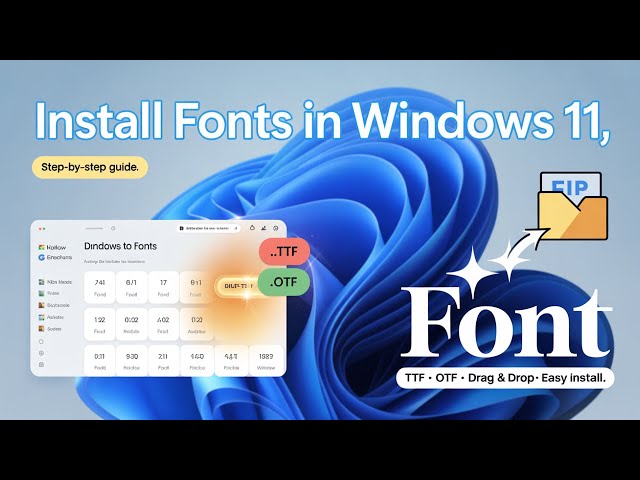
Step 2: Extract the Font File If it’s a .ZIP, right-click the file in File Explorer and select Extract All. Open the extracted folder to find the .TTF or .OTF files.
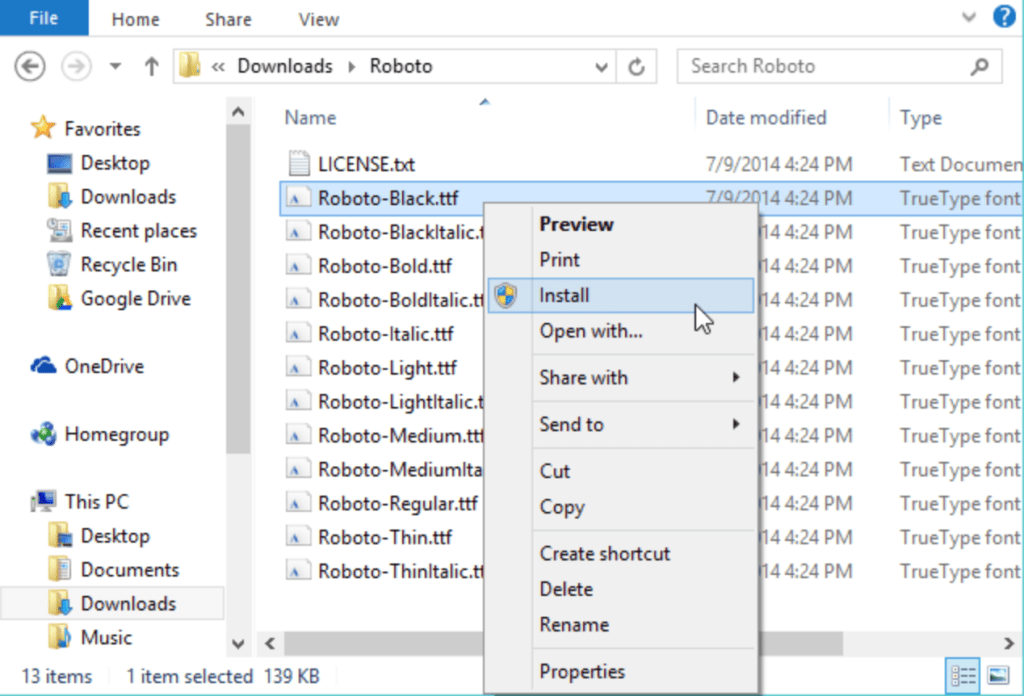
Step 3: Install the Font on Windows Right-click the font file (.TTF or .OTF) and choose Install. For multiple files, select them all first. Confirm any prompts—Windows will add it to your system fonts.
:max_bytes(150000):strip_icc()/001-how-to-add-fonts-to-word-4ee125c830434691acf2b76c7fb1cc98.jpg "How to Install Fonts in Microsoft Word: Easy Step-by-Step Guide for Beginners 3")
Step 4: Verify in Microsoft Word Open Word, start a new document, and go to the Home tab. Click the font dropdown—your new font should appear. Type some text to test it.
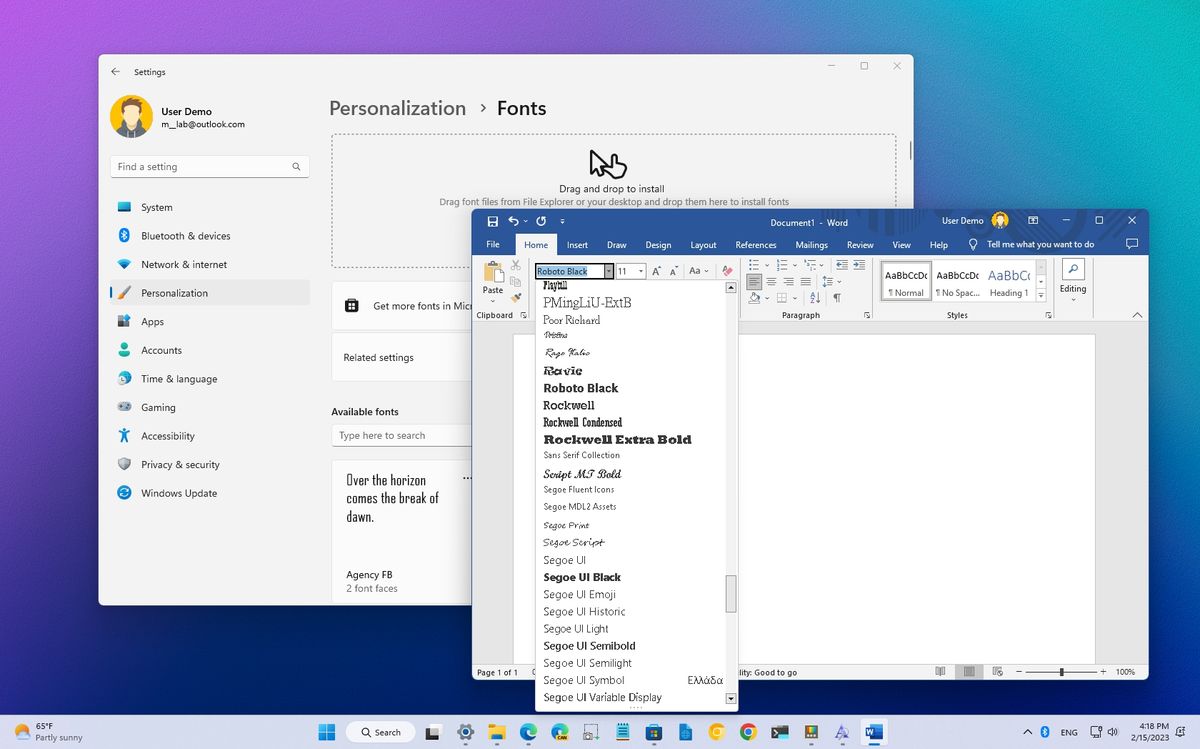
Step 5: Restart Word if Needed If the font doesn’t show, close and reopen Word. Sometimes, a system restart helps refresh the font cache.
In one practice run, I installed “Roboto” for a modern report, and it transformed the plain text into a sleek, professional layout that impressed my colleagues. Another time, adding “Comic Sans” (for fun) to a newsletter made it more engaging for a casual audience, increasing reader feedback. Lastly, using a custom script font for wedding invitations gave them a personalized touch, saving me from hiring a designer.
