

How to Convert PDF to Word?
2026-02-08How to Set Up DNS Correctly: A Step-by-Step Guide for Beginners
2026-02-09How to Install an Android Emulator on Your PC in 2026
As someone who’s always tinkering with tech, I’ve found that installing an Android emulator on my PC opens up a whole new world of possibilities. Let me break down the concept for you. An Android emulator is essentially software that mimics the Android operating system on your computer, allowing you to run mobile apps, games, and even test developments as if you were using a real Android device. It works by creating a virtual environment, complete with simulated hardware like CPU, RAM, and storage. Popular options include BlueStacks, which is great for gaming; NoxPlayer for its lightweight design; and Android Studio’s emulator for developers. The key components are the emulator engine, which handles the simulation, and integration with your PC’s hardware for smooth performance.
One common question I get is: What is the best Android emulator for PC gaming? Well, it depends on your needs, but I recommend BlueStacks for its high performance and features like multi-instance support, making it ideal for running multiple apps simultaneously without lag. Another frequent doubt is: Are Android emulators safe to use? Absolutely, as long as you download them from official websites—avoid third-party sources to prevent malware, and always keep your antivirus updated.
Doing this has transformed how I use my PC. The benefits are huge: you get a larger screen for immersive gaming, better control with keyboard and mouse, enhanced performance from your computer’s powerful hardware, and the ability to multitask between desktop work and mobile apps. Plus, it’s perfect for app developers to test without needing physical devices, saving time and money.
Step 1: Choose and Download the Emulator I start by selecting BlueStacks as my go-to for its reliability. Visit the official BlueStacks website and click the Download BlueStacks button to get the installer file.
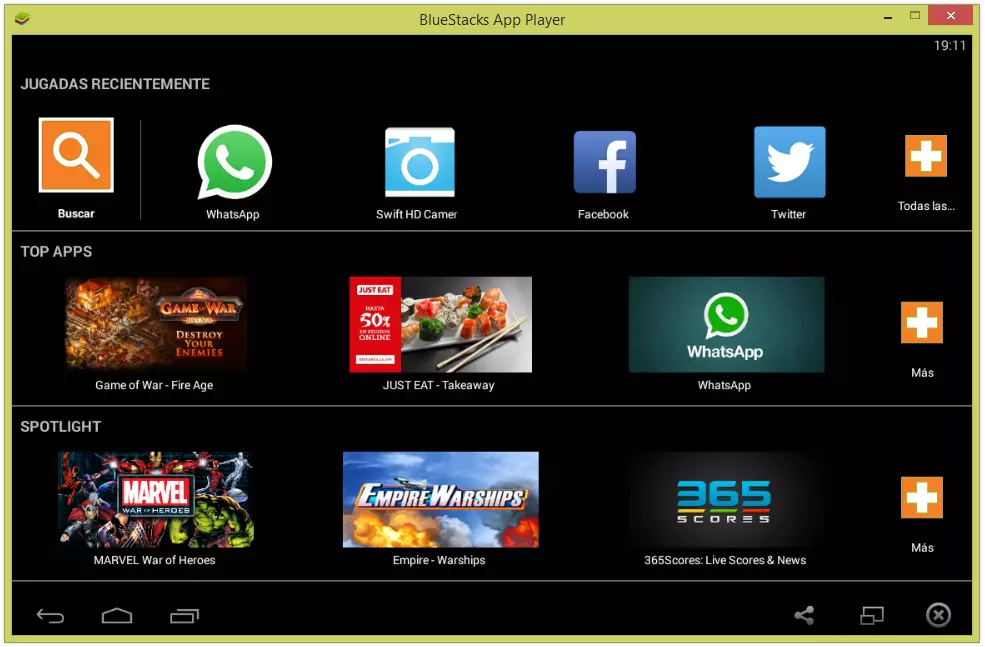
Step 2: Run the Installer Once downloaded, double-click the .exe file to launch the installation wizard. Follow the prompts, agreeing to terms and choosing the install location.
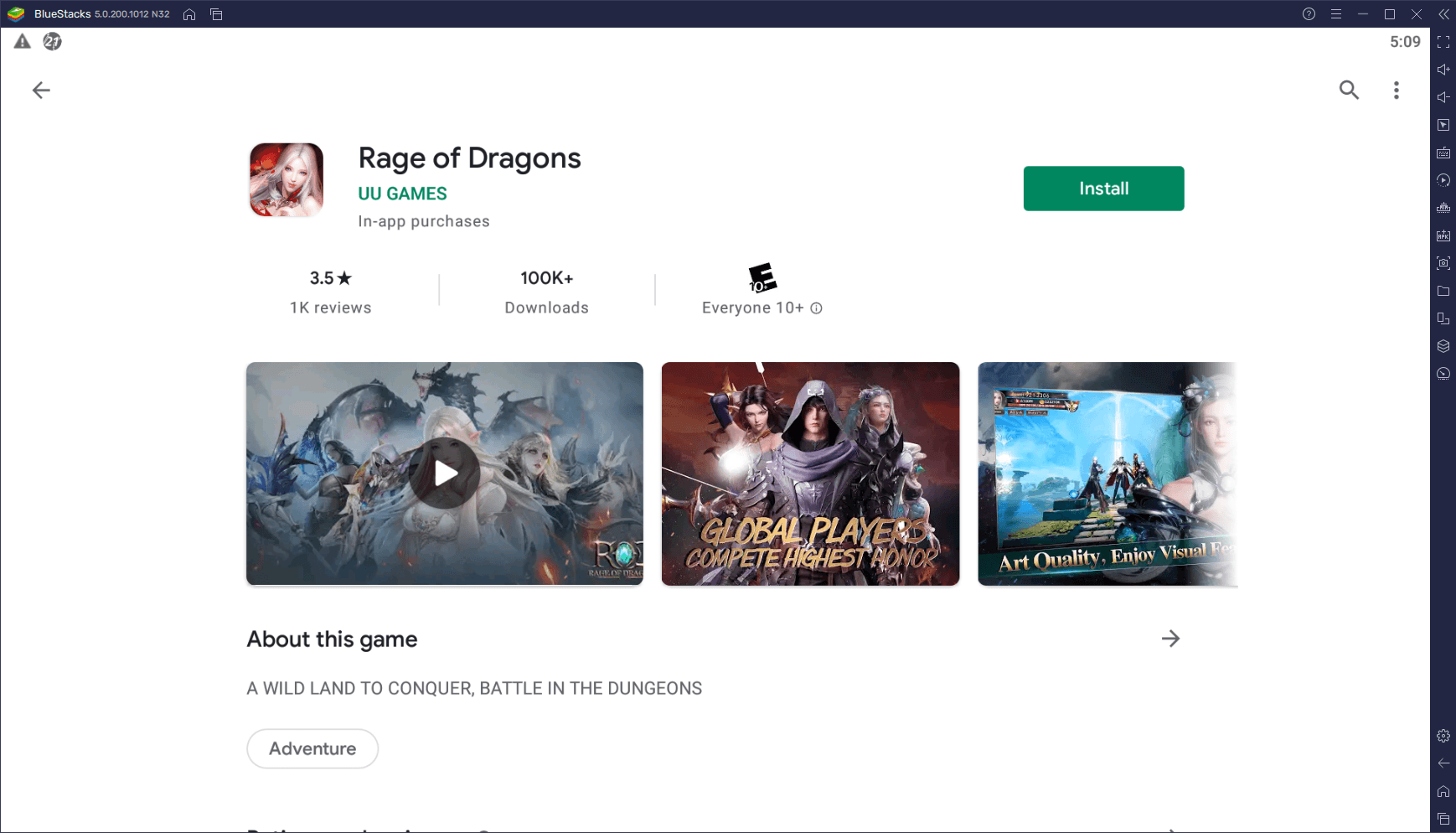
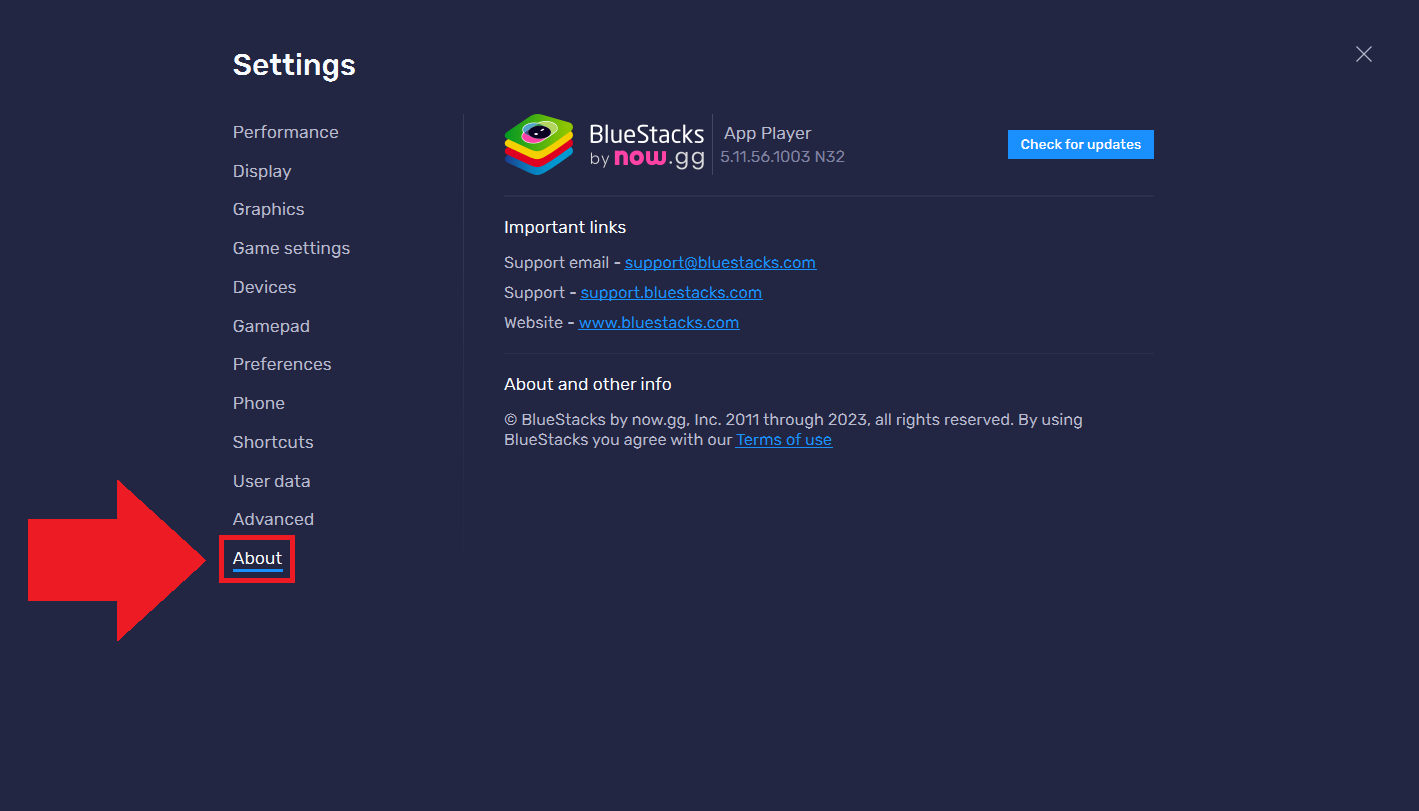
Step 3: Configure Initial Settings After installation, open BlueStacks and sign in with your Google account. Adjust performance settings like CPU cores and RAM allocation based on your PC specs for optimal speed.
Step 4: Install and Run Apps Search for apps in the built-in Play Store, install them, and launch to enjoy Android on your PC.
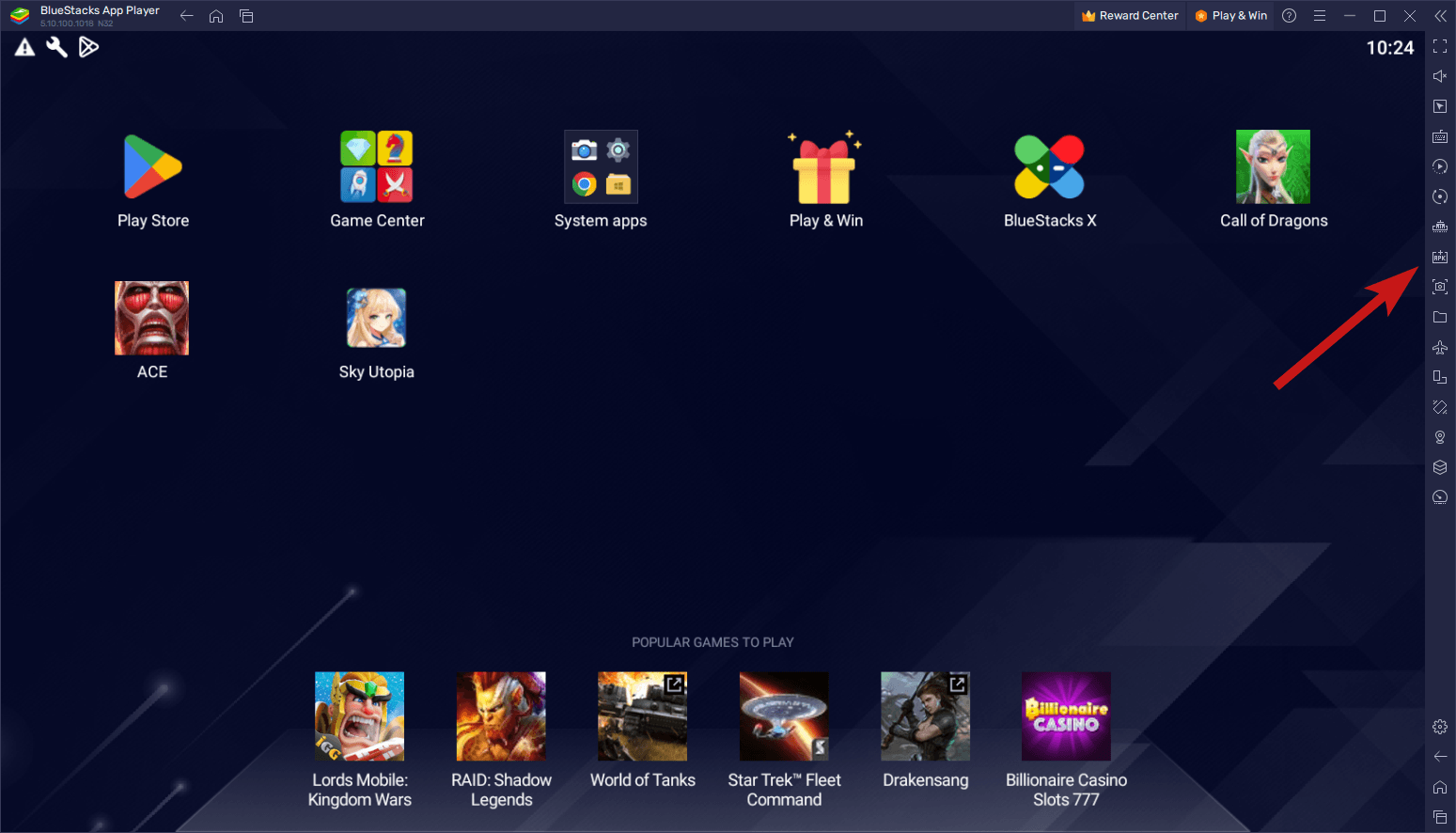
In my experience, after setting this up, I ran PUBG Mobile on high graphics, and it performed flawlessly with no overheating issues unlike on my phone. Another time, I tested a custom app I developed, spotting bugs quickly on the big screen. Finally, a friend used it for social media management, handling multiple accounts efficiently without switching devices.
