

How to Fix Windows Update Error 0x8007065e
2026-03-08How to Fix Windows Update Error 0x800F0840 in Windows 10 and 11 (7 Proven Methods)
The Windows Update error 0x800F0840 typically occurs when an update package is corrupted, system files are damaged, or key services like TrustedInstaller are not running properly. This error prevents your PC from downloading or installing critical security patches, leaving your system exposed to vulnerabilities.
Without fixing it, you risk missing important updates that protect against threats. This guide walks you through 7 targeted troubleshooting steps to resolve Windows Update Error 0x800F0840 from simplest to most advanced.
Run the Windows Update Troubleshooter
Step 1: Press Windows + I to open Settings. Go to System > Troubleshoot > Other troubleshooters (in Windows 11) or Additional troubleshooters (in Windows 10). Step 2: Find Windows Update and click Run. Follow the on-screen prompts to detect and fix issues.
![SOLVED] Your Device is Missing Important Security and Quality Fixes - Driver Easy](https://pcwebsoft.com/wp-content/uploads/2026/03/win-11-settings-troubleshoot-other-1.jpg "How to Fix Windows Update Error 0x800F0840 in Windows 10 and 11 (7 Proven Methods) 1")
Once complete, restart your computer and check for updates again. If the error persists, continue with the next method.
Repair System Files Using SFC and DISM
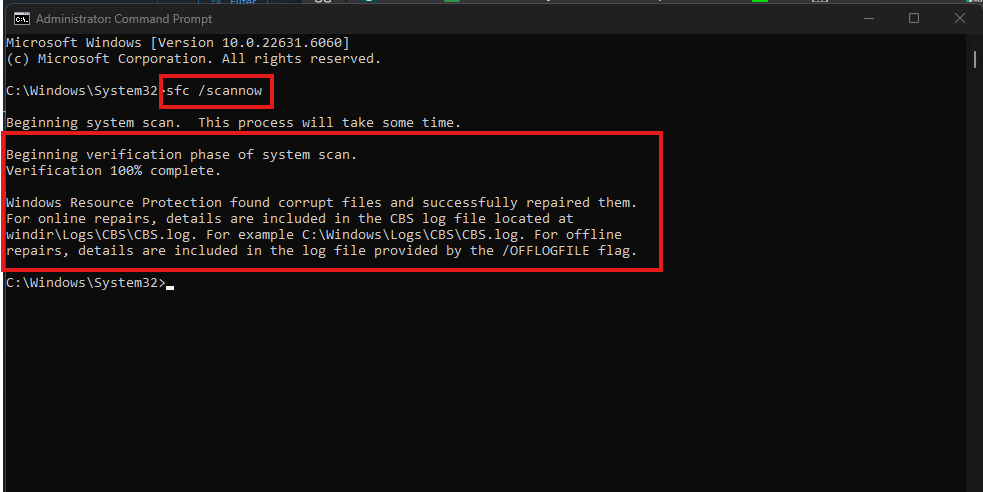
Step 1: Search for Command Prompt, right-click it, and select Run as administrator. Step 2: Type the command below and press Enter: sfc /scannow Wait for it to complete (it may take 10–15 minutes).
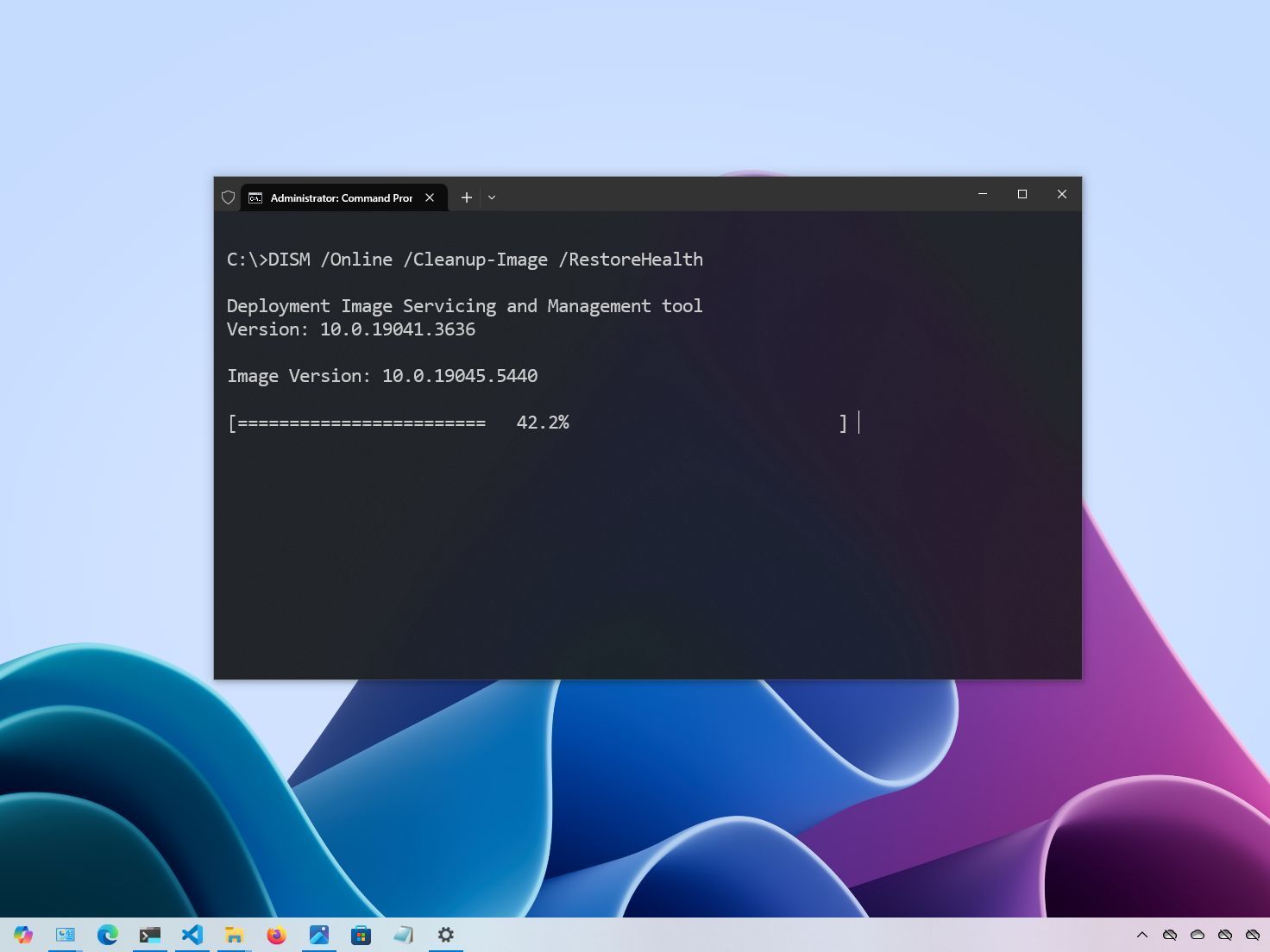
Step 3: Type this command and press Enter: DISM /Online /Cleanup-Image /RestoreHealth Wait for it to finish.
Restart your computer and try Windows Update again. If the error persists, continue with the next method.
Reset Windows Update Components
Step 1: Open Command Prompt as administrator. Step 2: Run these commands one by one (press Enter after each): net stop wuauserv net stop cryptSvc net stop bits net stop msiserver
Step 3: Rename folders: ren C:\Windows\SoftwareDistribution SoftwareDistribution.old ren C:\Windows\System32\catroot2 Catroot2.old
Step 4: Restart services: net start wuauserv net start cryptSvc net start bits net start msiserver
Restart your computer and check for updates. If the error persists, continue with the next method.
Check Background Services
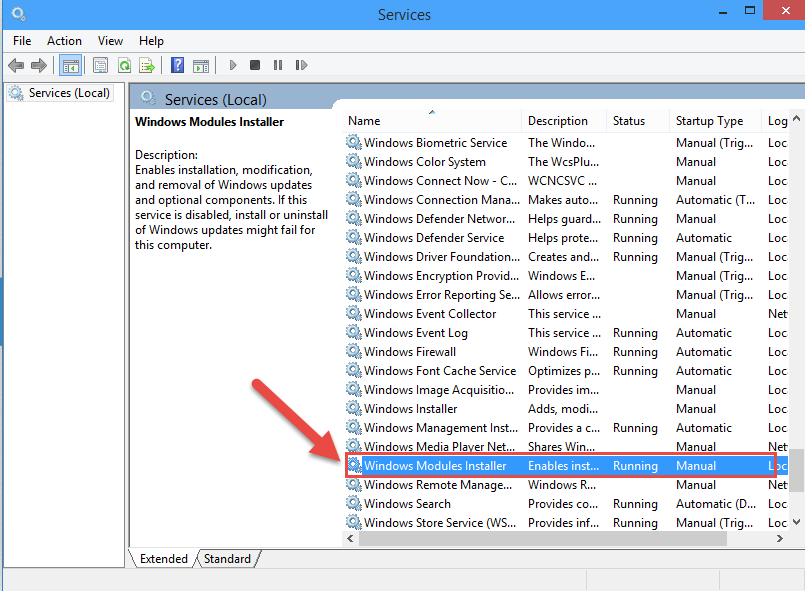
Step 1: Press Windows + R, type services.msc, and press Enter. Step 2: Locate these services (double-click each):
- Windows Modules Installer (TrustedInstaller)
- Windows Update
- Background Intelligent Transfer Service (BITS)
- Cryptographic Services
Set Startup type to Automatic, click Start if not running, then click OK.
Restart your computer and check for updates again. If the error persists, continue with the next method.
Disable Third-Party Antivirus
Step 1: Temporarily disable your third-party antivirus (check its settings or right-click the tray icon). Step 2: For a clean test, perform a clean boot: Press Windows + R, type msconfig, go to Services tab, check Hide all Microsoft services, click Disable all. On the Startup tab, open Task Manager and disable all startup items. Restart.
If updates install successfully, re-enable antivirus one by one to identify the culprit.
Restart normally and check for updates. If the error persists, continue with the next method.
Manually Install the Failed Update
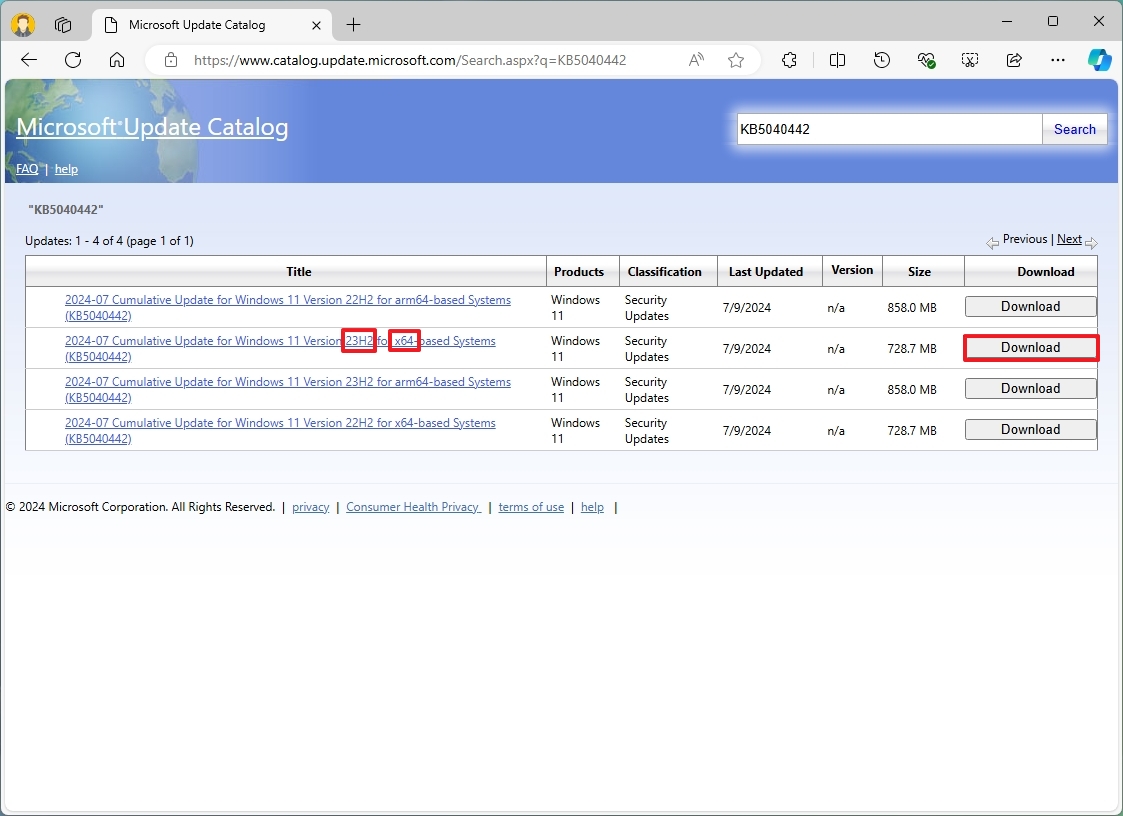
Step 1: Go to Settings > Windows Update > View update history. Note the KB number of the failed update. Step 2: Open your browser and visit the Microsoft Update Catalog. Search for the KB number. Step 3: Download the correct version for your system (match Windows 10/11 and 64-bit). Double-click the .msu file to install.
Restart your computer and verify the update installed. If the error persists, continue with the next method.
Perform an In-Place Upgrade (Last Resort)
Step 1: Download the Media Creation Tool from Microsoft’s official site. Step 2: Run the tool, select Upgrade this PC now, and follow the prompts (choose Keep personal files and apps).
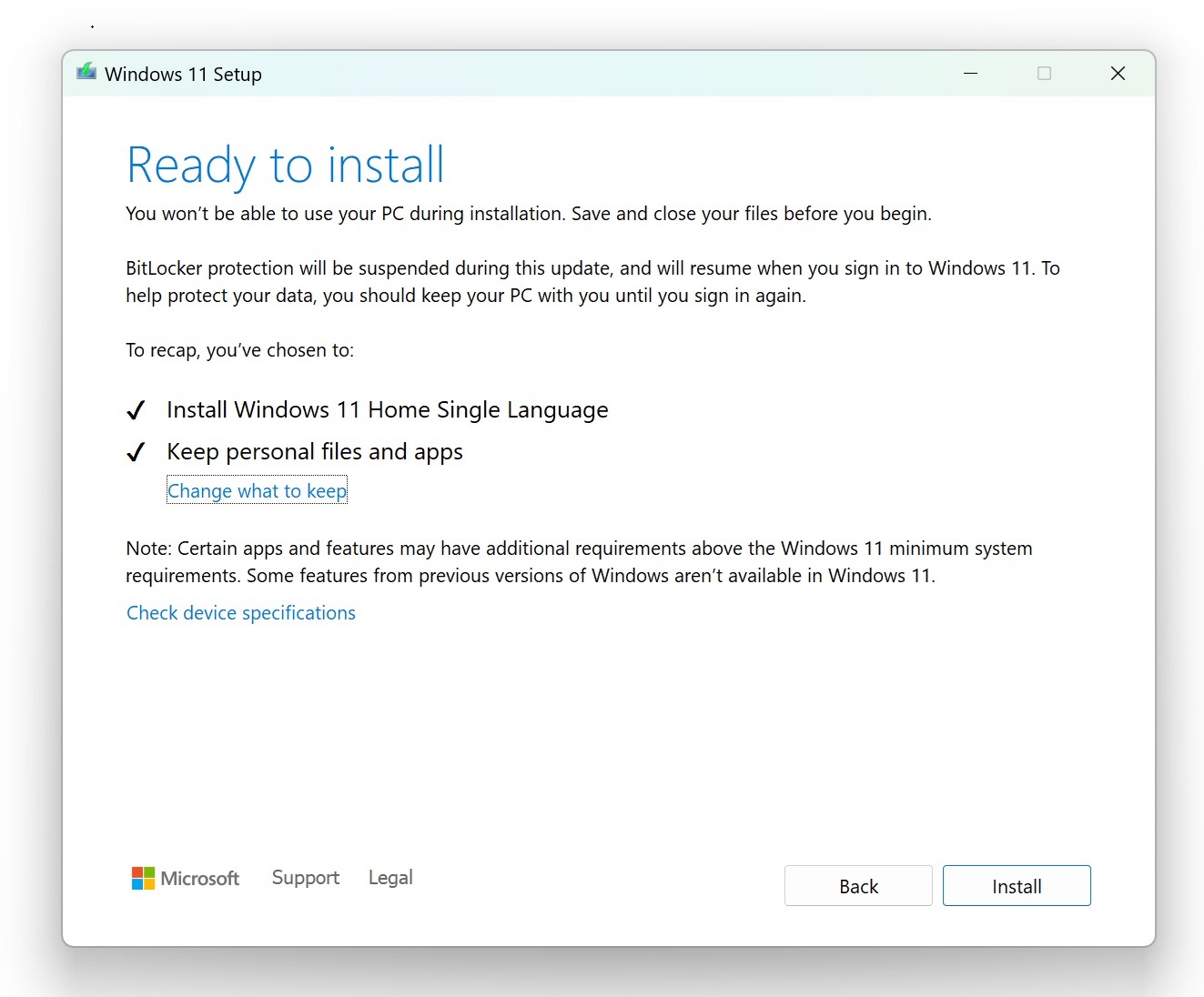
This reinstalls Windows while keeping your data and apps.
Following these steps will typically fix Windows Update Error 0x800F0840 and restore normal updates. If the problem still exists, visit Microsoft Support or the Windows Community forums for further assistance.
