

Win10 Boot Blue Screen: Recovery Error Code 0xc000000e Repair Method
2014-05-01Where Are the Internet Options in Chrome Google Browser?
2014-05-03How to Fix Windows Update Error 0x8007000d
The Windows Update Error 0x8007000d is a common issue encountered during the update process on Windows systems, such as Windows 10 or 11. This error code signifies that the data involved in the update is invalid, which typically means that certain files are corrupted, missing, or incompatible. Breaking it down further, the error often stems from problems in the Windows Update components, where downloaded update files fail integrity checks. It can also arise from damaged system files in the Component Store (WinSxS folder) or incomplete downloads due to network issues. In essence, Windows detects inconsistencies in the data it needs to apply patches, halting the process to prevent further system instability.
One related question is: What are the primary causes of Windows Update Error 0x8007000d? This error is frequently triggered by corrupted update files from interrupted downloads, faulty system files essential for Windows operations, or interference from third-party software like antivirus programs that mistakenly flag update components as threats. Another question is: Can ignoring this error lead to bigger problems? Yes, leaving it unresolved can expose your system to security vulnerabilities since updates often include critical patches, and it may compound into more severe update failures or system crashes over time.
Addressing this error brings several key benefits. It ensures your system receives the latest security updates, protecting against malware and exploits. It also improves overall stability by fixing underlying file corruptions that could affect other applications. Finally, resolving it allows access to new features and performance enhancements from Microsoft, keeping your Windows environment up-to-date and efficient.
Step 1: Run the Windows Update Troubleshooter This built-in tool automatically scans for and repairs common update issues. To start, open Settings by pressing Windows + I, navigate to Update & Security (or System > Troubleshoot in Windows 11), then select Additional troubleshooters and choose Windows Update. Click Run the troubleshooter and follow the on-screen prompts to detect and fix problems.
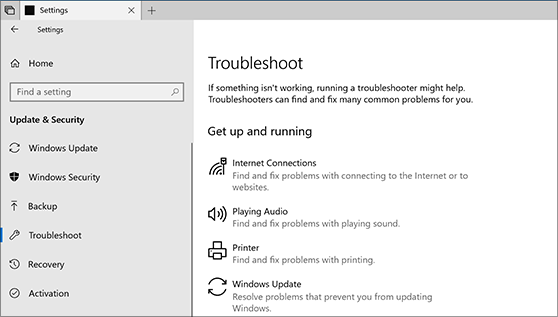
Use a troubleshooter with Windows 10
Step 2: Run the System File Checker (SFC) Scan SFC scans and repairs corrupted system files. Open Command Prompt as administrator by searching for cmd in the Start menu, right-clicking, and selecting Run as administrator. Type the command sfc /scannow and press Enter. Allow the scan to complete, which may take several minutes, and restart your computer afterward.
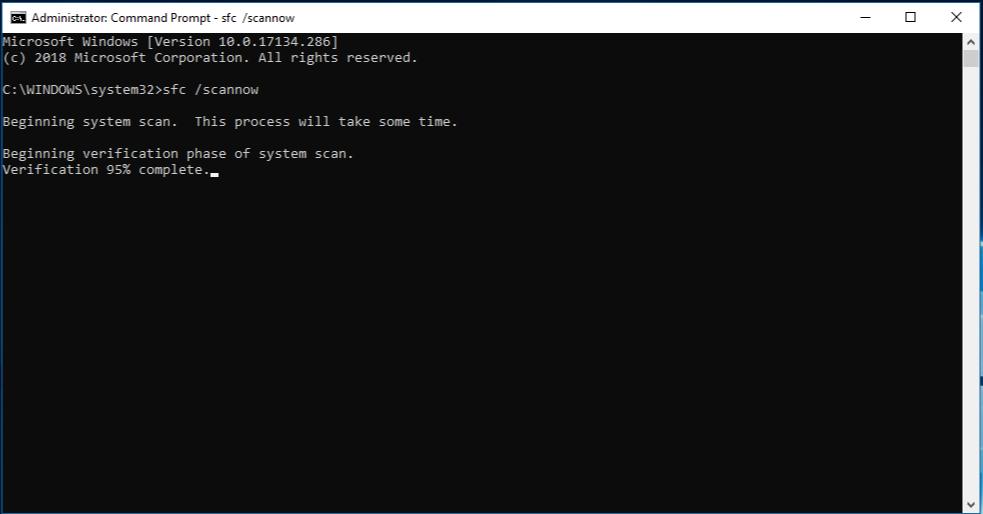
Use the System File Checker tool to repair missing or corrupted
Step 3: Use the Deployment Image Servicing and Management (DISM) Tool If SFC doesn’t resolve the issue, DISM can repair the Windows image. In the same elevated Command Prompt, enter DISM /Online /Cleanup-Image /RestoreHealth and press Enter. This command fetches healthy files from Microsoft servers, so ensure you have an internet connection. The process can take up to 30 minutes or more.
Windows 10 Help Forums
Step 4: Reset Windows Update Components This clears out temporary files and restarts services. In an elevated Command Prompt, run the following commands one by one: net stop bits, net stop wuauserv, net stop cryptsvc, then rename folders with ren %systemroot%\SoftwareDistribution SoftwareDistribution.old and ren %systemroot%\System32\catroot2 catroot2.old. Finally, restart the services with net start bits, net start wuauserv, and net start cryptsvc.
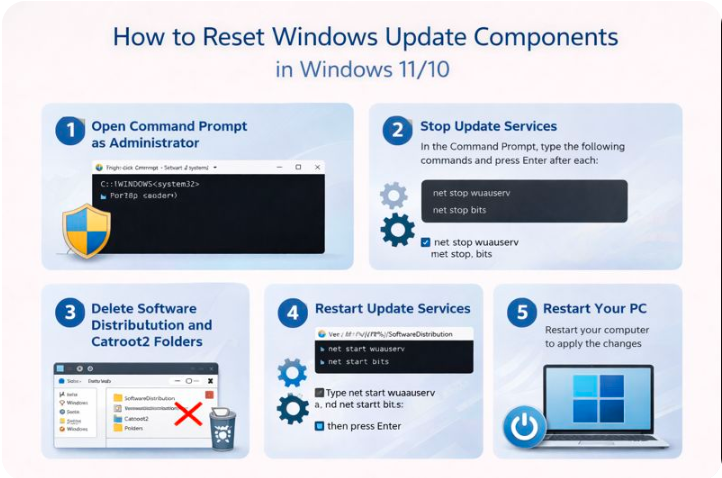
How to reset Windows Update components in Windows 11/10
Step 5: Manually Download and Install Updates If automated methods fail, visit the Microsoft Update Catalog website, search for the specific update code (e.g., KB5049981) that’s failing, download the appropriate version for your system architecture, and install it manually by double-clicking the .msu file.
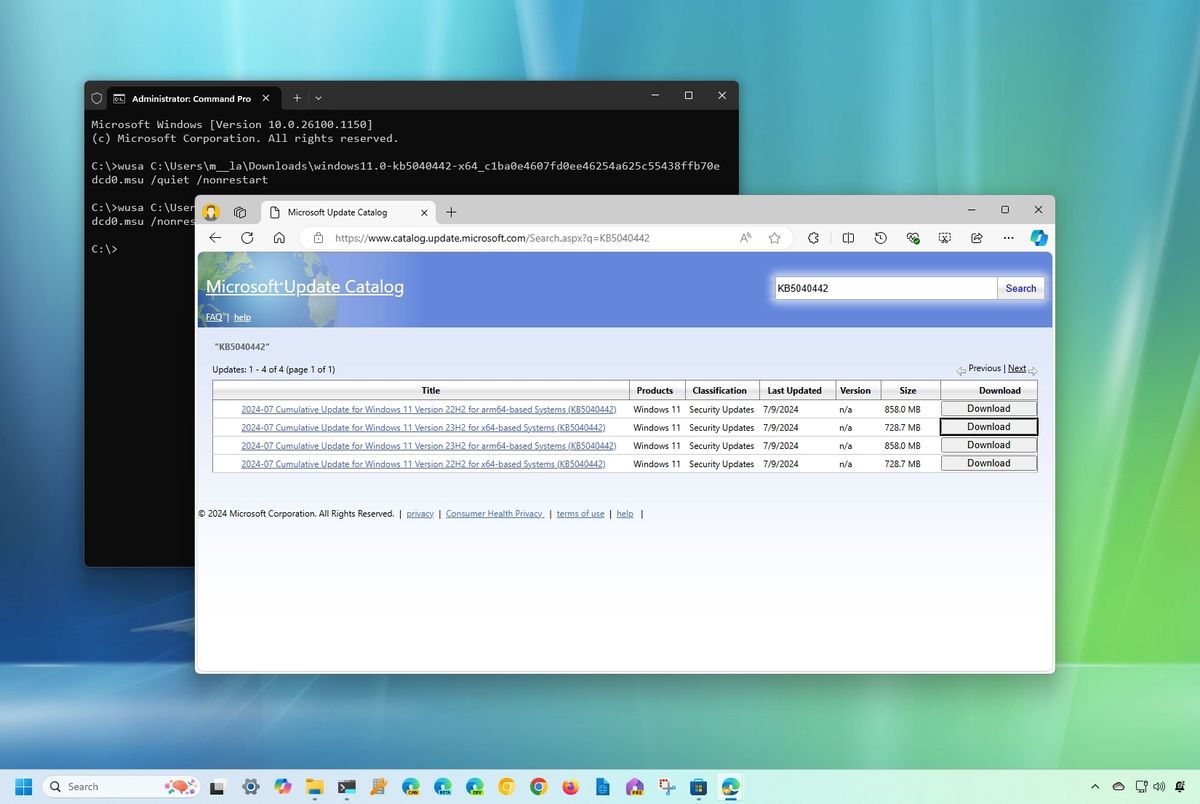
How to manually download and install cumulative updates on Windows …
In one practical case, a user on a Windows 10 machine encountered the error during a cumulative update. After running the troubleshooter and SFC scan, the issue persisted, but resetting the update components allowed the update to install successfully, resulting in a stable system with no further errors for subsequent patches. Another example involved a Windows Server 2022 setup where DISM repaired corrupted files, enabling multiple pending updates to complete and restoring full functionality without needing a reinstall. A third instance saw a laptop user manually downloading from the catalog after other steps failed due to network issues, leading to a quick resolution and improved system performance post-update.
