

What Is a Syntax Error? How to Fix Syntax Errors in Programming?
2026-01-19How to Fix CDR Files Not Exporting to JPG? Solutions for Grayed Out CDR Export Options
2026-01-19How to Fix USB Drive Not Recognized or Only Showing One Partition After Partitioning
Partitioning a USB drive can lead to recognition issues where the entire drive becomes inaccessible or only one partition appears in File Explorer. This common problem, often searched as “USB partition fix” or “fix USB not recognized after partitioning,” arises from errors in the partition table, such as mismatched file systems (e.g., exFAT vs. NTFS), incomplete partitioning processes, or hardware conflicts that corrupt the Master Boot Record (MBR) or GUID Partition Table (GPT). When a USB is partitioned, it’s split into multiple volumes for organization, but if the operating system can’t read the structure properly—due to driver outdatedness or formatting mismatches—the drive may show as raw, unallocated, or partially visible, preventing access to data and storage.
A frequent question is: Why does my USB only show one partition after I created multiple? This typically occurs because the additional partitions use incompatible formats or the partition table wasn’t updated correctly; Windows might default to recognizing only the primary active partition, hiding others until repaired.
Another common query: Can this issue damage my USB drive permanently? No, it’s usually a software glitch fixable with tools like Disk Management, but ignoring it could lead to further corruption if you attempt forced writes—always back up data first if the drive is partially accessible.
Resolving USB not recognized after partitioning restores full drive functionality, recovers hidden storage space, and prevents potential data loss from repeated errors. It enhances compatibility across devices like Windows PCs, Macs, and gaming consoles, saves costs by avoiding new USB purchases, and boosts efficiency for tasks like bootable drive creation or file organization.
Step 1: Connect USB and Open Disk Management Plug in your USB drive. Right-click the Start button and select Disk Management from the menu.
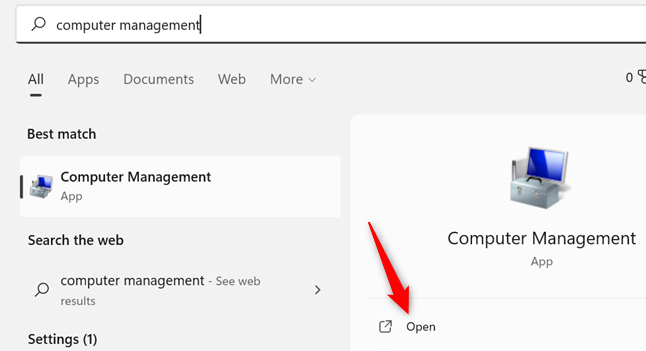
5 Ways to Open Disk Management on Windows 10 or 11
Step 2: Locate the USB Drive In Disk Management, identify your USB drive (labeled Removable). Check for unallocated space or hidden partitions.
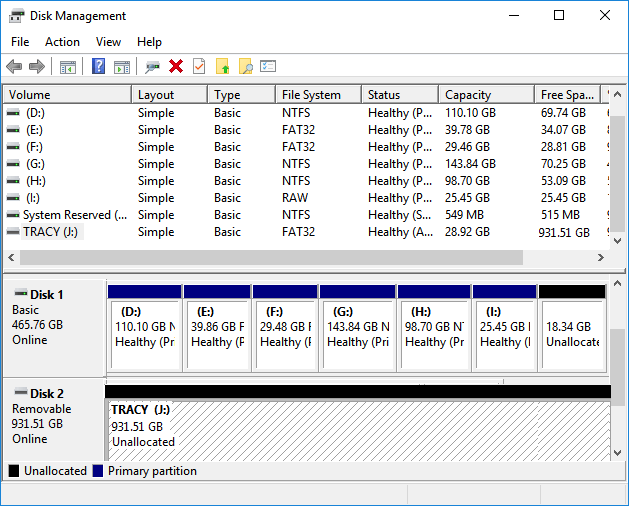
How to Use Unallocated Free Space in Disk Management [Full Guide …
Step 3: Delete Problematic Partitions Right-click each visible partition on the USB and select Delete Volume. Confirm to convert to unallocated space.
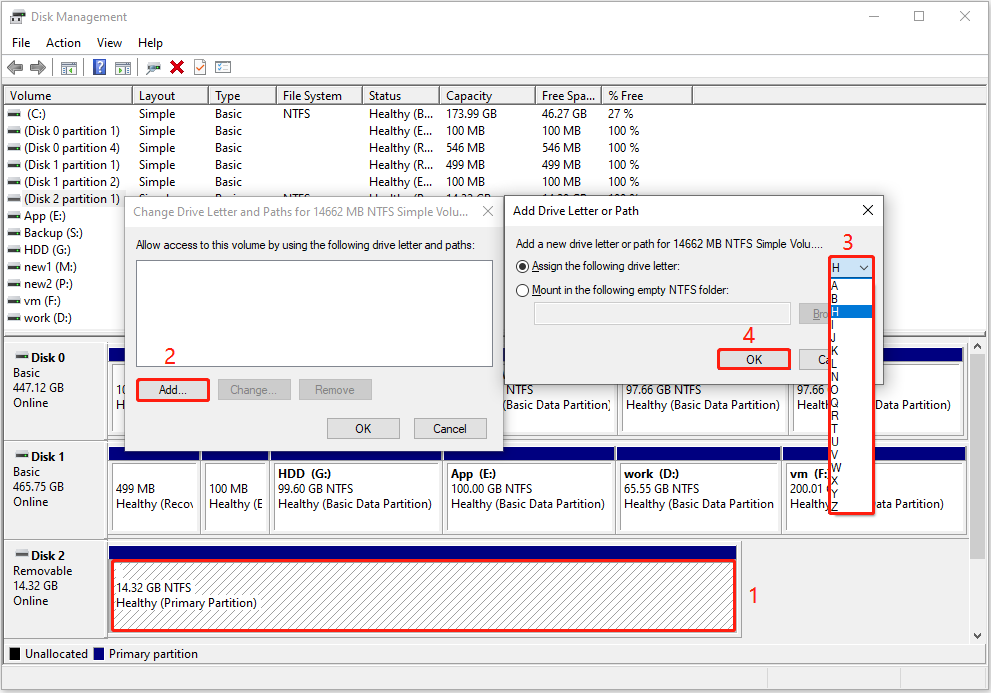
How to Recover a Deleted USB Partition With Data on It
Step 4: Create New Partition Right-click the unallocated space and choose New Simple Volume. Follow the wizard to set size, assign drive letter, and format (e.g., FAT32).
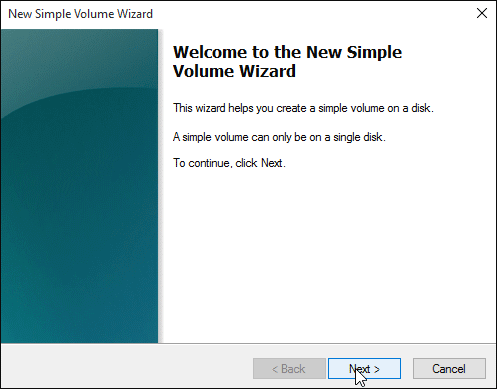
How to Create New Simple Volume in 2 Reliable Ways
Step 5: Verify and Eject Open File Explorer to confirm full access. Safely eject the USB and reinsert to test recognition.
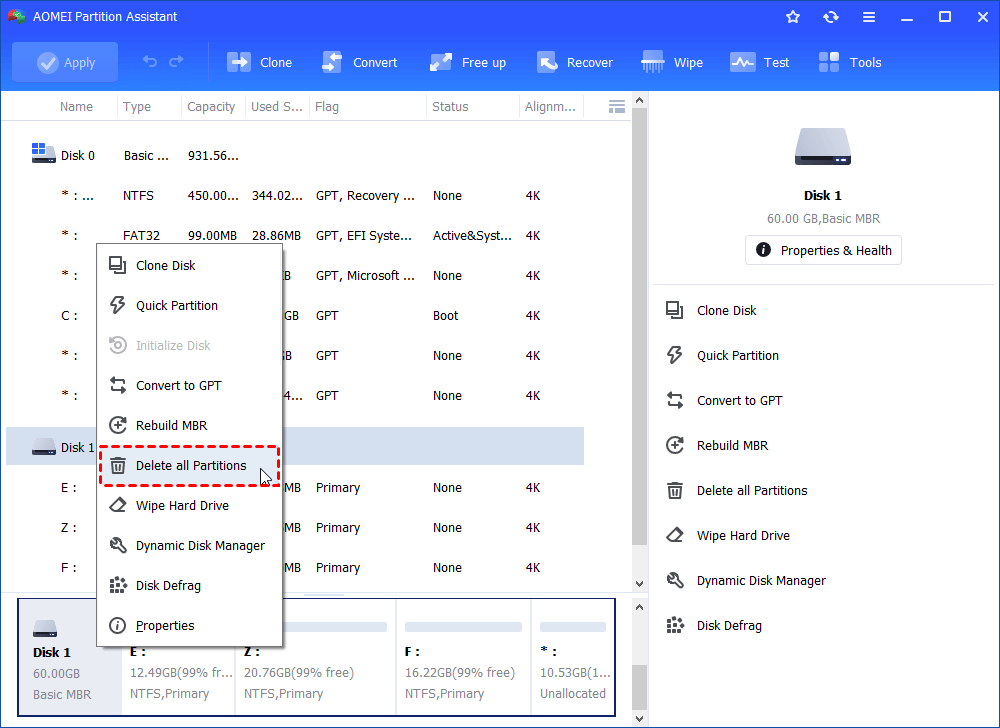
How to Remove/Delete Hidden Partition on USB Drive in Windows 11/10/8?
In one practical case, a 128GB USB partitioned for dual-boot purposes became unrecognized; after applying these steps, all space was reclaimed, allowing seamless file storage without errors. Another scenario involved a USB showing only 32GB of its 64GB capacity post-partitioning—the fix merged sections, restoring full visibility and enabling large file transfers. Finally, on an encrypted USB that displayed just one partition, the repair process fixed compatibility issues, recovering access to sensitive data across multiple computers.
