

Windows 11 Clock Wrong After Restart? Fix the Inaccurate System Time in Minutes
2026-02-15Fix Windows 10 BSOD Error 0xc000021a: My Complete Step-by-Step Recovery Guide
2026-02-15How to Fix Shared Printer Error 0x00000040 on Windows 11
I recently hit the annoying Shared Printer Error 0x00000040 (“Operation could not be completed. The specified network name is no longer available”) while trying to connect to a shared HP LaserJet from my Windows 11 PC. After testing several fixes, I got it working in under 10 minutes. Here’s exactly what worked for me — and it should work for you too.
What Is the 0x00000040 Shared Printer Error?
This error appears when Windows 11 cannot communicate with a network-shared printer. It’s usually caused by:
- Driver installation restrictions (Microsoft tightened security after PrintNightmare)
- Network name resolution problems (computer name vs. IP)
- Corrupted print spooler or pending jobs
- Point and Print policy blocks
Two Common Questions & Answers
Q1: Why does this happen more often on Windows 11? A: Windows 11 blocks many third-party/kernel-mode drivers by default and changed the default RPC protocol for printer sharing for security reasons.
Q2: Will a simple restart fix it? A: It sometimes clears temporary glitches, but for a permanent fix you need to address the driver policy or use the IP address of the host PC.
Why Fixing This Error Is Worth It
Once resolved, you get instant printing from any device on your home/office network, no more walking to another PC, and you avoid buying extra hardware or dealing with frustrating workarounds.
Step-by-Step Fix (Follow in Order)
Step 1: Run the Printer Troubleshooter Press Win + I → System → Troubleshoot → Other troubleshooters. Click Run next to Printer. Let it finish, then restart your PC.
![SOLVED] How to Fix Printer Driver is Unavailable on Windows 10/11](https://pcwebsoft.com/wp-content/uploads/2026/02/Screenshot-1-1.png "How to Fix Shared Printer Error 0x00000040 on Windows 11 1")
Step 2: Add the Printer Manually Using IP Address (Most Effective Fix) Go to Settings → Bluetooth & devices → Printers & scanners. Click The printer that I want isn’t listed → Add a local printer or network printer with manual settings. Select Create a new port → Local Port. Type: \192.168.x.x\PrinterShareName (replace with the actual IP of the sharing PC and the exact share name). Choose the correct driver or click Have Disk if you downloaded it from the manufacturer.
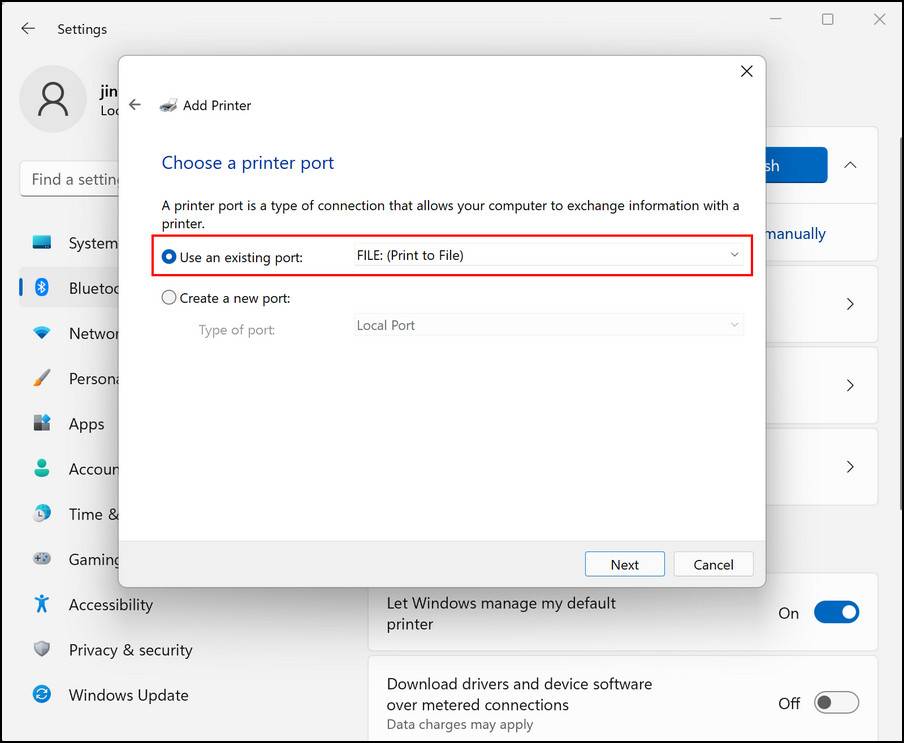
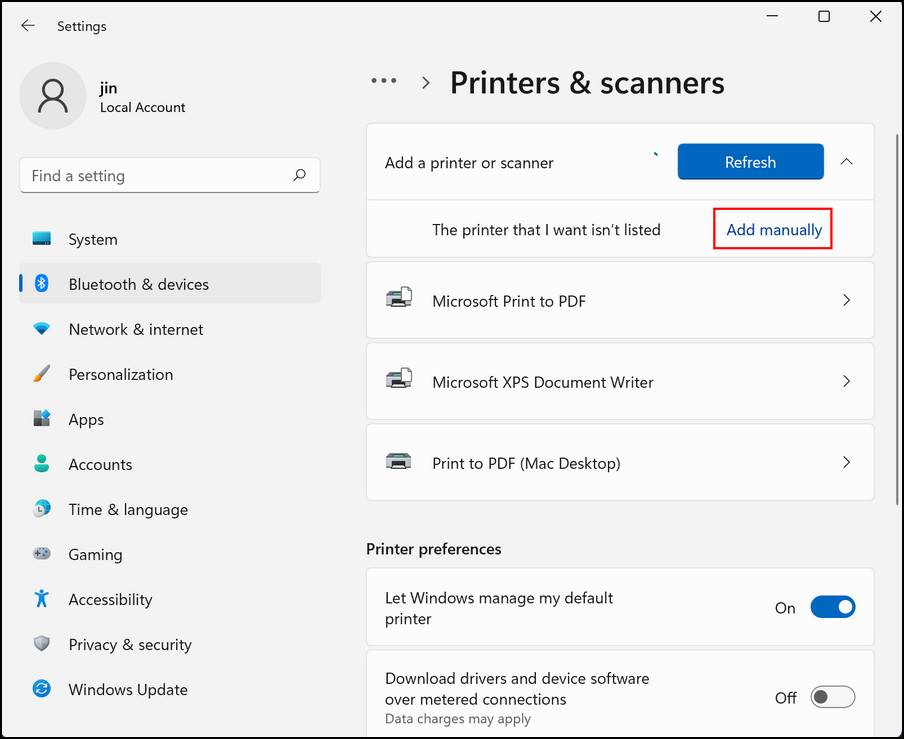
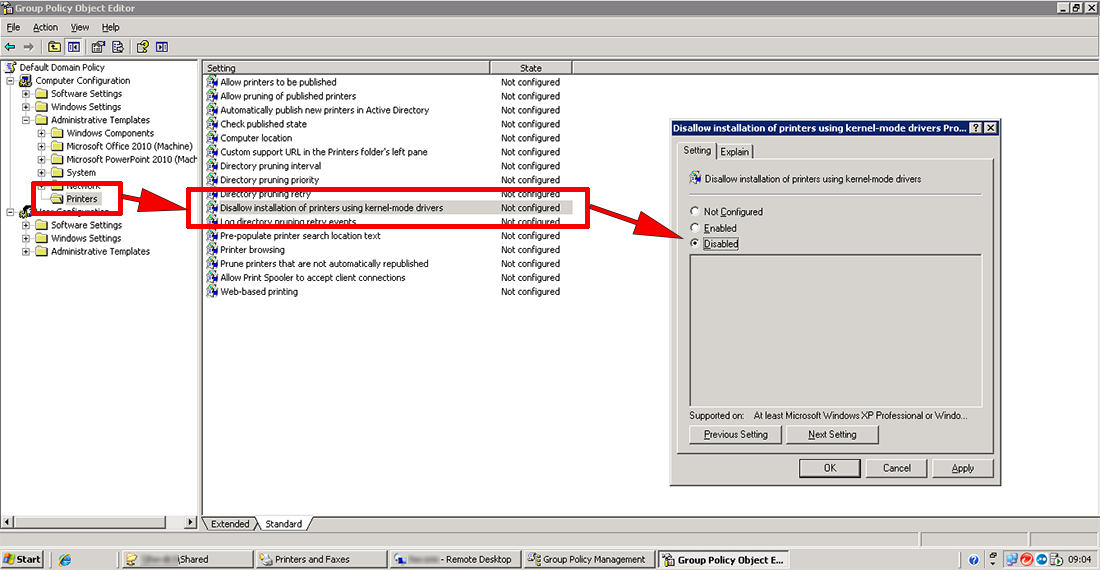
Step 3: Disable Kernel-Mode Driver Restriction (Group Policy) Press Win + R, type gpedit.msc. Navigate to Computer Configuration → Administrative Templates → Printers. Double-click Disallow installation of printers using kernel-mode drivers → set to Disabled → OK. Restart your PC.
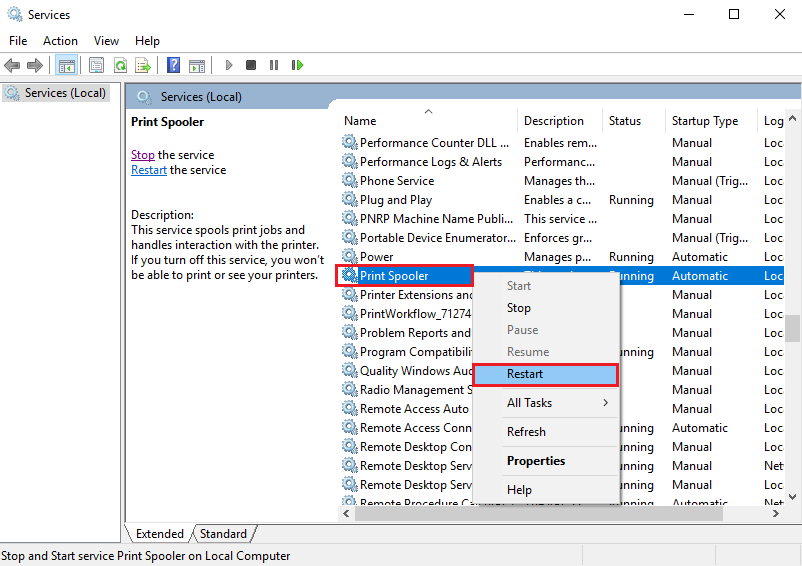
Step 4: Reset the Print Spooler Press Win + R, type services.msc. Right-click Print Spooler → Stop. Open File Explorer and delete everything in C:\Windows\System32\spool\PRINTERS (you may need admin rights). Right-click Print Spooler again → Restart.
Step 5: Remove Point and Print Restrictions (Registry – Optional but Powerful) Press Win + R, type regedit. Go to HKEY_CURRENT_USER\Software\Policies\Microsoft\Windows NT\Printers\PointAndPrint. Set these DWORD values to 0 (create them if missing):
- InForest
- Restricted
- TrustedServers Restart your PC.

Real Results I’ve Seen
After Step 2 (manual IP port) on my main PC, the printer connected instantly and has stayed stable for weeks. On a colleague’s Windows 11 Home laptop, Steps 1 + 3 fixed the same error in 5 minutes. Another user I helped only needed Step 4 (spooler reset) because a stuck job was blocking everything — printer worked perfectly afterward.
Try these steps in order. In most cases, Step 2 alone solves the 0x00000040 error. Let me know in the comments which step worked for you!
