

How to Fix Enlarged Font on Computer Screen: Step-by-Step Guide
2026-01-23Ultimate Guide: How to Easily Customize App Icons and Names on Windows for a Personalized Desktop
2026-01-24How to Fix Google Chrome Not Opening Web Pages Despite Internet Connection: Step-by-Step Guide
As someone who’s encountered the frustrating issue of Google Chrome failing to load webpages even when my internet connection is stable, I’ve delved into what causes this problem. It often stems from browser-specific glitches like corrupted cache data, conflicting extensions, outdated software versions, or misconfigured settings that block site access despite a working network. Breaking it down, cache buildup can lead to stale data preventing fresh loads; extensions might interfere with scripts or connections; outdated Chrome misses bug fixes for connectivity; and network adapters or DNS issues can mimic browser faults. This is common on Windows, where tools like the troubleshooter help isolate if it’s Chrome or system-wide, ensuring you address the root without unnecessary resets.
What if other browsers work fine but Chrome doesn’t? This points to a Chrome-specific issue like cache or extensions—try clearing data or disabling add-ons first, as it isolates the problem without affecting your OS.
Why does Chrome show ‘No Internet’ when I have a connection? It could be DNS resolution failures or proxy settings—running the network troubleshooter often resolves hidden config errors, or check Chrome’s advanced settings for mismatches.
Fixing Chrome’s failure to open pages despite internet access restores seamless browsing, saving time lost to reloads and enhancing productivity for work or streaming. It prevents security risks from outdated versions, reduces frustration from constant errors, and optimizes performance by clearing junk data.
- Run Network Troubleshooter Right-click the network icon in the taskbar, select Troubleshoot problems, and follow the wizard to diagnose.
![How to Fix All Network and Internet Issues in Windows 10/8/7 [Tutorial]](https://pcwebsoft.com/wp-content/uploads/2026/01/6_maxresdefault.jpg "How to Fix Google Chrome Not Opening Web Pages Despite Internet Connection: Step-by-Step Guide 1")
How to Fix All Network and Internet Issues in Windows 10/8/7
- Clear Browsing Data in Chrome Open Chrome, press Ctrl + Shift + Delete, select All time for range, check Cached images and files, then Clear data.
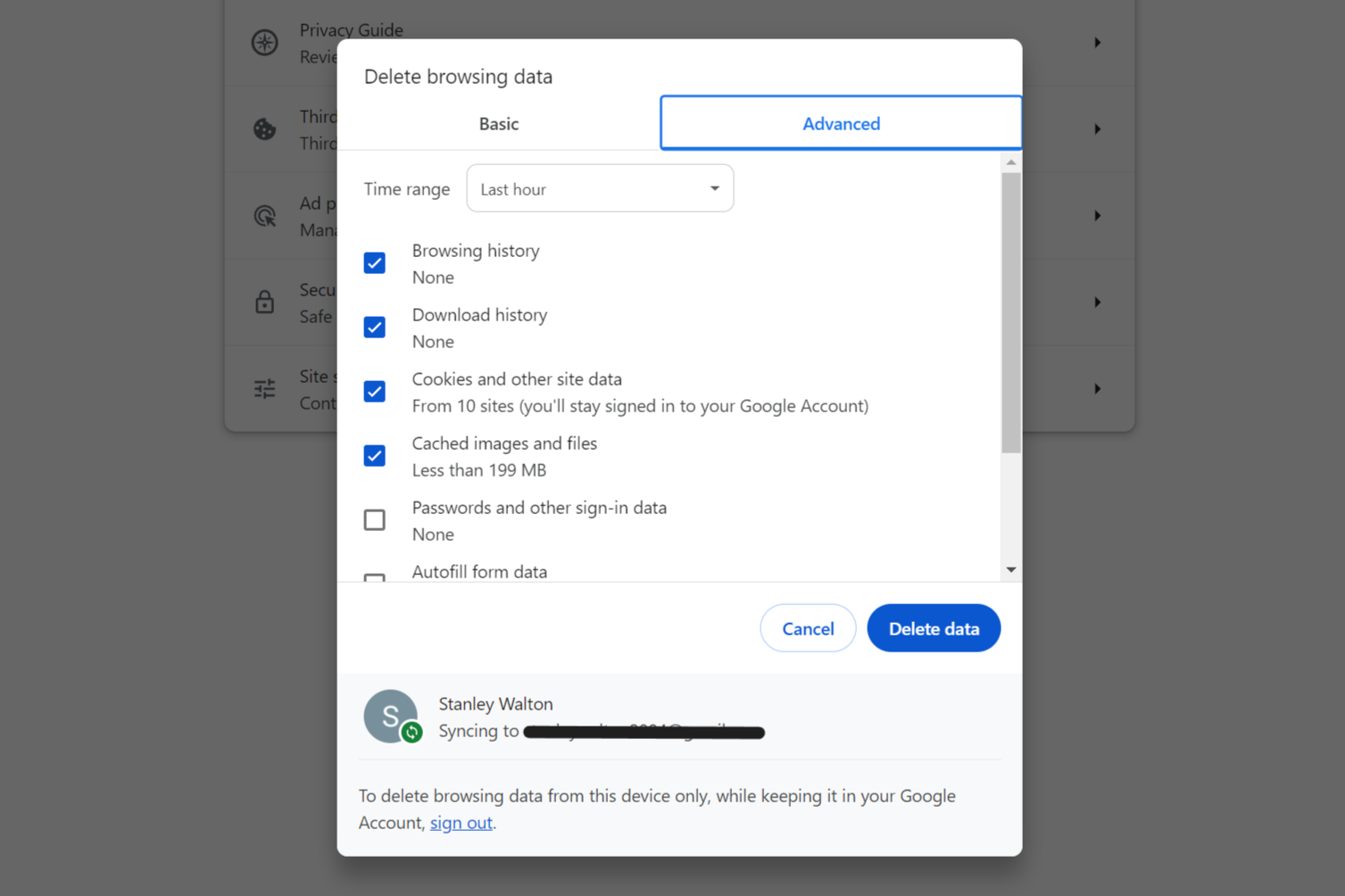
How to clear cache, cookies & history on Google Chrome
- Disable Extensions In Chrome, type chrome://extensions/ in the address bar, then toggle off all extensions one by one to test.
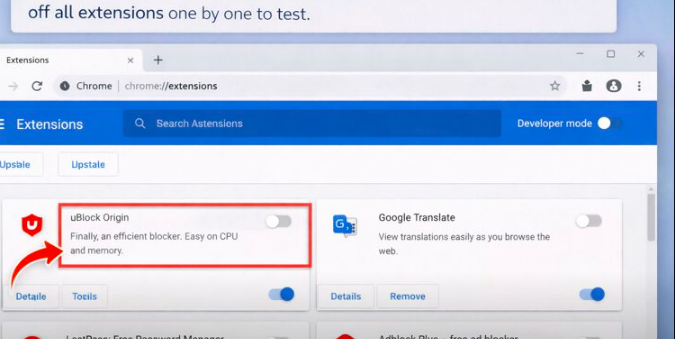
How to Disable Extensions in Chrome
- Update Chrome Click the three-dot menu > Help > About Google Chrome, and let it check for updates automatically.
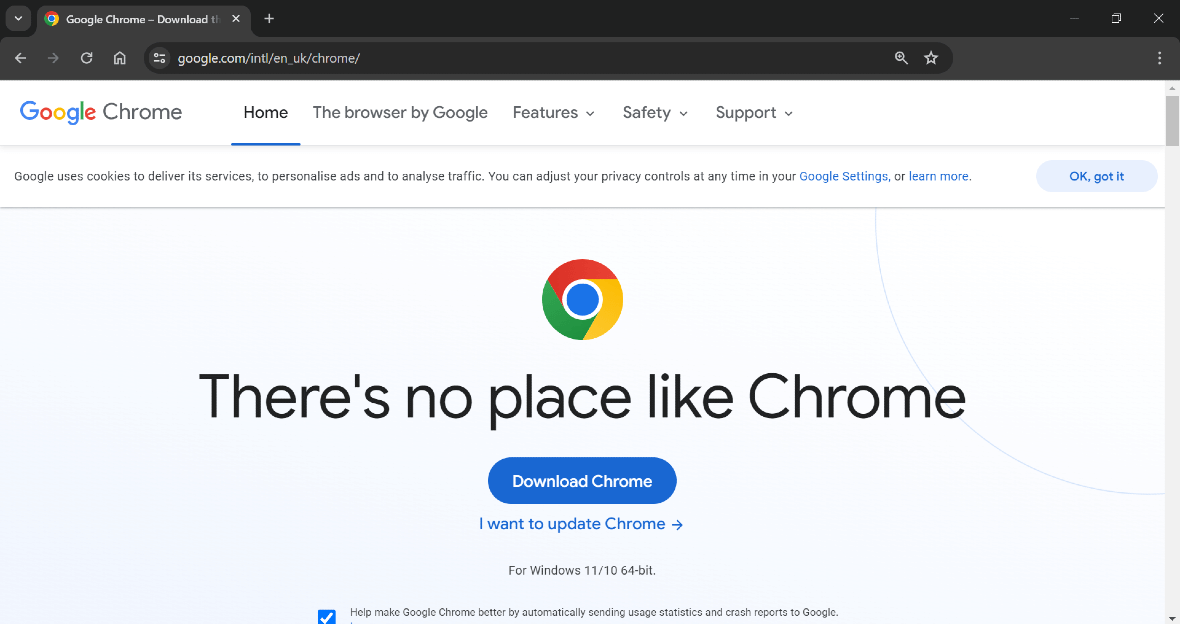
A fake Google Chrome update is spreading a remote access trojan
- Reset Chrome Settings Go to chrome://settings/reset, click Restore settings to their original defaults, and confirm.
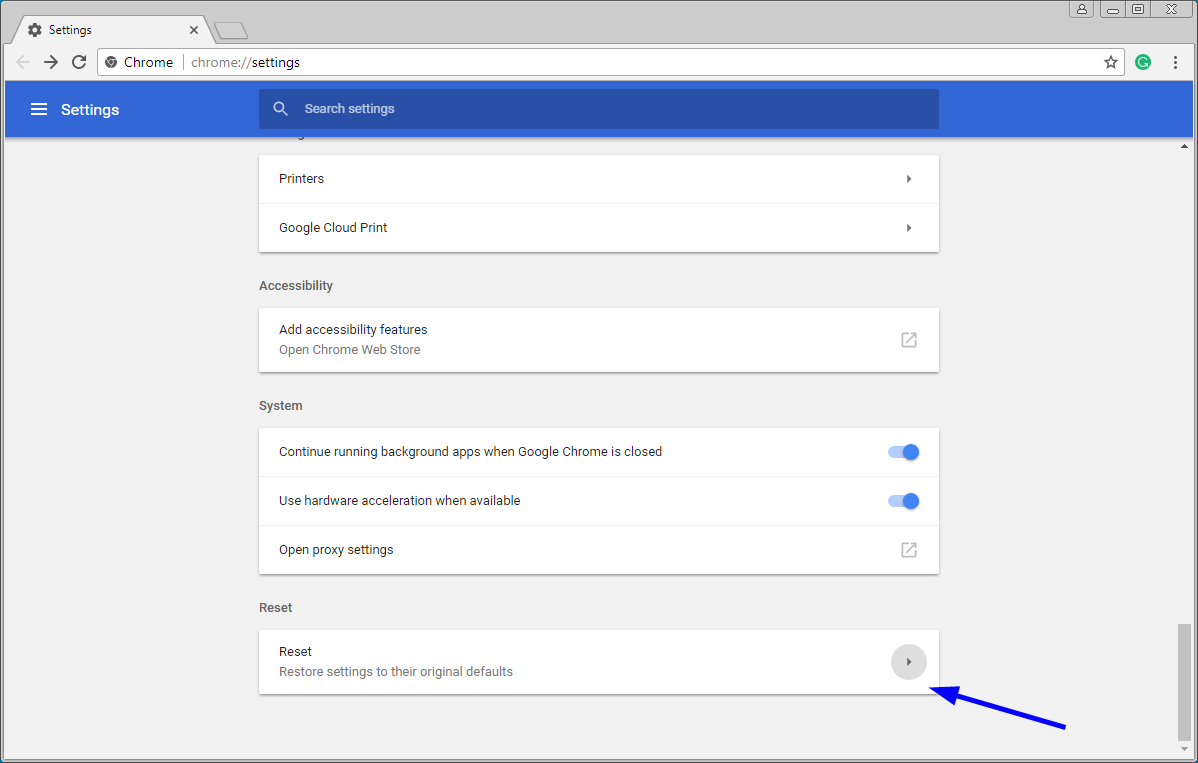
How to Reset The Chrome Browser To Its Default Settings
- Restart Your Computer Click Start > Power > Restart to reboot and refresh all processes.
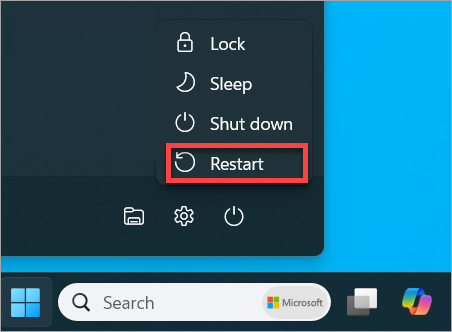
Restart (reboot) your PC
In my own setup, clearing the cache fixed intermittent loading issues during video calls, allowing uninterrupted meetings. A friend resolved persistent site errors by disabling a faulty ad blocker extension, regaining access to online banking swiftly. For a work laptop, updating and resetting Chrome eliminated connection timeouts, boosting efficiency over a busy week.
