

How to Fix ‘Reboot and Select Proper Boot Device’ Black Screen Error
2026-01-15
What Does “Object Error” Mean When Opening a Web Page?
2026-01-16How to Fix CPU Always at 100% Usage
High CPU usage at 100% indicates that your computer’s central processing unit is constantly operating at full capacity, leaving no room for additional tasks and causing slowdowns, overheating, or system instability. Breaking this down, the concept involves resource allocation where the CPU handles instructions from software; when it hits 100%, it could stem from demanding applications like video editing tools consuming all cycles, background processes such as automatic updates piling up, or malware secretly running computations. Hardware factors, including insufficient RAM forcing the CPU to compensate or outdated drivers inefficiently managing tasks, also contribute. Over time, dust buildup can lead to thermal throttling, where the CPU ramps up to maintain performance under heat stress, exacerbating the issue.
A common question is: Why does my CPU spike to 100% even when I’m not running heavy programs? This often results from rogue processes, like a browser with too many tabs or a faulty driver loop; identifying and terminating them via task manager can provide immediate relief. Another frequent concern: Will constant 100% CPU usage damage my hardware? While modern CPUs have safeguards against immediate harm, prolonged high usage increases heat, potentially shortening component lifespan if cooling is inadequate—regular monitoring prevents escalation.
Resolving this issue brings multiple benefits, such as smoother multitasking without lags, reduced energy consumption for laptops extending battery life, and lower noise from fans not spinning at maximum. It also minimizes overheating risks, preserving hardware integrity and avoiding unexpected crashes during critical work.
To address this, start with basic diagnostics and progress to deeper fixes.
Begin by opening the Task Manager—press Ctrl + Shift + Esc on Windows. Sort the processes by CPU column to spot the culprits using the most resources, like a misbehaving app or service.
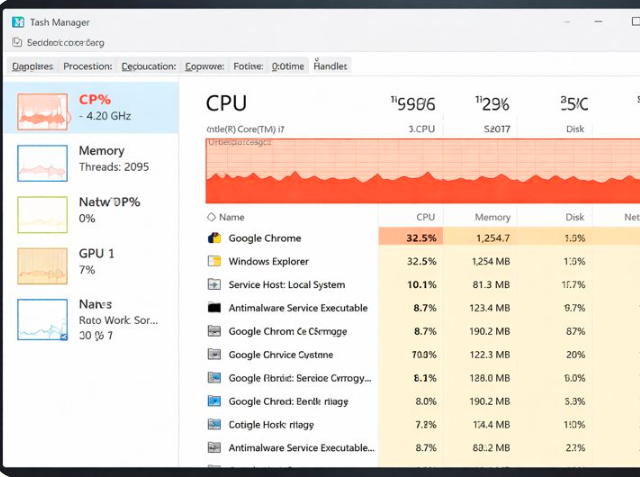
Windows 8 Task Manager shows 49% CPU utilization but Process
Once identified, right-click the high-usage process and select End Task to stop it temporarily; be cautious with system processes, as ending essentials might require a restart.
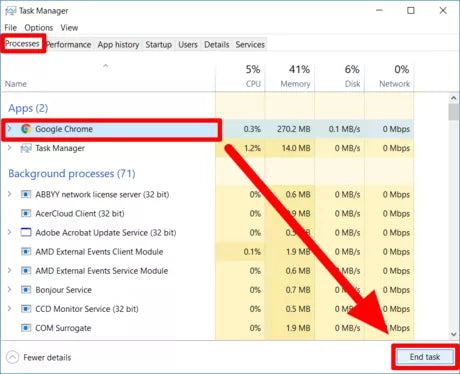
How To Close Application From Task Manager – Softwareg.com.au
Next, check for system updates: go to Settings > Update & Security > Windows Update, and click Check for updates to install any pending ones, which often include performance optimizations.
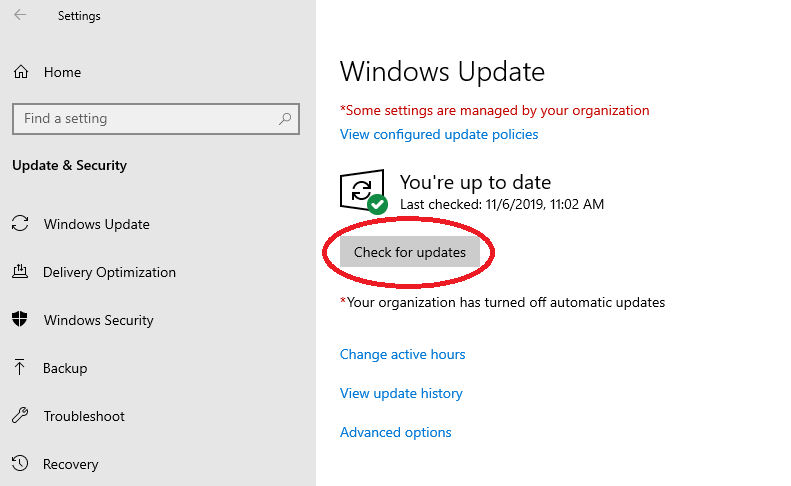
Manual Check for Updates (Windows) – Technology at SCU – Santa …
Run a malware scan using built-in tools—open Windows Security, navigate to Virus & threat protection, and start a Full scan to detect and remove hidden threats draining CPU.
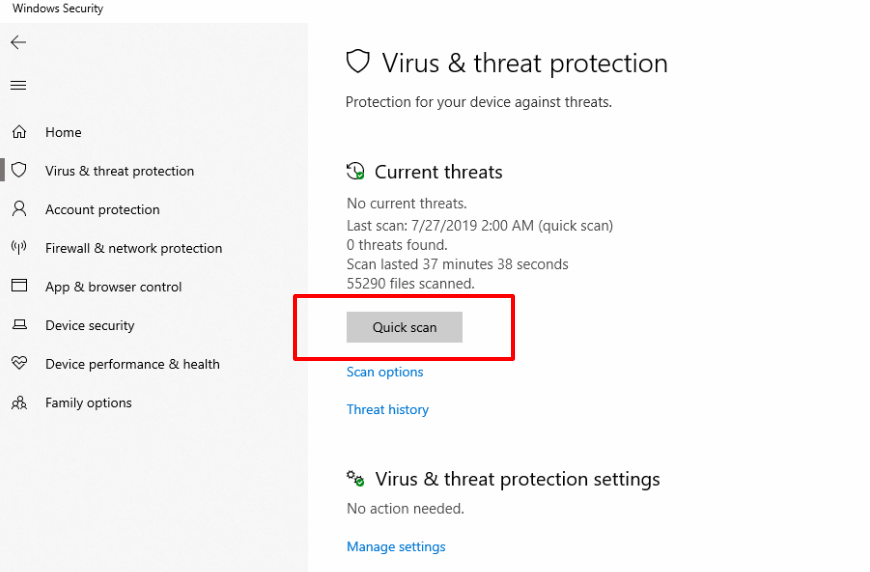
How to run a virus scan with Windows Defender
If issues persist, update drivers: open Device Manager by searching for it, expand categories like Processors or Display adapters, right-click your device, and choose Update driver to search automatically.
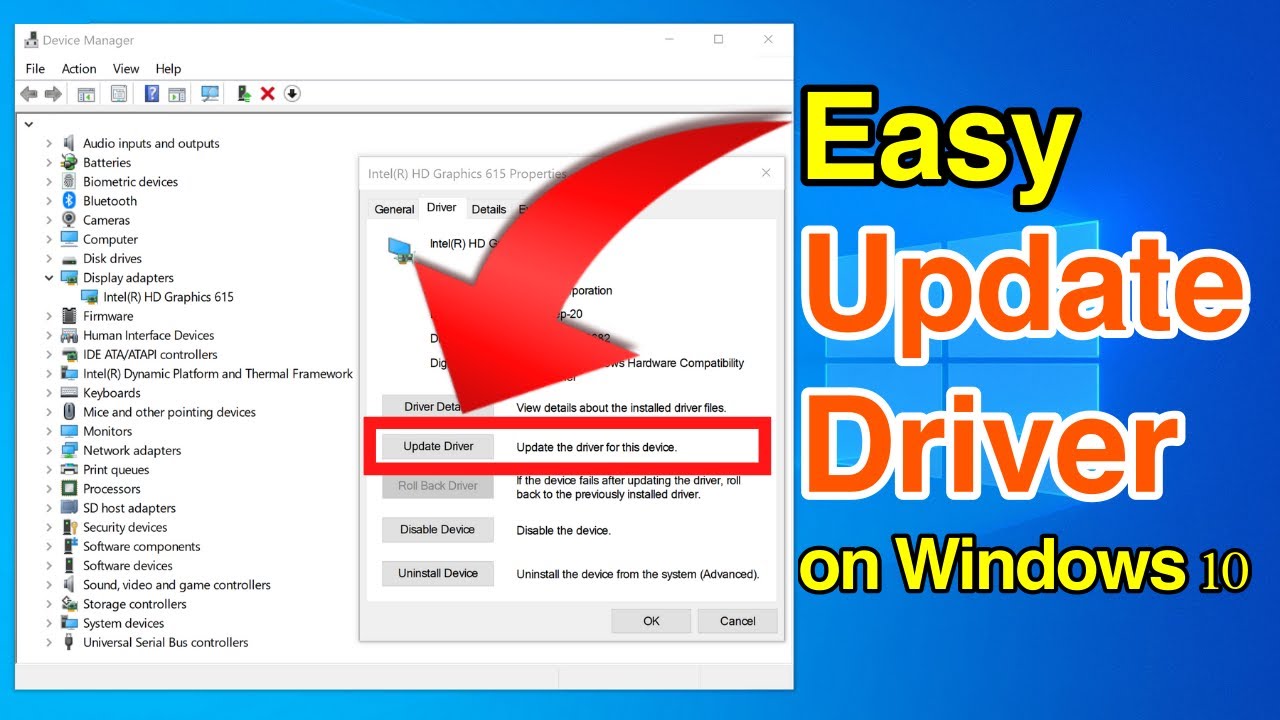
How To Update Device Drivers In Windows 10
In one real-world case, a user on a gaming laptop noticed 100% CPU during idle times due to background crypto-mining malware; after scanning and removing it, usage dropped to under 10%, restoring smooth gameplay. Another instance involved an office worker whose antivirus updates were outdated—installing them reduced CPU spikes, improving productivity without freezes. Finally, a developer with constant high usage from inefficient drivers saw resolution after updates, noting faster compile times and cooler temperatures overall.
