

How to Disable User Account Control (UAC) Pop-ups in Windows 10/11: Step-by-Step Guide
2026-01-20How to Match Identical Data in Two Excel Tables: Step-by-Step Guide
2026-01-21How to Fix Computer Not Connecting to WiFi: Step-by-Step Troubleshooting Guide
When your computer fails to connect to WiFi wirelessly, it means the device cannot establish a link to the wireless network, resulting in no internet access despite available signals. This issue breaks down into key concepts: hardware factors like faulty adapters or router problems; software glitches such as outdated drivers, incorrect settings, or interference from antivirus; network-related causes including weak signals, incorrect passwords, or overcrowding on channels; and environmental elements like distance from the router or physical obstructions. Common on Windows PCs, this often stems from misconfigurations in the Network and Sharing Center or adapter settings, leading to error messages like “No connections are available” or perpetual “Connecting” status. Troubleshooting involves systematic checks to isolate and resolve the root cause, restoring seamless wireless connectivity.
Why does my computer see the WiFi network but fail to connect? This could be due to an incorrect password, IP conflicts, or driver issues—try re-entering the password accurately or resetting the router to refresh connections.
What if only my computer can’t connect while other devices can? It points to a device-specific problem like outdated WiFi drivers or adapter malfunctions—update drivers via Device Manager or check for hardware switches on laptops.
Fixing WiFi connection issues on your computer restores reliable internet access, enabling uninterrupted work, streaming, or browsing, which boosts productivity and reduces frustration. It prevents potential security risks from using unsecured alternatives, saves money on unnecessary repairs, and extends hardware life by addressing underlying software glitches early.
- Check if WiFi is Enabled Right-click the network icon in the taskbar, select Open Network & Internet settings, and ensure WiFi is toggled on.
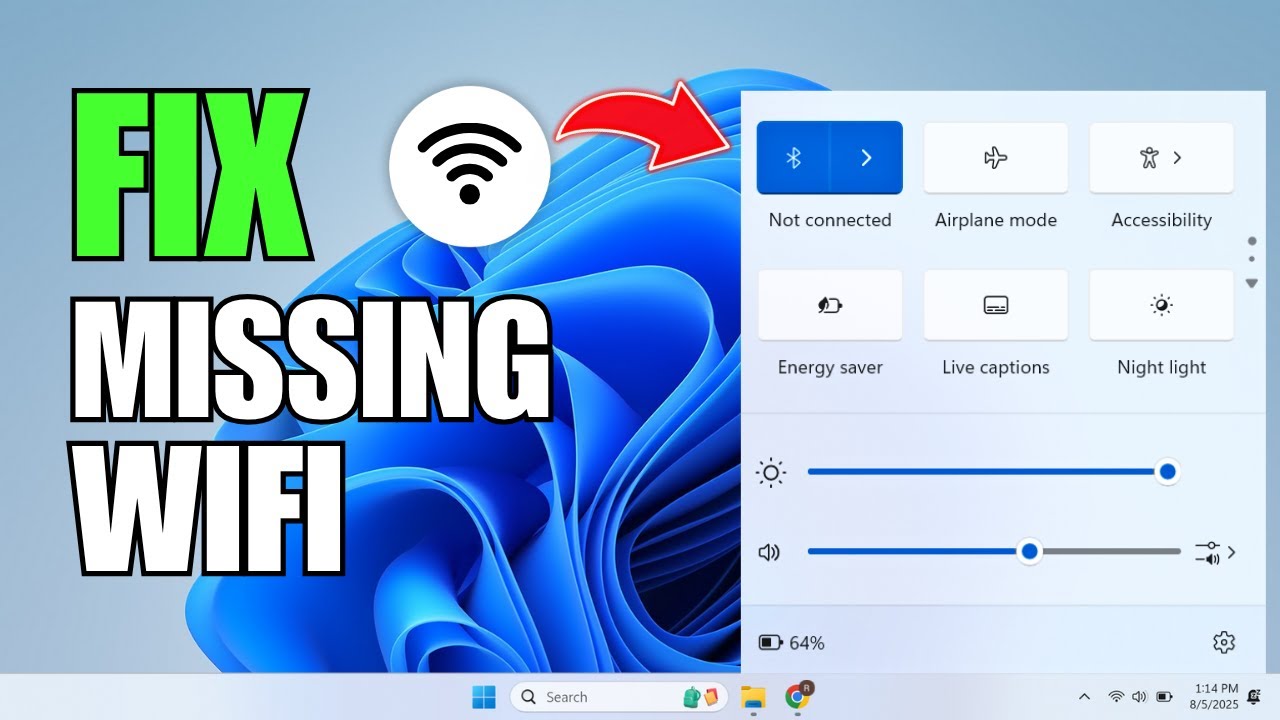
How To Make WiFi Icon Appear on Taskbar (Windows 11)
- Restart Your Router Unplug the router power cord, wait 30 seconds, then plug it back in and allow it to reboot fully.
:max_bytes(150000):strip_icc()/how-to-properly-restart-a-router-modem-2624570-8ef8d3ea41a14c928947e58c32fa3646.png "How to Fix Computer Not Connecting to WiFi: Step-by-Step Troubleshooting Guide 2")
How to Restart Router & Modem for Better Internet
- Run the Network Troubleshooter Go to Settings > Network & Internet > Status, click Network troubleshooter, and follow the prompts to diagnose and fix.
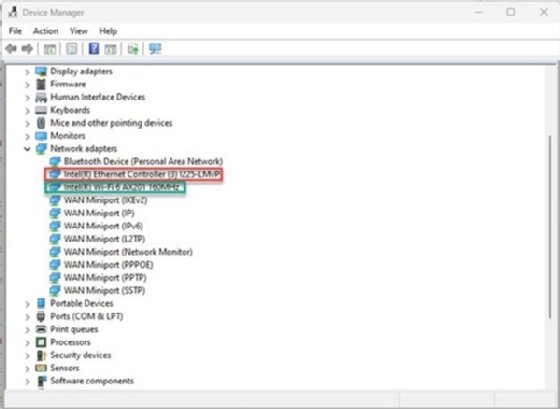
4 steps to troubleshoot Windows 11 network issues
- Forget and Reconnect to the Network In Settings > Network & Internet > WiFi, click Manage known networks, select the network, click Forget, then scan and reconnect with the password.
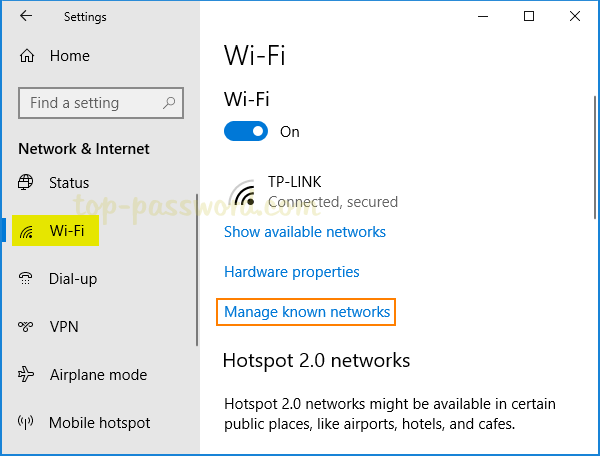
How to Forget a WiFi Network Saved in Windows 10 Password Recovery
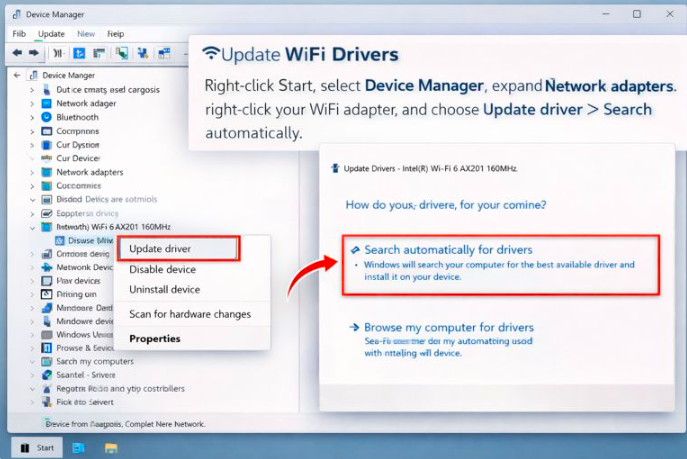
How to Update Wireless Driver on Windows 11/10/8/7
- Restart Your Computer Click Start > Power > Restart to reboot the system and refresh network settings.

Windows 11 stuck restarting
A remote worker resolved intermittent WiFi drops on their laptop by updating drivers, regaining stable connections for video calls and avoiding missed deadlines. In a household with multiple devices, restarting the router fixed the issue for a single PC, restoring access to online classes without further disruptions. An office IT team applied the troubleshooter across several machines, quickly identifying and fixing signal interference, improving overall network performance for the team.

1 Comment
Hi,
list pcwebsoft.com in GoogleSearchIndex and have it displayed in web search results!
Add pcwebsoft.com now at https://searchregister.org