

How to Fix USB Drive Not Recognized or Only Showing One Partition After Partitioning
2026-01-19How to Generate a Table of Contents in Word
2026-01-20How to Fix CDR Files Not Exporting to JPG? Solutions for Grayed Out CDR Export Options
CDR files, the native format for CorelDRAW graphics software, often encounter issues when attempting to export to JPG format, such as the export options appearing grayed out and unavailable. This problem, commonly searched as “CDR cannot export JPG fix” or “CorelDRAW export grayed out solution,” stems from several factors: unselected objects in the design, compatibility issues with vector vs. bitmap elements, outdated software versions, file corruption, or restrictive settings like locked layers. JPG export requires rasterization, so if the file contains complex vectors without proper selection or conversion, the option disables itself to prevent errors. Understanding CorelDRAW export problems is essential for designers, as it affects workflow in creating web-ready images, print materials, or sharing visuals.
One common question is: Why are the JPG export options grayed out in CorelDRAW? This happens primarily because no objects are selected—CorelDRAW requires explicit selection for export—or due to the file being in a mode that doesn’t support bitmap conversion, like multi-page documents; to fix, select all (Ctrl+A) or switch to single-page view.
Another frequent query: Can I export CDR to JPG using alternative software if CorelDRAW fails? Yes, tools like Adobe Illustrator or online converters can open CDR files and export to JPG, but they may alter layers or effects; always back up originals to avoid data loss.
Resolving grayed out CDR export options streamlines your design process, enabling quick JPG outputs for versatile use in websites, social media, or presentations. It prevents workflow interruptions, reduces file size for easier sharing, enhances compatibility across platforms, and saves time by avoiding manual workarounds, ultimately boosting productivity for graphic designers and hobbyists alike.
Step 1: Open the CDR File in CorelDRAW Launch CorelDRAW and go to File > Open. Select your CDR file and load it.
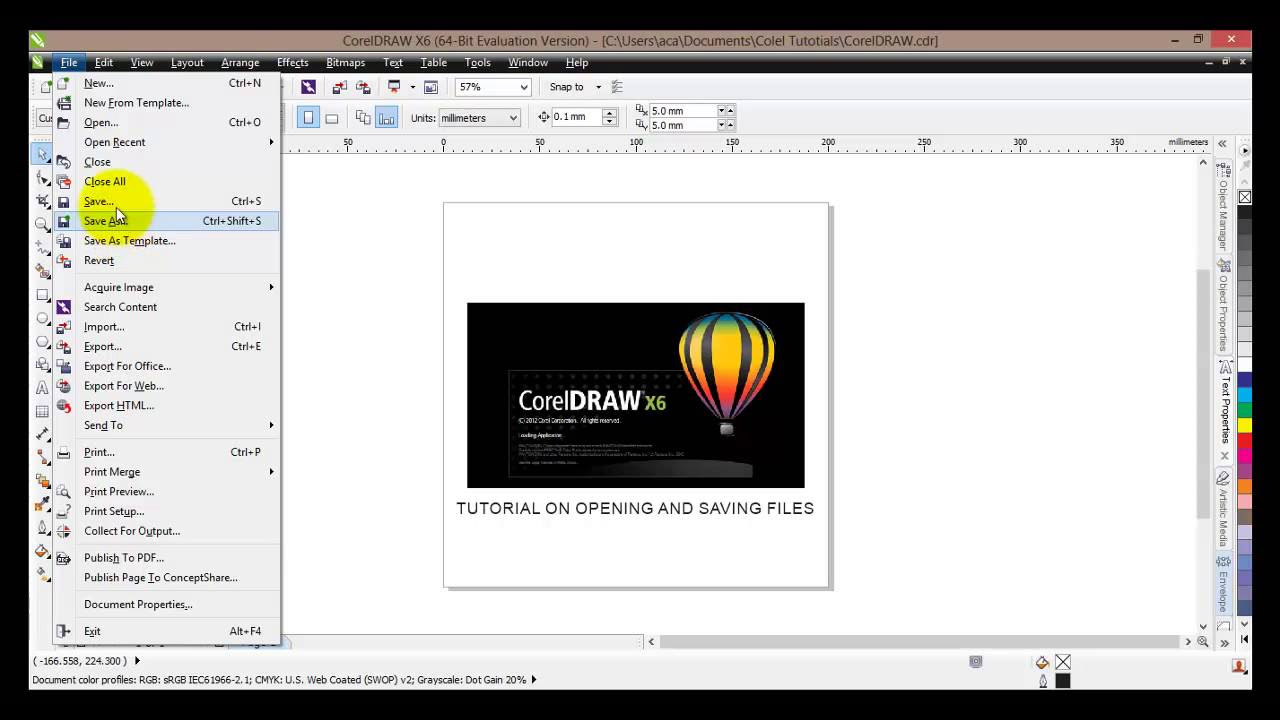
CORELDRAW tutorial #10 How to Open and Save a file image format
Step 2: Select All Objects Press Ctrl+A to highlight everything. Ensure no locked layers or hidden elements are missed.
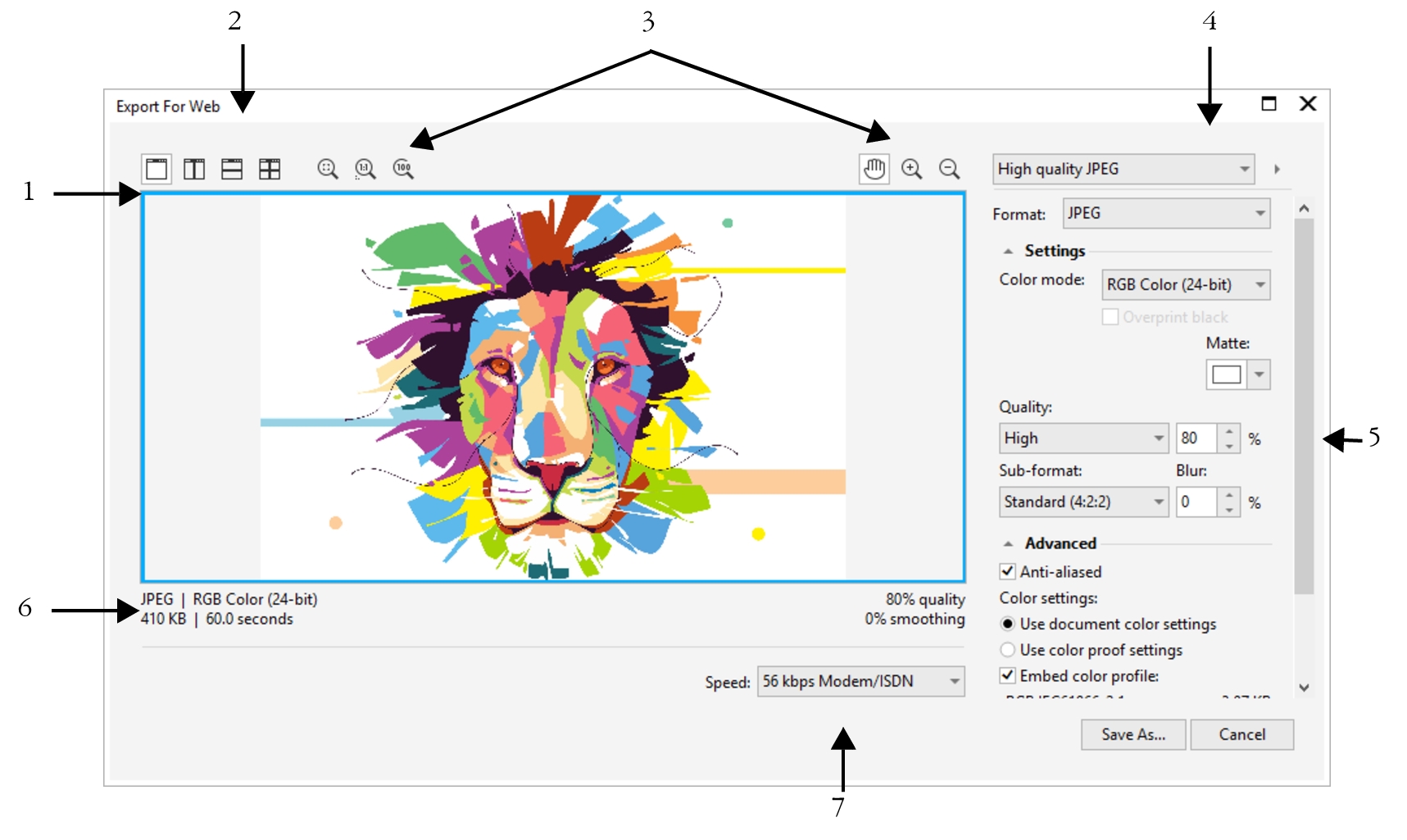
Export bitmaps for the web
Step 3: Check and Update Software Version Go to Help > Check for Updates. Install any available updates to fix compatibility bugs.
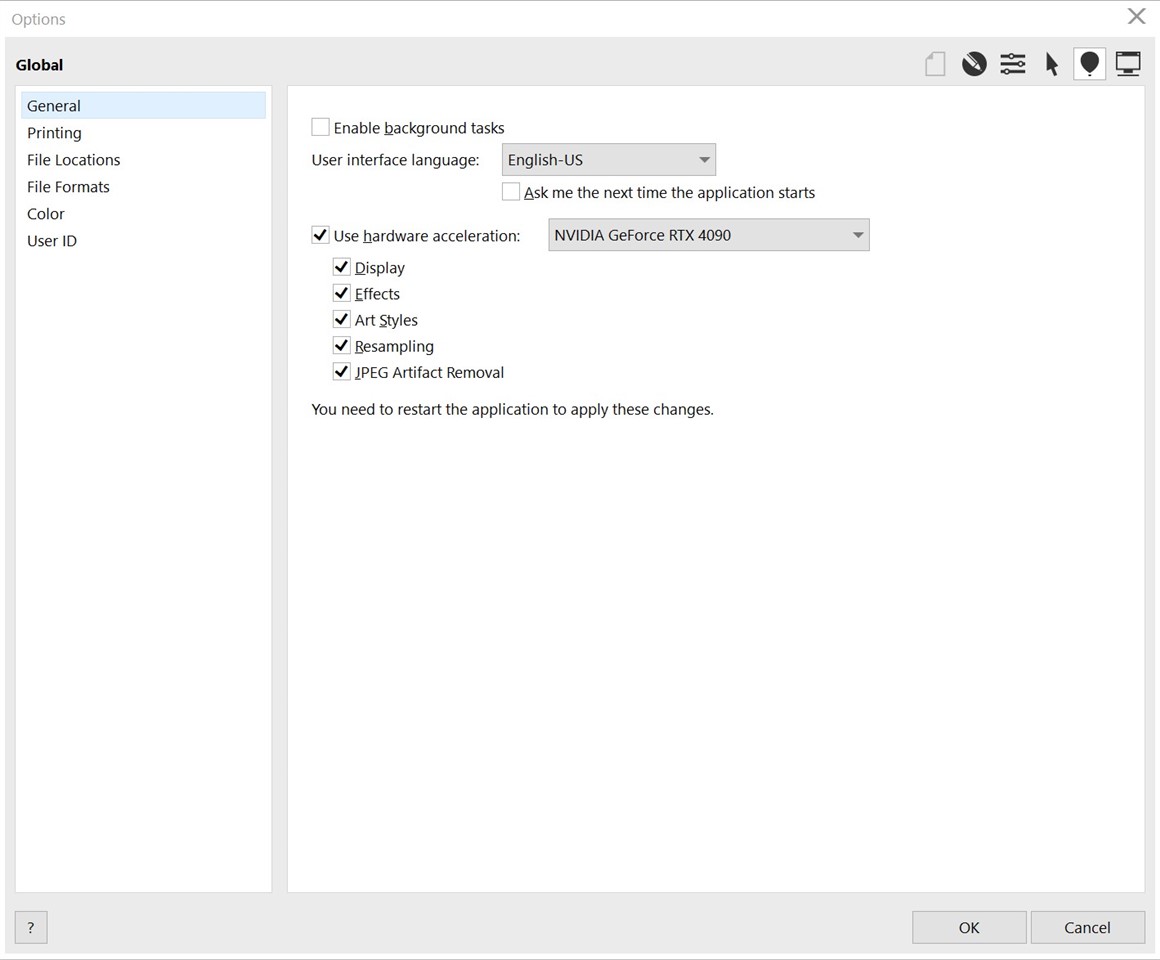
Coreldraw very slow after restarting the program
Step 4: Access Export Settings Navigate to File > Export. If grayed out, try rasterizing vectors first via Bitmaps > Convert to Bitmap.
export – Problems exporting CorelDraw X7 file to JPG
Step 5: Export as JPG and Verify In the export dialog, choose JPG format, set quality, and click Export. Confirm the file opens correctly.
CorelDraw Software Exporting Image with New CMYK (Part 3)
In one practical scenario, a designer fixed a grayed out JPG export on a logo CDR file by updating CorelDRAW, resulting in successful high-resolution images for client web use without quality loss. Another case involved selecting overlooked objects in a multi-layer poster, enabling export and reducing file preparation time by half for print jobs. Finally, converting vectors to bitmaps resolved the issue for a batch of illustrations, allowing bulk JPG exports that integrated seamlessly into a marketing campaign.
