

Fix Windows 10 BSOD Error 0xc000021a: My Complete Step-by-Step Recovery Guide
2026-02-15Fixing “Could Not Complete Your Request Because of a Program Error” in Photoshop When Changing Fonts
2026-02-17How to Fix “Cannot Synchronize Color Settings” Error in Adobe Photoshop
I ran into the “Cannot Synchronize Color Settings” error repeatedly when launching Photoshop or double-clicking files—it drove me crazy because colors looked inconsistent across Adobe apps. Here’s exactly how I fixed it permanently.
What Does This Error Actually Mean?
The error appears when Photoshop (or Bridge/Illustrator/etc.) cannot read or write the shared color management file that keeps all Creative Cloud apps using the same RGB/CMYK/Grayscale working spaces. Common triggers: locked permissions (especially on macOS), a corrupted ACEConfigCache2.lst cache file, or a mismatch created by one app overriding the sync.
Two Common Questions I Had (and Their Answers)
Why does this keep happening even after I set color settings in Photoshop? Because the sync is controlled by Bridge’s central color settings file. Photoshop alone can’t force a full-suite sync if Bridge or the cache file is blocked.
Will ignoring the error hurt my files? No damage to files, but you’ll get unexpected color shifts when moving documents between apps, which can ruin print jobs or client handoffs.
Why Fixing It Is Worth It
- Colors look identical in Photoshop, Bridge, Illustrator, InDesign, etc.
- No more “Unsynchronized” warning icon.
- Accurate soft-proofing and consistent export results for web/print.
- One-time fix that lasts across updates.
Step-by-Step Fix (Works on macOS & Windows)
Step 1: Quit Every Adobe App Close Photoshop, Bridge, Illustrator—everything. Use Activity Monitor (Mac) or Task Manager (Windows) to force-quit any lingering processes.
Step 2: Delete the Corrupted Cache File (macOS) Press Command + Shift + G → type ~/Library/Preferences/Adobe/Color → hit Go. Find and delete ACEConfigCache2.lst (it may be hidden; press Command + Shift + . to show hidden files). If the folder is locked: Right-click the Color folder → Get Info → Sharing & Permissions → change your user to Read & Write → click the gear → Apply to enclosed items.
Step 3: Sync via Adobe Bridge (Recommended & Fastest) Open Adobe Bridge. Go to Edit > Color Settings. Choose a preset (e.g., “North America General Purpose 2” or your saved custom one). Click Apply.
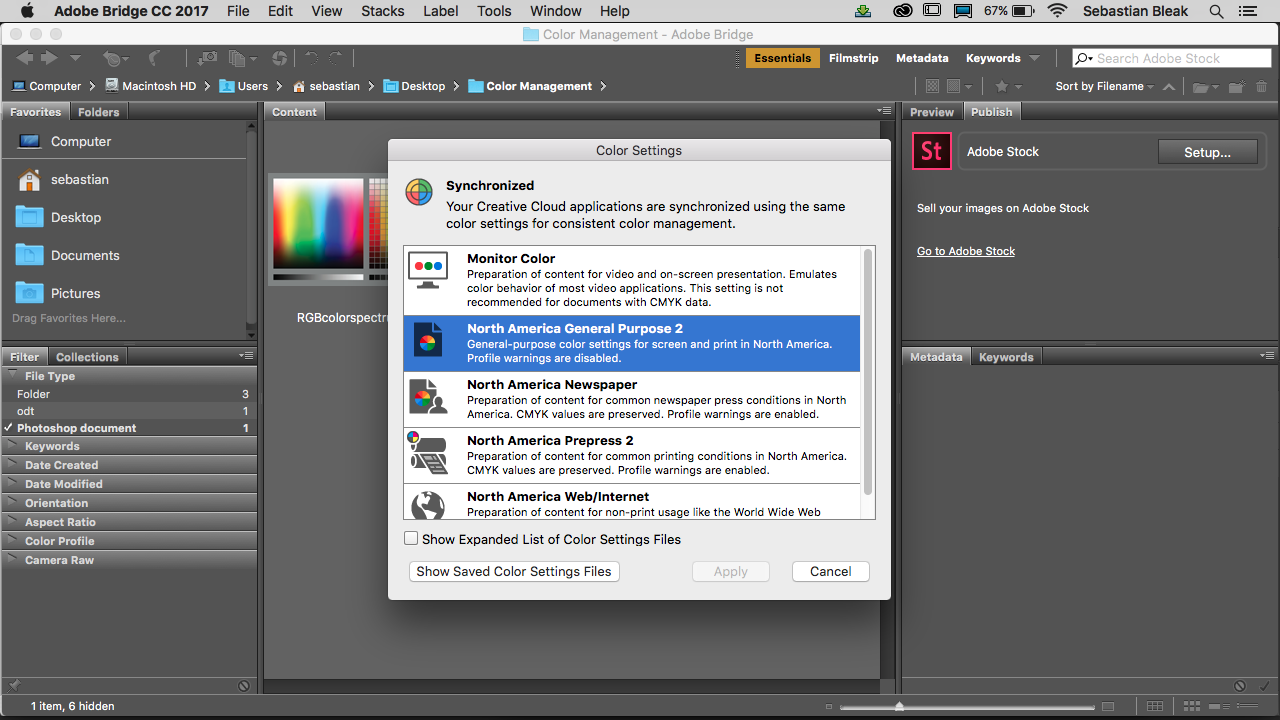
You’ll see “Synchronized” appear—success!
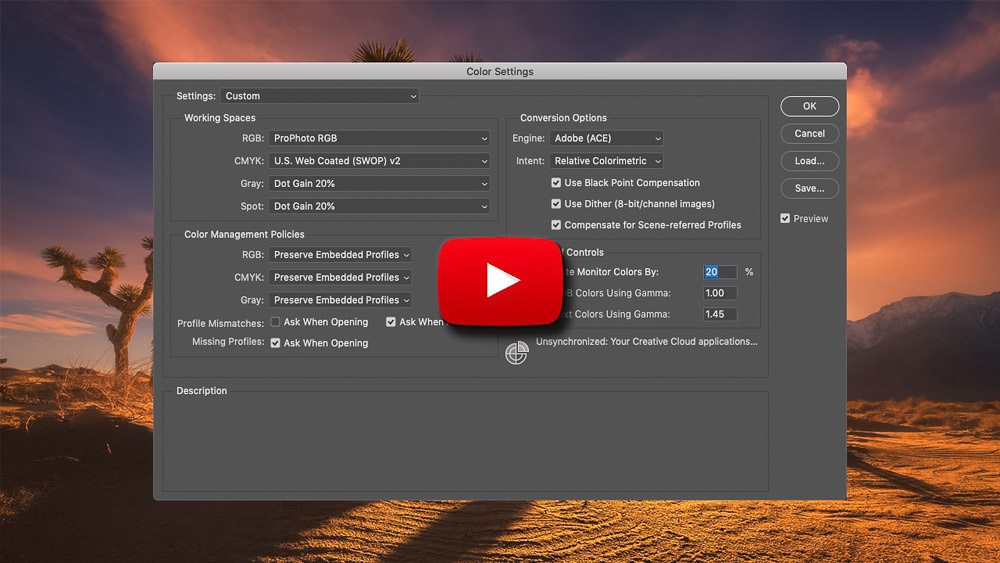
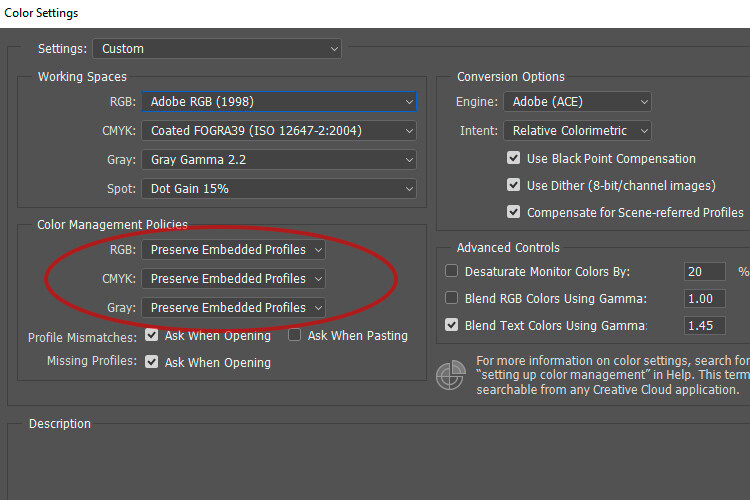
Step 4: Verify & Fine-Tune in Photoshop (Optional but Recommended) Open Photoshop → Edit > Color Settings (Ctrl/Cmd + Shift + K). Make sure the same preset is selected and click OK.
Step 5: Restart & Test Close everything again, relaunch Photoshop and Bridge. Open a file or check the status bar—you should no longer see the error or the “Unsynchronized” globe icon.
Windows Users: Navigate to %AppData%\Adobe\Color\Settings, delete any .lst files, then repeat Step 3 in Bridge.
Real Results I Saw After Applying These Steps
- The error popup disappeared permanently—even when opening raw files from Bridge.
- Colors now match perfectly between Photoshop and Illustrator (no more surprise shifts).
- Bridge shows the green “Synchronized” badge and my custom preset sticks across every CC app.
That’s it—under 5 minutes and zero reinstalls. If the error returns after a major update, just repeat Step 2-3. Happy editing!
