

Ultimate Guide: How to Fix ‘The Remote Device or Resource Won’t Accept the Connection’ Error on Windows
2026-01-24USB Drive Says “You Need to Format the Disk” But Won’t Open? Proven Fixes That Work (2026 Guide)
2026-01-25How to Find WiFi Password on Windows 10/11 PC Without Resetting Router
As a regular PC user who’s managed home and office networks for years, I’ve often needed to retrieve saved WiFi passwords quickly. Let’s break this down: Viewing a WiFi password on your computer refers to accessing the security key (the password) for any WiFi network your Windows PC has previously connected to and saved. Windows stores these in network profiles within the system, which include details like the SSID (network name) and the encrypted key. You access them securely through Command Prompt using the netsh tool, a built-in Windows utility—no extra software required. This method works for all saved networks, even those you’re not currently connected to, but it demands admin access to protect against unauthorized views.
One common question is: Will this method reveal passwords for public or unknown networks? No, it only shows profiles saved on your specific PC from past connections you authorized. Another frequent doubt: Does it work if I’m not currently connected to the WiFi? Yes, as long as the network was saved before, the command pulls the stored details regardless of active connection.
The benefits are practical and time-saving in my experience. It lets you share the password with family or guests instantly without router access or resets. It simplifies troubleshooting connectivity issues on other devices by confirming the exact key. Plus, it helps maintain security by letting you review and clean up old saved networks to avoid vulnerabilities.
Step 1: Open Command Prompt as Administrator Search for cmd in the Start menu, right-click Command Prompt, and select Run as administrator.
Find Wi-Fi password using command prompt in Windows 11
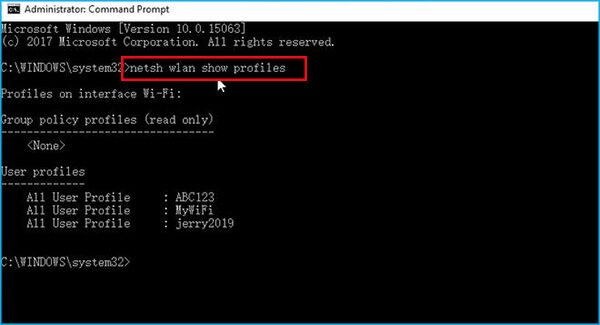
Step 2: List All Saved WiFi Profiles Type netsh wlan show profiles and press Enter to display the list of saved networks.
4 Methods to Find/View Saved Wi-Fi Passwords on Windows 10
Step 3: Identify Your Network Name Review the output under User profiles and note the exact name of your WiFi (e.g., “MyHomeWiFi”).
How to Find the Wi-Fi Password Using CMD in Windows
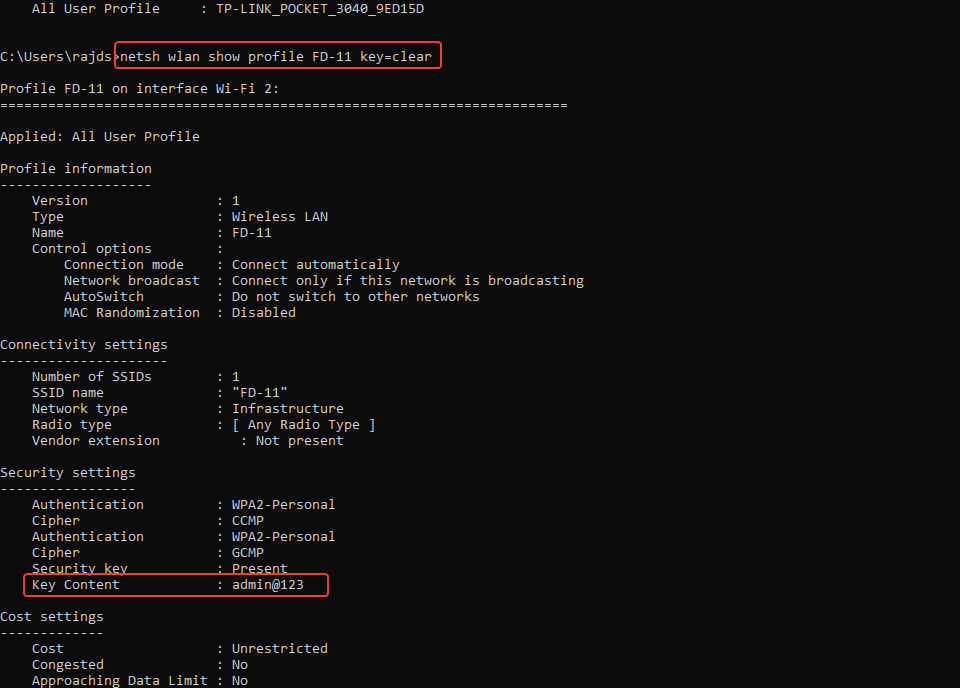
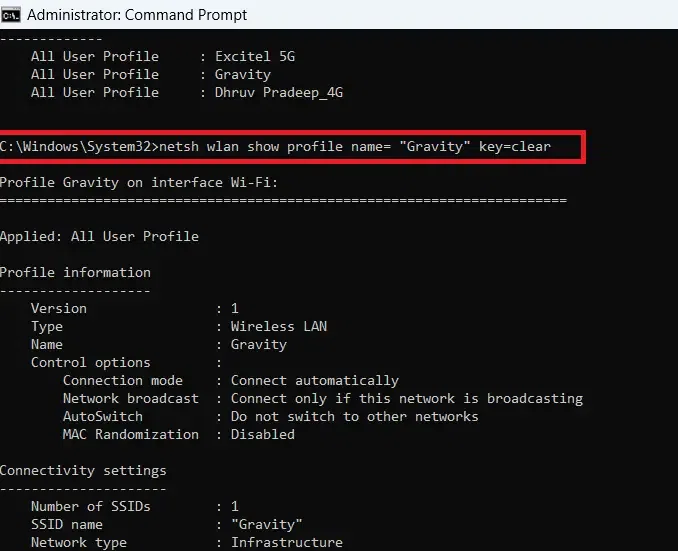
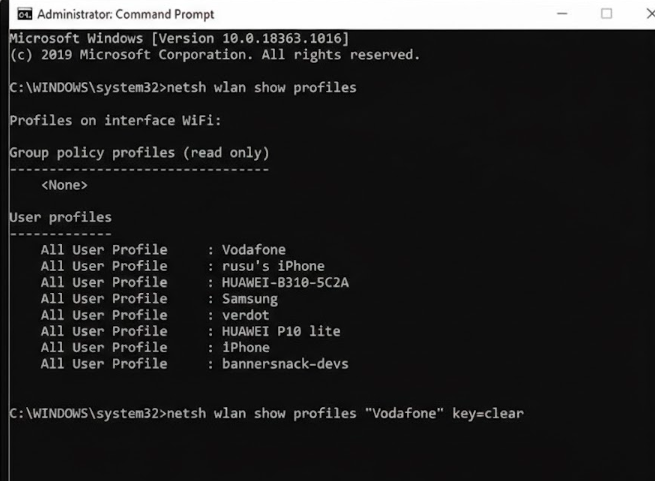
Step 4: Run the Password Reveal Command Type netsh wlan show profile name=”YourNetworkName” key=clear (replace with your name) and press Enter.
How to Find a WiFi Password in Command Prompt (CMD) + More
Step 5: Locate the Password in Output Scroll to the Security settings section and find Key Content—that’s your WiFi password in plain text.
In practice, when setting up a new smart TV, I used this to grab the saved home WiFi password in seconds, avoiding a trip to the router. On my work laptop, it helped verify the office network key during a connection glitch, fixing the issue without IT support. Lastly, for a family gathering, pulling the guest WiFi password let me share it immediately, keeping everyone online smoothly without delays.
