

How to Convert Color Photos to Stunning Black and White in Photoshop
2026-02-05How to Connect Your Printer to a LAN Network
2026-02-05How to Easily Share a Printer on Your Home Network in Windows
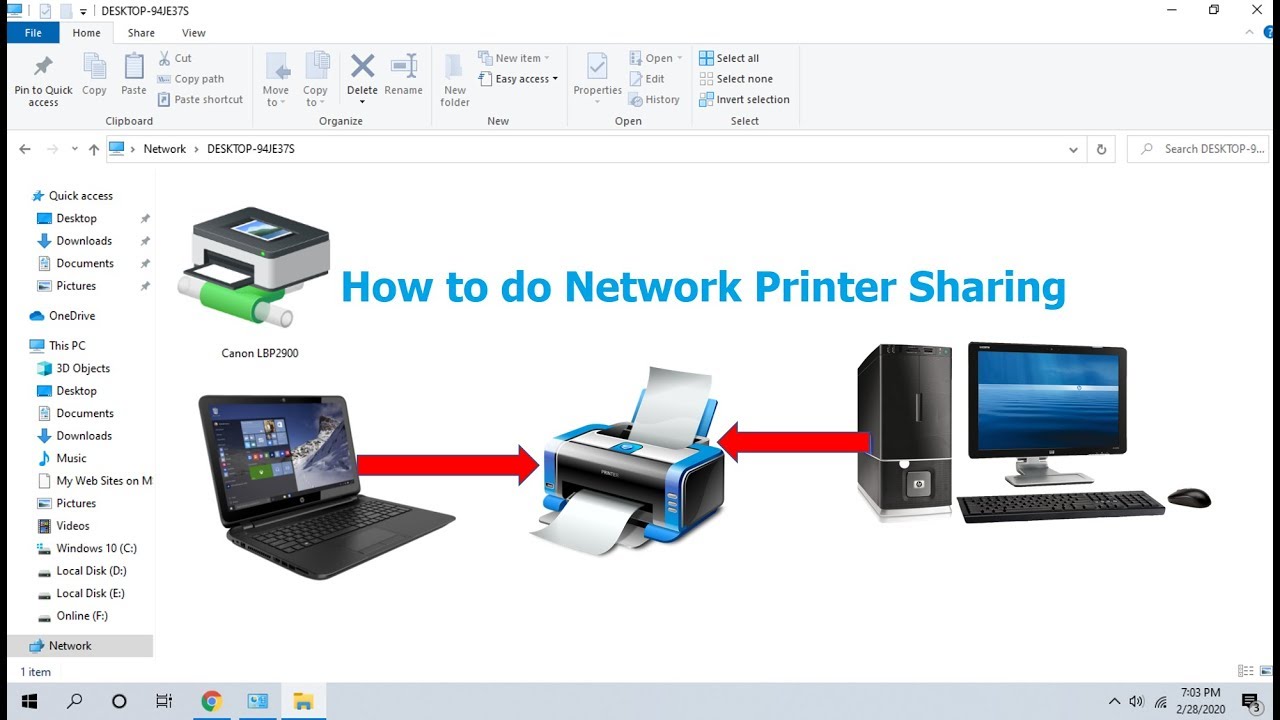
As someone who manages multiple devices at home, I’ve found printer sharing incredibly useful. Printer sharing allows one computer (the host or primary PC) connected to a printer via USB or wirelessly to make that printer available over your local network. Other devices, like laptops or another desktop, can then print to it without needing direct connections or extra hardware. This relies on Windows’ built-in networking features, including file and printer sharing, network discovery, and proper permissions. It works best on a home private network, where devices trust each other for resource sharing.
A common question I hear is: Do all computers need the same Windows version for printer sharing to work? Not necessarily—Windows 10 and 11 handle sharing well across versions, but you may need to install additional drivers on client PCs if they’re different bit versions (32-bit vs 64-bit). Another frequent doubt: Is printer sharing secure on a home network? Yes, when your network is set to Private (not Public), and you use strong passwords if required; it enables discovery only among trusted devices, but avoid it on public Wi-Fi to prevent unauthorized access.
Setting up printer sharing brings several practical benefits that save time and money. It eliminates the need for everyone to have their own printer, reducing clutter and hardware costs. Family members or roommates can print from any device without switching computers or moving files. It boosts convenience—print a document from your laptop while the printer stays connected to the desktop. Overall, it streamlines workflows in a multi-device household, making printing feel seamless and efficient.
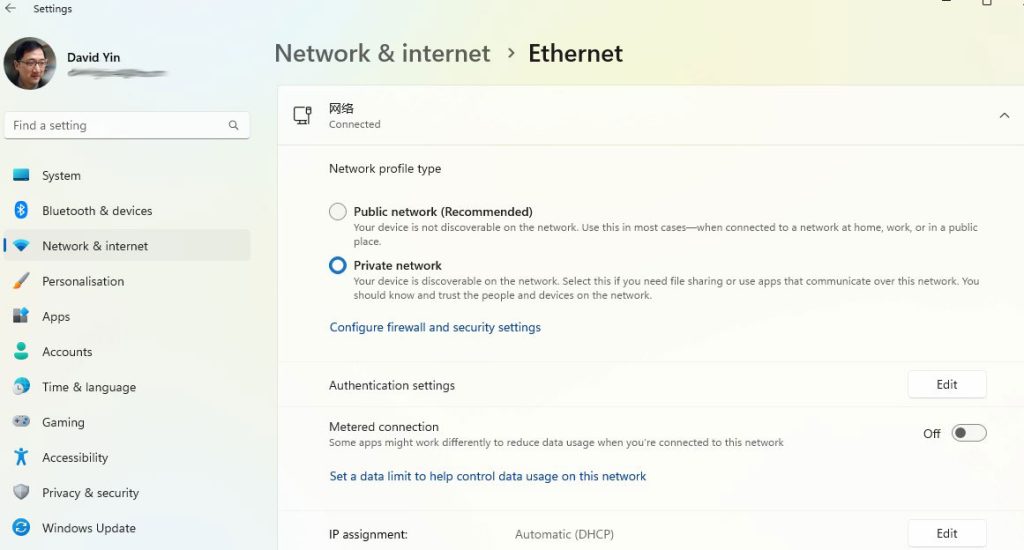
Step 1: Set Your Network to Private and Enable Sharing Go to Settings > Network & internet (or Network & Internet). Select your connection (Wi-Fi or Ethernet), then set Network profile type to Private. Next, search for Advanced sharing settings and under Private networks, turn on Network discovery and turn on File and printer sharing.
Step 2: Connect and Install the Printer on the Host PC Ensure your printer is connected (USB or Wi-Fi) and installed with drivers on the main computer. Open Settings > Bluetooth & devices > Printers & scanners to confirm it’s listed and working.
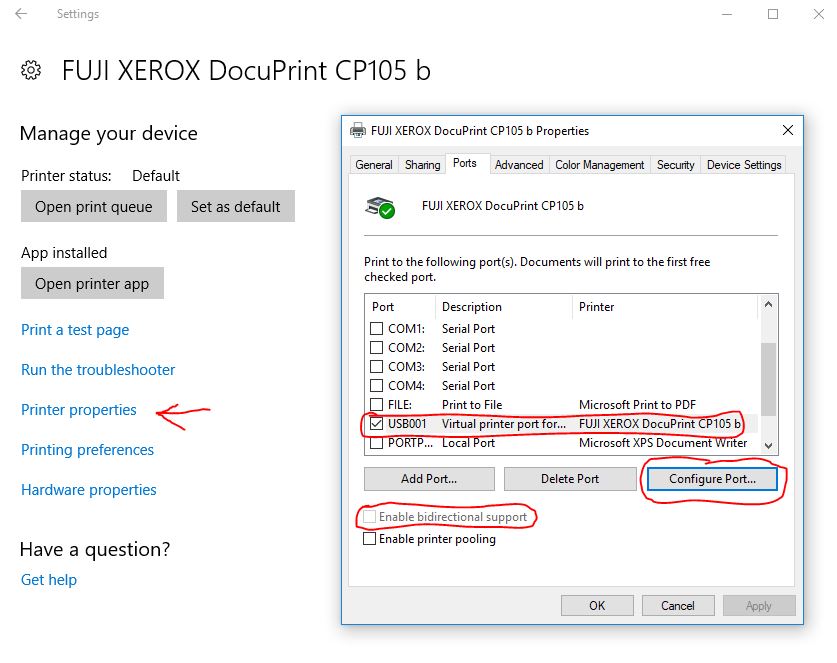
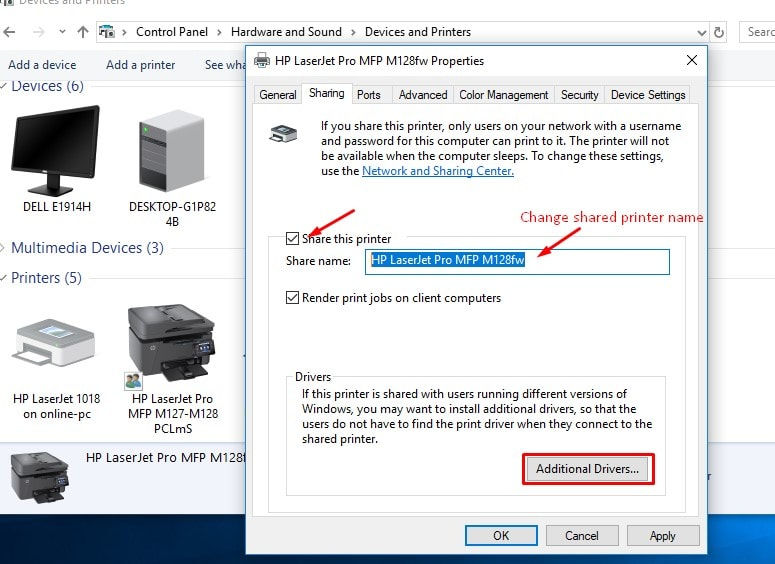
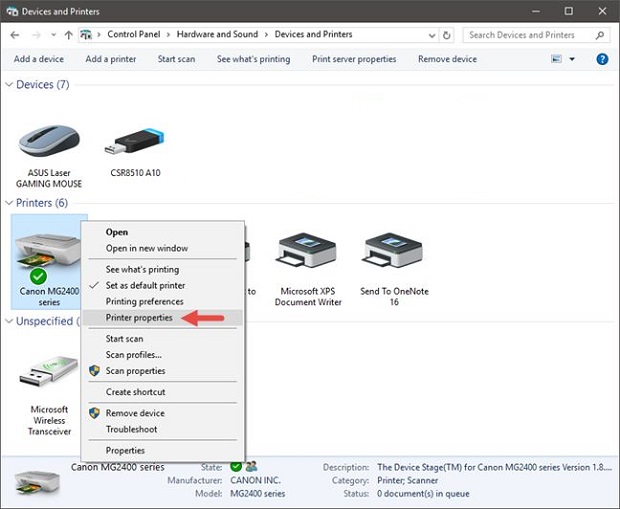
Step 3: Share the Printer Right-click the printer in Devices and Printers (search for it in Start menu) or go to Printers & scanners > [Your Printer] > Printer properties. Switch to the Sharing tab, check Share this printer, enter a clear Share name, and click OK or Apply.
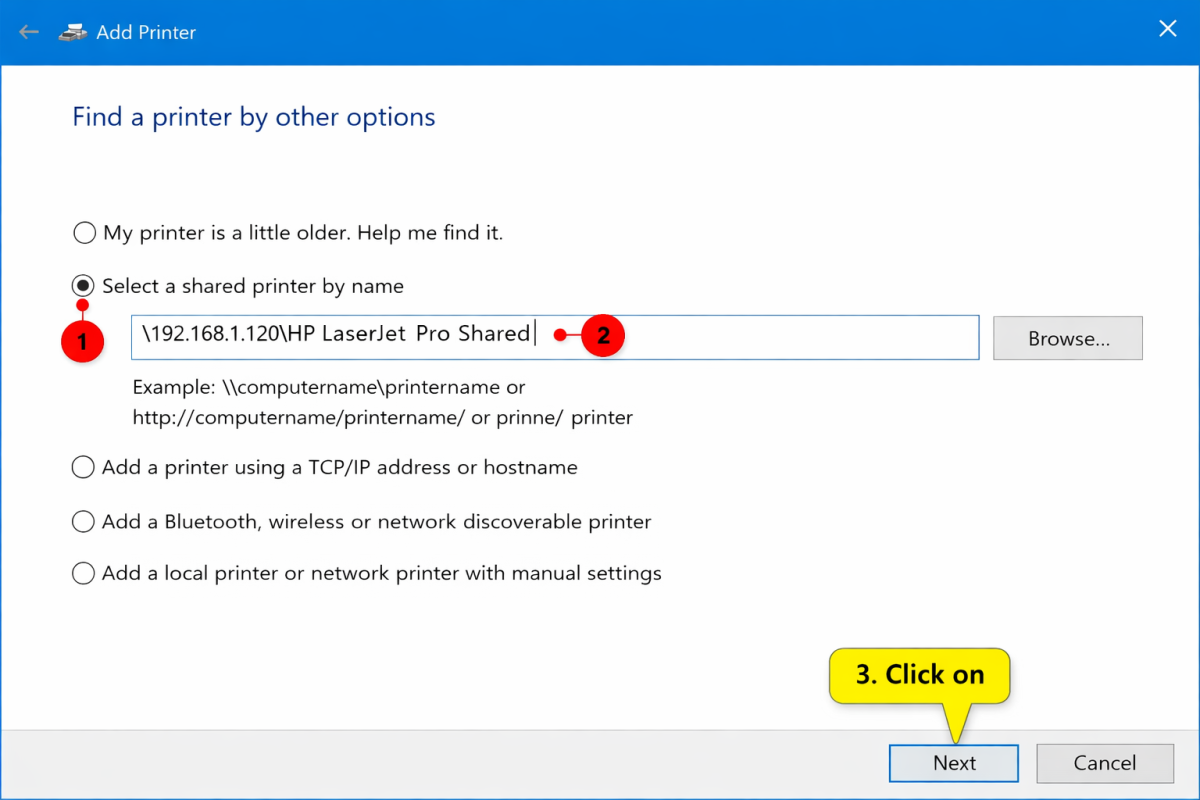
Step 4: Add the Shared Printer on Other (Client) Devices On another PC, go to Settings > Bluetooth & devices > Printers & scanners > Add device. If it doesn’t auto-detect, select Add manually or The printer that I want isn’t listed, then choose Select a shared printer by name and enter \HOST-PC-NAME\Share-Name (e.g., \DESKTOP-ABC\CanonPrinter). Click Next to install.
In my own setup, sharing our family inkjet printer from the desktop to two laptops meant no more queuing up or transferring files—everyone prints homework or photos instantly, saving hours weekly.
Another time, when I added a shared laser printer in a small home office, it allowed seamless printing from my phone-connected laptop without extra cables, cutting down on frustration during busy workdays.
Finally, for guests staying over, they could quickly connect and print boarding passes from their devices—no driver hunts or USB swaps needed, making hosting much smoother.
