

Why is my computer screen black but I can see the cursor?
2026-02-05How to Convert PDF to Word?
2026-02-08How to Easily Install and Use a New Hard Drive on Your PC
Adding a new hard drive to your computer is a straightforward way to expand your storage capacity. When I think about this process, it breaks down into two main phases: the physical installation, where you mount the drive inside your PC case and connect the necessary cables, and the software configuration, which involves initializing the drive in your operating system, partitioning it if needed, and formatting it for use. The physical part ensures the hardware is properly integrated with your motherboard and power supply, while the software side makes the drive recognizable and usable for storing files, installing programs, or backing up data. This upgrade can apply to both traditional HDDs for large, affordable storage and SSDs for faster performance, but the steps are similar for most desktop setups.
One common question I get is: What’s the difference between adding an HDD versus an SSD? Well, HDDs are mechanical drives that offer more storage at a lower cost but are slower and noisier, while SSDs use flash memory for quicker access times, making your system feel snappier, though they’re pricier per gigabyte. Another frequent doubt is: Do I need special tools or software drivers for installation? In most cases, no—modern operating systems like Windows handle standard SATA drives automatically, but you’ll want a screwdriver for mounting and possibly an anti-static wristband to avoid damaging components.
Doing this upgrade brings several advantages that I’ve experienced firsthand. It dramatically increases your available storage space, allowing you to keep more photos, videos, games, or work files without constantly deleting old ones. It also improves system organization by letting you dedicate the new drive to specific purposes, like media storage or backups, which can enhance performance by offloading data from your primary drive. Plus, it’s a cost-effective way to extend your PC’s lifespan instead of buying a new one, and it gives you a sense of accomplishment from handling your own hardware tweaks.
Step 1: Prepare Your Tools and Shut Down the PC
I always start by gathering a Phillips screwdriver, SATA data cable (usually included with your motherboard), and a SATA power cable from your power supply. Then, power off your computer completely, unplug it from the wall, and press the power button a few times to discharge any residual electricity.
Step 2: Open the PC Case
To access the interior, I remove the side panel screws or latches on your computer case and slide off the panel. This exposes the drive bays where you’ll install the new hard drive.
Step 3: Mount the Hard Drive
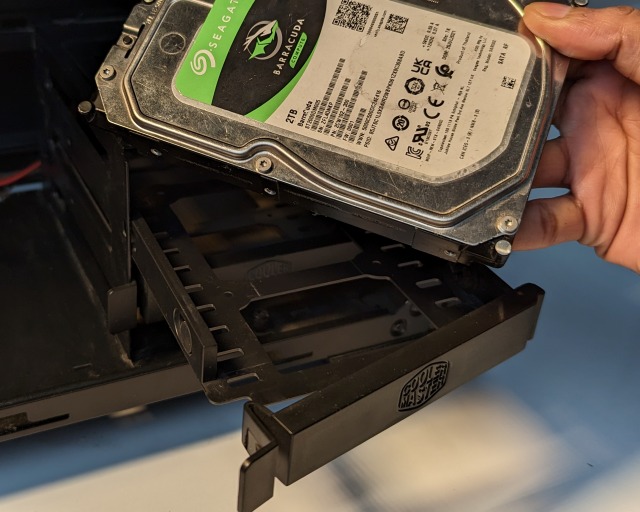
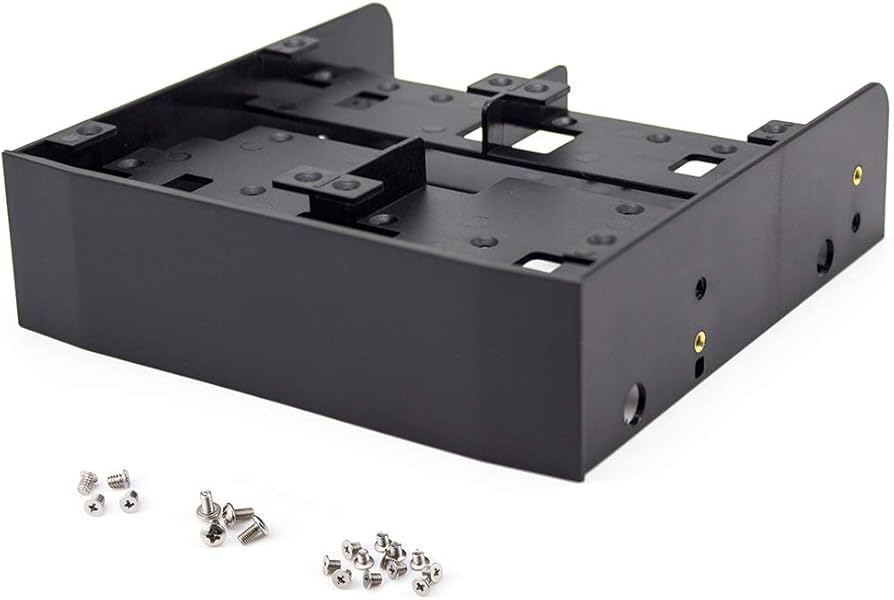
I locate an empty drive bay (usually 3.5-inch for HDDs or 2.5-inch for SSDs), then secure the drive using screws or brackets provided with your case. If needed, use a mounting adapter for smaller drives.
Step 4: Connect the Cables
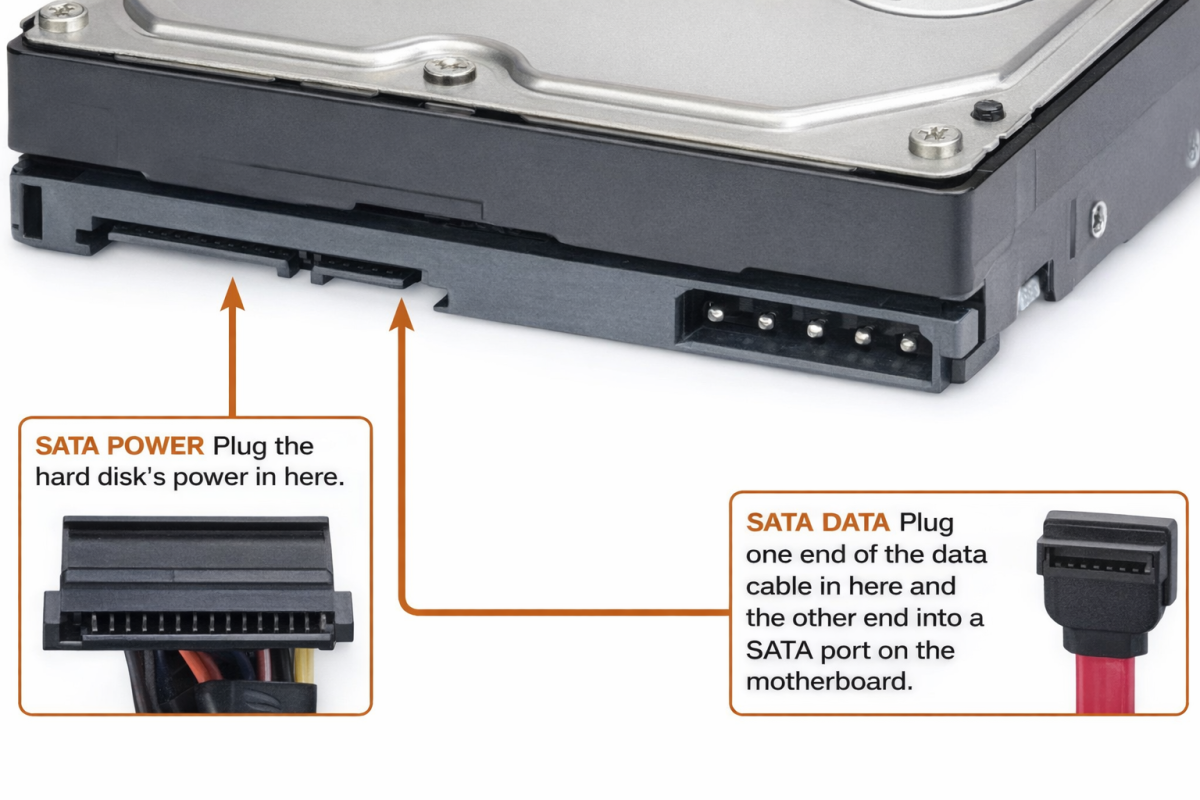
Next, I plug in the SATA data cable from the drive to an available SATA port on the motherboard, and attach the SATA power cable from your power supply to the drive’s power connector. Ensure connections are firm but gentle.
Step 5: Close the Case and Boot Up
I replace the side panel securely, plug in the power cord, and turn on the PC. If the drive doesn’t appear immediately, enter BIOS (usually by pressing Delete or F2 during boot) to confirm it’s detected.
Step 6: Initialize and Format the Drive
Once in Windows, I right-click Start and select Disk Management. Find the new drive (marked as unallocated), right-click it, choose New Simple Volume, follow the wizard to partition and format it with NTFS, and assign a drive letter.
:max_bytes(150000):strip_icc()/009_how-to-format-a-hard-drive-2626077-5c3e8452c9e77c0001329405.jpg "How to Easily Install and Use a New Hard Drive on Your PC 4")
In one instance, after installing a 1TB HDD, I transferred all my media files to it, freeing up 500GB on my main SSD and noticing faster boot times overall. Another time, adding a 2TB drive let me set up a dedicated backup partition, which saved me when my primary drive had a minor glitch—no data loss at all. Finally, for gaming, I installed a 500GB SSD and loaded my favorite titles there, cutting load times in half and making sessions much smoother.
