

AHCI vs RAID: What’s the Difference and Which Is Better for Your PC in 2026?
2026-04-04How to Disable Secure Boot in BIOS/UEFI: Step-by-Step Guide with Pictures (2026)
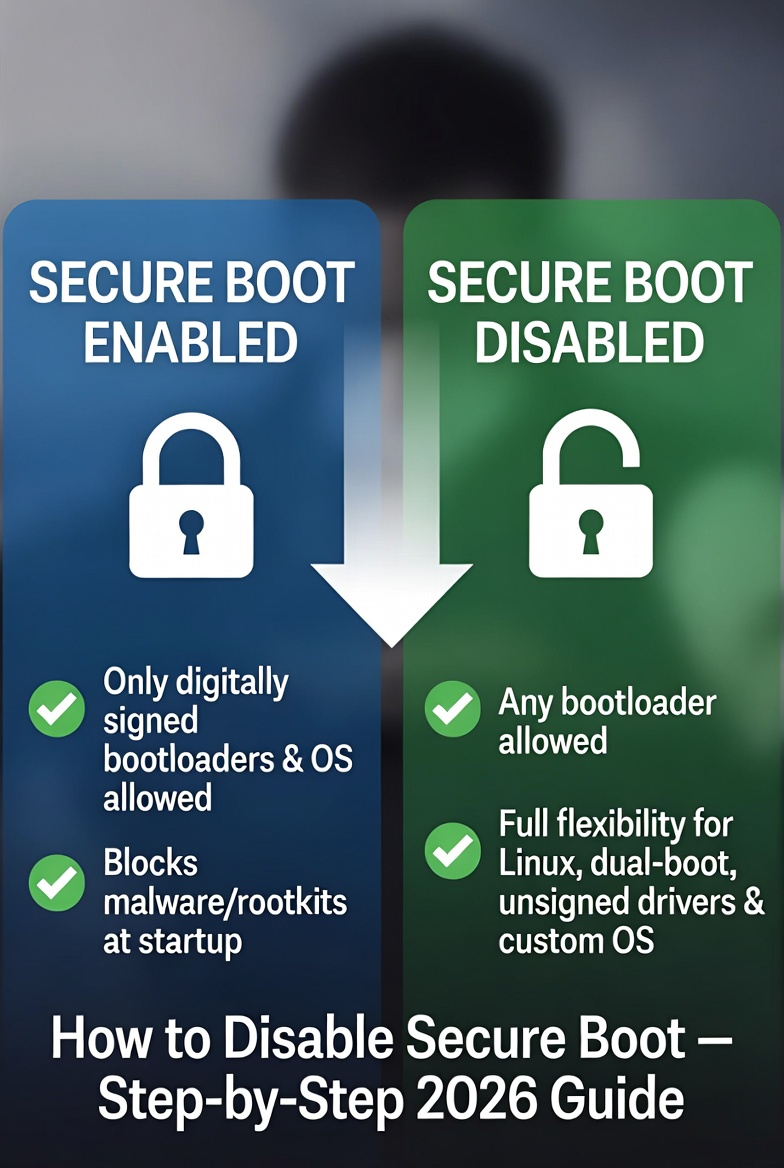
As someone who’s built and fixed countless PCs, I’ve had to disable Secure Boot more times than I can remember — especially when setting up dual-boot systems or installing custom drivers. If you’re seeing boot errors, trying to install Linux, or dealing with unsigned software that won’t load, this guide will show you exactly how to turn it off safely.
Secure Boot is a built-in UEFI security feature that checks the digital signatures of your bootloader and operating system during startup. It’s designed to stop malware, rootkits, and unauthorized code from running before Windows (or your OS) fully loads. While it adds excellent protection, it can block legitimate software, older operating systems, or custom setups like Linux dual-booting with Windows.
Disabling Secure Boot removes these signature checks, giving your PC complete freedom over what can boot — perfect for advanced users who need flexibility.
Here are two questions I get asked all the time, along with clear answers:
- Do I need to disable Secure Boot to install Linux or dual-boot? Yes — most Linux distributions (and many custom Windows setups) require it disabled unless you use specially signed versions.
- Is it safe to disable Secure Boot? Absolutely for home users. It slightly lowers boot-time malware protection, but you can re-enable it anytime, and normal antivirus plus Windows updates keep you secure.
Turning off Secure Boot brings real benefits: you gain full compatibility with any OS or driver, easier dual-booting, the ability to install unsigned or legacy software, and faster troubleshooting when boot issues appear. It also future-proofs your system for custom builds without constant compatibility headaches.
Here’s exactly how I do it every time. The process takes under 5 minutes. Always back up your important data first — BIOS changes are safe but better safe than sorry.
1. Back Up Your Data Create a full backup of your drives using Windows Backup, Macrium Reflect, or an external drive. This step protects everything in case of any unexpected boot issues.

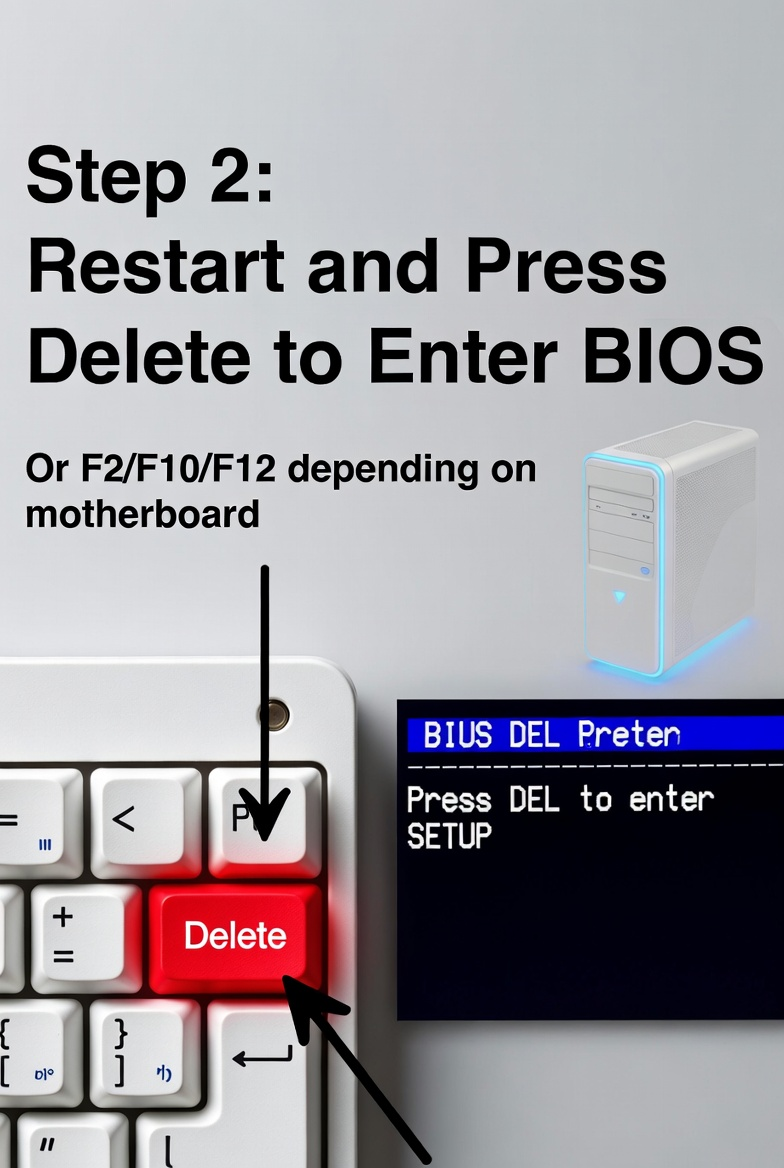
2. Restart Your PC and Enter BIOS/UEFI Reboot your computer and press the Delete key (or F2, F10, or F12 — check your motherboard manual) repeatedly right after powering on to enter the BIOS setup screen.
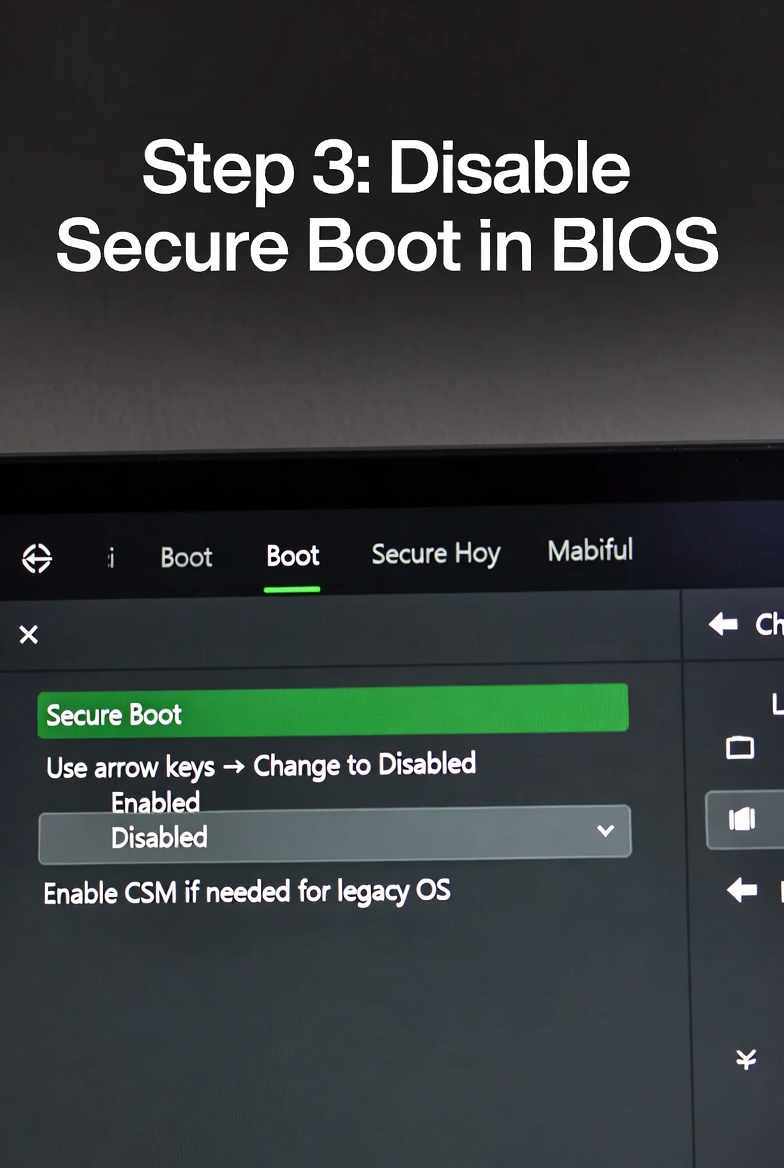
3. Locate Secure Boot and Disable It Use the arrow keys to navigate to the Boot tab (sometimes labeled Security or Authentication). Find Secure Boot, highlight it, press Enter, and change the setting from Enabled to Disabled. If you see CSM (Compatibility Support Module), set it to Enabled for better legacy support.
4. Save Changes and Exit the BIOS Press F10 (or select Save & Exit), confirm with Yes, and the PC will reboot automatically. Secure Boot is now disabled and ready for your new OS or drivers.
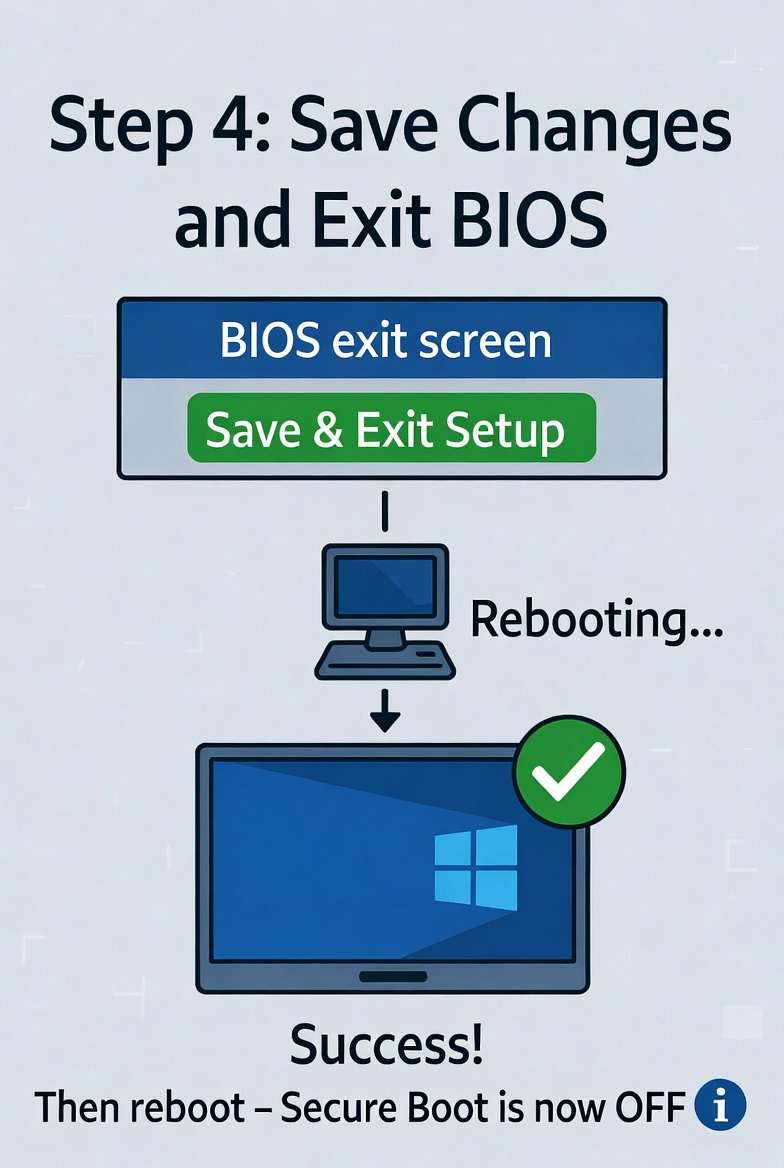
After rebooting, you can install Linux, unsigned drivers, or set up dual-boot without issues. If you ever want to turn it back on, just repeat the steps and set Secure Boot to Enabled.
Here are three real results I’ve seen after following these exact steps:
- A friend’s gaming PC wouldn’t boot Ubuntu — after disabling Secure Boot, dual-boot with Windows 11 worked perfectly on the first try.
- I fixed a client’s new graphics card that required an unsigned driver; disabling Secure Boot let it install instantly with no more errors.
- On my own test rig, I switched to an older Windows version that didn’t support Secure Boot — the system booted smoothly and ran faster without restrictions.
For most people who need extra flexibility, disabling Secure Boot is the way to go — it’s quick, reversible, and gives you full control over your hardware. If your motherboard menu looks slightly different, just search for “Secure Boot” inside BIOS. Let me know in the comments what motherboard you have and I’ll help fine-tune the steps!
