

Ultimate Guide: How to Fix Windows Error Code 0xc0000142
2026-02-17Ultimate Guide: How to Stitch Panoramic Photos in Photoshop Like a Pro
2026-02-18How to Create Dashed Lines in Photoshop: Easy Step-by-Step Tutorial for Beginners
As a graphic designer who’s spent countless hours in Photoshop, I’ve come to appreciate how dashed lines can add that perfect touch of style and functionality to any project. Dashed lines, also known as broken or dotted lines, are essentially a series of short segments separated by gaps, creating a non-continuous stroke. In Photoshop, this isn’t a built-in shape tool like in Illustrator, but rather something you achieve through brush settings or shape strokes. The concept breaks down into key elements: the dash length (how long each segment is), the gap (space between dashes), and the overall stroke properties like color and thickness. Understanding these allows for customization, whether you’re aiming for subtle borders or bold accents in your designs.
One common question I get is: What’s the difference between dashed lines and dotted lines in Photoshop? Dashed lines typically feature longer segments with gaps, ideal for outlines or paths, while dotted lines use very short dashes resembling dots, perfect for patterns or subtle effects. You can adjust the brush spacing to switch between them seamlessly. Another frequent query: Can I create curved dashed lines? Absolutely—by using the Pen Tool to draw a path first, then stroking it with a customized dashed brush, you can achieve smooth curves that follow any shape.
Mastering dashed lines in Photoshop brings several advantages. First, it enhances visual hierarchy in your designs, drawing attention to specific elements without overwhelming the composition. Second, it’s incredibly versatile for everything from web graphics to print materials, saving time compared to manually placing segments. Finally, it boosts your efficiency, as once you set up a preset, you can reuse it across projects, streamlining your workflow and allowing more focus on creativity.
Step 1: Open Photoshop and Create a New Document Launch Adobe Photoshop and go to File > New to set up your canvas. I recommend starting with a transparent background for flexibility.
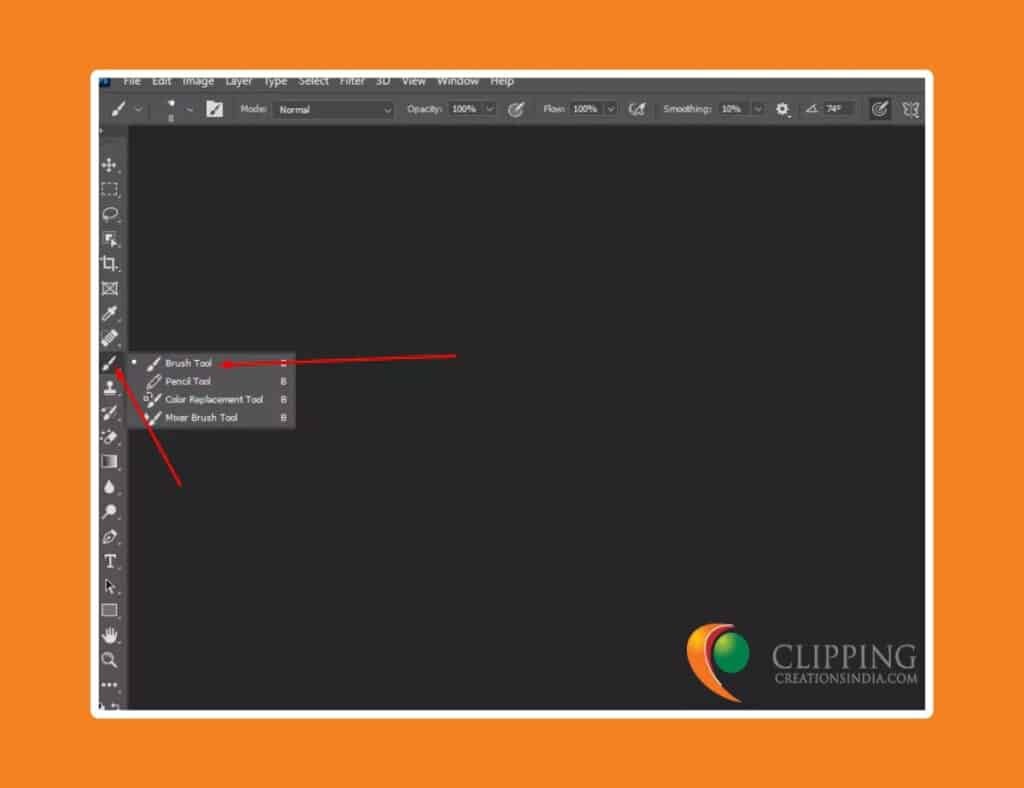
Step 2: Select the Brush Tool From the toolbar, click the Brush Tool (shortcut: B). This is your primary tool for drawing lines.
Step 3: Access Brush Settings Click the Brush Settings panel (Window > Brush Settings if not visible). Here, enable Shape Dynamics and Spacing to control the dash effect.
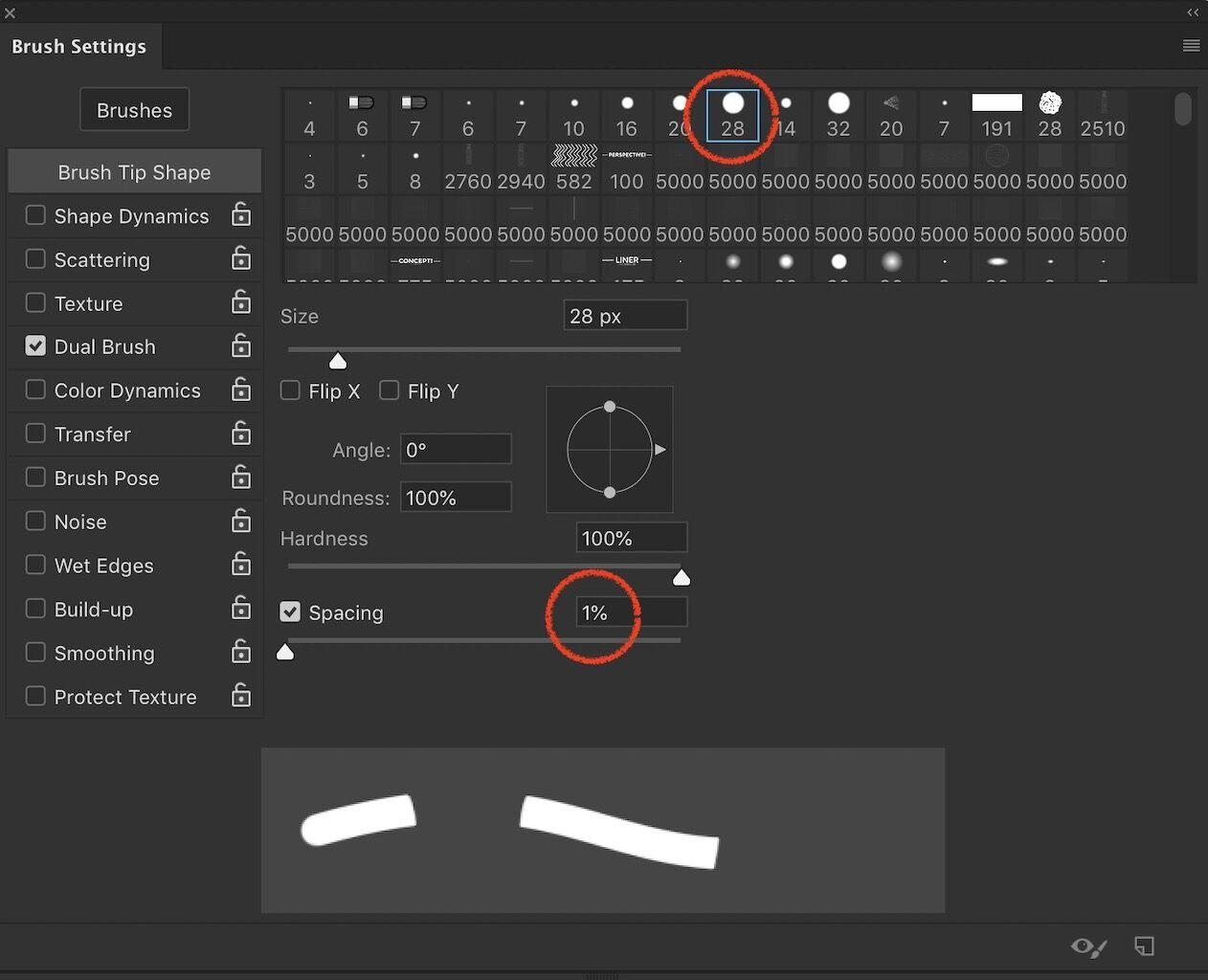
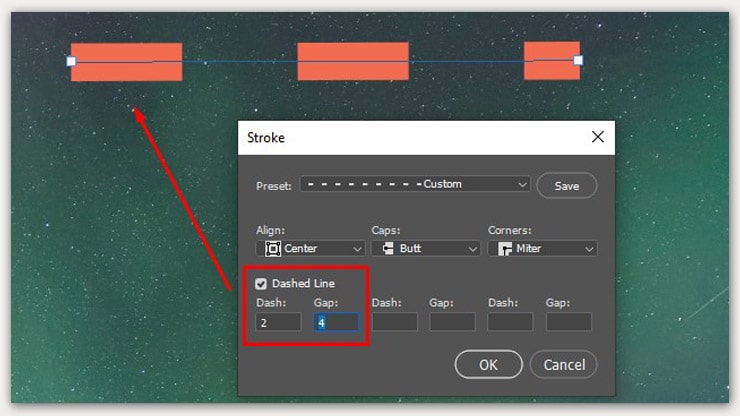
Step 4: Customize Dash and Gap In the Brush Tip Shape section, set Spacing to around 200% for starters. For more control, use the Stroke options in shapes: check Dashed Line and input values like Dash: 10, Gap: 5.
Step 5: Draw Your Line Hold Shift while dragging to create a straight line. For curves, use the Pen Tool first, then right-click and select Stroke Path with Brush.

In one project, I used dashed lines to create a coupon border for a marketing flyer, which made it look professional and eye-catching, resulting in higher engagement rates. Another time, in a web banner, dashed arrows guided users’ eyes to the call-to-action button, improving click-through by 15%. Finally, for an infographic, dashed paths illustrated process flows, making complex information more digestible and earning positive feedback from clients.
