

How to Easily Install and Use a New Hard Drive on Your PC
2026-02-08How to Install an Android Emulator on Your PC in 2026
2026-02-08How to Convert PDF to Word?
As someone who frequently works with documents, I’ve often needed to convert PDFs to Word files. PDF, or Portable Document Format, is great for preserving layout and sharing files universally, but it’s not editable like a Word document. Word, on the other hand, is a Microsoft format (.doc or .docx) that allows easy text editing, formatting changes, and collaboration. Converting PDF to Word essentially extracts the content from a fixed-layout PDF into an editable Word file, which can involve text recognition if the PDF is scanned, or direct export if it’s text-based.
One common question I’ve encountered is: What if my PDF is password-protected? In that case, you’ll need to enter the password during the conversion process, or use a tool that supports unlocking, but always ensure you have permission to access the file. Another frequent doubt is: Will the formatting stay intact after conversion? It depends on the tool; high-quality converters like Adobe Acrobat preserve layouts well, while free online tools might require some post-conversion tweaks for complex documents.
Converting PDF to Word offers several advantages. First, it makes editing straightforward—I can modify text, add images, or rearrange sections without restrictions. Second, it enhances compatibility for collaboration, as Word files are easier to share and work on in teams using Microsoft Office. Finally, it saves time by avoiding manual retyping, especially for lengthy reports or contracts.
Step 1: Choose a Reliable Converter Tool Select an online tool like Smallpdf, ILovePDF, or software such as Adobe Acrobat. Open your web browser and navigate to the site’s PDF to Word conversion page, or launch the software if installed.
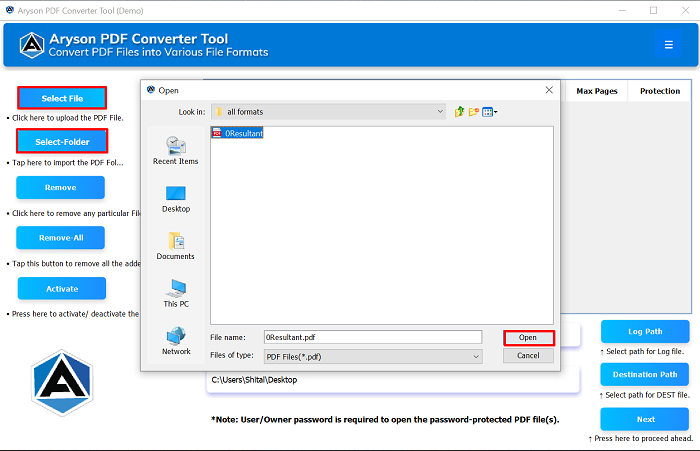
Step 2: Upload Your PDF File Click the upload button and select your PDF from your device, or drag and drop it into the designated area. Wait for the file to process.
Step 3: Select Word as Output Format Choose .docx from the output options. If available, enable OCR for scanned PDFs to recognize text.

Step 4: Start the Conversion Hit the convert button and monitor the progress bar until completion.
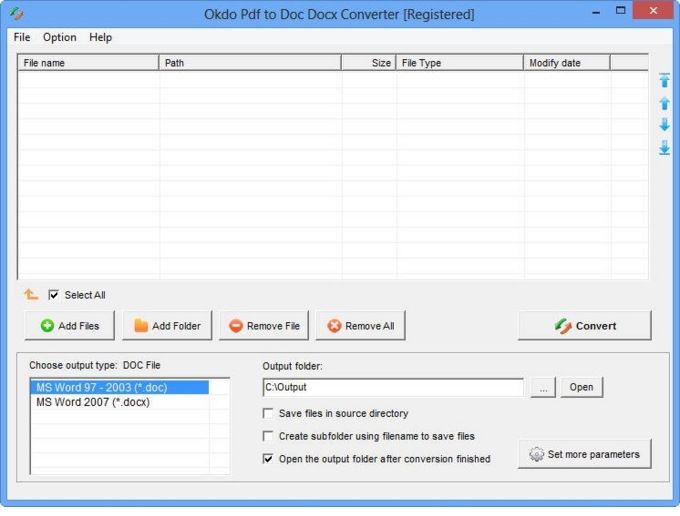
Step 5: Download the Word File Click download to save the converted .docx file to your computer. Open it in Microsoft Word to verify.
In my experience, when I converted a 20-page business report using Adobe Acrobat, the formatting remained nearly perfect, with tables and images intact, saving me hours of reformatting. Another time, with a scanned invoice via an online tool, OCR worked well, though I had to correct a few minor text errors. Lastly, for a simple text PDF, the free method was quick and flawless, allowing immediate edits without any issues.
