

How to Fix Error 0x80070057?
2014-05-11How to Change Desktop Font Color in Windows 11
2026-01-05How to Convert CDR to PS
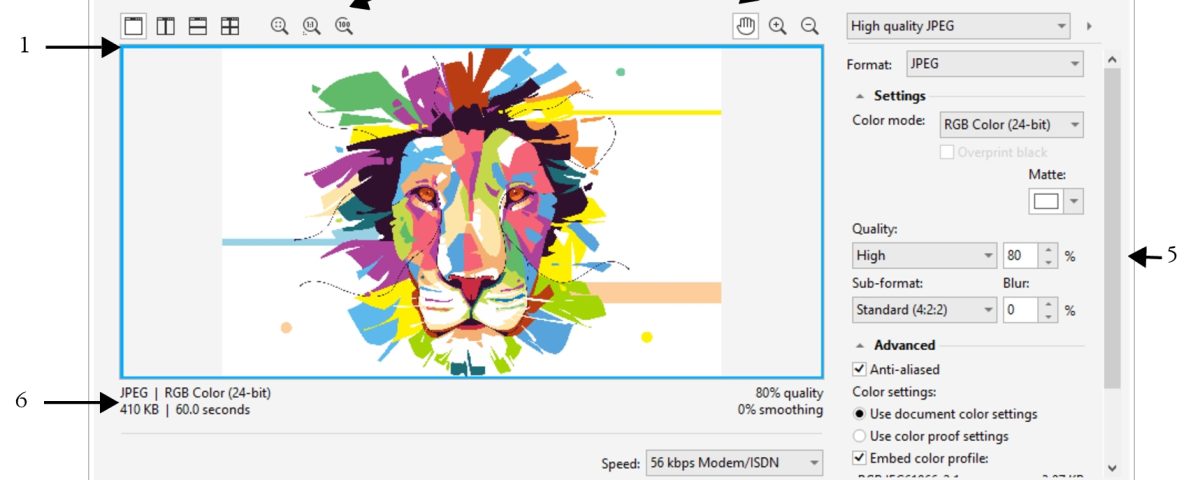
Converting a CDR file to PS typically refers to transforming a CorelDRAW vector graphics file (.cdr) into a Photoshop-compatible format like PSD (.psd), as “PS” often shorthand for Photoshop in design contexts. This process involves exporting the vector-based artwork from CorelDRAW, which preserves layers, paths, and effects where possible, into a raster or layered format that Adobe Photoshop can edit. Breaking it down, CDR files are proprietary to CorelDRAW and store scalable vectors, text, and images efficiently for print and design work. PS (PSD) files, on the other hand, are Adobe’s native format supporting layers, masks, and adjustments but rasterize vectors upon import, potentially losing scalability. The conversion bridges these programs, allowing seamless workflow between Corel and Adobe suites, though some elements like complex gradients or fonts may require manual tweaks post-conversion due to format differences.
One common question is: Why do some elements look different after converting CDR to PS? This happens because CDR’s vector precision doesn’t always translate perfectly to PSD’s raster layers; for instance, curves might pixelate at lower resolutions—choosing high DPI during export mitigates this. Another frequent doubt: Can I convert without owning CorelDRAW? Yes, free viewers or online converters exist, but they may compromise quality or security; using the original software ensures fidelity, though trial versions are available for one-time use.
Performing this conversion offers several benefits, including enhanced compatibility for collaborative projects where team members use different software, preserving editable layers for further modifications in Photoshop. It streamlines workflows in graphic design, reducing time spent recreating elements, and maintains high-quality outputs for printing or digital use without significant data loss.
To achieve the conversion, follow these detailed steps.
Step 1: Open the CDR File in CorelDRAW Launch CorelDRAW and go to File > Open, then select your .cdr file from the directory. This loads the document for editing or direct export—ensure all elements are as intended before proceeding.
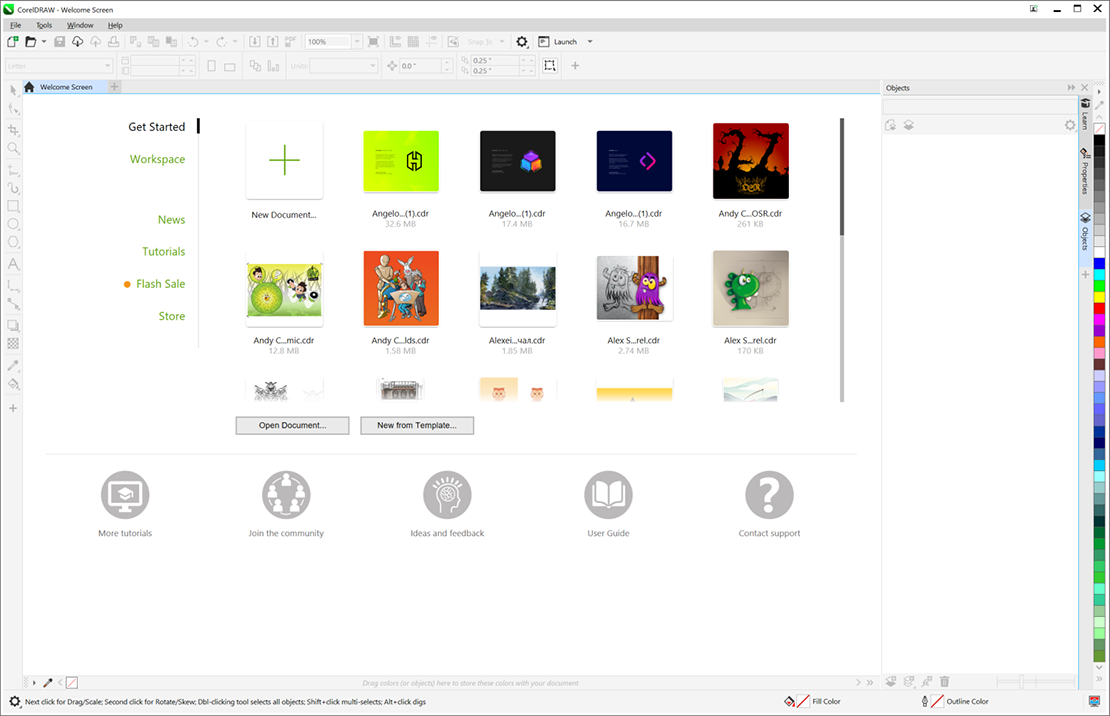
How to open a CDR file in CorelDRAW
Step 2: Access the Export Menu With the file open, navigate to File > Export. This opens the export dialog where you can choose the output format and settings.
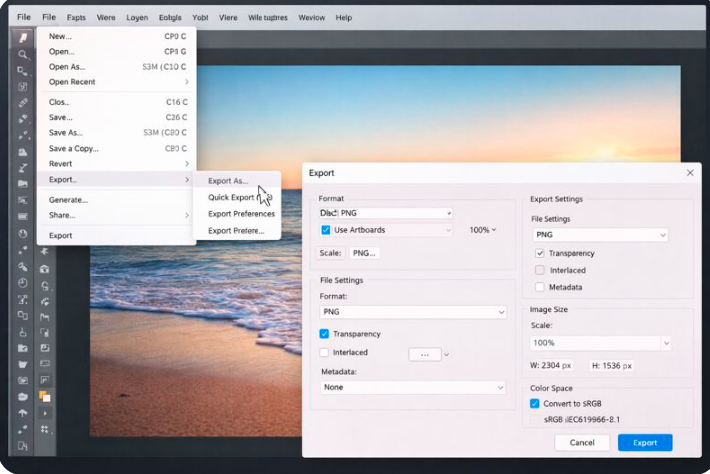
How to save a Corel Draw Document to a Print …
Step 3: Select PSD as the Export Format In the Export dialog, from the Save as type dropdown, choose Adobe Photoshop (PSD). Adjust the color mode (e.g., RGB for digital, CMYK for print) and resolution (recommend 300 DPI for quality).
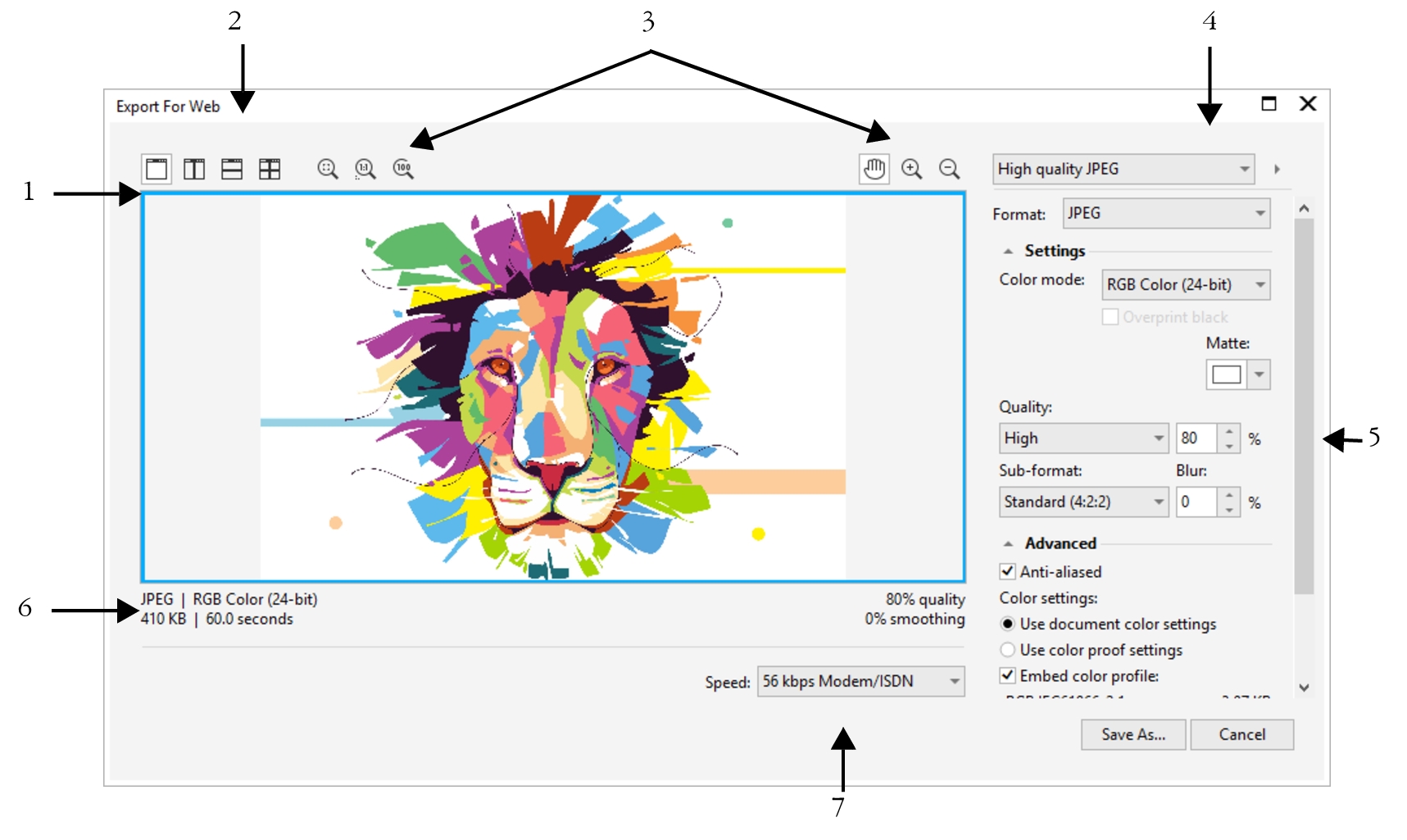
Export bitmaps for the web
Step 4: Configure Export Options and Save Check options like Preserve Layers to keep editable structure, then click Export or OK. Specify the save location and file name, confirming the process completes without errors.
Export bitmaps for the web
Step 5: Verify in Photoshop Open the resulting .psd file in Adobe Photoshop to inspect layers and make any necessary adjustments, ensuring the conversion met expectations.
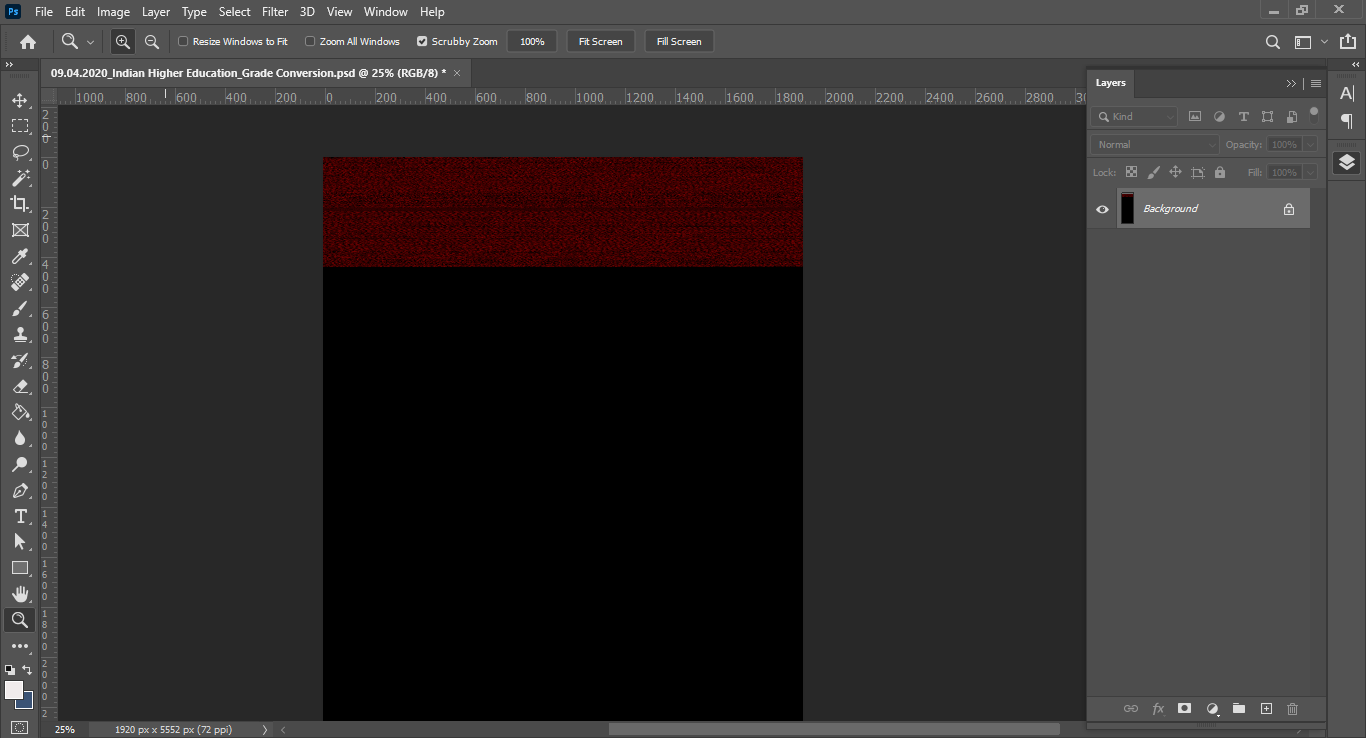
Saved PSD file re-opened with no layers and blank
In one practical example, a graphic designer converted a logo CDR file to PSD for client edits in Photoshop; the process retained all vector paths as smart objects, allowing quick revisions and final approval in under 10 minutes. Another case involved a print shop worker handling a brochure layout—the export preserved color profiles, preventing mismatches and saving reprint costs. Finally, a freelancer using an online converter as a backup noted minor font substitutions but overall success, with the PSD integrating seamlessly into their Photoshop workflow for web banners.
