

How to Easily Share a Printer on Your Home Network in Windows
2026-02-05Why is my computer screen black but I can see the cursor?
2026-02-05How to Connect Your Printer to a LAN Network
Connecting a printer to a LAN network means integrating your printing device into a local area network, typically using an Ethernet cable for a wired setup. This allows multiple devices on the same network to access the printer without direct USB connections. LAN stands for Local Area Network, which is a group of computers and devices sharing a common communication line or wireless link within a limited area like a home or office. A network printer, on the other hand, is designed with built-in networking capabilities, often featuring an Ethernet port or Wi-Fi, but for true LAN stability, wired Ethernet is preferred. Breaking it down, the process involves physical connection, configuration on the printer, and adding it to your computers or devices on the network.
One common question is: What if my printer doesn’t have an Ethernet port? In that case, you might need a print server adapter or switch to wireless if supported, but for pure LAN, consider upgrading to a model with Ethernet support. Another frequent doubt: How do I know if my printer is compatible with LAN? Check the user manual or the printer’s specs for “network-ready” or “Ethernet port” mentions; most modern printers from brands like HP, Canon, or Brother include this feature.
Doing this brings several advantages. First, it enables seamless sharing among multiple users, saving time in busy environments like offices or homes with several computers. Second, wired LAN connections offer more reliability and speed compared to Wi-Fi, reducing print delays or connectivity drops. Finally, it enhances security since LAN printers can be managed with network protocols, limiting access to authorized devices only.
Step 1: Prepare Your Printer and Network
Unbox and power on the printer, ensuring it has an Ethernet port. Gather a Category 5e or higher Ethernet cable and confirm your router has available LAN ports.
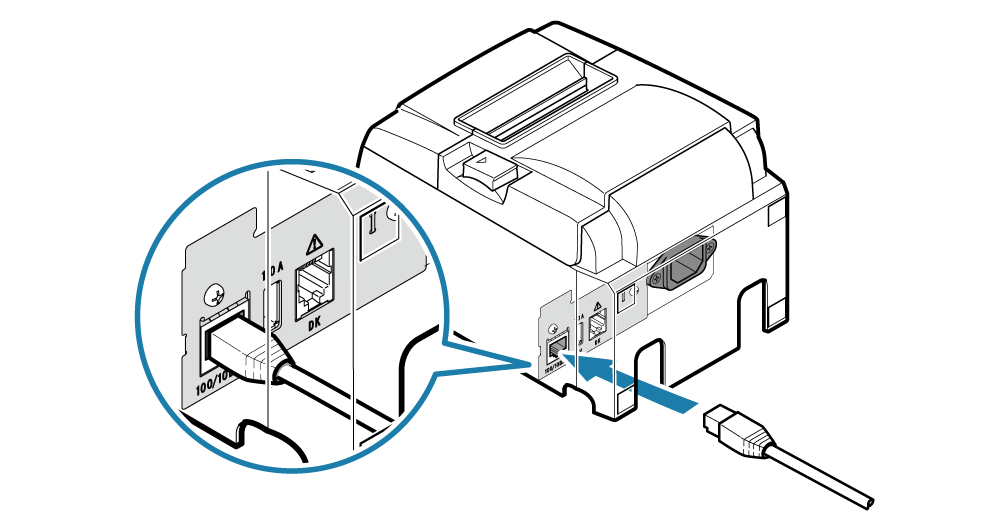
Step 2: Connect the Ethernet Cable
Plug one end of the cable into the printer’s Ethernet port. Insert the other end into an available LAN port on your router or switch. Power cycle both devices if needed.
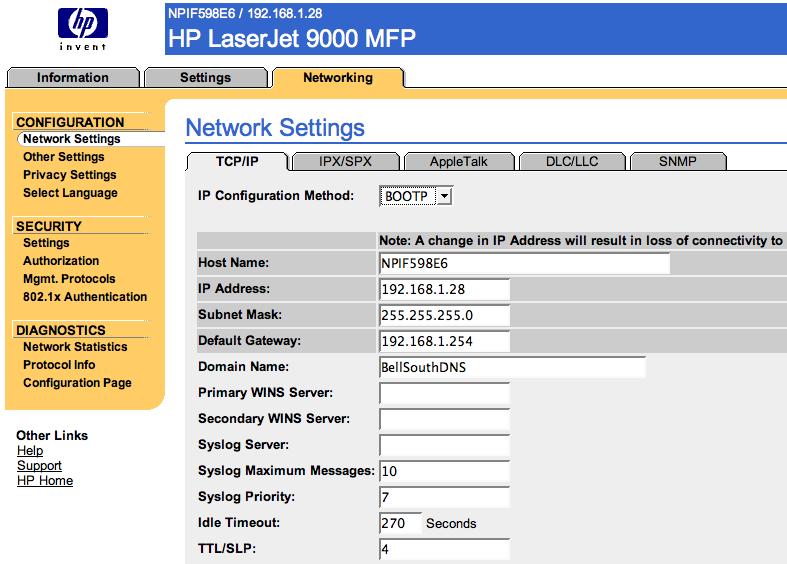
Step 3: Configure Printer Network Settings
Access the printer’s control panel or web interface by entering its default IP (like 192.168.1.1) in a browser. Set to DHCP for automatic IP assignment or manually enter a static IP if preferred.
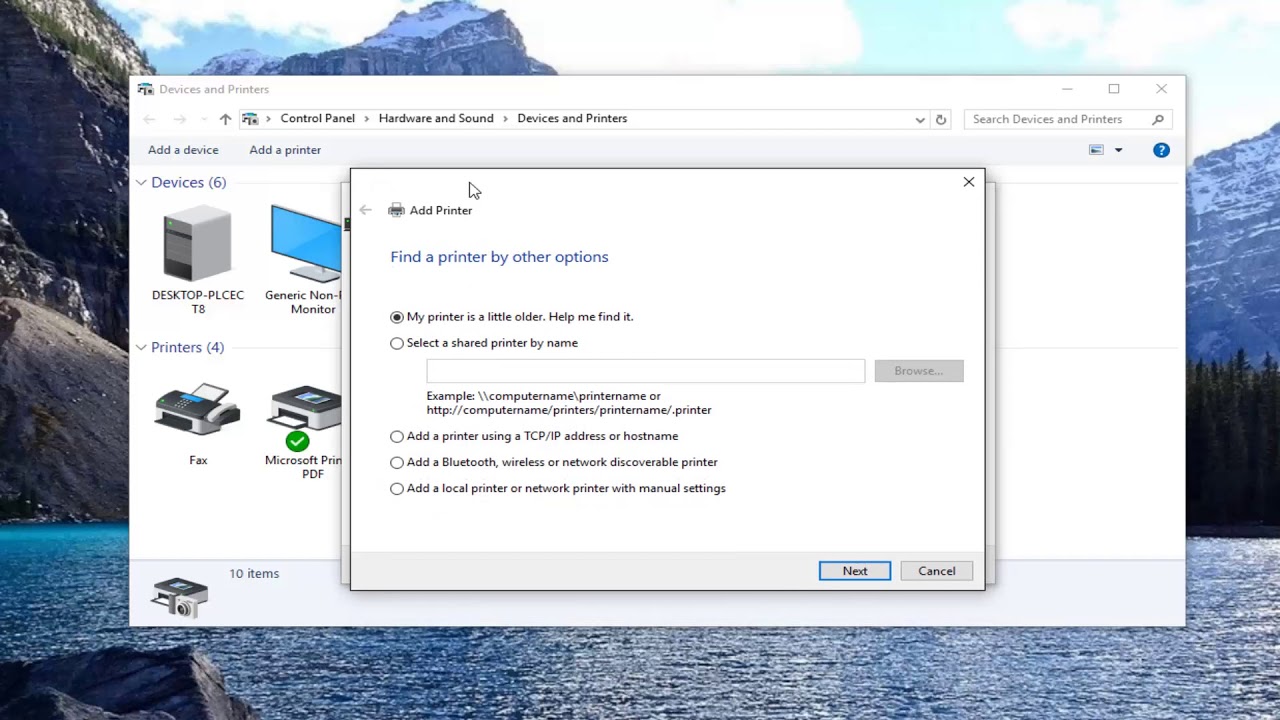
Step 4: Add the Printer to Your Computer
On Windows, go to Settings > Devices > Printers & scanners. Click Add a printer or scanner, select your printer from the list, and install drivers if prompted.
Step 5: Test the Connection
Print a test page from your computer. If issues arise, verify the IP address via the printer’s menu and ensure all devices are on the same network subnet.
In my home setup, after following these steps with an HP LaserJet, I could print from three devices without interruptions, cutting down on cable clutter. At a small office I helped, connecting a Canon printer to LAN boosted productivity by allowing remote printing, with no more queuing at a single PC. Lastly, for a friend’s networked Brother printer, the stable connection resolved frequent Wi-Fi dropouts, making large print jobs reliable.
