

How to Easily Copy an Entire Excel Sheet to Another Workbook
2026-01-31Mastering the Pen Tool in Photoshop: Essential Tips for Creating Perfect Paths
2026-01-31How to Add a Realistic Beard to a Handsome Man in Photoshop
As a Photoshop enthusiast, I’ve always been fascinated by how this powerful tool can transform images in creative ways. Adding a beard to a handsome man’s photo isn’t just about slapping on some hair—it’s a blend of artistry and technique that involves understanding facial structure, color matching, and blending modes. The concept breaks down into key elements: selecting the right base image (preferably a clean-shaven face for better control), using brushes to simulate natural hair growth, and refining the edit to make it look seamless and realistic. This technique draws from digital painting principles, where layers allow non-destructive edits, and tools like the brush mimic real-world textures.
One common question I get is: “Can I add a beard without it looking fake?” Absolutely—by matching the beard color to the subject’s hair and using varied brush strokes, you can achieve a natural appearance that blends with the skin tones. Another frequent query is: “Do I need advanced skills for this?” Not really; even beginners can follow basic steps, though practice helps in mastering the nuances like shadow integration and hair direction.
The benefits of mastering this skill are plenty. It enhances your photo editing portfolio, making portraits more versatile for fun projects or professional work like advertising. Plus, it saves time compared to waiting for real beard growth, and it’s a great way to experiment with styles without commitment, boosting creativity and confidence in digital manipulation.
Step 1: Open Your Image in Photoshop
Launch Photoshop and go to File > Open to select the photo of the handsome man. Ensure the image is high-resolution for better detail.
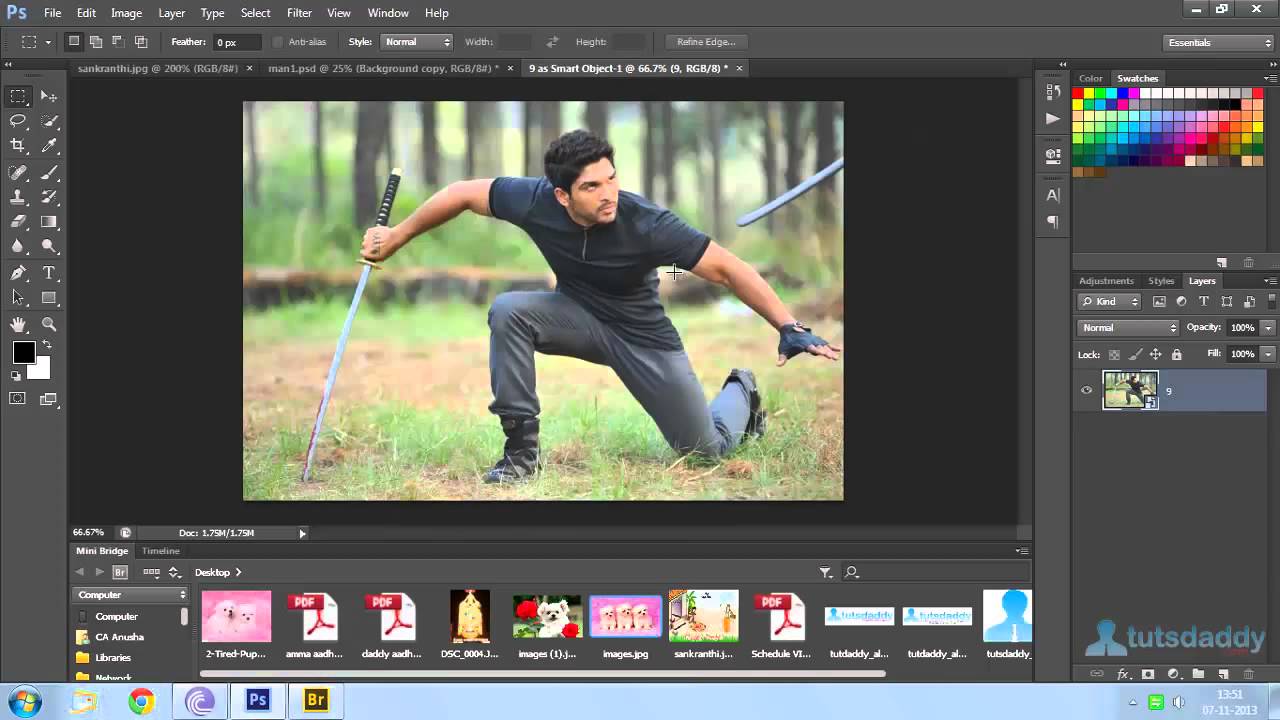
Photoshop Tutorial : Open and Import Media files in Photoshop CS6
Step 2: Create a New Layer
In the Layers panel, click the New Layer icon (or press Ctrl+Shift+N) to add a blank layer above the background. Name it “Beard” for organization.
Why can’t I make a new layer in Photoshop?
Step 3: Select the Brush Tool
From the toolbar, choose the Brush Tool (shortcut B). Set the hardness to around 0-20% for soft edges.
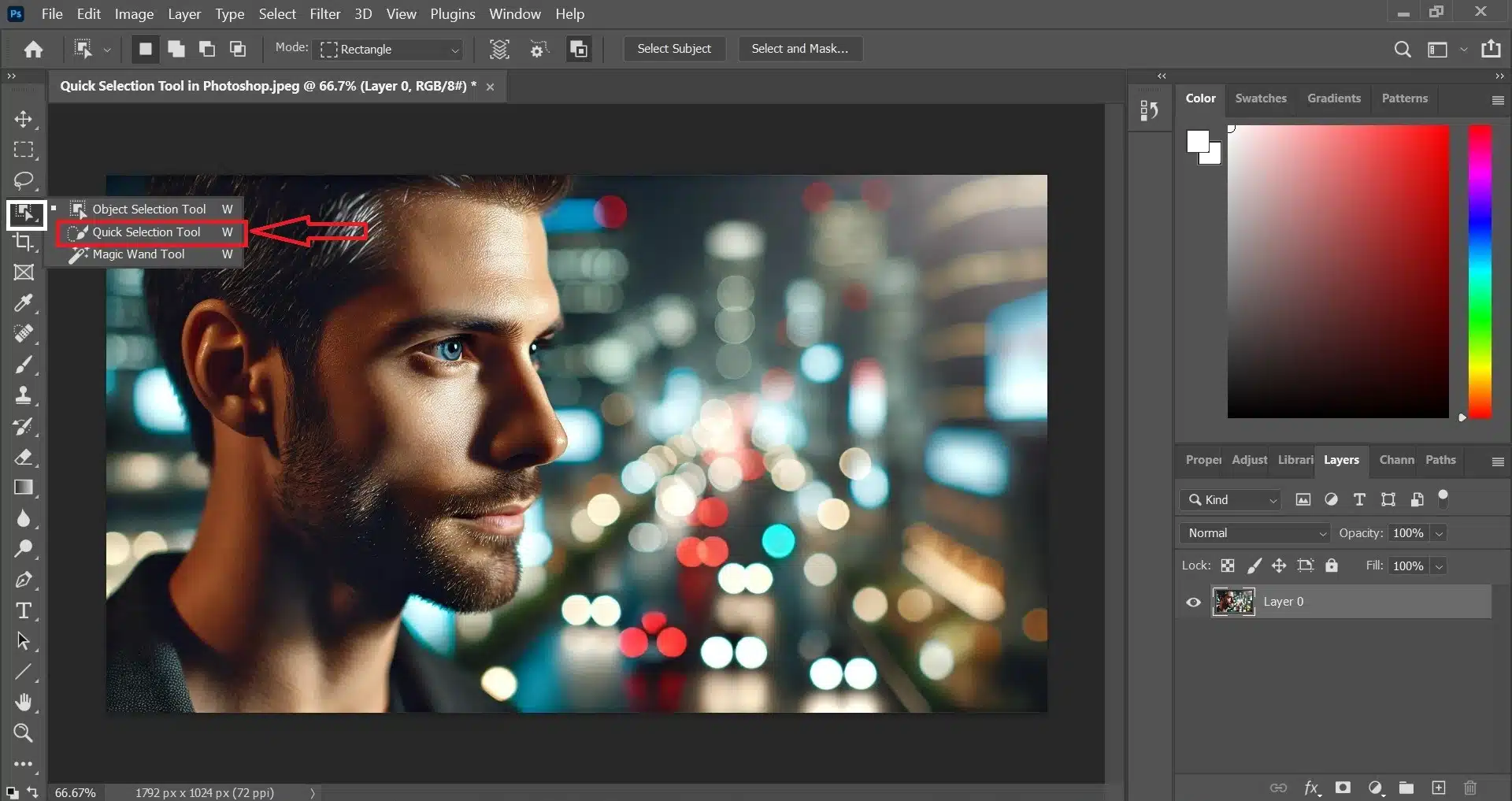
Quick Selection Tool in Photoshop: A Guide to Smooth Workflow
Step 4: Choose a Beard Brush Preset
In the Brush Preset picker, select a hair or grass-like brush (download free beard brushes if needed). Adjust size to fit the face area.
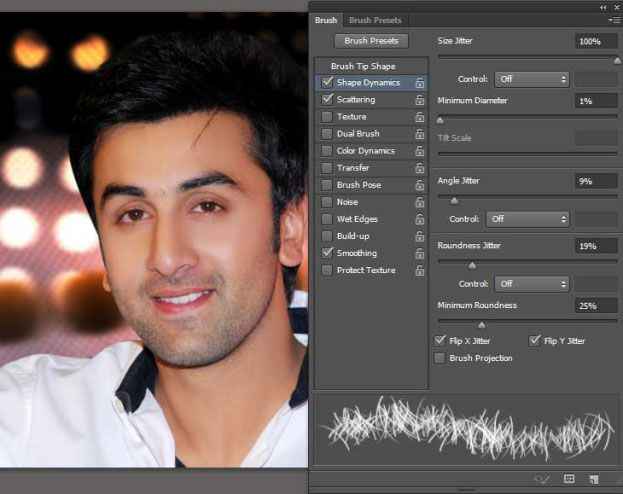
How to Create Facial Hair in Photoshop with Grass Brush Tool?
Step 5: Paint the Beard
Zoom in on the chin and cheeks, then paint short, directional strokes matching natural hair growth. Sample color from the subject’s hair using the Eyedropper .
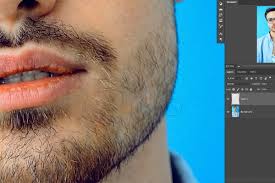
How to Remove Facial Hair in Photoshop
Step 6: Adjust Blending and Opacity
In the Layers panel, set the blending mode to Multiply or Overlay and reduce opacity to 70-90% for realism. Add shadows if needed.
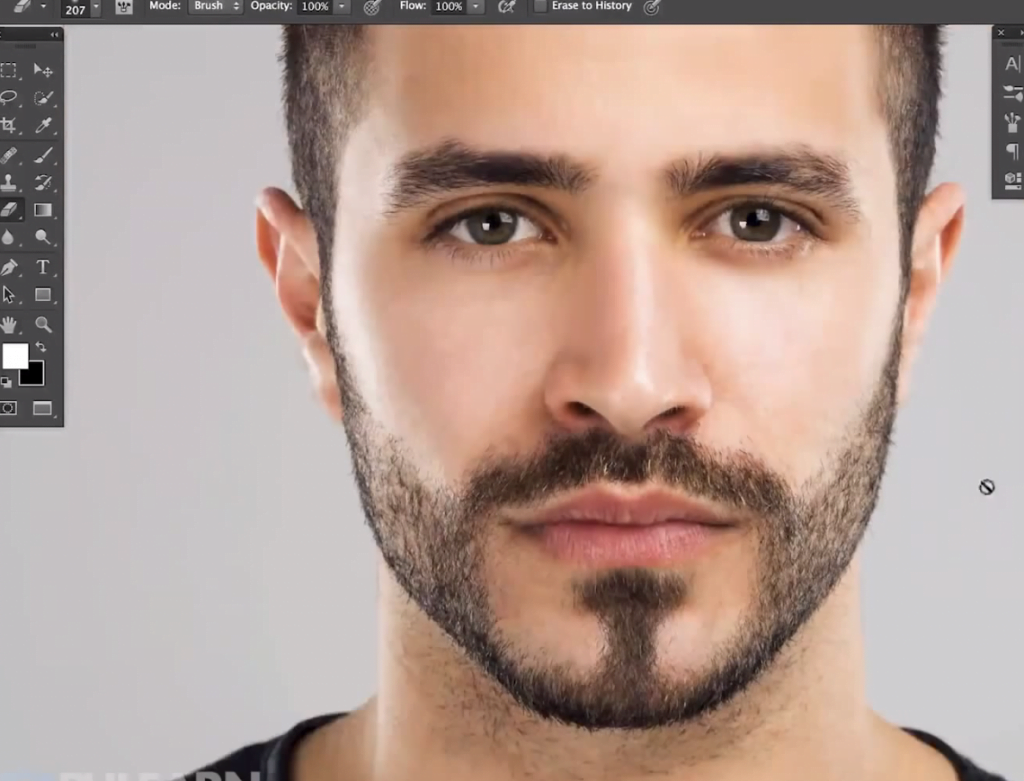
The best beard trends in male model editing Photoshop
Step 7: Refine with a Layer Mask
Add a mask to the Beard layer (Layer > Layer Mask > Reveal All), then use a black brush to erase excess for clean edges.
How to Remove Facial Hair in Photoshop
In my practice, one result was transforming a young model’s clean look into a rugged style, which got rave reviews on social media for its authenticity. Another time, I added a goatee to a friend’s photo for a joke, and it looked so real he used it as his profile pic. Finally, for a client project, this technique helped visualize beard options, leading to a satisfied outcome with minimal revisions.
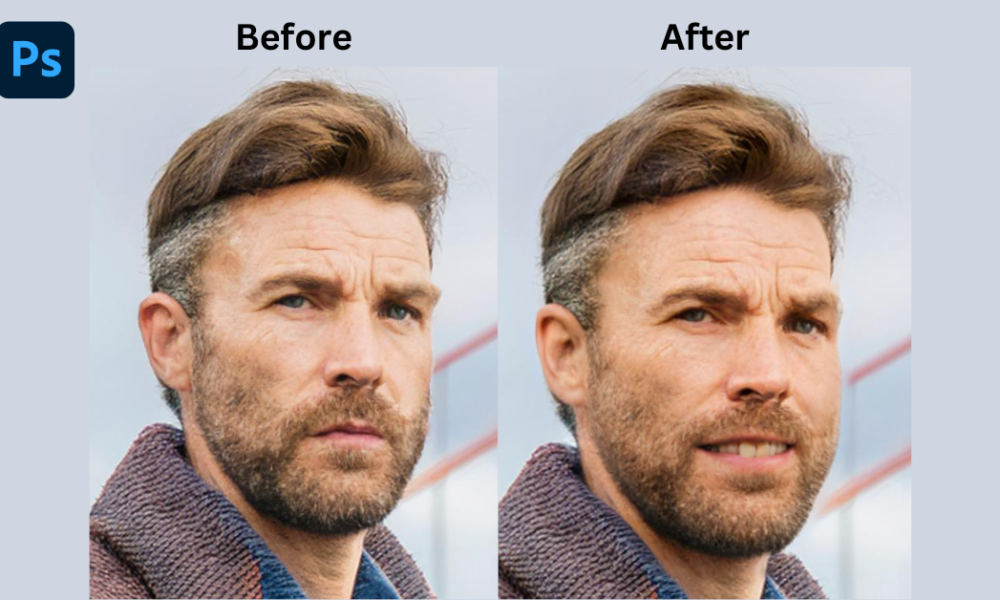
![Beard Filter Online: Add Beard to Photo [FREE]](https://pcwebsoft.com/wp-content/uploads/2026/01/add-beard-to-photo-app.png "How to Add a Realistic Beard to a Handsome Man in Photoshop 9")
