

How to Fix “Cannot Synchronize Color Settings” Error in Adobe Photoshop
2026-02-15Ultimate Guide: How to Fix Photoshop ‘Program Error’ When Saving Files in 2026
2026-02-17Fixing “Could Not Complete Your Request Because of a Program Error” in Photoshop When Changing Fonts
I’ve run into this pesky error in Photoshop more times than I’d like to admit. It pops up when you’re trying to switch fonts in a project, halting your workflow with the message “Could not complete your request because of a program error.” This issue often stems from corrupted fonts, outdated software, font cache buildup, or conflicts with Photoshop’s settings like graphics processing. Breaking it down, the error is Photoshop’s way of saying it can’t process the font change due to an internal glitch—usually tied to how fonts are loaded or cached in the system. On Windows or Mac, it can affect any version, but it’s more common in older installs where fonts have accumulated issues over time.
What causes this error specifically when changing fonts? From my experience and what I’ve seen in forums, it’s typically due to a corrupt or incompatible font file that’s clashing with Photoshop’s font engine. Sometimes, it’s a buildup in the font cache that Photoshop relies on to quickly access typefaces, leading to read errors.
Is this error only related to fonts, or can it happen elsewhere in Photoshop? While it often strikes during font changes, it can also appear when opening files, saving, or applying effects if there’s a broader system conflict, like with plugins or GPU acceleration. However, in font-specific cases, isolating bad fonts usually resolves it.
Fixing this error has saved me hours of frustration, allowing seamless font switches without restarts or lost work. It boosts productivity by keeping your creative flow uninterrupted, prevents project corruption, and ensures compatibility with new fonts you might download. Plus, maintaining clean caches and updates keeps Photoshop running smoother overall, reducing crashes and improving performance on resource-heavy tasks.
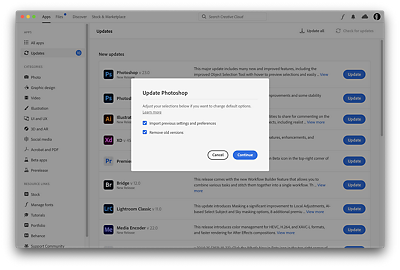
Step 1: Update Photoshop Open the Creative Cloud desktop app, go to Updates, and check for Photoshop updates. Install any available ones, then restart the app.
Step 2: Clear Font Cache Quit Photoshop. Navigate to your system’s font cache folder (on Windows: search for adobefnt.lst* files; on Mac: ~/Library/Application Support/Adobe). Delete all adobefnt.lst* files, then relaunch Photoshop.
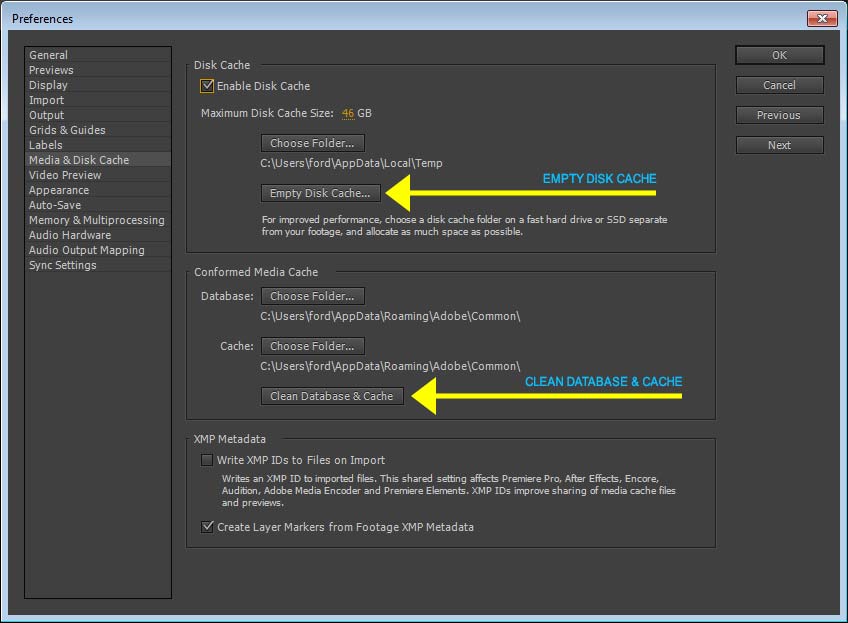
Step 3: Reset Photoshop Preferences Launch Photoshop while holding Alt+Ctrl+Shift (Windows) or Option+Command+Shift (Mac). Confirm the reset when prompted, which clears custom settings without affecting your files. (For visual reference, see the preferences menu in the next step’s image.)
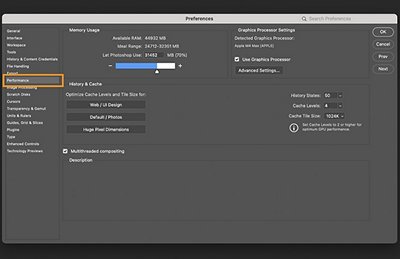
Step 4: Disable GPU Acceleration In Photoshop, go to Edit > Preferences > Performance. Uncheck Use Graphics Processor, then click OK and restart.
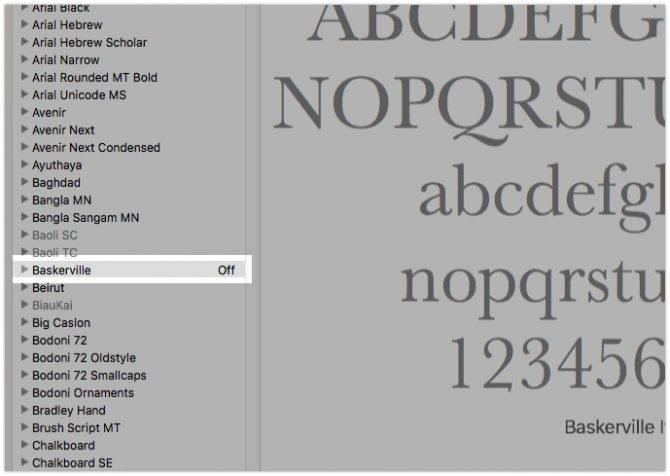
Step 5: Remove Corrupt Fonts Use your system’s font manager (Font Book on Mac or Fonts settings on Windows) to validate and remove suspect fonts. Test by disabling recent additions one by one, then restart Photoshop.
In one project, after clearing the cache and resetting preferences, I could finally switch to a custom script font in a logo design without the error, finishing the edit in half the time. Another time, disabling the GPU fixed it for a batch of PSD files with embedded Google Fonts, preventing any further corruption. Lastly, removing a faulty OTF file from Font Book resolved the issue across multiple layers in a poster mockup, letting me experiment freely with typefaces again.
