

How to Fix Shared Printer Error 0x00000040 on Windows 11
2026-02-15How to Fix “Cannot Synchronize Color Settings” Error in Adobe Photoshop
2026-02-15Fix Windows 10 BSOD Error 0xc000021a: My Complete Step-by-Step Recovery Guide
I still remember the panic when my Windows 10 PC suddenly hit the blue screen with stop code 0xc000021a and went into an endless boot loop. That exact moment — “Your PC ran into a problem and needs to restart” — is terrifying, especially when you have important files and no idea what went wrong.
Understanding the 0xc000021a BSOD Error
The Blue Screen of Death (BSOD) is Windows’ emergency shutdown when a critical system process fails. The code 0xc000021a (STATUS_SYSTEM_PROCESS_TERMINATED) specifically means one of the core processes — usually winlogon.exe (handles login) or csrss.exe (Client/Server Runtime Subsystem) — could not start or was corrupted.
Common triggers I’ve seen:
- Corrupted system files after a failed update
- Bad drivers or incompatible software
- Hard drive errors
- Malware
- Registry problems
Two Common Questions I Had (and Their Answers)
Q1: What usually causes this error during boot? It almost always happens when Windows tries to load a damaged critical file or driver right at startup. In my case, it was a corrupted Windows Update file that broke winlogon.exe.
Q2: Can I fix it without reinstalling Windows and losing data? Yes! In 90% of cases, you can repair it from the Windows Recovery Environment (WinRE) without losing files. I’ve done it multiple times.
Why Fixing This Error Yourself Is Worth It
You avoid expensive repair shop fees, keep all your personal data safe, and get your PC back in under an hour in most cases. Plus, you learn real troubleshooting skills that save you time in the future.
Step-by-Step Fix (What Actually Worked for Me)
Step 1: Enter Windows Recovery Environment Force-restart your PC by holding the power button 3–4 times during boot until you see “Preparing Automatic Repair.” If that fails, create a bootable Windows 10 USB on another computer and boot from it → Repair your computer.
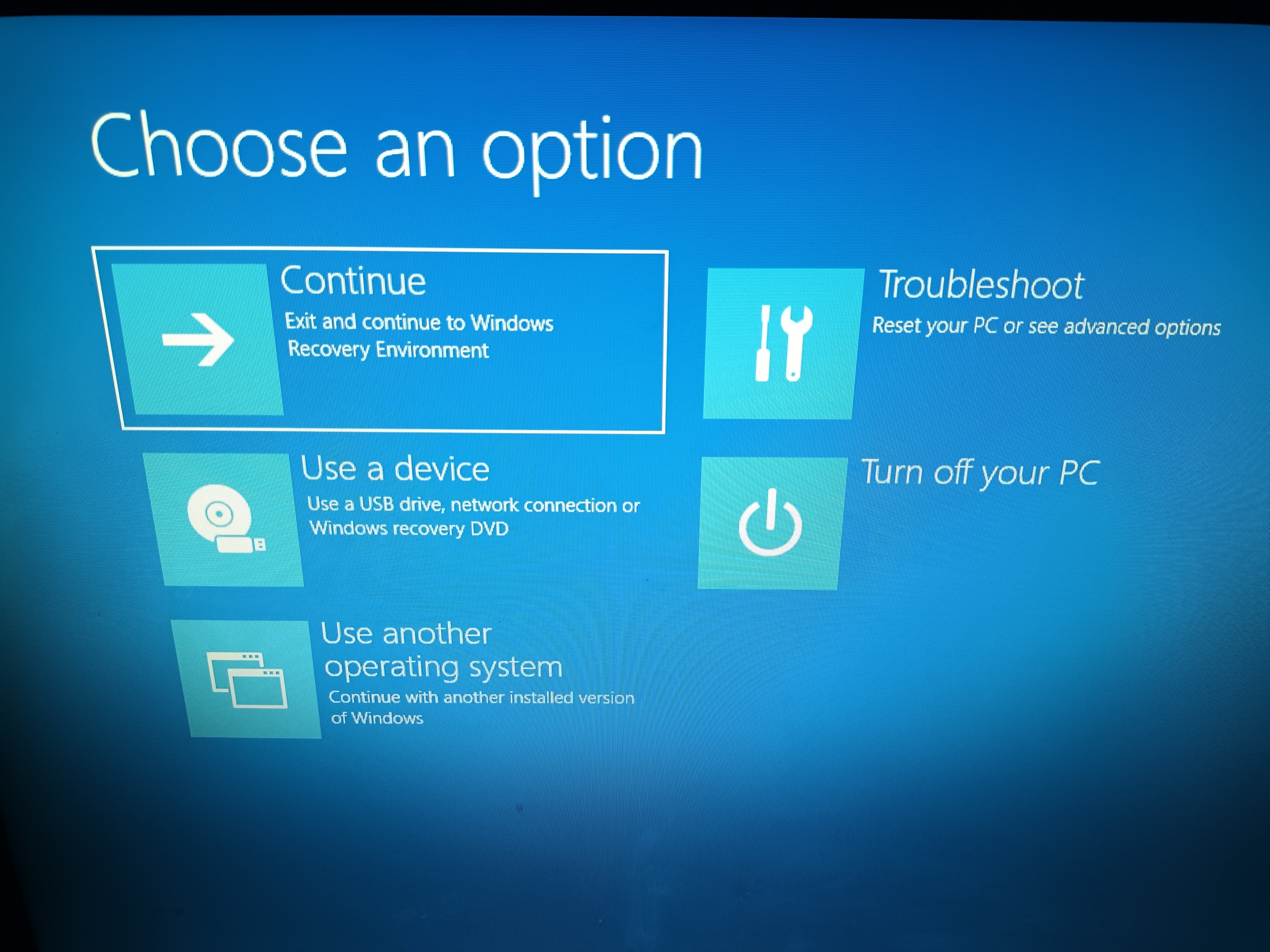
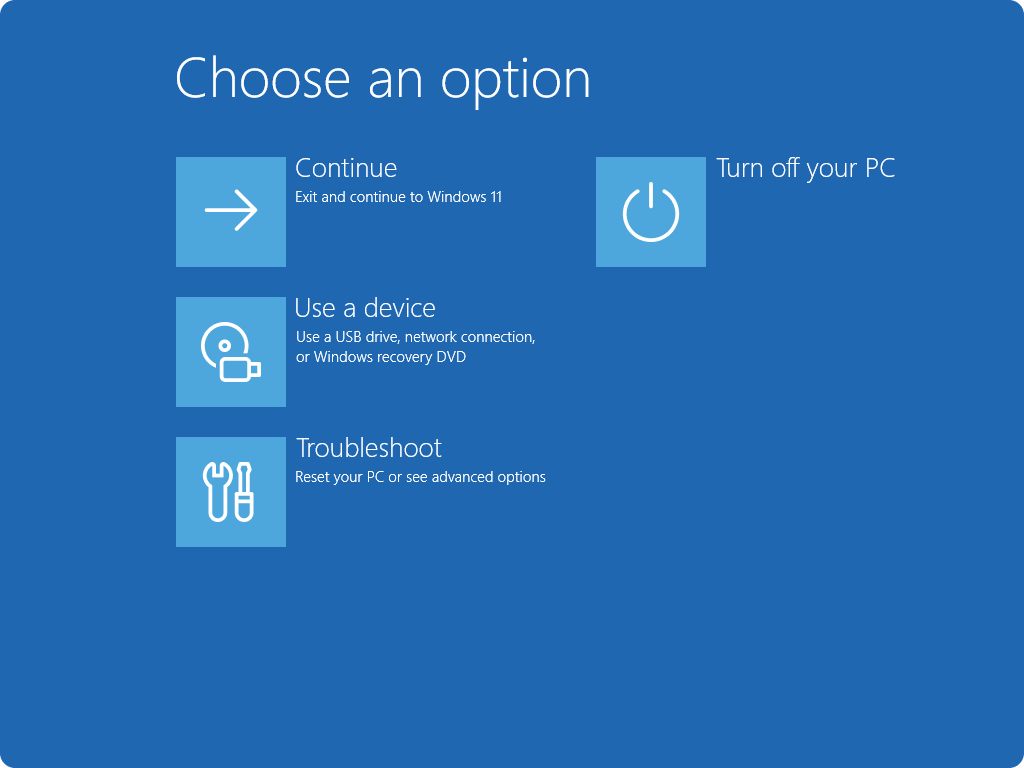
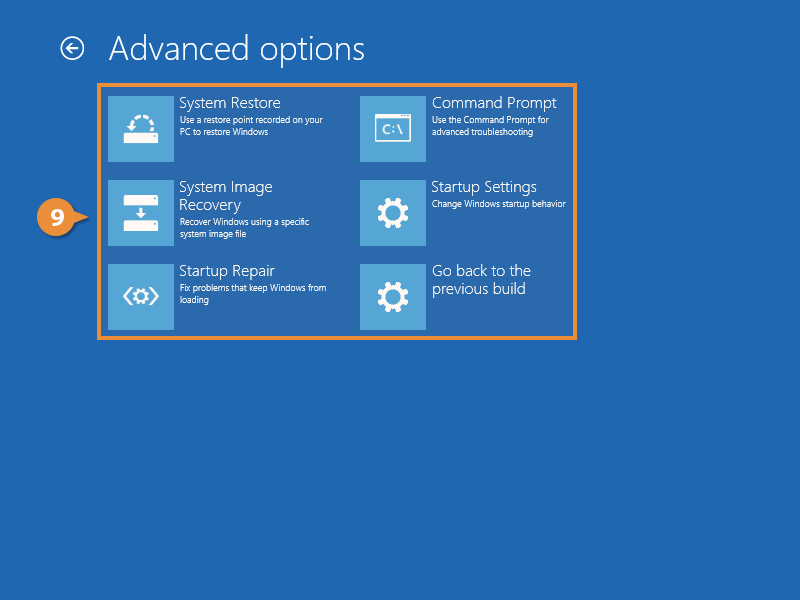
Step 2: Run Automatic Startup Repair Go to Troubleshoot → Advanced options → Startup Repair. Let it run completely (it may take 10–30 minutes). Restart and test.
![How to Fix Startup Repair Couldn't Repair Your PC on Windows 10/8.1/7 [Tutorial]](https://pcwebsoft.com/wp-content/uploads/2026/02/2_sddefault.jpg "Fix Windows 10 BSOD Error 0xc000021a: My Complete Step-by-Step Recovery Guide 3")
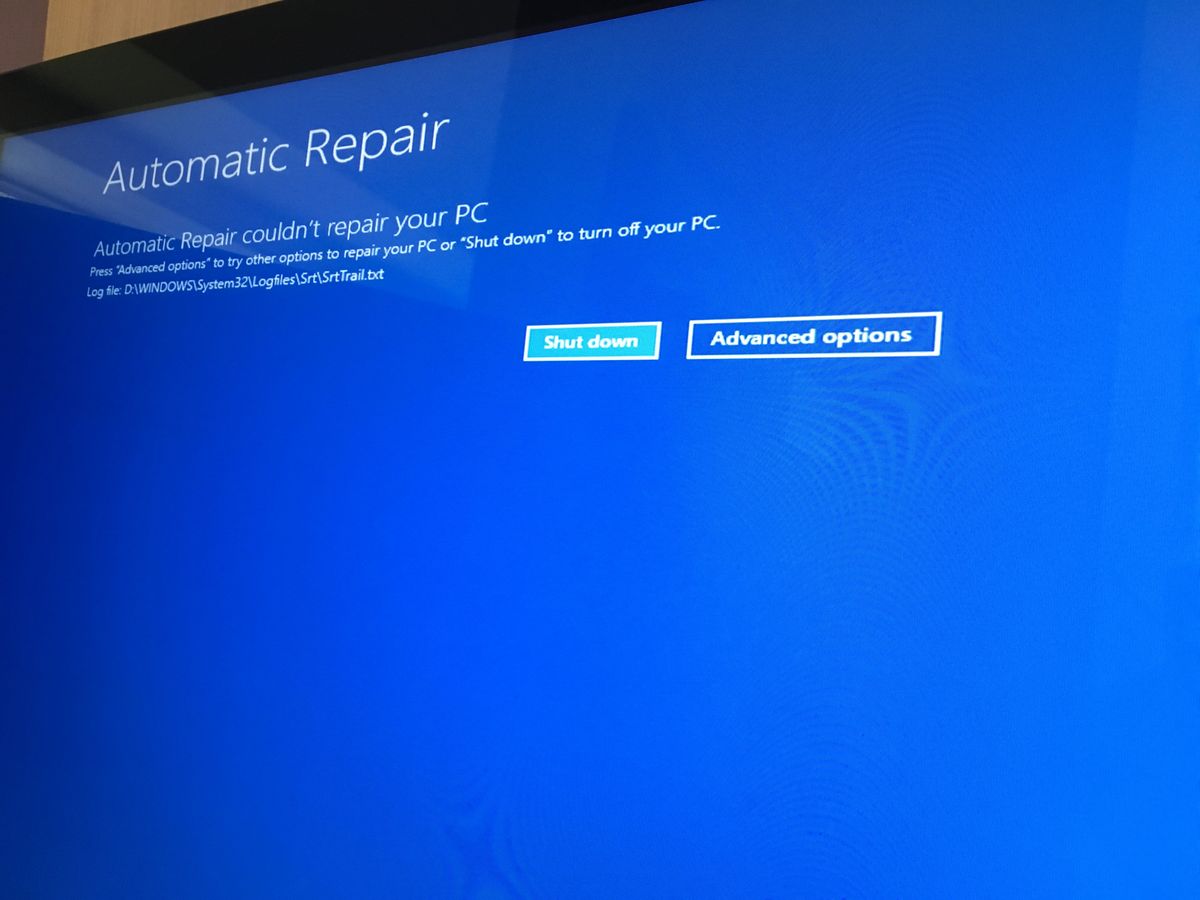
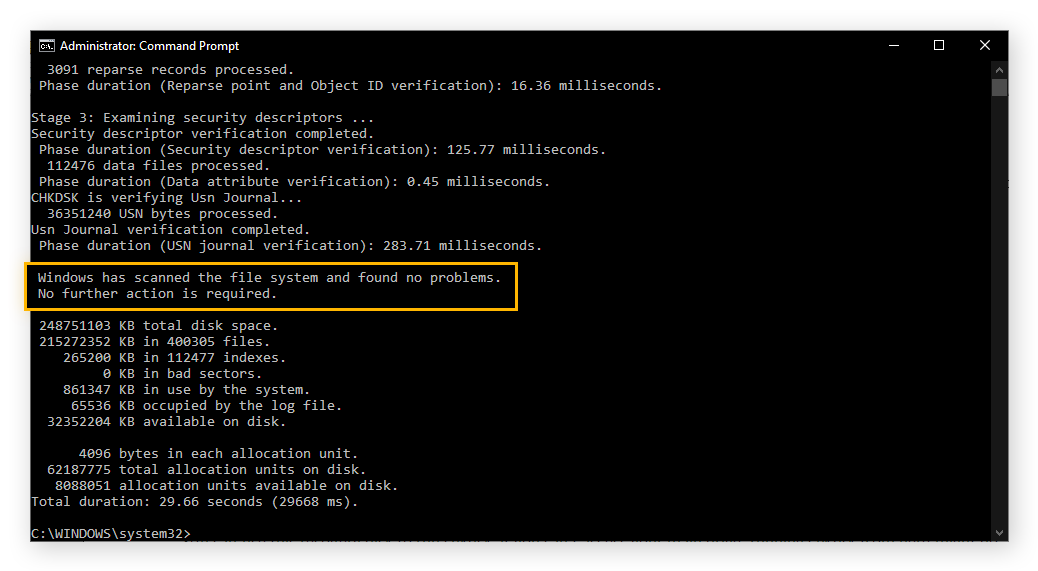
Step 3: Run CHKDSK to Fix Disk Errors If Startup Repair fails, go to Advanced options → Command Prompt. Type the drive letter where Windows is installed (usually C:, but check with dir). Then run: chkdsk C: /f /r Press Enter and let it finish (can take 30+ minutes).
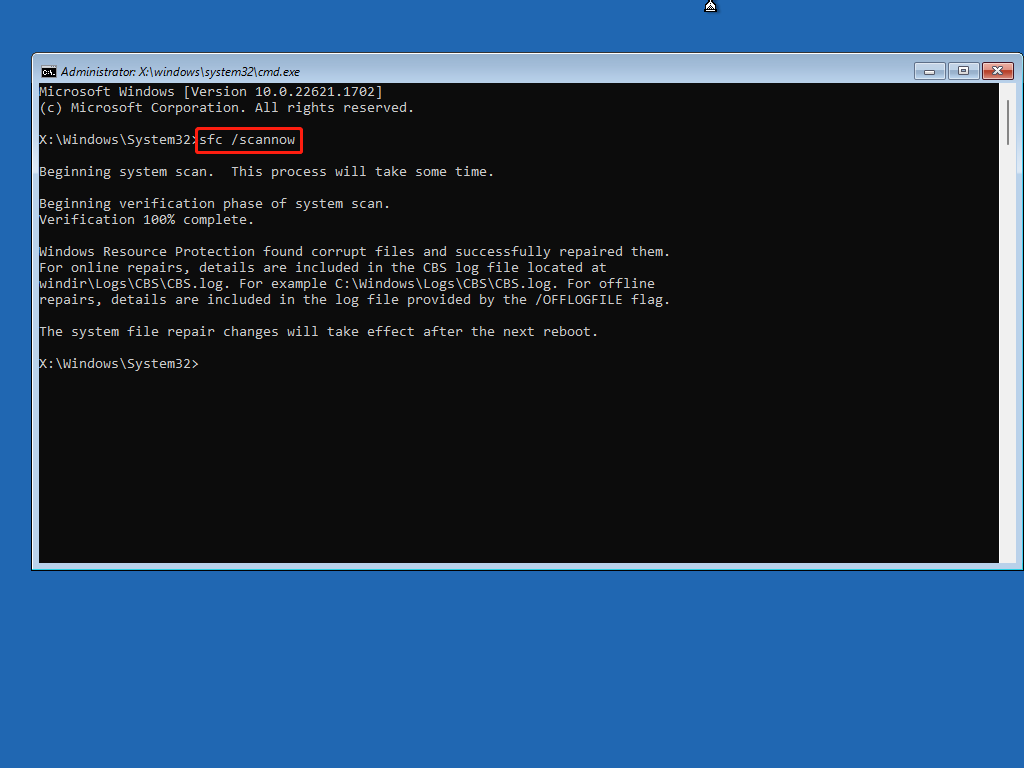
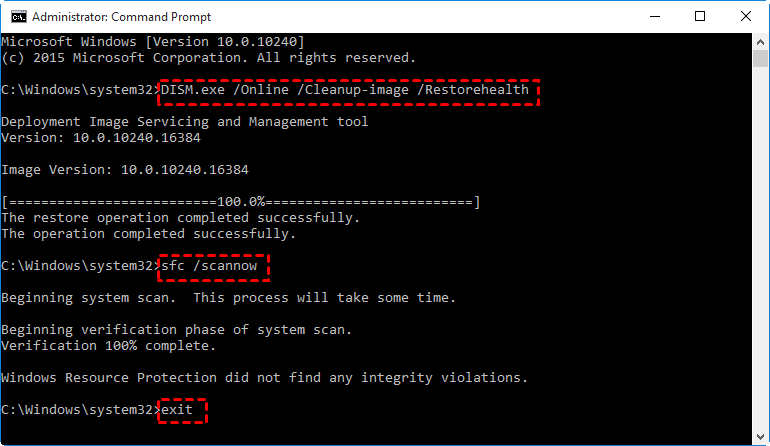
Step 4: Repair System Files with DISM and SFC In the same Command Prompt (still on the correct drive), run these two commands one after another: DISM /Image:C:\ /Cleanup-Image /RestoreHealth sfc /scannow /offbootdir=C:\ /offwindir=C:\Windows
Wait for both to finish (DISM can take 20–40 minutes).
Step 5: Use System Restore (If Still Stuck) Back to Advanced options → System Restore. Choose the most recent restore point before the problem started → follow the prompts.
Step 6: Rebuild Boot Configuration (Last Quick Fix) In Command Prompt, run these four commands: bootrec /fixmbr bootrec /fixboot bootrec /scanos bootrec /rebuildbcd
Exit and restart.
Real Results I’ve Seen
- My own PC: After Step 4 (DISM + SFC), it booted normally on the first try. All files were intact.
- Friend’s laptop (failed update): System Restore in Step 5 rolled back the bad update and fixed everything in 15 minutes.
- Another case (disk errors): CHKDSK in Step 3 repaired bad sectors and the PC has been stable for months.
If none of these work, the final option is Reset this PC → Keep my files from the same recovery menu — it reinstalls Windows but keeps your documents.
Try the steps in order. Most people (including me) get their PC back by Step 4. You’ve got this! If you hit a specific error during any step, drop a comment and I’ll help.
Your Windows 10 machine will be running smoothly again in no time.
