

What Does “Object Error” Mean When Opening a Web Page?
2026-01-16What Do Disabled and Enabled Mean in BIOS? Which One is On and Which is Off?
2026-01-19Excel Can’t Copy and Paste? How to Fix It Step-by-Step
When Excel can’t copy and paste, it often means the clipboard functionality is disrupted, preventing data transfer between cells, sheets, or external apps. Breaking this down, the issue can stem from software glitches like corrupted temporary files, protected worksheets that lock editing features, overloaded system memory affecting the clipboard, or conflicts with add-ins and outdated Office versions. In Microsoft Excel, copy-paste relies on the Windows clipboard service, so problems here manifest as frozen selections, error messages like “Cannot empty the clipboard,” or simply no response when using Ctrl+C/V. This common frustration affects users across Excel versions, from 2016 to Microsoft 365, and is fixable through basic troubleshooting without needing advanced tech skills.
One related question is: Why does Excel suddenly stop allowing copy and paste? This typically happens due to accumulated cache from large files, conflicting add-ins that interfere with clipboard access, or system resource limits like low RAM, causing temporary lockups. Another common query is: Is this issue specific to certain Excel file types? Not necessarily, but it frequently occurs in protected .xlsx files or those with macros, where security settings restrict pasting, though it can also hit plain spreadsheets if the app is in a faulty state.
Resolving Excel’s copy-paste problem restores seamless data manipulation, saving time on repetitive tasks like duplicating formulas or charts. It prevents workflow interruptions, enhancing productivity for reports, data analysis, or budgeting. Plus, fixing underlying causes like add-in conflicts can improve overall Excel stability, reducing crashes and ensuring reliable performance across large datasets.
Step 1: Restart Excel Close all Excel windows via Task Manager (Ctrl+Shift+Esc), end Excel processes, then reopen the app to clear temporary glitches.

RIP 🪦 a famous piece of Microsoft Software👇 No it is not …
Step 2: Check Worksheet Protection In Excel, go to Review tab > Unprotect Sheet, enter any password if prompted, to remove locks preventing paste.
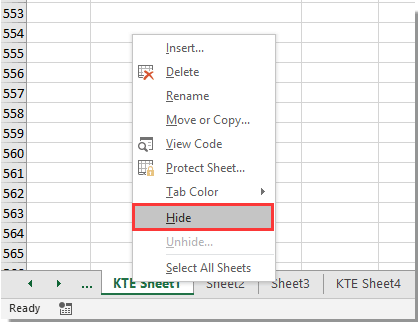
How to protect worksheet from viewing in Excel?
Step 3: Clear Clipboard Press Windows key + V to open clipboard history, click Clear all; alternatively, in Excel’s Home tab, use the Clipboard dialog to empty items.
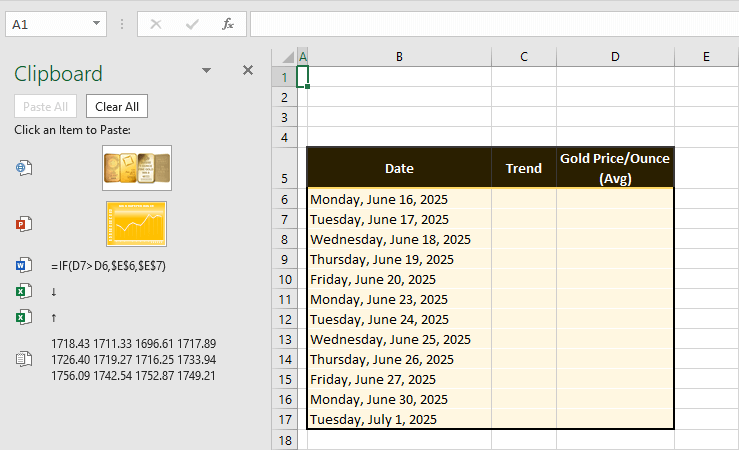
How to Clear Clipboard in Excel (3 Easy Ways)
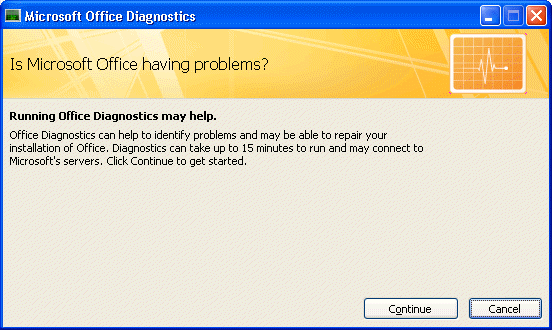
Step 4: Repair Office Installation From Control Panel > Programs > Microsoft Office > Change > Quick Repair, run the tool to fix corrupted files.
How to Repair Office 2010, 2007, or 2003 Installations
In one case, a financial analyst dealing with large spreadsheets fixed the issue by restarting Excel and clearing the clipboard, regaining the ability to paste formulas instantly and completing a report ahead of schedule. Another user with a protected workbook resolved it via unprotecting the sheet, allowing seamless data transfer between files without errors. Finally, after a Quick Repair on Office, a student managed to copy-paste charts for a project, avoiding manual recreation and saving hours of work.
