

Black Screen on PC Startup: Causes, Quick Fixes & Step-by-Step Guide That Actually Works
2026-03-30AHCI vs RAID: What’s the Difference and Which Is Better for Your PC in 2026?
2026-04-04PC Won’t Turn On At All: Common Causes & Easy DIY Fixes That Work Fast (2026 Guide)
I’ve been there — you press the power button on your desktop or laptop, and absolutely nothing happens. No lights, no fans spinning, no beeps, no signs of life. It’s one of the most frustrating PC issues because it feels completely dead. If your computer won’t power on, don’t panic. In this guide, I’ll break down why this happens and share the exact step-by-step fixes I use to bring machines back to life quickly, often without spending a dime.
When a computer refuses to power on at all (no response whatsoever), it usually means there’s no power reaching the system or a critical component is preventing the startup circuit from closing. Common causes include faulty power cables or outlets, a dead power supply unit (PSU), loose internal connections, depleted CMOS battery, short circuits from peripherals, or issues with the motherboard/power button. It can affect both desktops and laptops after power surges, moves, or long periods of inactivity.
Is it always the power supply failing? Not necessarily. While a bad PSU is a frequent culprit, many cases are simple — like a loose cable, tripped surge protector, or even the PSU’s rear switch being off. I’ve fixed plenty just by checking basics first.
Can I fix this on a laptop too? Yes, most steps adapt easily. For laptops, focus on the AC adapter, battery removal for reset, and checking ports. The core troubleshooting logic is the same for desktops and notebooks.
Resolving a no-power issue yourself saves expensive repair shop visits (often $100+ just for diagnosis), gets your computer running again in minutes instead of days, prevents data loss from unnecessary handling, and builds confidence for future hardware tweaks. Plus, you avoid downtime when you need your PC for work, gaming, or school.
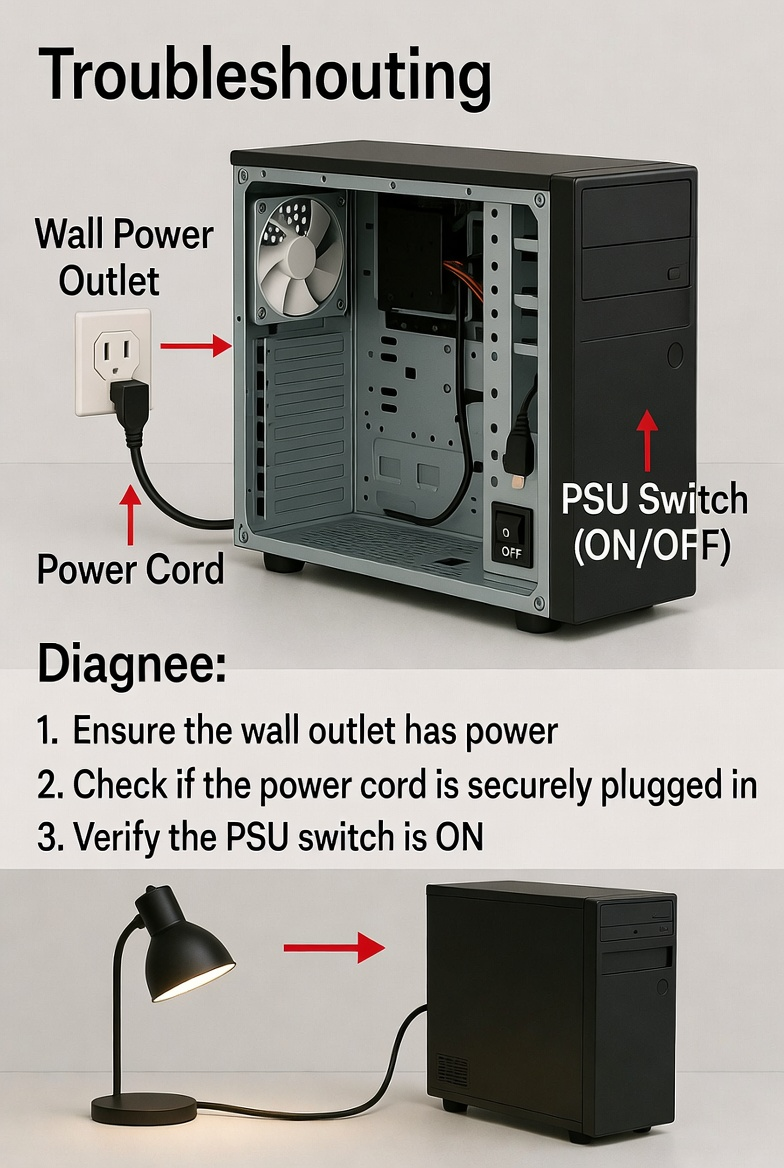
Step 1: Check Power Source and Cables Test the wall outlet with another device like a lamp to confirm it has power. Plug the PC power cord directly into the wall (bypass any surge protector or power strip). Ensure the PSU switch (on the back of the desktop) is flipped to ON. For laptops, try a different AC adapter if possible.
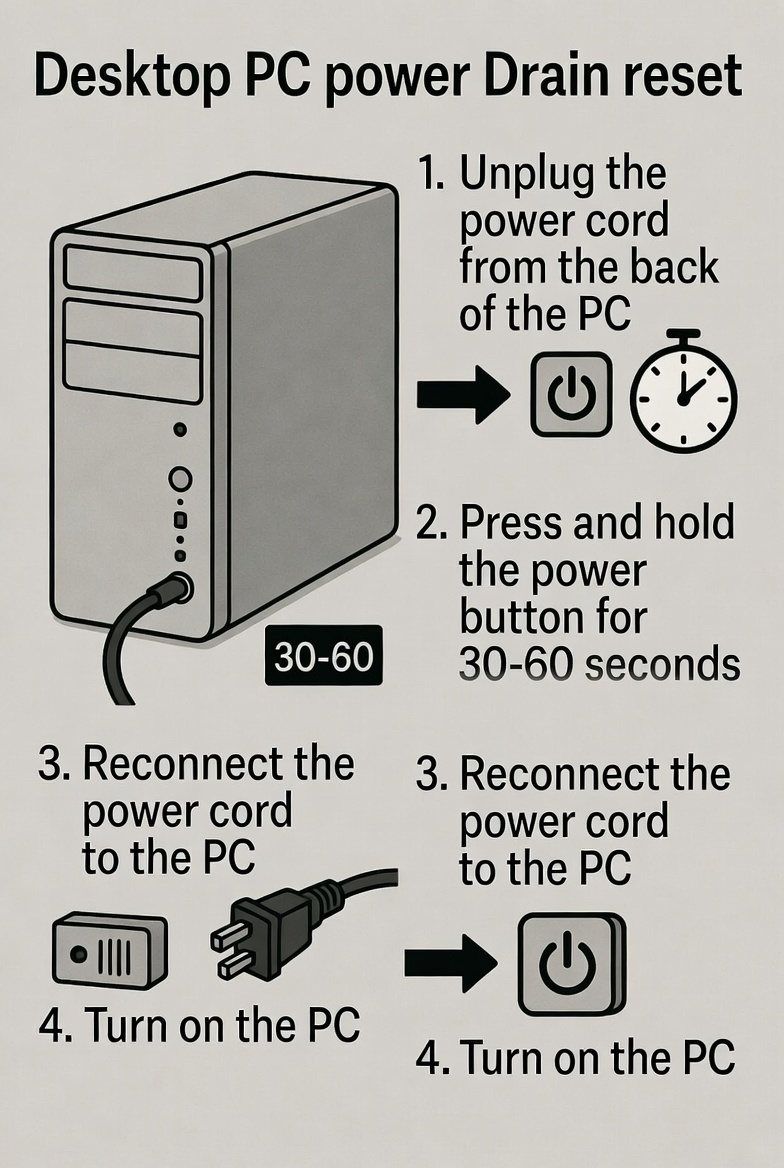
Step 2: Perform a Full Power Drain Reset Unplug the power cord from the wall and the back of the PC. Remove the laptop battery if accessible. Press and hold the power button for 30-60 seconds to drain residual power. Reconnect everything and try turning it on. This clears “flea power” glitches effectively.
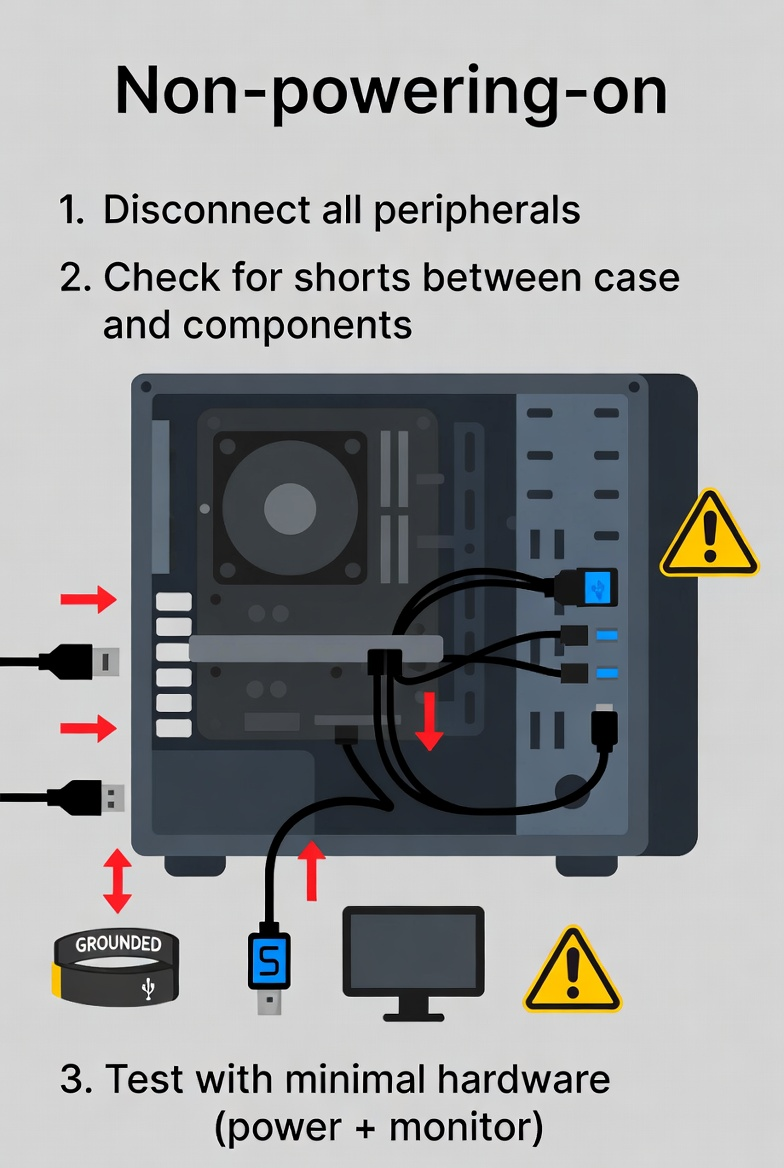
Step 3: Disconnect Peripherals and Test for Shorts Unplug all external devices (USB drives, printers, keyboard, mouse, monitor). Inspect USB ports for debris that could cause shorts. Reconnect only the essentials (power, monitor, keyboard) and attempt to boot.
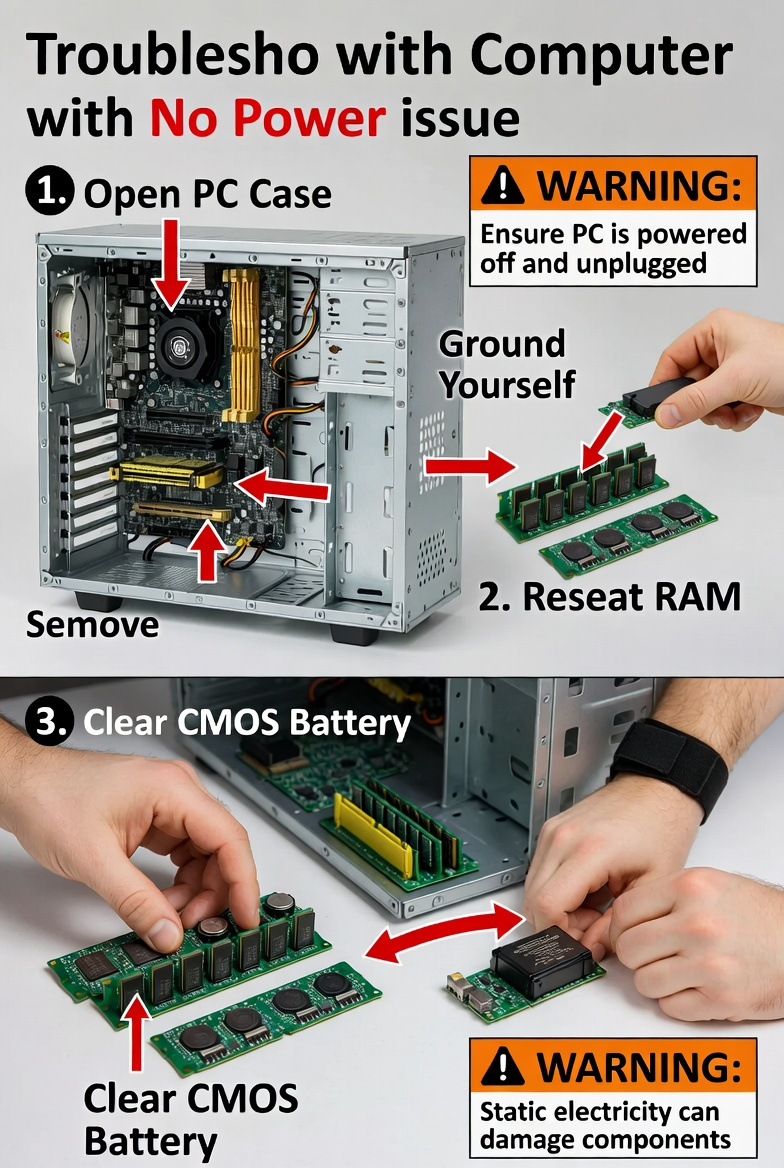
Step 4: Reseat Key Internal Components & Clear CMOS Open the case safely (ground yourself). Reseat the RAM sticks by removing and firmly reinserting them until they click. For further testing, remove the CMOS battery for 5-10 minutes (or use the CLR_CMOS jumper) to reset BIOS settings, then reinstall. Test with minimal hardware (just CPU, one RAM stick, PSU, motherboard).
My own desktop went completely dead after a power outage — Step 1 (direct wall plug and PSU switch) brought it back instantly. A friend’s laptop wouldn’t respond after travel; Step 2 power drain fixed it in under a minute. Last month, an office PC showed no signs of life due to a dusty short — Step 3 plus reseating RAM in Step 4 solved it completely, avoiding a costly service call.
These steps fix the majority of “PC won’t turn on” problems quickly and safely. If nothing works after trying all of them, it could indicate a failing PSU or motherboard that may need professional testing or replacement. Let me know your PC model or exact symptoms in the comments for more tailored advice. Get your computer powering on again today!
