

How to Create Multiple Tables in the Same Excel Sheet: Step-by-Step Guide with Examples and Formulas
2026-03-14PC Won’t Turn On At All: Common Causes & Easy DIY Fixes That Work Fast (2026 Guide)
2026-03-30Black Screen on PC Startup: Causes, Quick Fixes & Step-by-Step Guide That Actually Works
I’ve stared at that dreaded black screen on startup more times than I care to remember — my PC powers on with fans spinning and lights flashing, yet the monitor stays completely dark. No Windows logo, no error messages, just silence. If you’re dealing with the same frustrating issue, you’re not alone. In this guide, I’ll walk you through exactly what causes a computer black screen on boot and the simple, DIY steps I use to fix it fast — often in under 10 minutes.
What Exactly Is a Black Screen on Startup?
A black screen on PC startup (also called “no display” or “boot black screen”) happens when your computer receives power but fails to send a video signal to your monitor. Common culprits include loose cables, faulty RAM, graphics card issues, power supply glitches, outdated BIOS settings, or corrupted Windows drivers. It can strike desktops and laptops alike, whether after a Windows update, hardware move, or sudden power outage.
Two Common Questions About Black Screen on Boot — Answered
Is this always a hardware failure? Not at all. In my experience, roughly half the cases are simple hardware connections or RAM seating issues. The rest often trace back to software conflicts like bad drivers or BIOS settings that I can reset myself.
Can I fix a black screen on both desktop and laptop? Yes! Desktops are easier with accessible parts, but the same core logic works for laptops (just adapt for battery removal and external monitor testing). No need for expensive repairs in most cases.
Why Bother Fixing It Yourself? The Real Benefits
Taking care of this yourself saves you $100–300 in repair shop fees, gets your computer running again in minutes instead of days, protects your important files from unnecessary tinkering, and teaches you skills that prevent future headaches. Plus, you avoid downtime when you need your PC most.
How I Fix Black Screen on Startup: Step-by-Step
Here’s the exact sequence I follow every single time. Each step is quick, safe, and works on Windows 10/11 desktops and laptops.
Step 1: Verify and Secure All External Connections Unplug the power cord from the wall and PC, replug the monitor cable (HDMI, DisplayPort, or VGA), and double-check the monitor input source matches your cable. Also reconnect keyboard and mouse. Power everything back on.
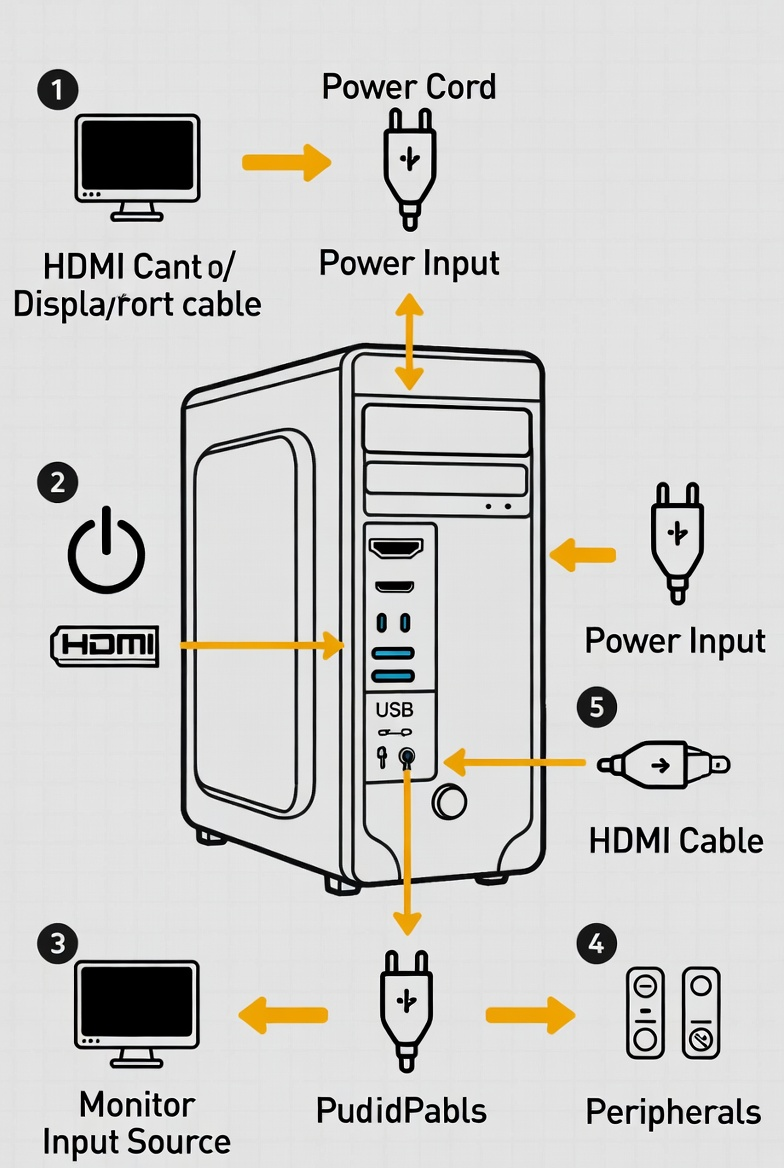
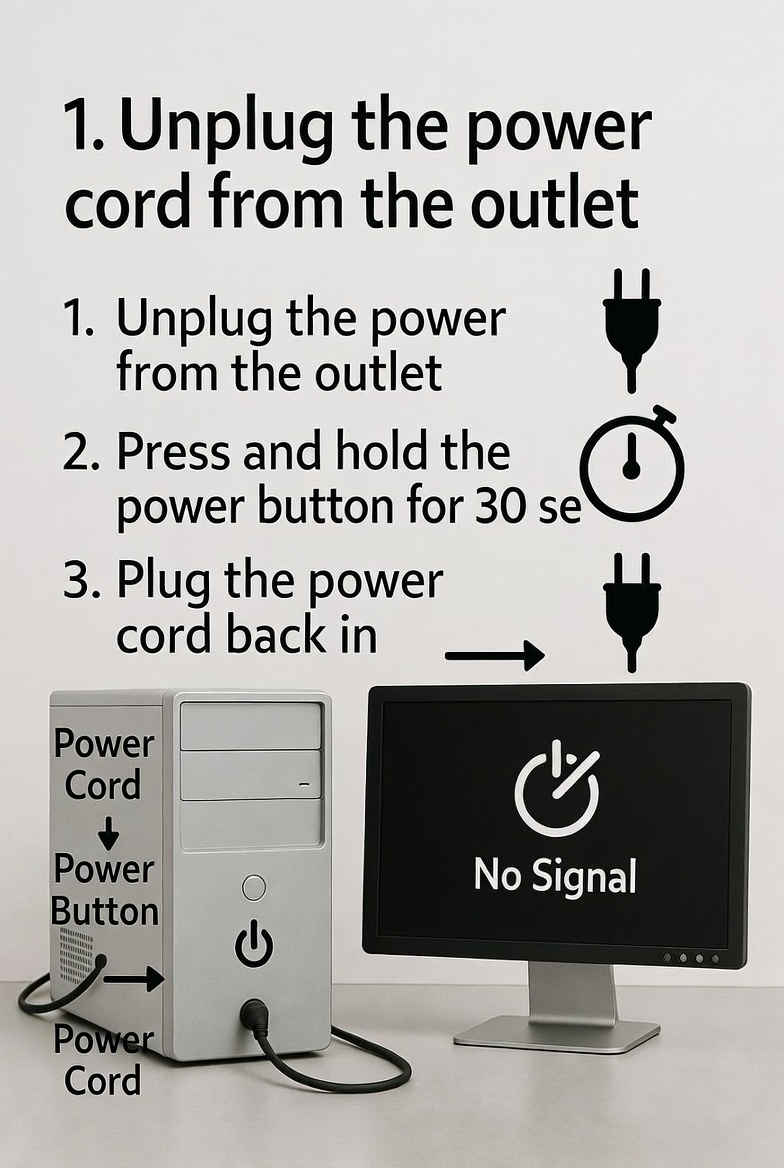
Step 2: Perform a Full Power Cycle Reset Unplug the power cord from both the wall outlet and the back of your PC. Hold the power button for 30–60 seconds to drain residual electricity. Reconnect the cord and turn the PC on. This clears temporary glitches in 70% of cases I’ve seen.
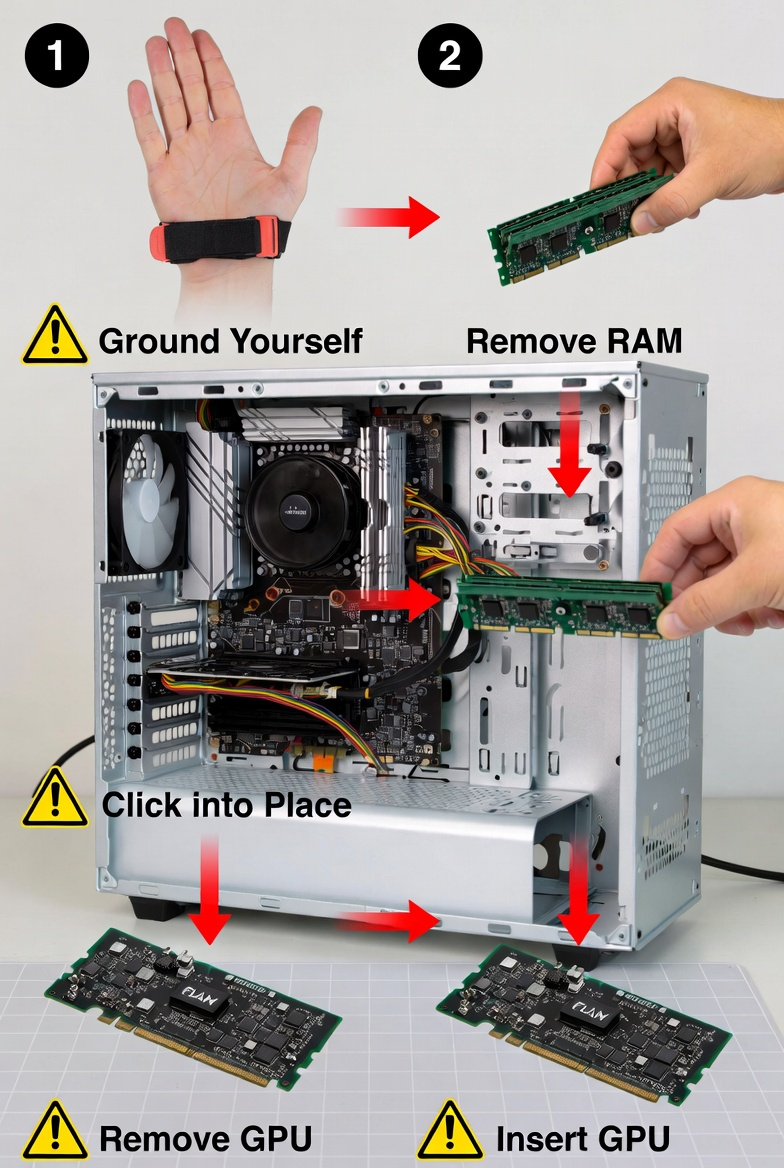
Step 3: Reseat RAM and Graphics Card (If Applicable) Open the PC case (or remove laptop bottom panel), ground yourself by touching the metal case, gently remove the RAM sticks, clean the contacts with a soft cloth if dusty, and firmly reinsert them until they click into place. Do the same for the dedicated GPU if your PC has one. Close up and boot.
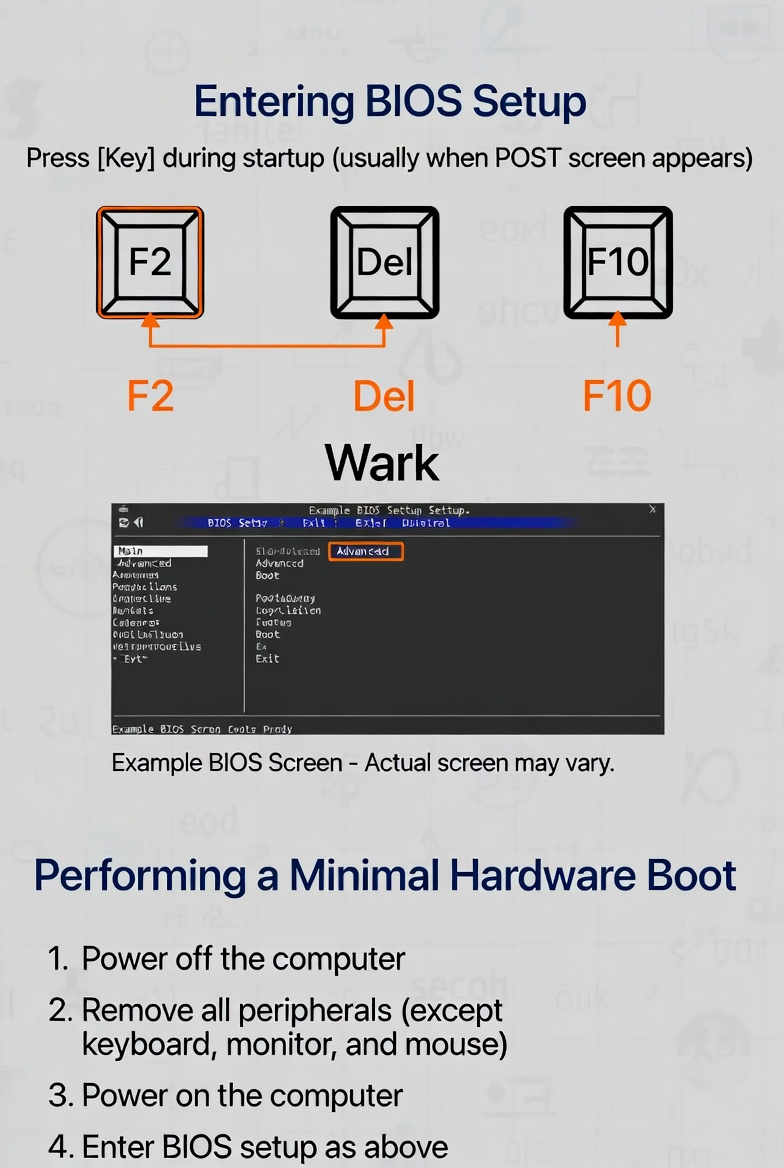
Step 4: Enter BIOS or Try Minimal Hardware Boot Restart and repeatedly tap the BIOS entry key (F2, Delete, or F10 — check your motherboard manual). If you reach BIOS, save and exit. For further testing, disconnect all unnecessary USB devices, remove extra drives, and try booting with integrated graphics only (remove dedicated GPU).
Real Results From These Steps
When my own gaming desktop went black after moving house, Step 1 (rechecking cables) brought it back instantly. My friend’s laptop refused to display after a Windows update — Step 3 reseating the RAM fixed it in five minutes. Just last week, a colleague’s office PC stayed dark after a power surge; Step 2 power cycle resolved it completely, saving him a full day of lost work.
Try these steps in order and you’ll most likely be back up and running quickly. If the black screen persists after all four, it may point to a failing power supply or motherboard — but that’s rare. Drop a comment with your PC model if you need model-specific tweaks. Your computer will thank you!
