

How to Fix Windows Update Error 0x80244018 in Windows 10 and 11
2026-03-14Black Screen on PC Startup: Causes, Quick Fixes & Step-by-Step Guide That Actually Works
2026-03-30How to Create Multiple Tables in the Same Excel Sheet: Step-by-Step Guide with Examples and Formulas
Excel tables automatically format data, add filters, enable easy sorting, and support powerful structured references. Learning how to create multiple tables in the same Excel sheet keeps everything organized in one place — perfect for sales reports, dashboards, or any multi-dataset project.
This tutorial uses a real sales data example with three tables: Orders, Products, and Customers. Follow the steps exactly and you’ll master the technique in minutes.
Preparing Your Data
- Enter each dataset in its own range.
- Place headers in the first row of every range.
- Leave at least two blank rows or columns between ranges to avoid overlap.
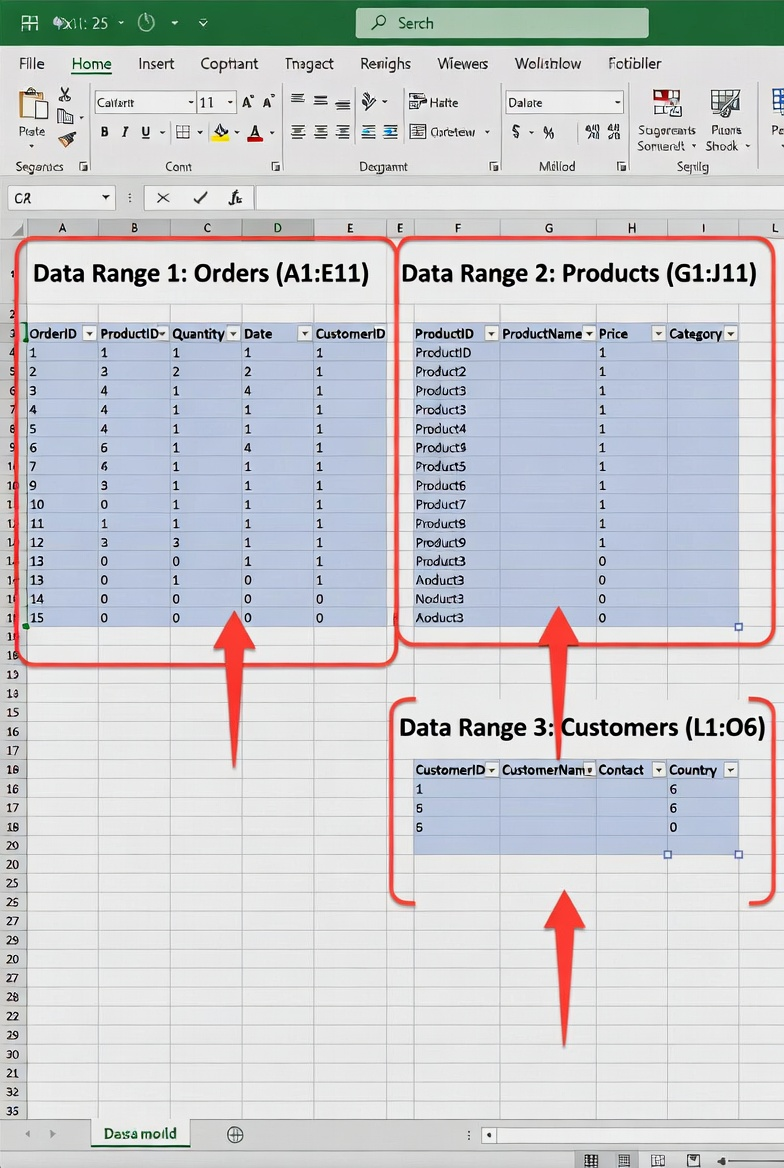
Example layout (sales data):
- Orders: A1:E11
- Products: G1:J11
- Customers: L1:O6
Creating the First Table
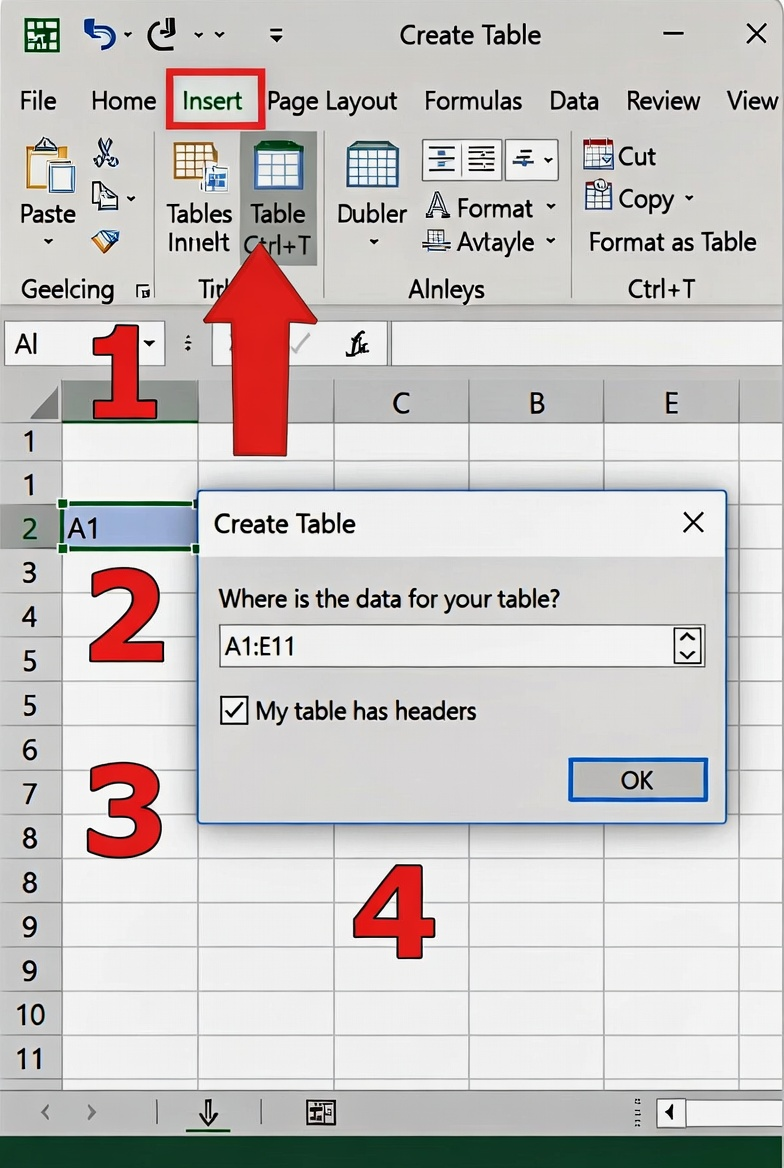
- Select the full range A1:E11.
- Press Ctrl + T (or go to Insert > Table).
- Check the box My table has headers.
- Click OK.
The range instantly becomes a formatted table with filters and banded rows.
Creating Additional Tables
Repeat the exact same process:
- SelectG1:J11 for Products.
- Press Ctrl + T, check My table has headers, click OK.
- SelectL1:O6 for Customers and create the third table.
You now have three fully independent tables in one sheet.
Renaming Tables
- Click any cell inside the first table.
- Switch to the Table Design tab.
- In the Table Name box, type Orders and press Enter.
- Repeat: name the second table Products and the third Customers.
Clear names make formulas much easier later.
Using Formulas Across Tables
Structured references let you pull data between tables automatically.
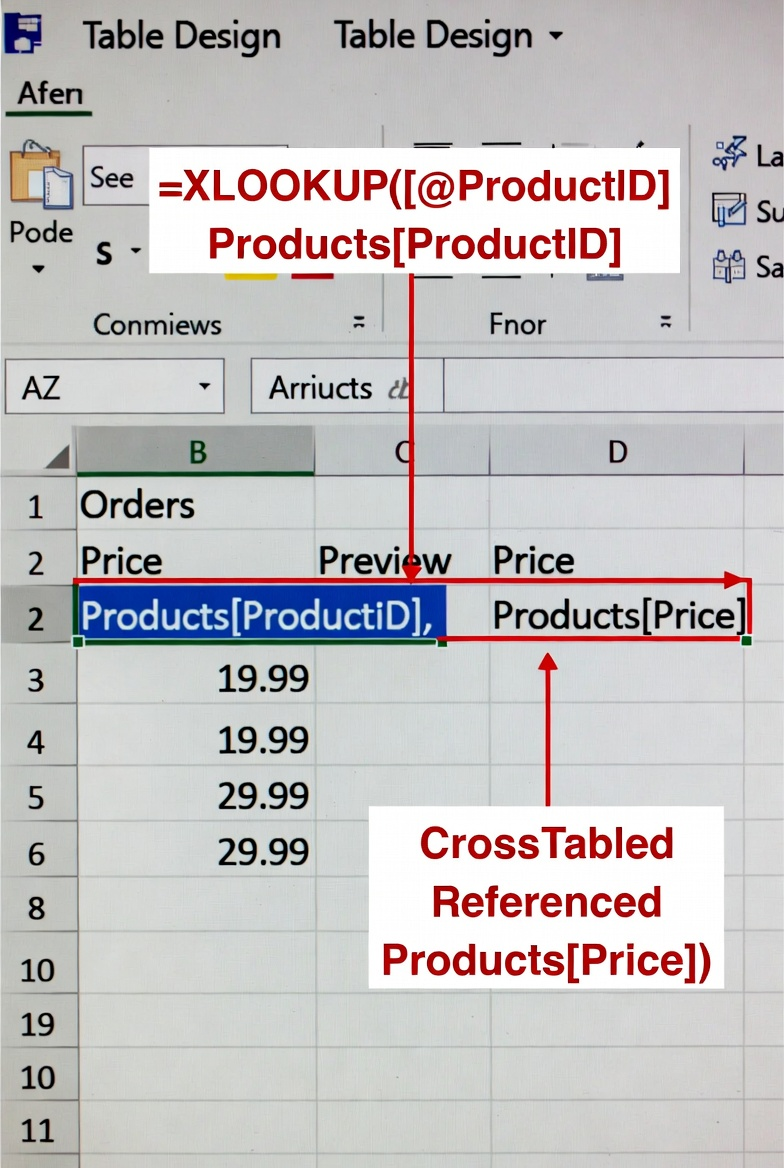
In the Orders table, add a “Price” column and enter this formula in the first data cell:
excel
=XLOOKUP([@ProductID], Products[ProductID], Products[Price])
- The formula auto-fills down the entire column.
- To calculate Total Amount, use:
excel
=[@Quantity] * XLOOKUP([@ProductID], Products[ProductID], Products[Price])
These references update instantly if source data changes.
Managing and Customizing Tables
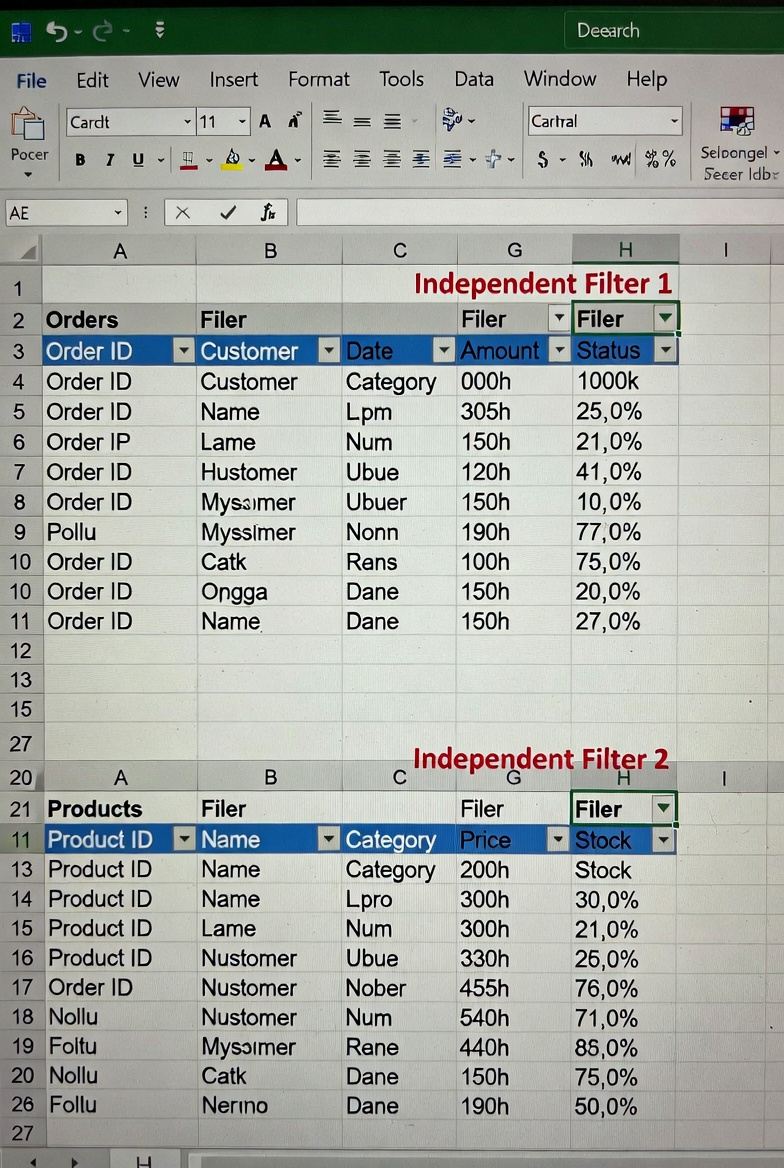
- Sort or filter each table independently using the dropdown arrows — changes in one table never affect others.
- Resize any table by dragging the small blue handle at the bottom-right corner.
- Change style via Table Design > Table Styles.
- To convert back to normal range: Table Design > Convert to Range.
Advanced Tip: Vertical Stacking for Independent Operations
Stack tables vertically (with blank rows between them) for even more flexibility. Each table keeps its own filters and sort order — ideal for dashboards.
Creating multiple tables in the same Excel sheet is the smartest way to handle related datasets without extra sheets or workbooks. By preparing data with proper spacing, using Ctrl + T, renaming tables, and applying structured references like XLOOKUP, you gain clean formatting, automatic updates, and independent sorting/filtering.
Start applying this today — your Excel files will become far more efficient and professional.
