Ultimate Guide: How to Customize File and Folder Icons in Windows 11 and 10
2026-03-07How to Fix Windows Update Error 0x8007065e
2026-03-08How to Turn Photos into Comic Book Art with Photoshop
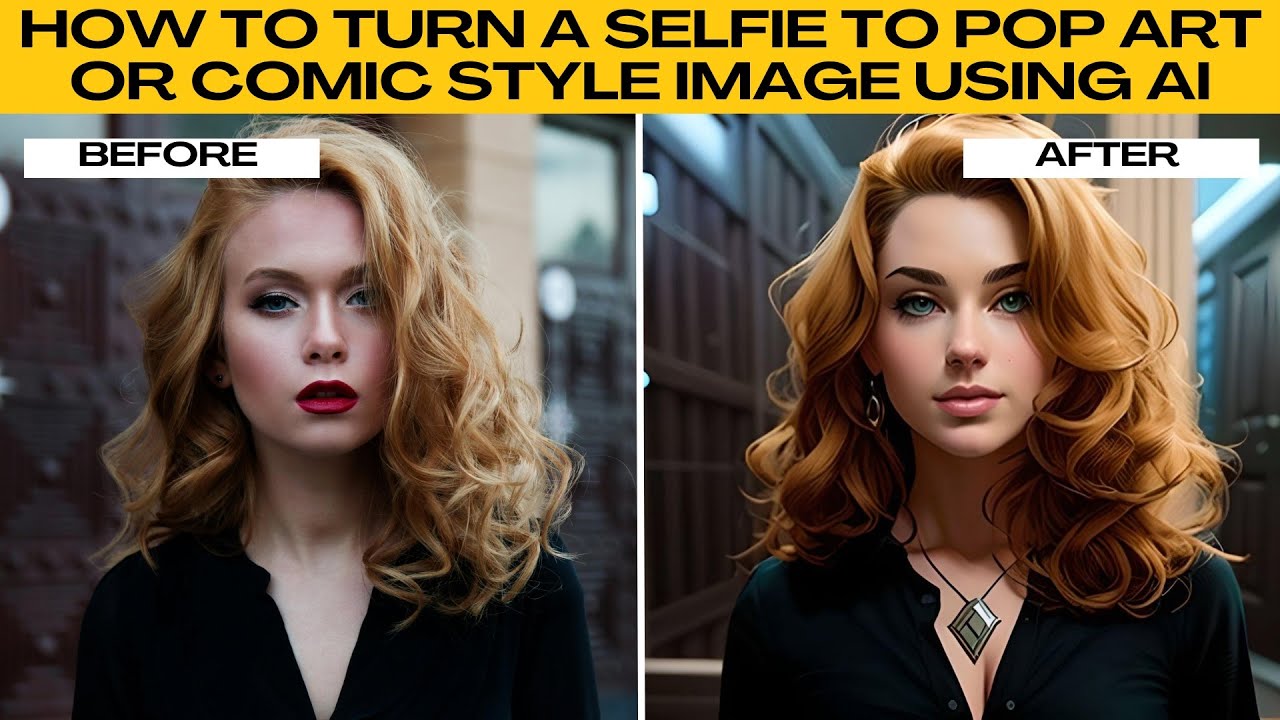
I love transforming ordinary photos into vibrant comic book illustrations using Photoshop. This process involves stylizing a real image to mimic the bold lines, flat colors, and dramatic shading typical of comics. At its core, it’s about using filters to simplify details, emphasize edges, and create a hand-drawn look. Photoshop excels here because its non-destructive editing lets me experiment without ruining the original photo. The key concept breaks down into edge detection for outlines, color reduction for that posterized effect, and optional enhancements like halftones or inks to give it authenticity.
One common question I get is: Do I need an advanced version of Photoshop for this? Not really—any version from CS6 onward works fine, as long as it has the Filter Gallery. Basic features are sufficient, and even the latest AI tools in 2026 versions can speed things up. Another frequent doubt: Is this only for experts? Absolutely not; if you’re comfortable with layers and menus, you can pull it off in minutes. Beginners might need a quick tutorial on Smart Objects, but it’s straightforward.
Doing this has tons of perks. It sparks creativity, turning snapshots into shareable art for social media or personal projects. Professionally, it’s great for graphic designers creating posters or storyboards. Plus, it’s a fun skill that impresses friends and adds a unique twist to photo editing, making memories pop like they’re from a graphic novel.
Step 1: Open Your Photo Launch Photoshop and go to File > Open to select your image file. Choose a clear photo with good contrast for best results.
Step 2: Convert to Smart Object Right-click the layer in the Layers panel and select Convert to Smart Object. This allows non-destructive edits.
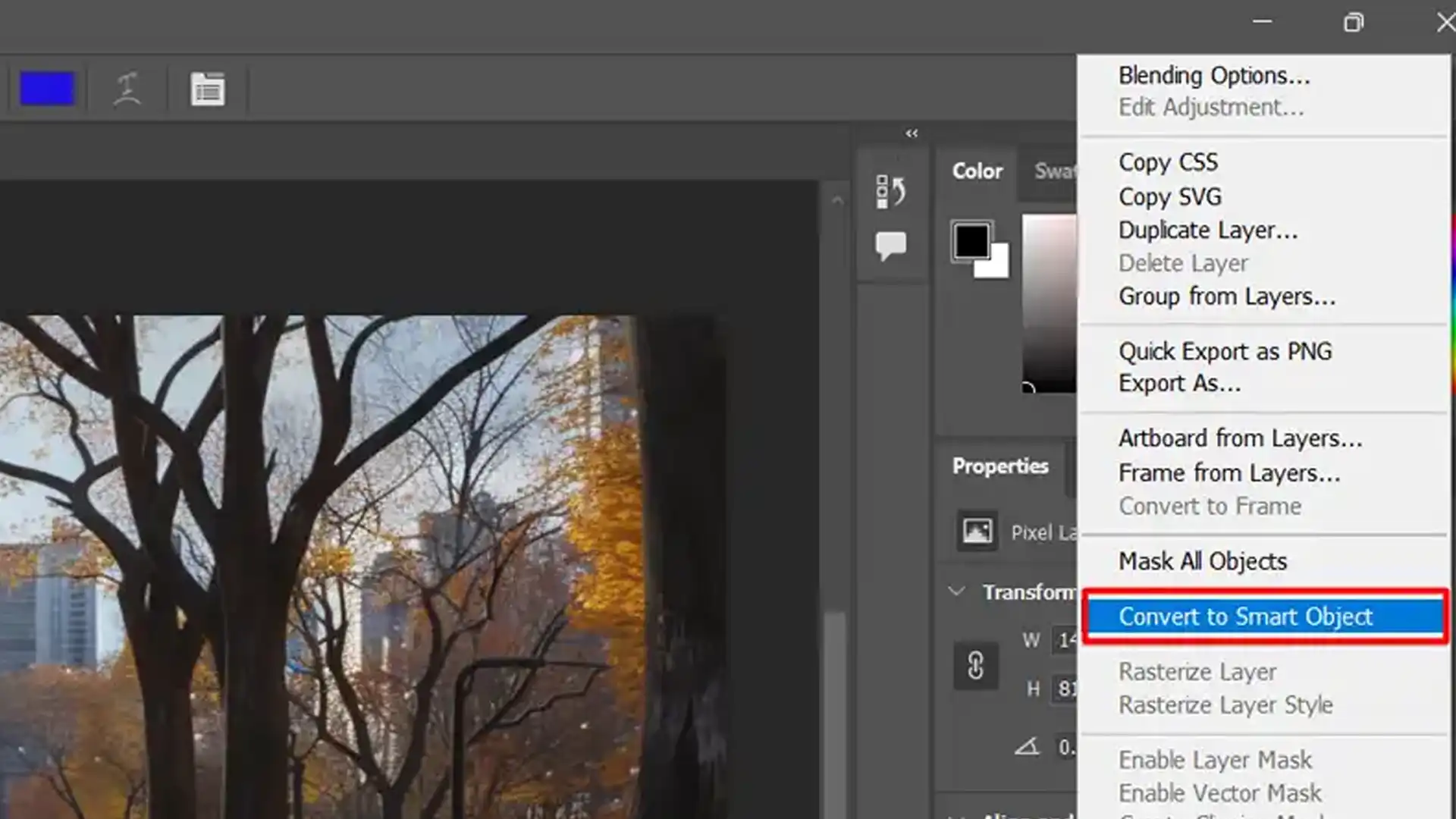
Step 3: Apply Poster Edges Filter Go to Filter > Filter Gallery > Artistic > Poster Edges. This creates comic-like outlines.
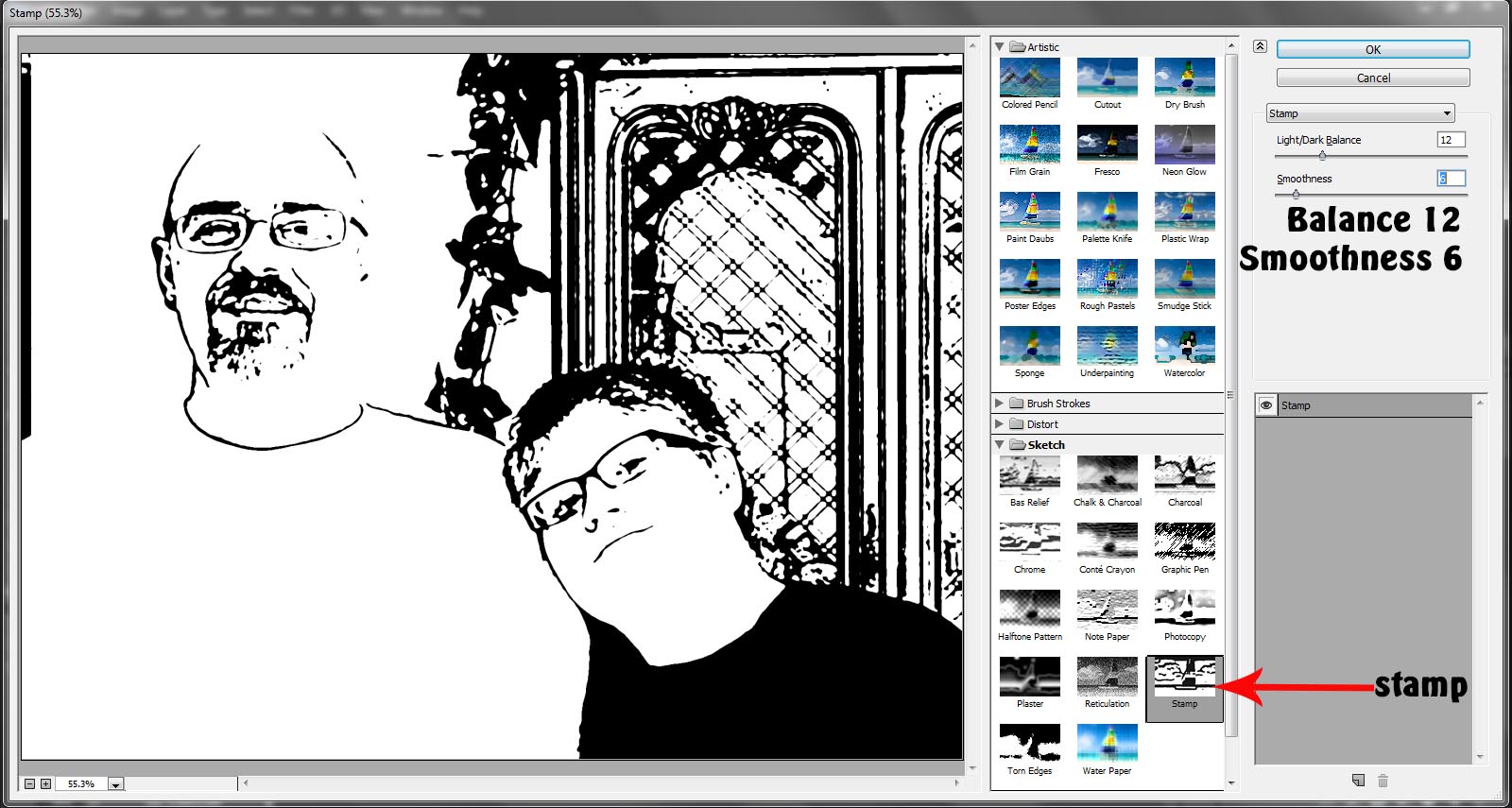
Step 4: Adjust Poster Edges Settings Set Edge Thickness to high (around 5-10), Edge Intensity low (1-2), and Posterization low (0-2) based on your photo. Click OK.
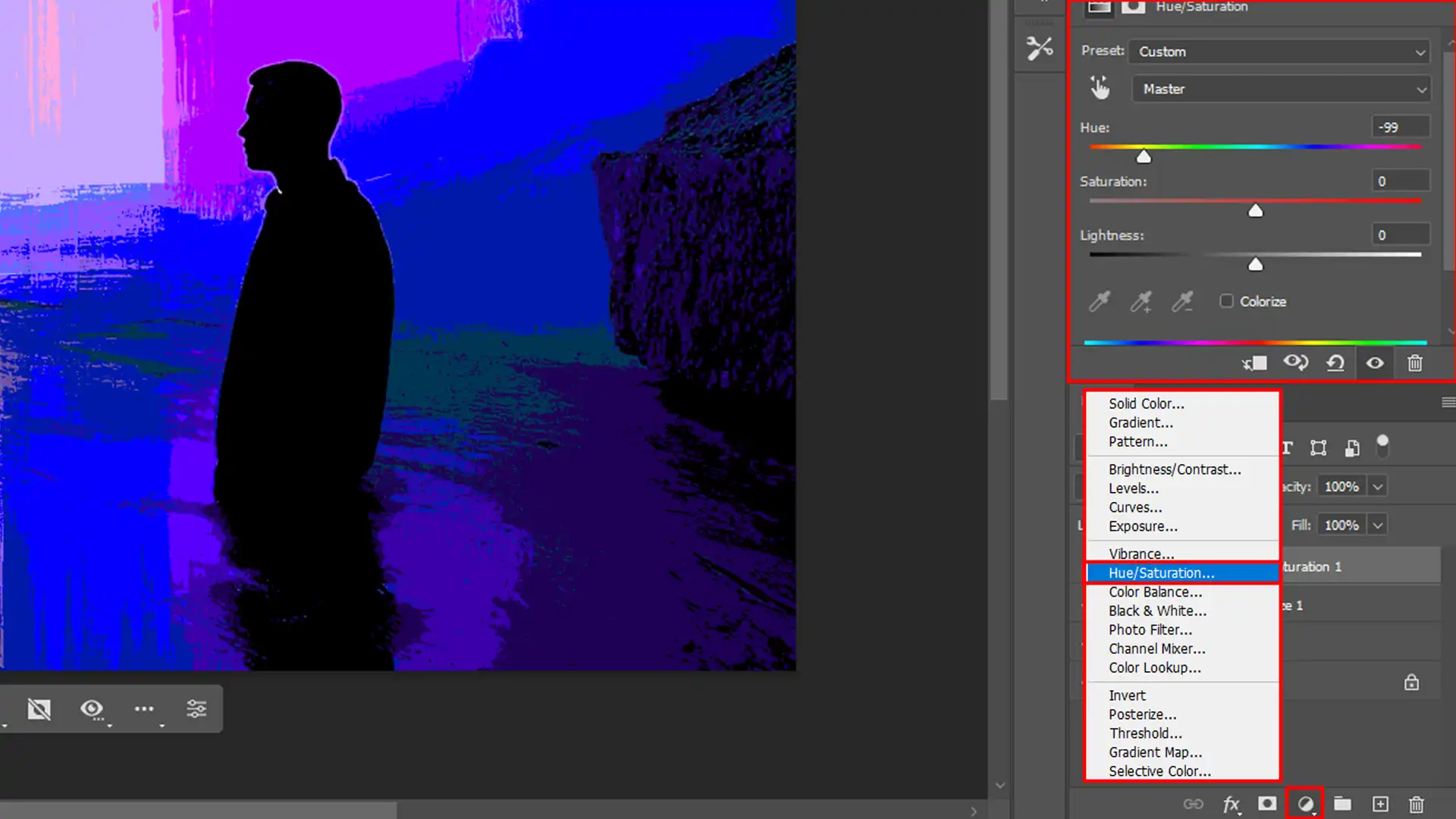
Step 5: Add Cutout Filter for Simplification Duplicate the layer (Ctrl+J), then apply Filter > Filter Gallery > Artistic > Cutout. Adjust levels to reduce details.
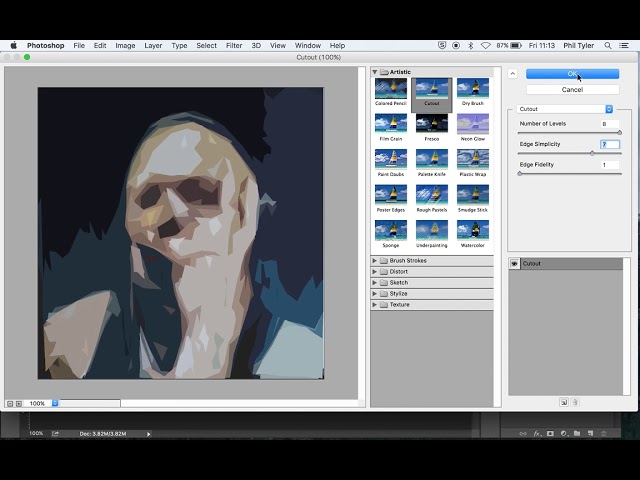
Step 6: Enhance with Black Outlines Create a new layer, use the Brush Tool with black color to add bold lines, or apply a High Pass filter on a duplicate for edges. Set blending to Multiply.
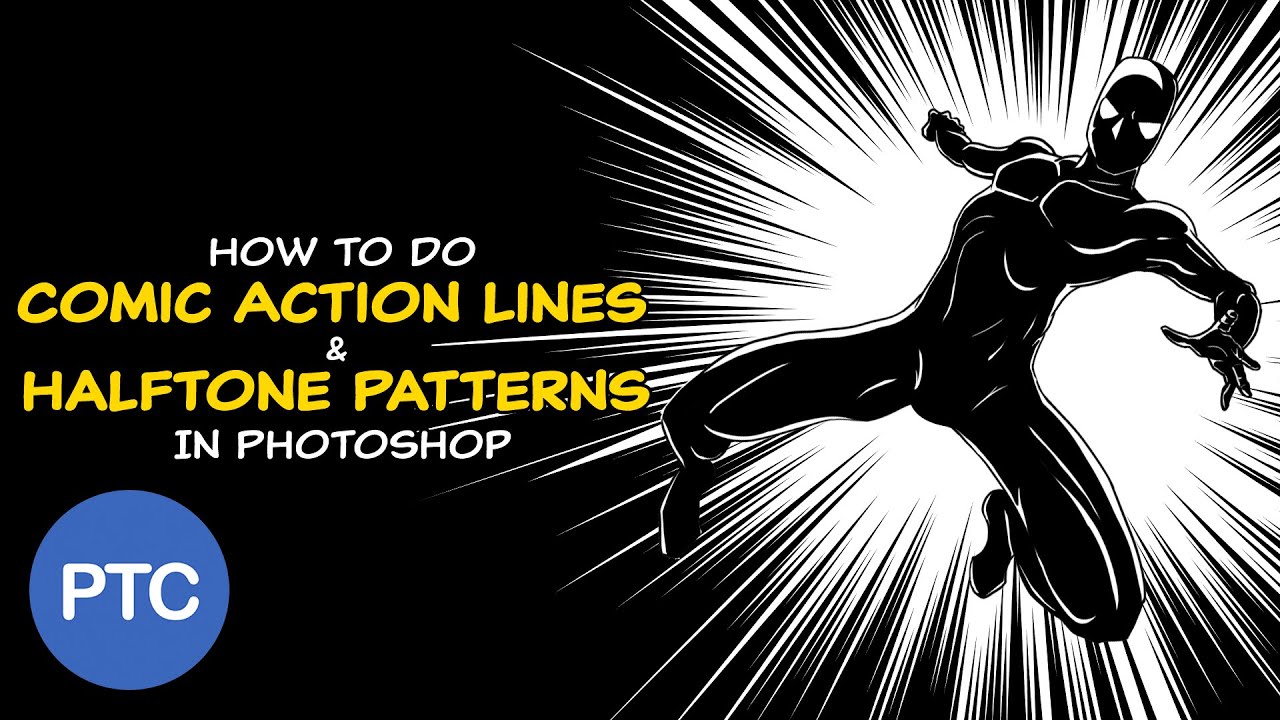
In practice, I turned a portrait of a friend into a superhero comic— the original was plain, but after, it had sharp inks and vivid colors, perfect for a profile pic. Another time, I converted a landscape photo; the before was realistic, but the comic version looked like a panel from a graphic novel, with exaggerated skies and outlines that made it pop.
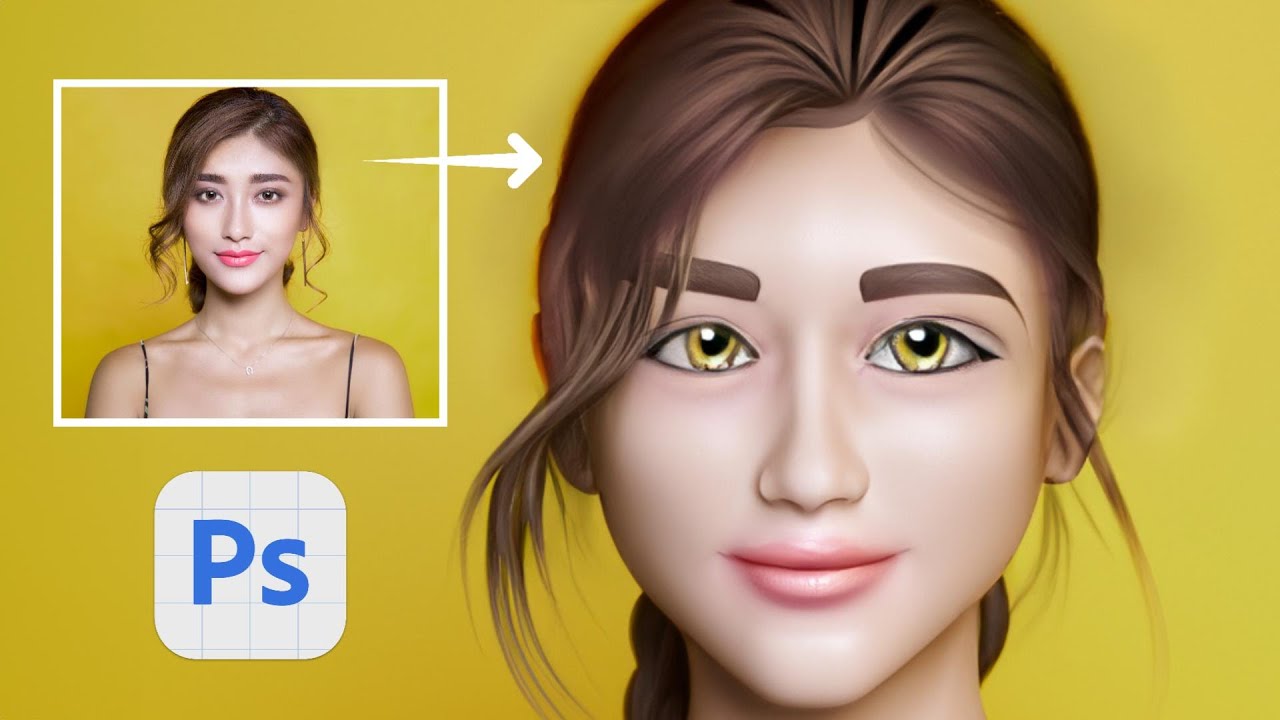
Finally, for a selfie, the transformation added fun anime vibes, turning a casual shot into shareable art that got tons of likes.