

How to Create Eye-Catching Digital Newsletters in Microsoft Word
2026-02-18Master Image Cutouts with Color Range and Channels for Flawless Results
2026-03-02How to Encrypt Folders: Ultimate Step-by-Step Guide for Windows, Mac, and Cross-Platform Security in 2026
As someone who’s always prioritized data privacy in this digital age, I’ve learned that folder encryption is essential for protecting sensitive information. It essentially transforms your files into an unreadable format using cryptographic algorithms, ensuring only authorized users with the right key or password can access them. Breaking it down, encryption works by applying a cipher to scramble data—think of it as locking your folder with a complex code. There are types like symmetric encryption, where the same key encrypts and decrypts, and asymmetric, involving public and private keys. On a practical level, it integrates with operating systems or third-party tools to secure entire directories without constant manual intervention.
One common question I get is: What’s the difference between folder encryption and simple password protection? Encryption actually alters the data itself, making it gibberish without decryption, whereas password protection often just restricts access but leaves files readable if bypassed. Another frequent doubt: Can encrypted folders be shared securely? Absolutely, as long as you use tools that allow password-based access or share decryption keys safely, but always avoid sending passwords via insecure channels like email.
Encrypting your folders brings several key benefits that I’ve experienced firsthand. It safeguards against data breaches, especially if your device is lost or stolen, by rendering files useless to thieves. It also helps comply with privacy laws like GDPR or HIPAA if you handle personal data. Plus, it gives peace of mind, reducing stress over unauthorized access, and can even improve organization by grouping sensitive items securely.
Method 1: Encrypting Folders on Windows Using Built-in EFS (Encrypting File System)
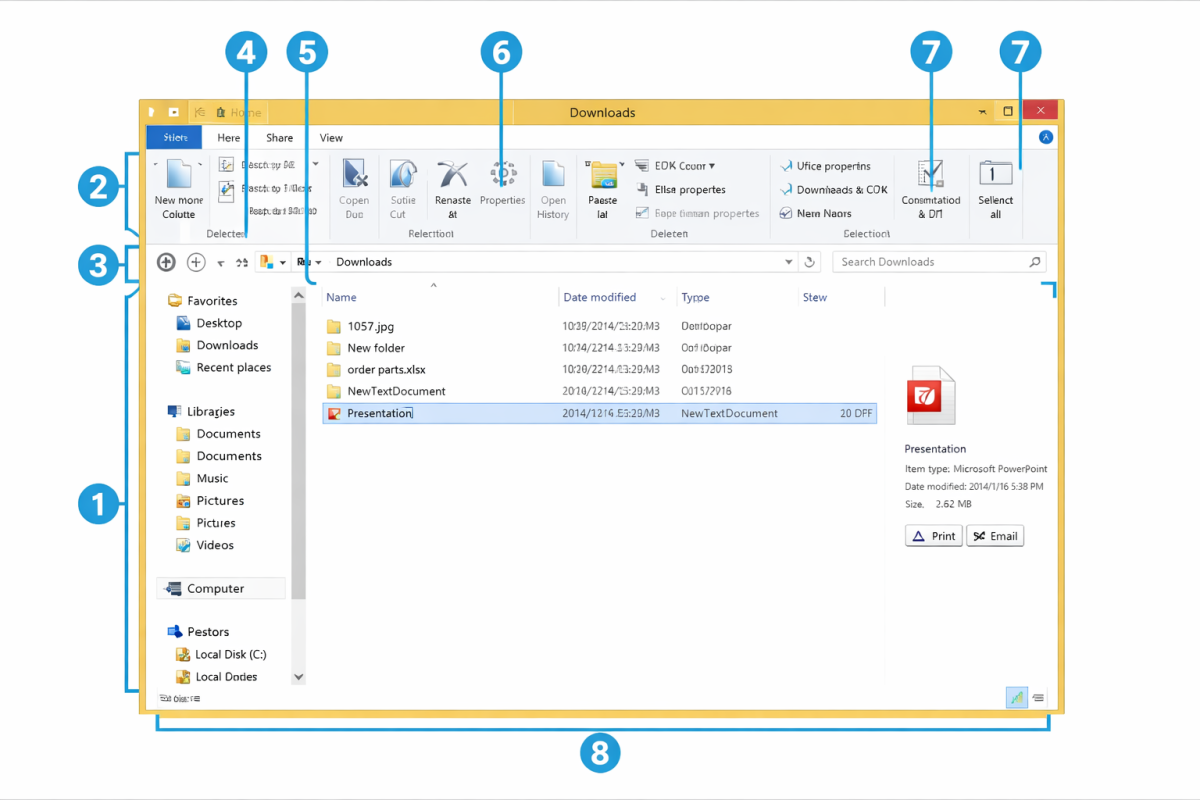
Step 1: Open File Explorer and locate the folder you want to encrypt. Right-click the folder and select Properties from the context menu.
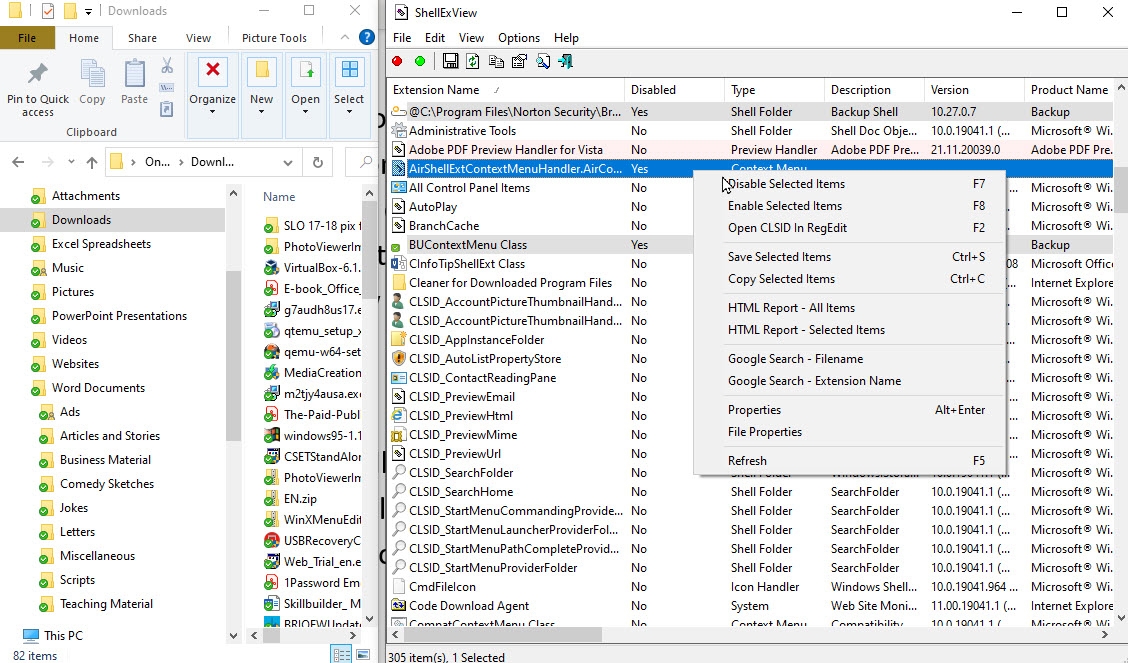
Step 2: In the Properties window, go to the General tab and click Advanced.
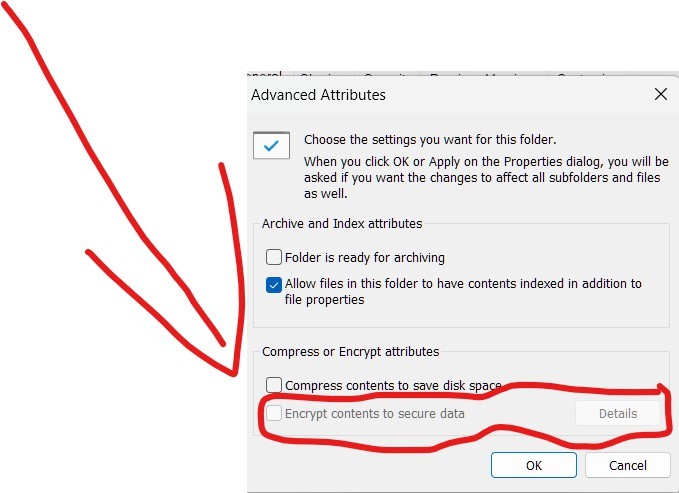
Step 3: Check the box for Encrypt contents to secure data, then click OK and Apply. Confirm to apply to subfolders if prompted.
Method 2: Encrypting Folders on macOS Using Disk Utility
Step 1: Open Finder and create or select the folder with your files.
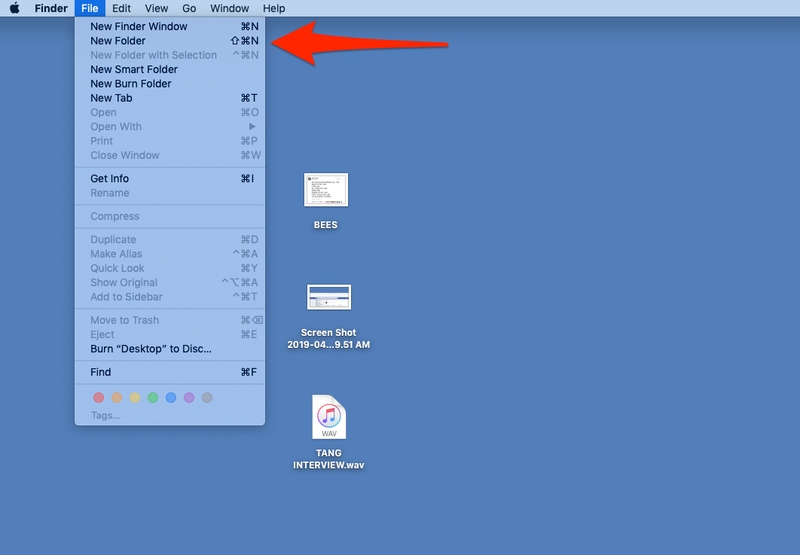
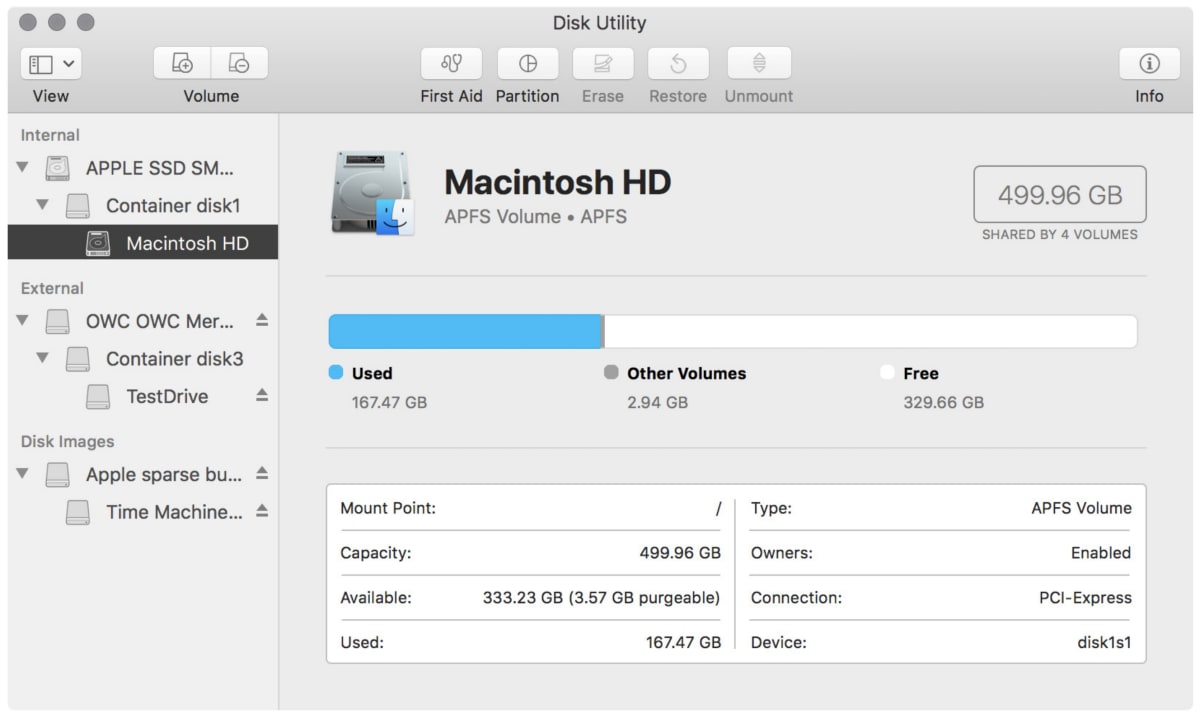
Step 2: Launch Disk Utility from Applications > Utilities, then go to File > New Image > Image from Folder.
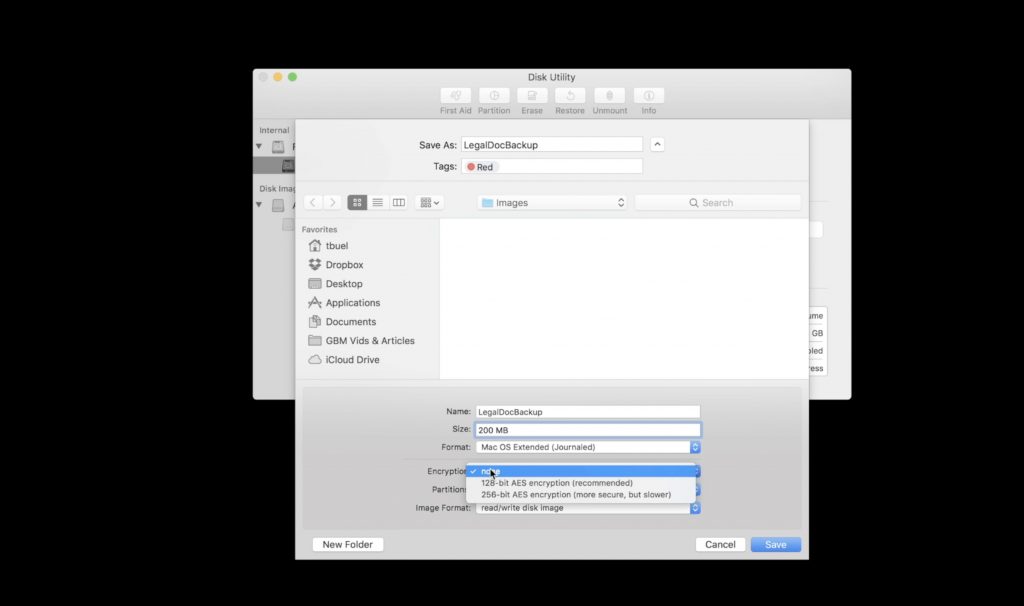
Step 3: Select your folder, choose 128-bit AES encryption (or higher), set a strong password, and save the .dmg file.
Method 3: Cross-Platform Encryption Using 7-Zip (Free Tool)
Step 1: Download and install 7-Zip from its official site if not already done. Open 7-Zip File Manager and navigate to your folder.
Step 2: Select the folder, click Add to create an archive.
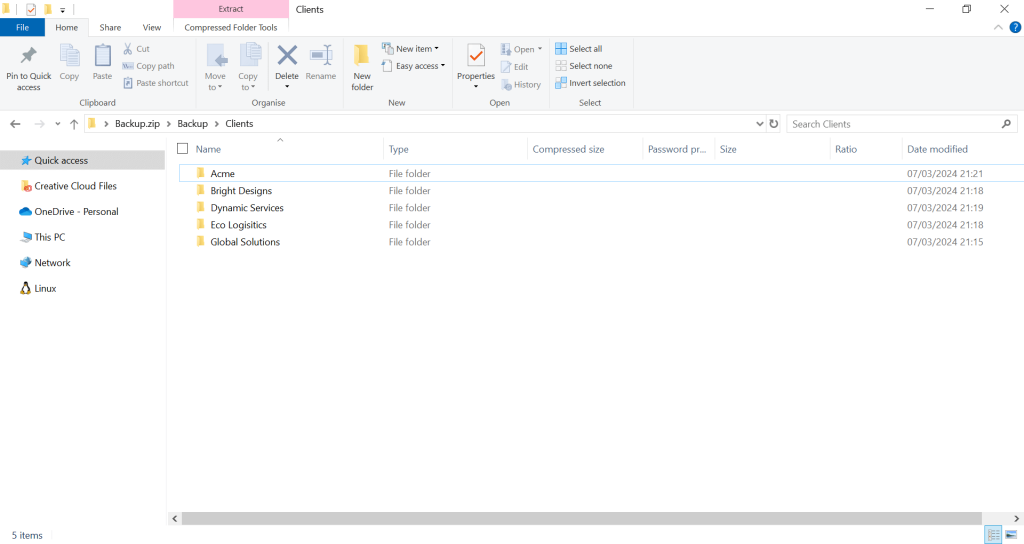
Step 3: In the Add to Archive dialog, set Archive format to 7z, enter a password in the Encryption section, choose AES-256 method, and click OK.
In my practice, encrypting a folder with financial documents using Windows EFS made it inaccessible even when I tested with another user account, giving me confidence in its security. Another time, on my Mac, creating an encrypted disk image for photos prevented prying eyes during a device repair. Finally, using 7-Zip for a shared project folder allowed secure collaboration across teams without data leaks, as only password holders could extract files.
