

Ultimate Guide: How to Stitch Panoramic Photos in Photoshop Like a Pro
2026-02-18How to Encrypt Folders: Ultimate Step-by-Step Guide for Windows, Mac, and Cross-Platform Security in 2026
2026-02-21How to Create Eye-Catching Digital Newsletters in Microsoft Word
As someone who’s passionate about sharing information in engaging ways, I’ve often turned to Microsoft Word to craft digital newsletters—also known as electronic small reports or e-bulletins. These are essentially compact, visually appealing documents that mimic the format of a traditional newspaper but in a digital form. Breaking it down, a Word electronic newsletter typically includes a masthead for the title and date, columns or sections for articles, images and graphics to enhance readability, and layout elements like borders or colors to make it pop. It’s not just a plain text document; it’s a blend of text, visuals, and design that can be easily shared via email or online.
One common question I get is: Do I need advanced design skills or extra software to make one? No, you don’t—Microsoft Word has all the built-in tools for beginners to create professional-looking newsletters without downloading anything else. Another frequent doubt is: How do I ensure it’s mobile-friendly? Focus on simple layouts and export as PDF, which preserves formatting across devices, though for full interactivity, you might consider embedding hyperlinks.
The benefits of creating these in Word are huge. It’s cost-free if you already have Office, allowing me to produce polished materials without subscriptions to fancy design apps. Distribution is effortless—email it as a PDF or share online—and it’s highly customizable, letting me tailor content for specific audiences like community groups or businesses. Plus, it boosts engagement; visuals make information more digestible, leading to better retention and response rates.
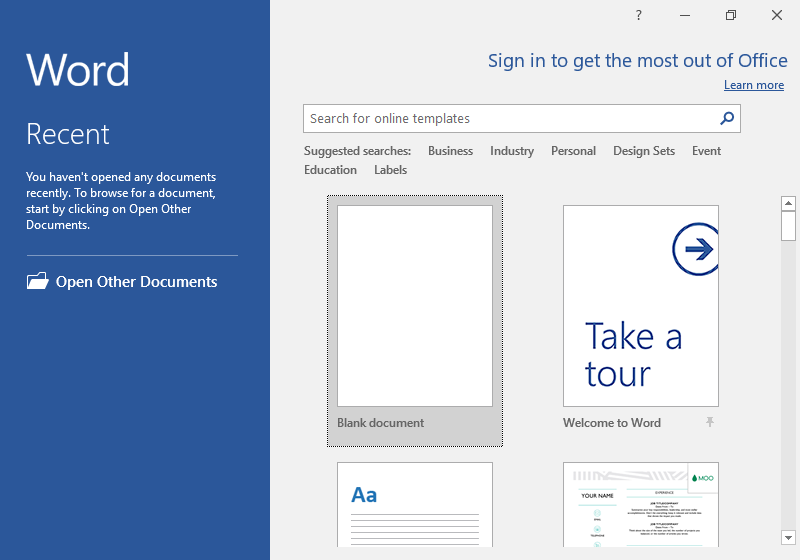
Step 1: Launch Microsoft Word and Start a New Document Open Microsoft Word on your computer. Click on “Blank document” to begin with a fresh page.
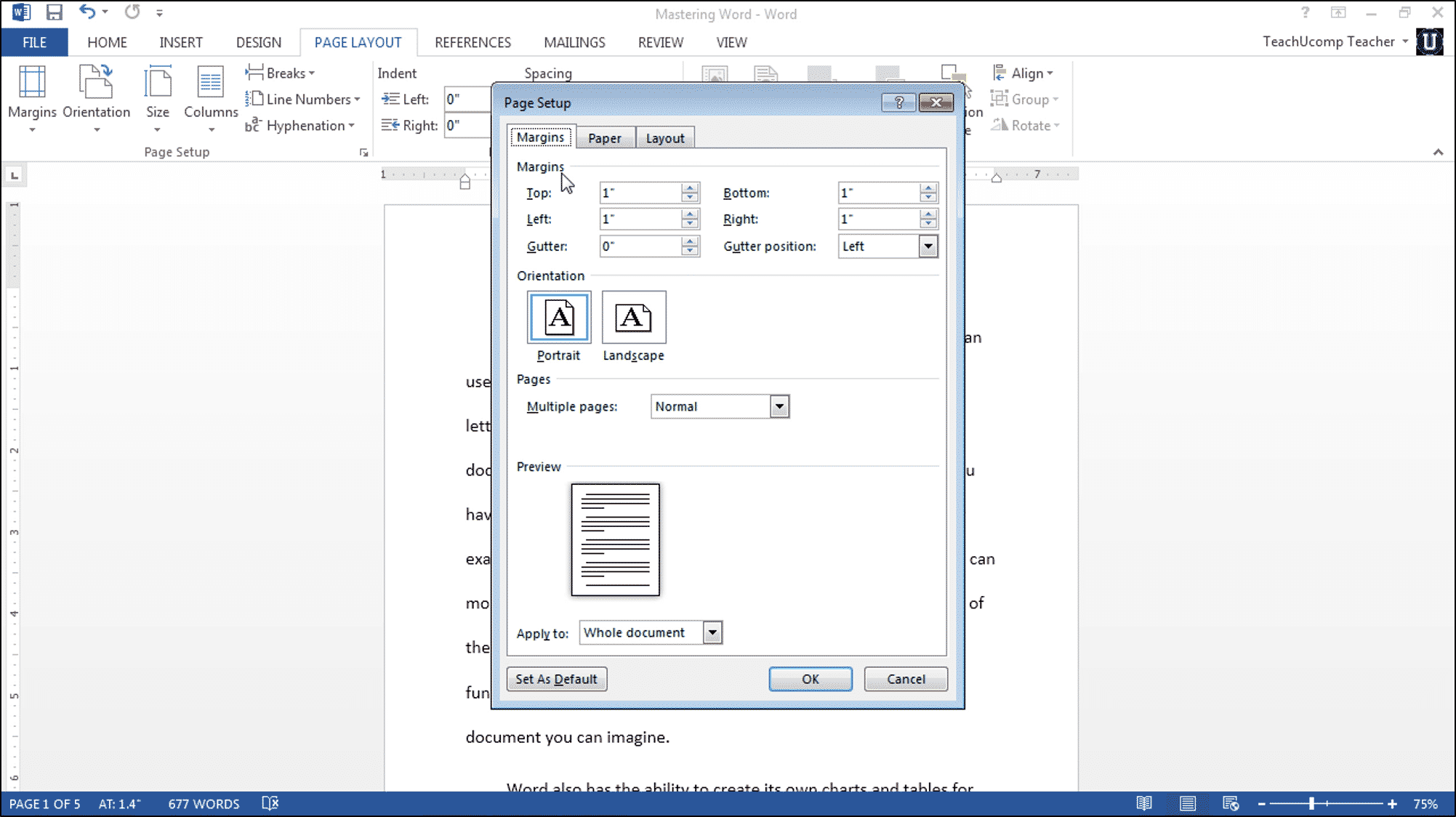
Step 2: Adjust Page Layout and Margins Go to the “Layout” tab. Click “Margins” and select narrow options like 0.5 inches for a newsletter feel. Choose “Orientation” if you want landscape mode.
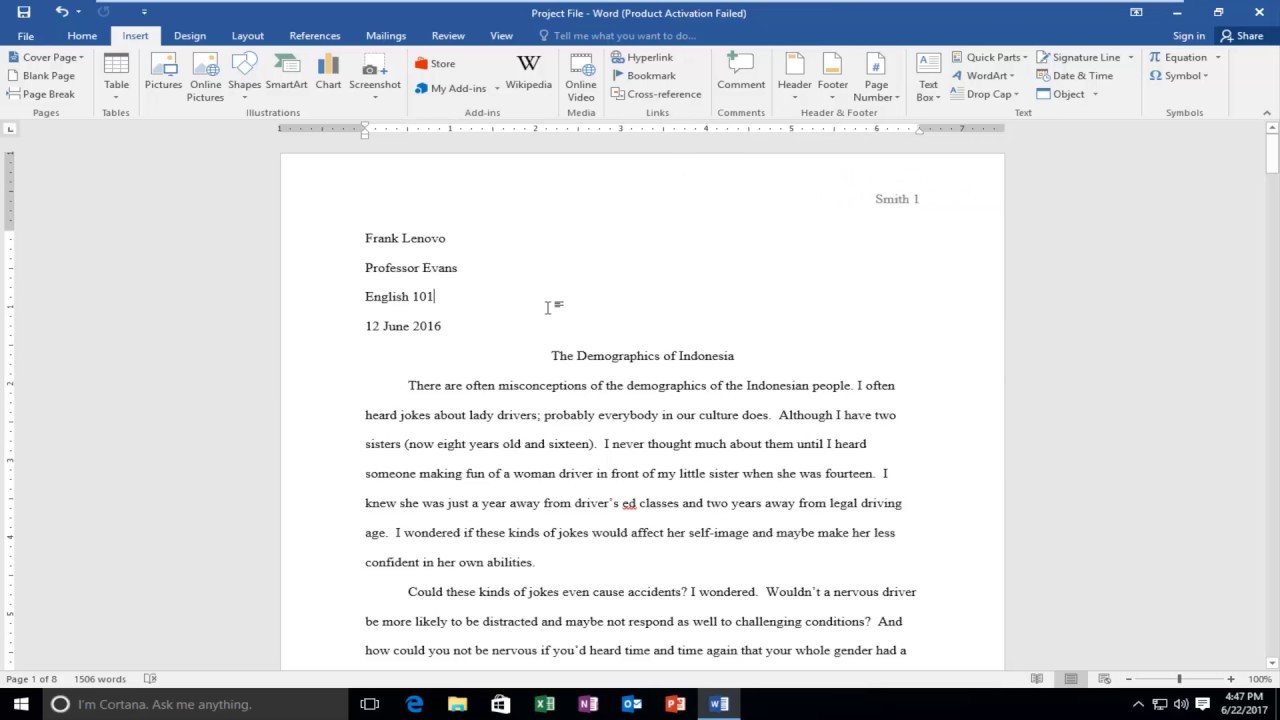
Step 3: Insert a Header for the Masthead Navigate to the “Insert” tab. Click “Header” and select a style. Type your newsletter title in bold, large font, and add date or issue number.
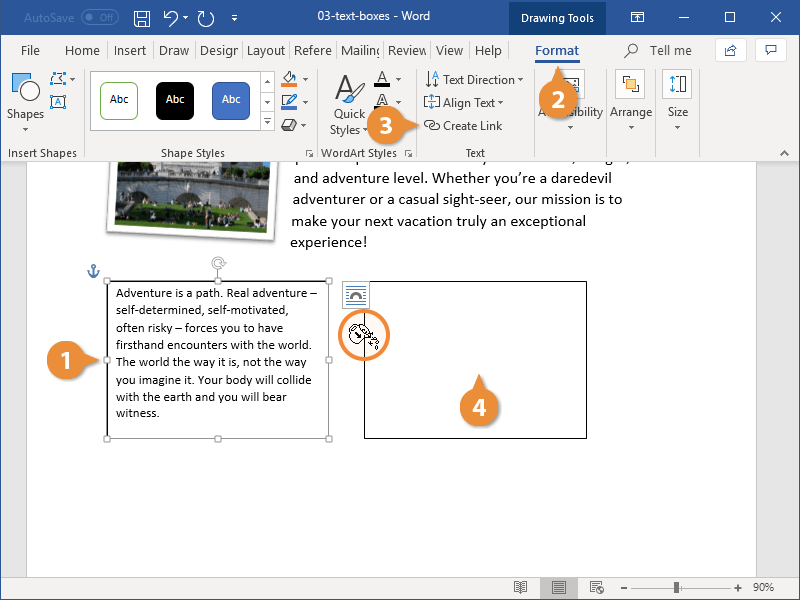
Step 4: Add Text Boxes for Articles Under “Insert” tab, click “Text Box” and choose a simple or styled one. Drag to position and type your content inside, formatting with fonts and alignments.
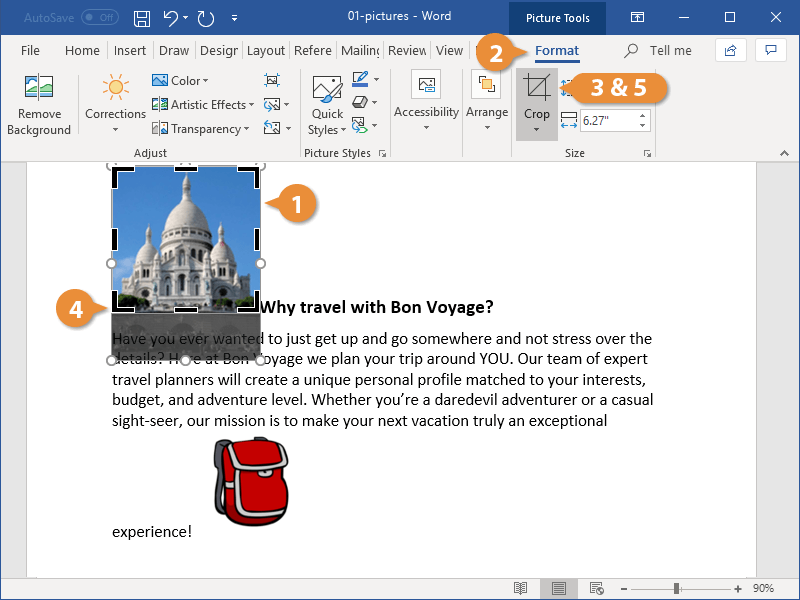
Step 5: Insert Pictures to Enhance Visuals In the “Insert” tab, select “Pictures”. Browse and add images from your files, then resize and position them using wrap text options.
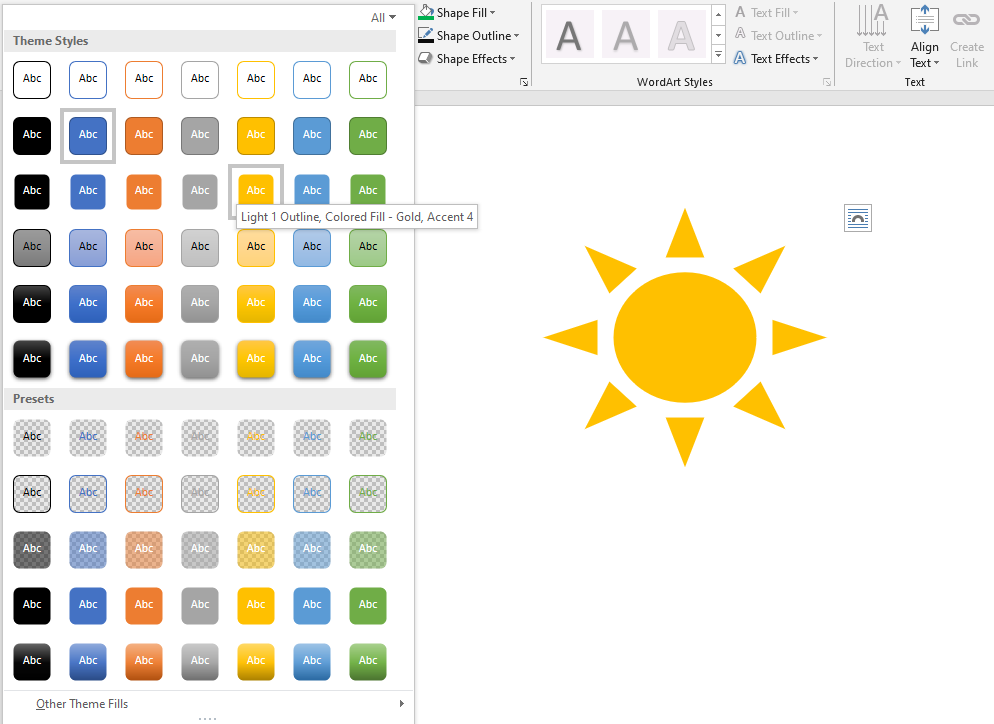
Step 6: Incorporate Shapes and Colors for Design Go to “Insert” > “Shapes”. Pick and draw elements like lines or banners. Fill with colors via the “Shape Format” tab for a vibrant look.
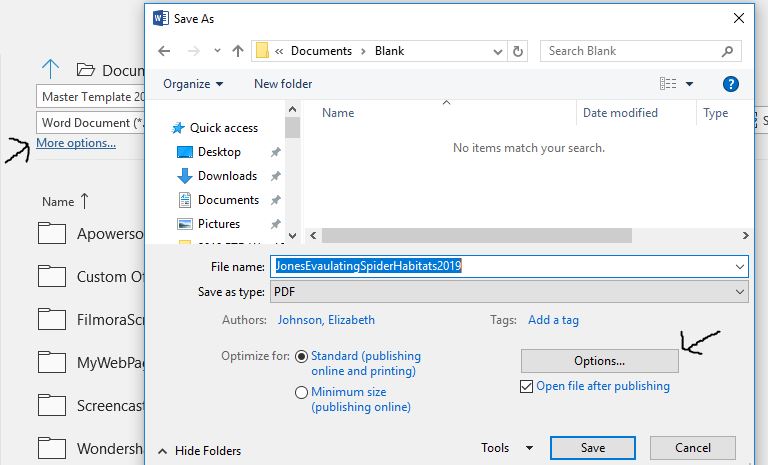
Step 7: Save and Export as PDF Click “File” > “Save As”. Choose PDF format and optimize for standard publishing. This ensures it’s electronic-ready.
In practice, when I made a newsletter for my local book club, members loved the clean layout and shared it widely, increasing attendance by 30%. Another time, for a small business promo, it drove more website traffic with embedded links. Lastly, a school event bulletin I created got positive feedback for its eye-catching images, making announcements more memorable.
