

How to Stop Windows 11 from Updating Automatically Forever?
2026-02-15How to Fix Shared Printer Error 0x00000040 on Windows 11
2026-02-15Windows 11 Clock Wrong After Restart? Fix the Inaccurate System Time in Minutes
I was fed up every time I booted my Windows 11 PC and saw the clock off by an hour or more. A quick manual sync fixed it temporarily, but the problem returned after the next restart. If your system clock on Windows 11 shows the wrong time after boot, this guide will solve it permanently.
What Causes an Inaccurate System Clock on Windows 11?
Windows reads the hardware Real-Time Clock (RTC) on your motherboard (powered by the CMOS battery when the PC is off) and then syncs it with internet time servers. The displayed time can become inaccurate after boot if:
- The Windows Time service fails to start automatically
- Timezone or auto-sync settings are disabled
- A dual-boot setup (e.g., with Linux) creates a UTC/local time conflict
- The CMOS battery is weak (rare on modern laptops)
Two Common Questions About Wrong Time After Boot
Why does my Windows 11 time reset or drift after every restart? The Windows Time service (w32time) often stays in “Manual (Trigger Start)” mode and doesn’t run at boot. Dual-boot users also hit a 1-hour offset because Linux writes UTC to the hardware clock while Windows expects local time.
Will a wrong system clock cause bigger problems? Yes — incorrect timestamps break file versioning, scheduled tasks, SSL certificate validation, email sending, and domain logins. Fixing it is essential for security and reliability.
Why You Should Fix the System Clock Immediately
Accurate time ensures:
- Secure connections (certificates validate correctly)
- Reliable backups and task scheduling
- Proper file timestamps for troubleshooting
- No login or update errors caused by time drift
Step-by-Step Fix: Make Your Windows 11 Clock Stay Accurate After Boot
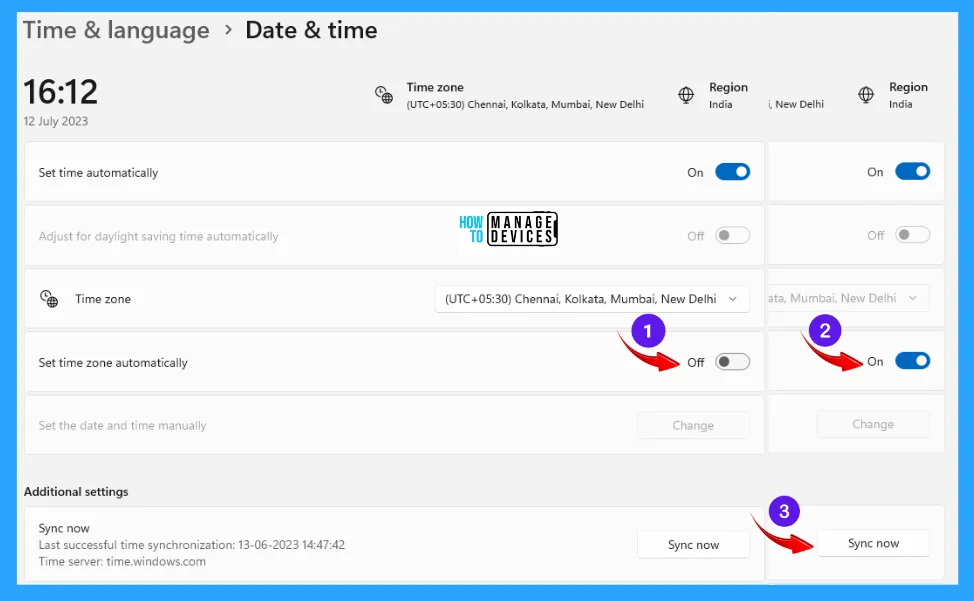
Step 1: Enable Automatic Time Sync Press Win + I to open Settings. Go to Time & language → Date & time. Turn ON these two toggles:
- Set time automatically
- Set time zone automatically Click Sync now.
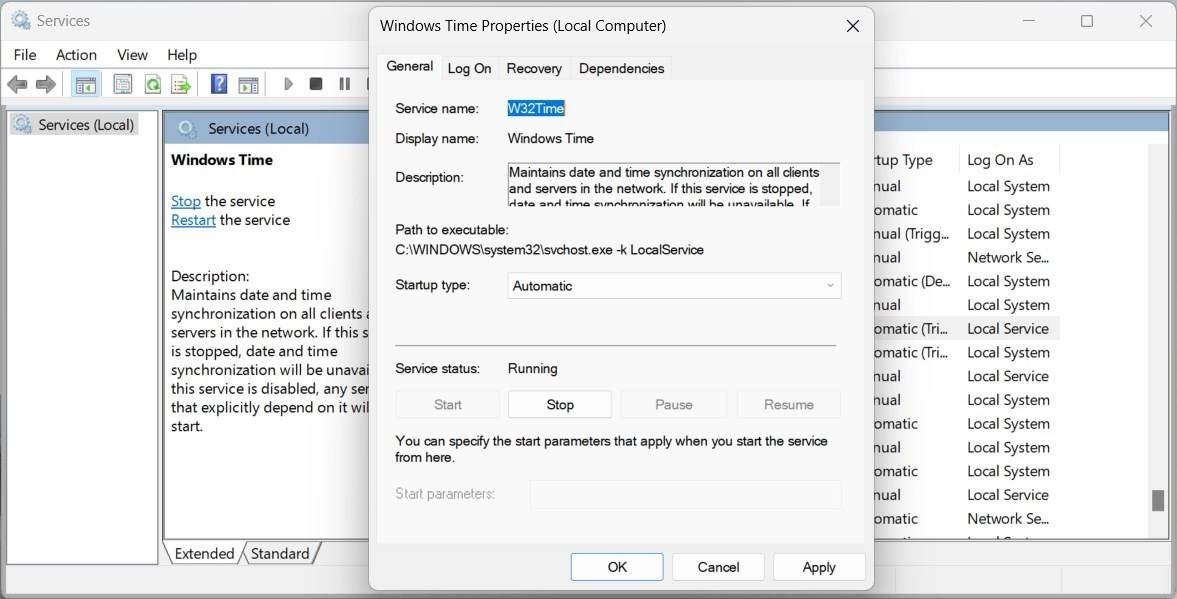
Step 2: Set Windows Time Service to Automatic Press Win + R, type services.msc and press Enter. Scroll to Windows Time, right-click → Properties. Change Startup type to Automatic. If the service is stopped, click Start. Click Apply → OK.
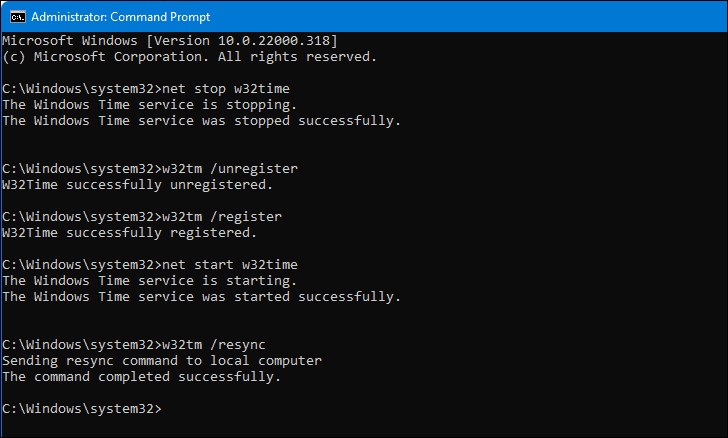
Step 3: Re-register the Time Service (Most Effective Fix) Right-click Start → Terminal (Admin) or Command Prompt (Admin). Run these commands one by one (press Enter after each):
net stop w32time w32tm /unregister w32tm /register net start w32time w32tm /resync
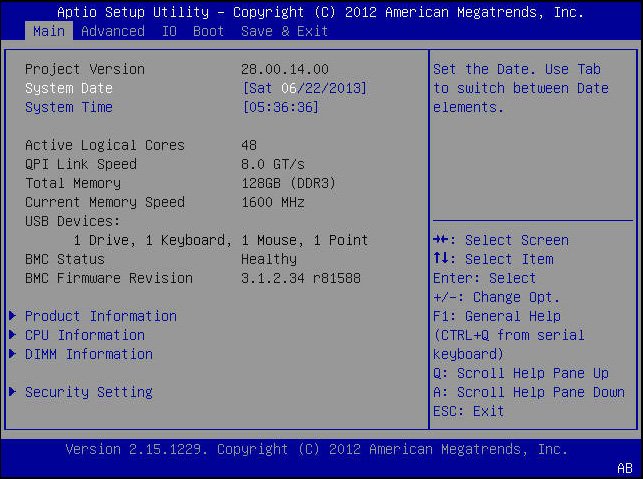
Step 4: Check BIOS Time (If Problem Persists) Restart your PC and enter BIOS (press Del, F2, or F10 during boot). Find the System Date and System Time fields and set them to the correct current time. Save changes (usually F10 → Yes) and exit.
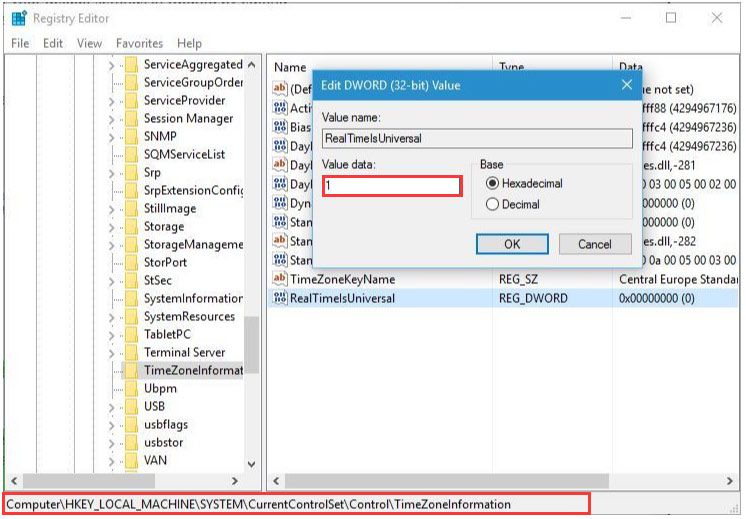
Optional Step for Dual-Boot Users (Windows + Linux) Press Win + R, type regedit. Navigate to: HKEY_LOCAL_MACHINE\SYSTEM\CurrentControlSet\Control\TimeZoneInformation Right-click in the right pane → New → DWORD (32-bit) Value. Name it RealTimeIsUniversal and set its value to 1. Restart your PC.
Real Results After Applying These Steps
After Step 3, my clock stayed perfectly accurate through 10+ reboots — no more manual syncing. A friend with Windows 11 + Ubuntu had the classic 1-hour offset; adding the RealTimeIsUniversal registry key fixed it instantly. On an older desktop that lost time every shutdown, replacing the CMOS battery (Step 4) solved the drift permanently.
Your Windows 11 system clock should now stay correct after every boot. Try the steps in order — most people only need Steps 1–3. Let me know in the comments which step worked for you!
