

How to Connect a Surveillance Camera to Your Computer
2026-02-12How to Stop Windows 11 from Updating Automatically Forever?
2026-02-15How to Enable Mouse Gestures in Microsoft Edge?
I’ve always hunted for little tricks that shave seconds off everyday tasks, and mouse gestures in Microsoft Edge turned out to be one of the best discoveries I’ve made. Instead of hunting for buttons or menus, I now just hold the right mouse button and drag in a simple direction to go back, close tabs, scroll, refresh, and more. It feels like magic once you get the hang of it.
Mouse gestures are built-in browser shortcuts that combine a right-click hold with a quick mouse movement (straight line or L-shape). Edge supports 16 customizable directions, from single strokes (Left = Go Back) to combined ones (Down then Right = Close Tab). No extensions needed — it’s native since version 114 and fully stable today.
Two quick questions I had before trying it:
- Do I need an extension? No. It’s built directly into Microsoft Edge. Just flip a toggle in Settings.
- Will I remember all the directions? You don’t have to. Turn on Show Mouse Track and Show Action Hint — the browser draws the path and pops up the action name while you practice.
Why I now refuse to browse without them
- I close tabs and navigate history without ever lifting my hand to the top of the screen.
- One-handed operation becomes effortless (great on a laptop trackpad or when the other hand is busy).
- Repetitive clicking drops dramatically — my wrist thanks me after long research sessions.
- Overall browsing feels 30–40 % faster once the muscle memory kicks in.
Here’s exactly how I enabled and started using mouse gestures:
1. Open Settings Launch Microsoft Edge, click the three-dot menu in the top-right corner, then choose Settings.
2. Go to Appearance and turn it on In the left sidebar click Appearance. Scroll down to the Mouse Gesture section and flip the Enable Mouse Gesture toggle to On.
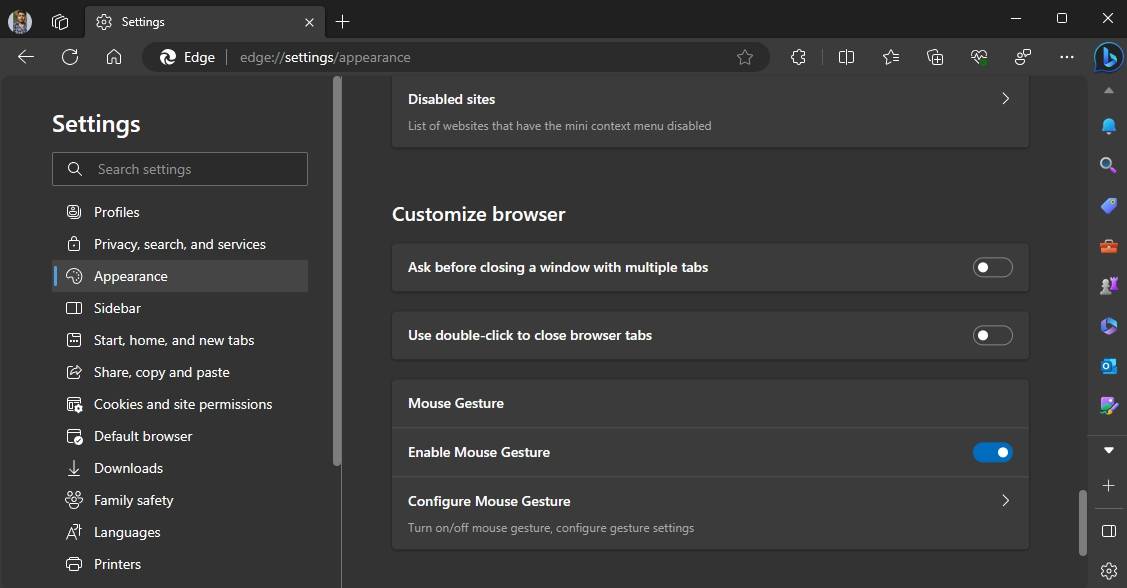
3. Customize the gestures Click the Configure Mouse Gesture link right below the toggle. Here you can:
- Turn on Show Mouse Track and Show Action Hint (highly recommended while learning)
- Assign any action to each direction from the dropdowns
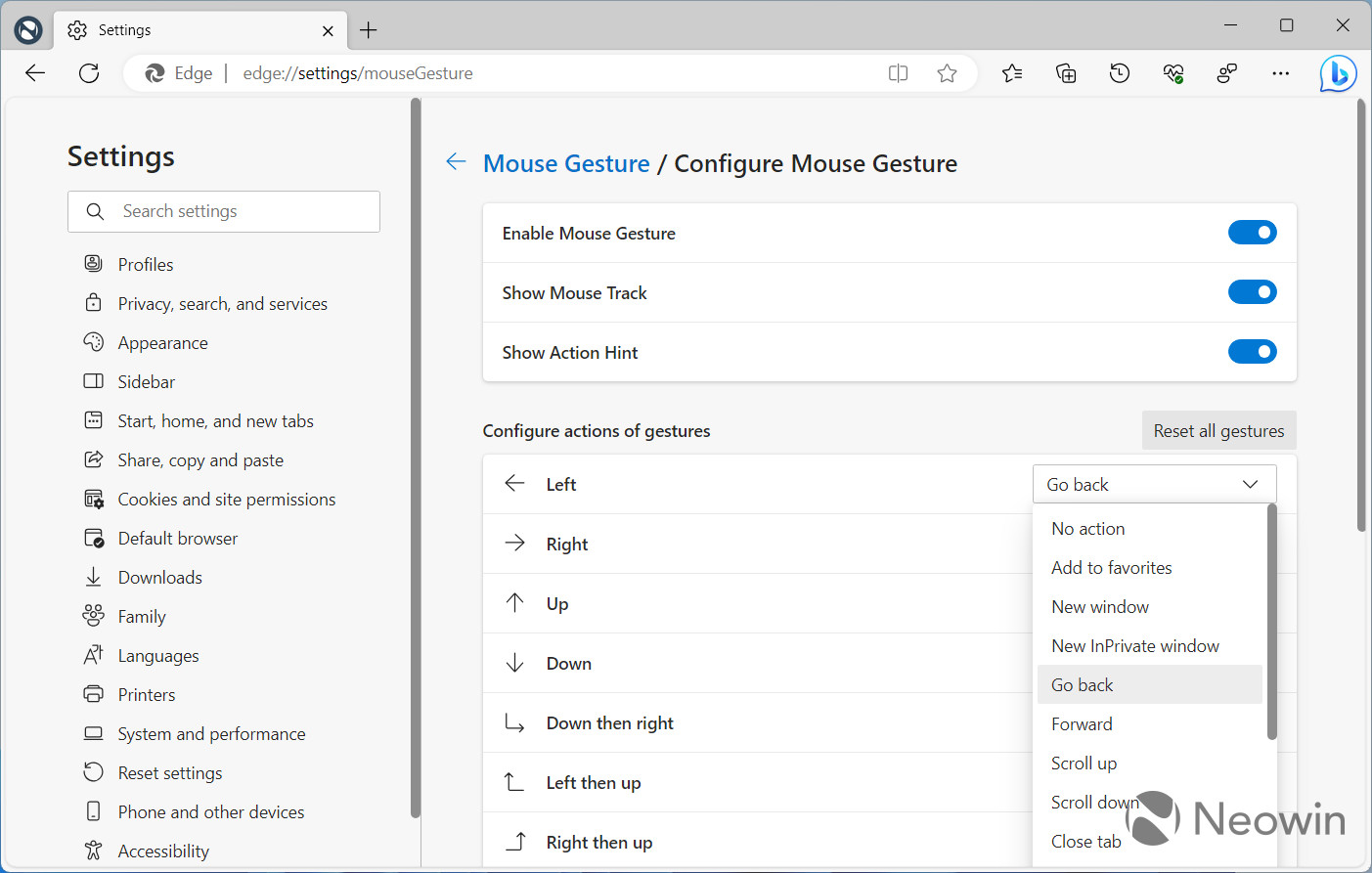
4. Practice the most useful ones Hold the right mouse button and drag:
- Left → Go Back
- Right → Go Forward
- Down then Right → Close Tab
- Up → Scroll Up / Down → Scroll Down
That’s it — no restart required.
My real-world results after one week
- I close 50+ tabs a day with a tiny “Down then Right” flick — no more reaching for the tiny X.
- Reading long articles is smoother because I scroll to top/bottom with simple up/down gestures.
- Back-and-forth research (checking references) now feels instant instead of click-heavy.
Try it today. Once you spend 10 minutes practicing, you’ll wonder how you ever browsed without mouse gestures. Enjoy the speed boost!
