

How to Turn Off Built-in WiFi on Your Optical Modem (ONT) – Simple Steps for a Cleaner, Faster Network
2026-02-12How to Enable Mouse Gestures in Microsoft Edge?
2026-02-15How to Connect a Surveillance Camera to Your Computer
I wanted a clearer, more convenient way to keep an eye on my home, so I connected my IP surveillance camera directly to my computer. It turned out to be simpler than I expected—no expensive DVR or extra monitor required. Here’s exactly how I did it, and how you can too.
Connecting a surveillance camera (also called a CCTV or IP camera) to your computer lets the camera send its video feed over your home network so your PC can display, record, and manage it in real time. Most modern cameras are IP-based, which means they connect via Ethernet or Wi-Fi and are accessed through a web browser or simple software. You don’t need advanced technical skills—just a stable network and the camera’s manual for default login details.
Can I view the camera without installing any extra software? Yes! Most IP cameras have a built-in web interface. You simply type the camera’s IP address into Chrome or Edge and log in—no additional programs needed for basic live viewing.
What if my camera is wireless? You can still connect it to your computer. First set up the Wi-Fi on the camera using the manufacturer’s phone app, then access the feed from your PC over the same network exactly as you would with a wired camera.
The biggest advantages I noticed after connecting my camera to my computer were huge. I could watch live footage on a large monitor instead of a tiny phone screen, record everything straight to my hard drive for free, and quickly review clips whenever I needed. It also saved me money—no separate DVR or monitor required—and gave me full control to adjust settings, set motion alerts, and even integrate basic software for smarter notifications.
Here’s the exact process I followed (works for most wired IP cameras; wireless setup is similar after the initial Wi-Fi connection):
Step 1: Gather Your Equipment You’ll need your IP surveillance camera, power adapter, Ethernet cable, router, and computer. Keep the camera’s manual handy for the default username/password (usually “admin/admin”).
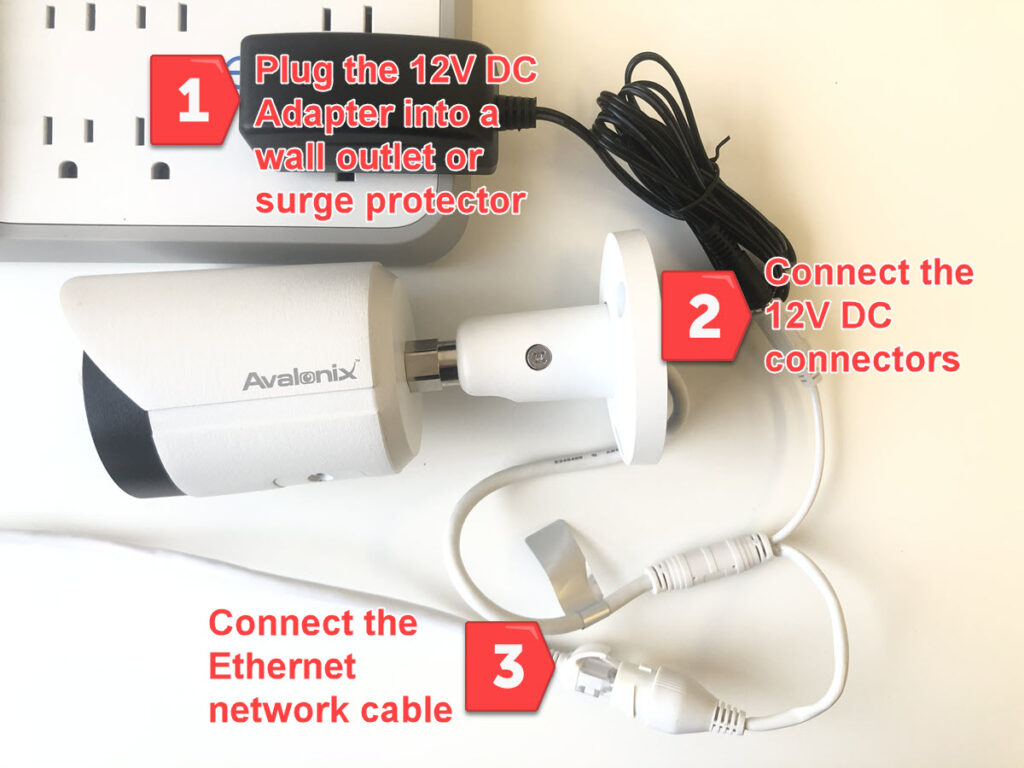
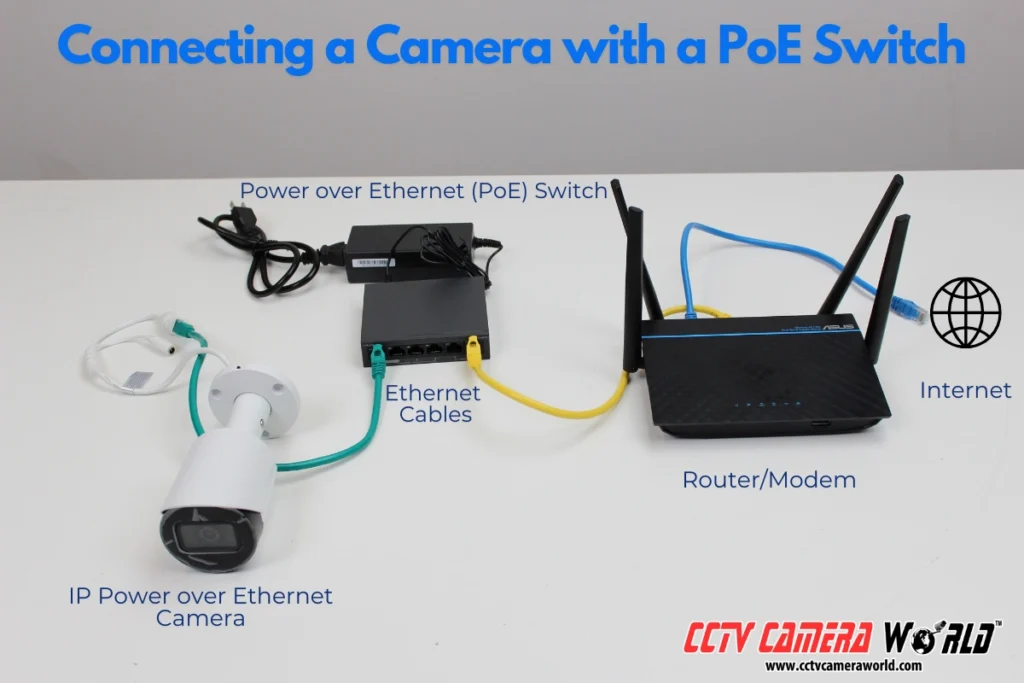
Step 2: Power and Connect the Camera Plug the power adapter into the camera and a wall outlet. Then connect one end of the Ethernet cable to the camera’s LAN port and the other end to any free port on your router. The camera’s lights should turn on.
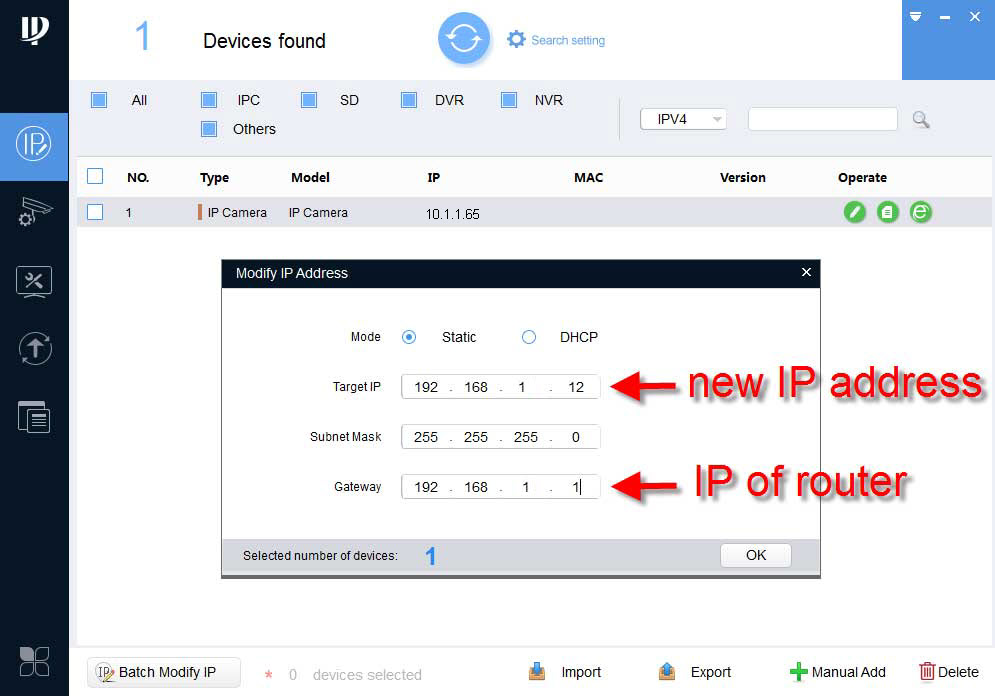
Step 3: Find the Camera’s IP Address Make sure your computer is on the same network. Open your router’s admin page (usually type 192.168.1.1 or 192.168.0.1 in a browser) and check the list of connected devices, or download the free IP search tool from the camera manufacturer. The tool will show the camera’s current IP address (something like 192.168.1.XXX).
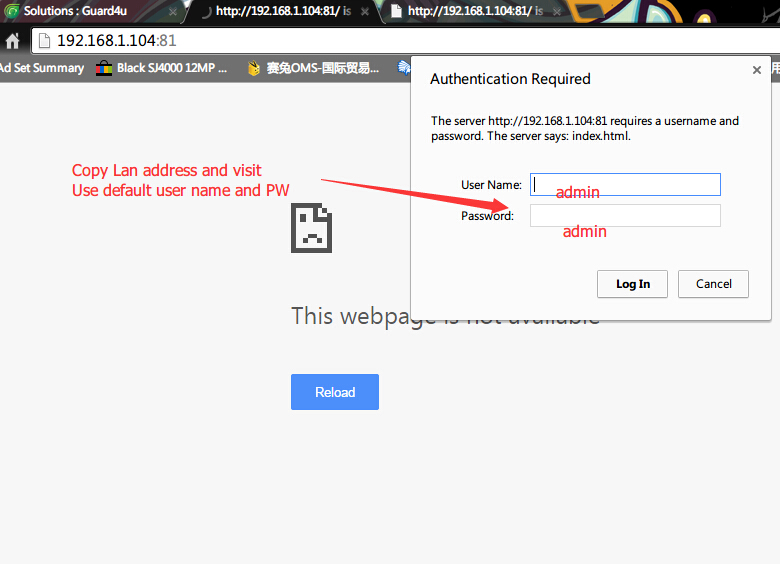
Step 4: Access the Camera in Your Browser Open Chrome or Edge, type the camera’s IP address into the address bar, and press Enter. A login page will appear—enter the default username and password (change them immediately for security). Some cameras may ask you to install a quick plugin the first time; just follow the on-screen prompts.
Step 5: View Live Feed and Set Up Recording Once logged in, go to the “Live View” or “Video” section. You’ll see the camera feed instantly. From here you can adjust resolution, enable recording to your computer’s hard drive, and set basic motion detection.
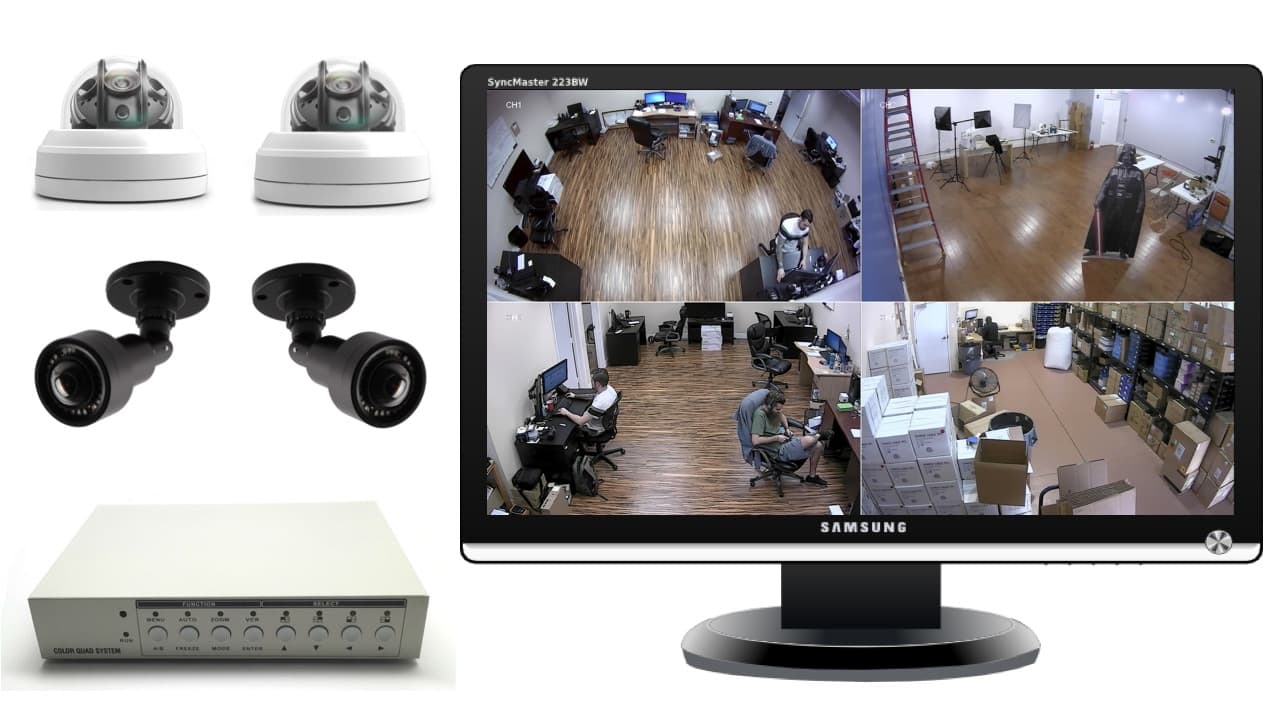
After following these steps, the results were exactly what I hoped for. I could monitor my front door in full detail right on my desktop while working. When a package was delivered, the motion recording automatically saved the clip to my PC, and I reviewed it in seconds. Best of all, the entire setup cost me nothing extra and now runs 24/7 with zero hassle.
That’s it—your surveillance camera is now fully connected to your computer! If your camera model is different, the steps are almost identical; just check the manual for the exact IP search tool or default login. Give it a try and enjoy the peace of mind that comes with having your security feed right on your PC screen.
