

How to Screen Record on Your Computer: Easy Step-by-Step Guide with Free OBS Studio
2026-02-12How to Connect a Surveillance Camera to Your Computer
2026-02-12How to Turn Off Built-in WiFi on Your Optical Modem (ONT) – Simple Steps for a Cleaner, Faster Network
I used to have two WiFi networks running at the same time: the built-in one from my optical modem (also called an ONT) and the stronger one from my dedicated router. The extra signal caused interference, made my main router work harder, and added unnecessary electromagnetic exposure in the house. So I decided to disable the ONT’s WiFi completely. Here’s exactly how I did it, and why it’s worth doing.
What exactly is the built-in WiFi on an optical modem?
An optical modem (ONT) converts the fiber-optic signal from your ISP into usable Ethernet. Most modern ONTs also include a basic router and WiFi transmitter. It’s convenient for quick connections, but the signal is usually weak, the antennas are small, and it often overlaps with your main router’s channels. Turning it off lets your better router take full control.
Two common questions I had (and their answers)
Q: Will disabling the ONT WiFi break my internet? A: No. Your wired connection and the main router’s WiFi stay completely unaffected. You can always turn it back on later if needed.
Q: Is it safe and reversible? A: Yes. It’s a standard setting that most ISPs allow. You’re simply stopping the ONT from broadcasting its own wireless signal.
Why I recommend doing this
- Reduces channel interference → noticeably more stable and faster WiFi from your main router
- Lowers unnecessary EMF radiation in your home
- Makes your ONT run cooler and more efficiently
- Improves overall network security (only one active WiFi network to manage)
- Prevents your ISP’s weak WiFi from confusing devices or guests
Step-by-step: How to disable the built-in WiFi on your ONT
1. Check for a physical WiFi button (fastest method) Look on the back or side of your ONT for a small button labeled WLAN, WiFi, or Wireless. Press and hold it for 5–10 seconds until the WiFi indicator light turns off. That’s it – the wireless signal is disabled.
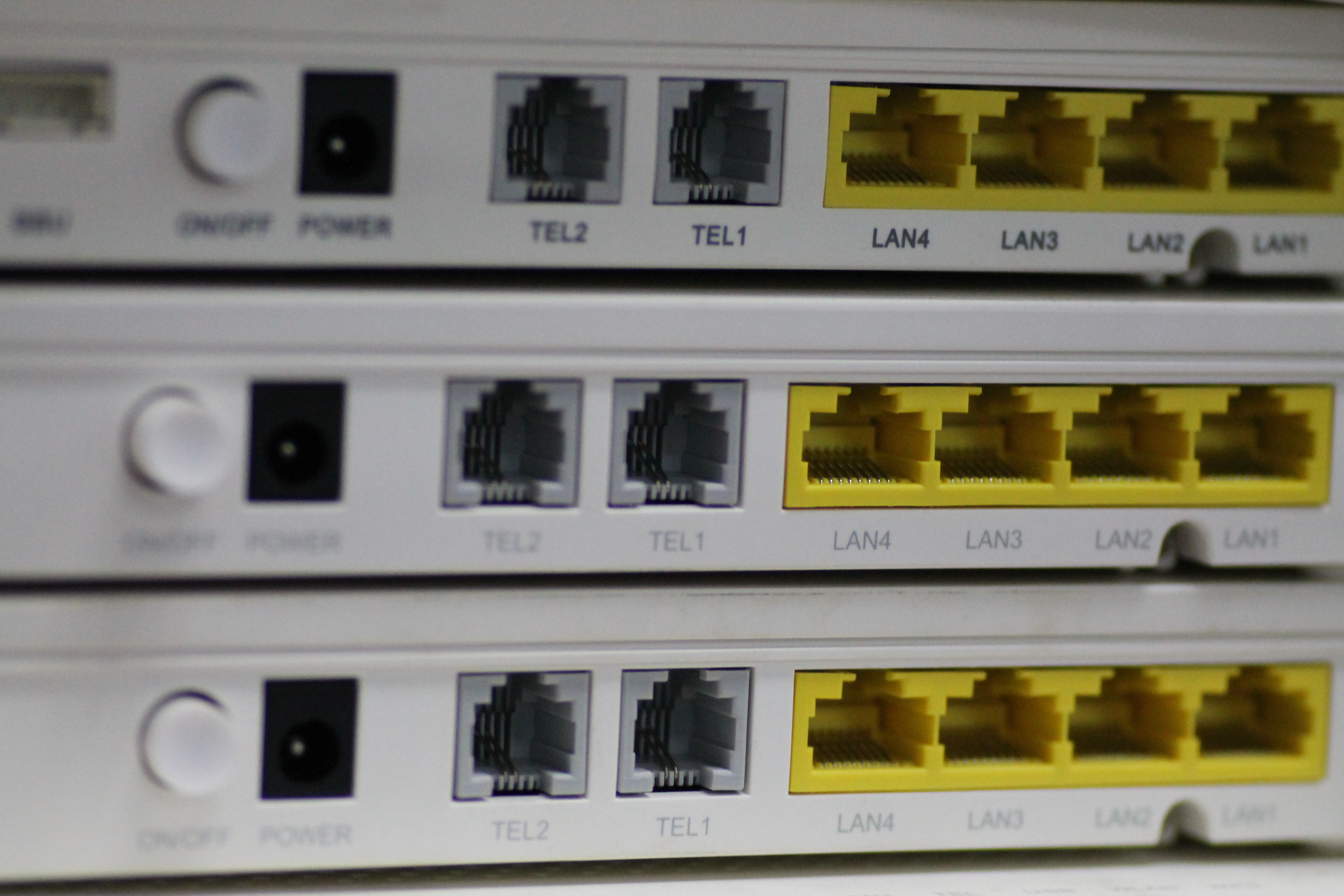
2. If there is no button, connect to the admin interface Use an Ethernet cable to plug your computer directly into one of the LAN ports on the ONT. Open any browser and type the IP address shown on the device label (most common: 192.168.1.1 or 192.168.0.1). Press Enter.
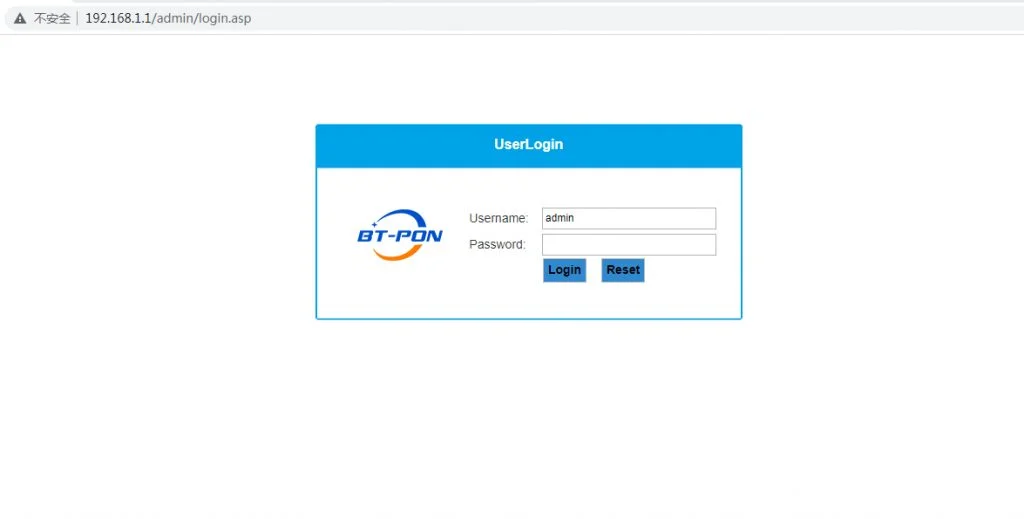
3. Log in Enter the username and password printed on the ONT label (common defaults: admin / admin, or the specific ones your ISP provided). Click Login.
4. Disable the wireless networks Go to WLAN, Wireless, WiFi Settings, or Network → WLAN. For both 2.4 GHz and 5 GHz (if shown), find the Enable or On/Off switch. Uncheck or set to Off for each band. Click Save / Apply and wait 10–20 seconds. The WiFi light on the ONT should turn off.

Tip: If you can’t log in or the option is hidden, search online for “[your ONT model] super admin password” or simply call your ISP – they can disable it remotely in seconds.
Real results I saw after disabling
- My main router’s 5 GHz speed jumped from ~320 Mbps to ~580 Mbps on the same device – no more channel fighting.
- The ONT stayed noticeably cooler and the fan (if it has one) ran less.
- Devices connected faster and dropped less often; the whole home network felt “cleaner”.
That’s all there is to it. In under 5 minutes you can remove the unnecessary WiFi signal from your optical modem and let your dedicated router do its job properly. If your model looks different, the steps are almost always the same – just check the label for the exact IP and login details.
Enjoy the cleaner, faster, and lower-radiation network!
