

How to Use Absolute References in Excel: Step-by-Step Guide to Lock Cells in Formulas
2026-02-12How to Turn Off Built-in WiFi on Your Optical Modem (ONT) – Simple Steps for a Cleaner, Faster Network
2026-02-12How to Screen Record on Your Computer: Easy Step-by-Step Guide with Free OBS Studio
I’ve been screen recording on my PC for years to create tutorials, save important meetings, and capture gameplay. In this guide, I’ll show you exactly how to do it using a completely free and powerful tool.
Screen recording is simply capturing whatever appears on your computer screen as a video, often with your voice, system audio, or webcam. The screen recording is any software that makes this easy. OBS Studio is my favorite because it’s 100% free, open-source, has no watermarks, and works on Windows, Mac, and Linux. You can record the full screen, a single window, or mix multiple sources with total control over quality.
Two common questions I always get asked:
- “Is screen recording legal?” Yes, recording your own screen for personal or educational use is completely fine. Just respect copyright when sharing content that isn’t yours.
- “Do I need an expensive computer or paid software?” No. OBS runs smoothly even on older laptops, and the free version gives you everything you need.
Why I love screen recording It has completely changed how I work and teach. I can create clear video guides, keep records of online classes, document software bugs for support, and share gameplay highlights — all without buying expensive tools.
Here’s exactly how I do it:
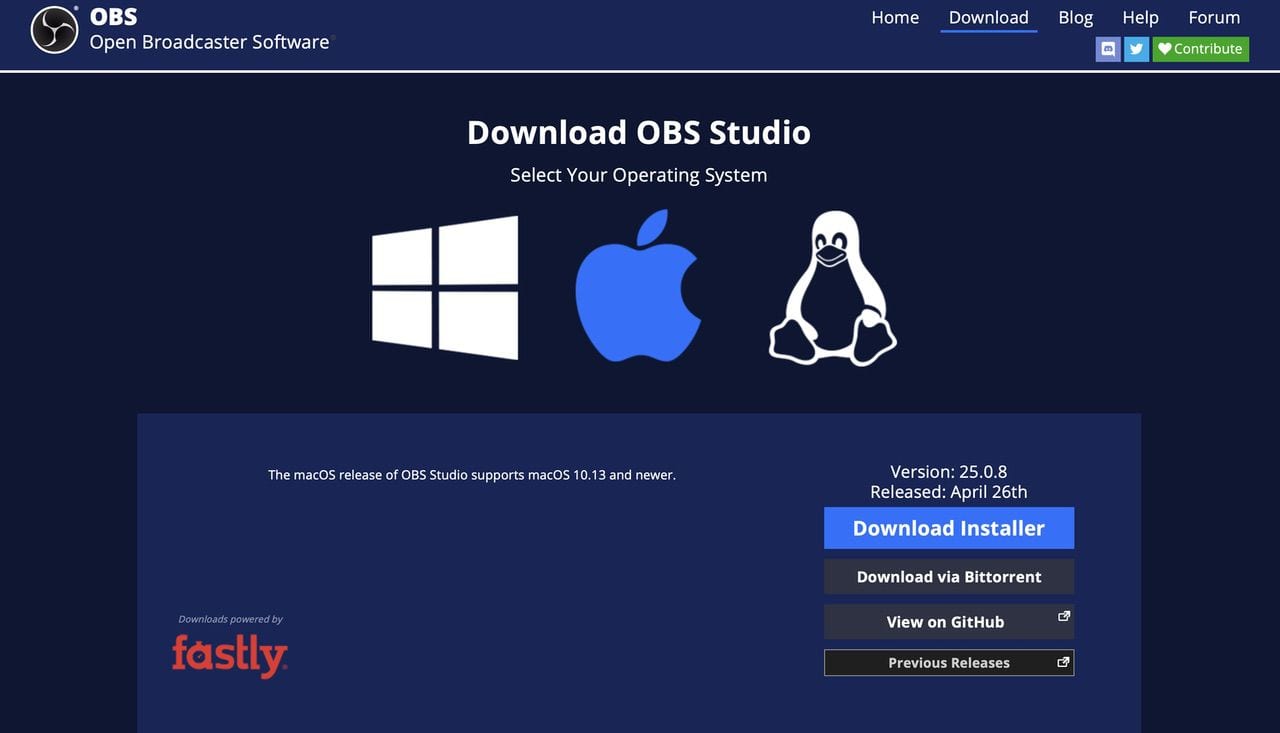
Step 1: Download and Install OBS Studio Go to the official OBS website and click the Download Installer button for your operating system. Run the file and follow the quick setup — it takes less than a minute and requires no payment or registration.
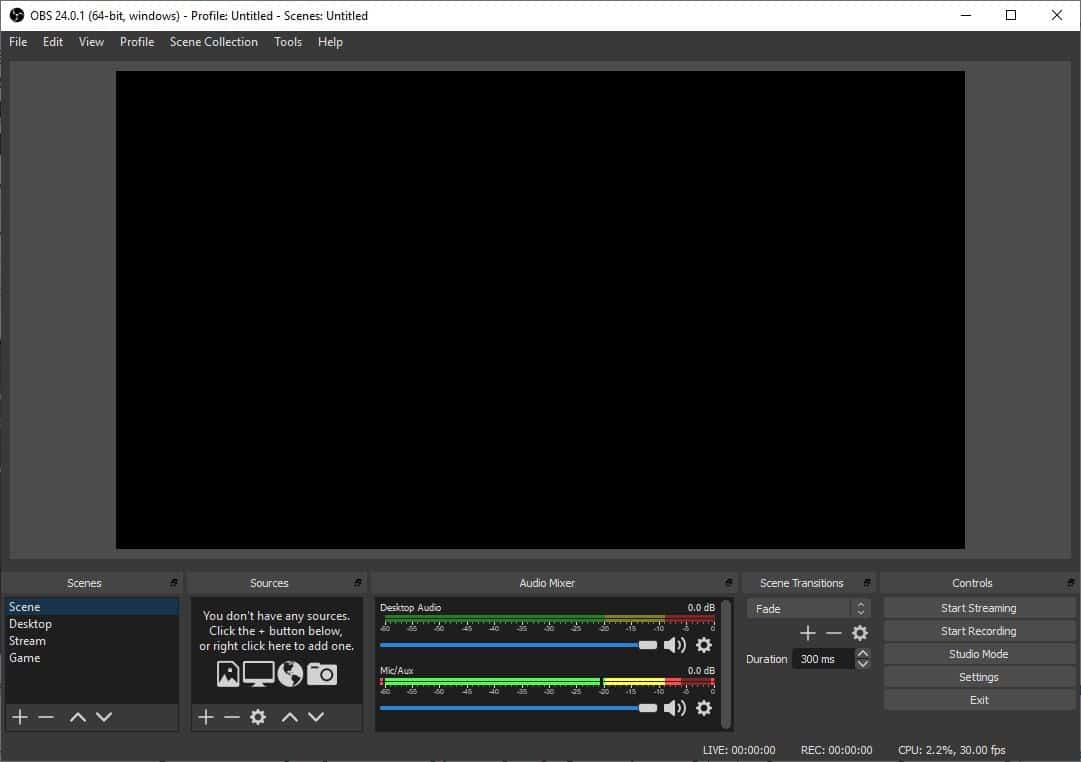
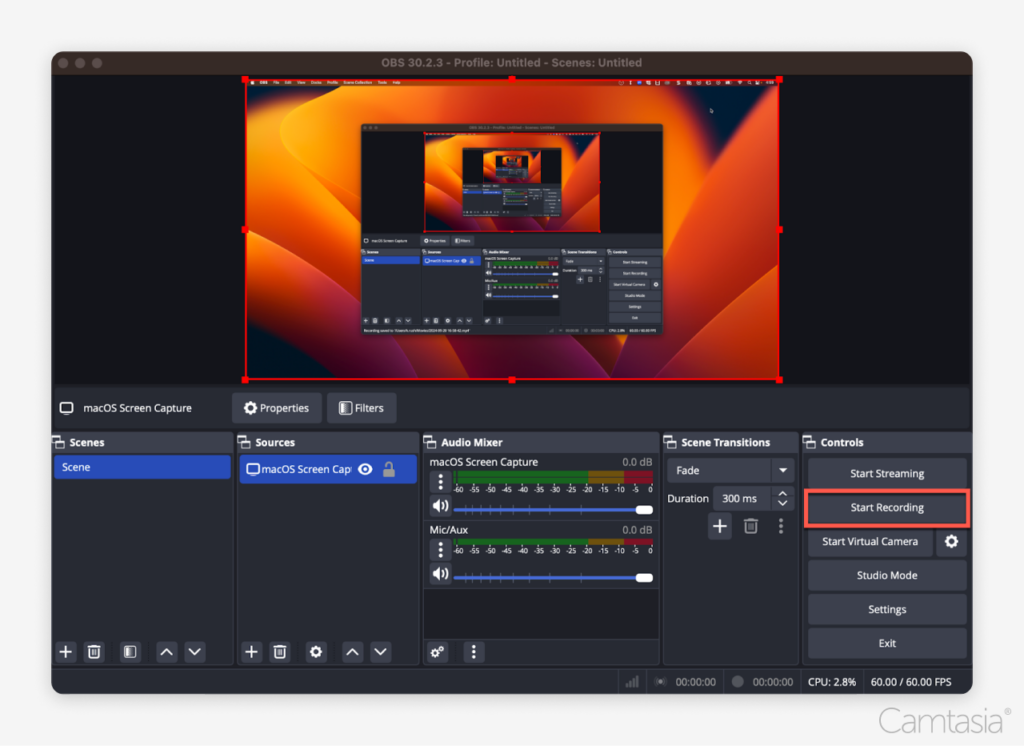
Step 2: Launch OBS and Create Your First Scene Open the program. You’ll see the main interface with Scenes, Sources, Audio Mixer, and Controls. Click the + icon under Scenes, name it (e.g., “My Recording”), and you’re ready to add content.
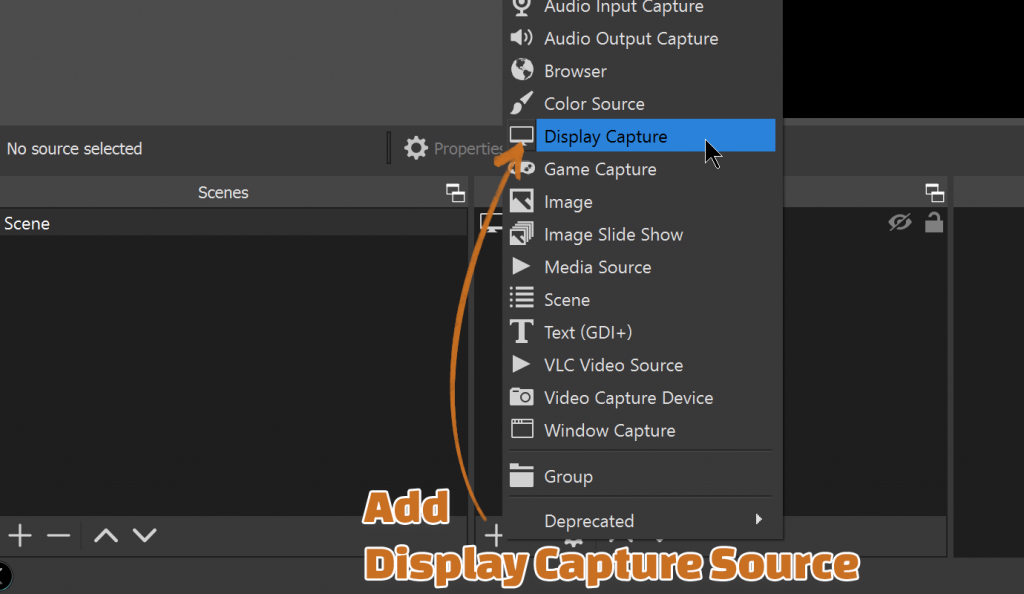
Step 3: Add Display Capture for Your Screen In the Sources box, click the + icon, choose Display Capture, click OK, and select your monitor. The preview window will now show your full desktop — drag the red borders to crop if you only want part of the screen.
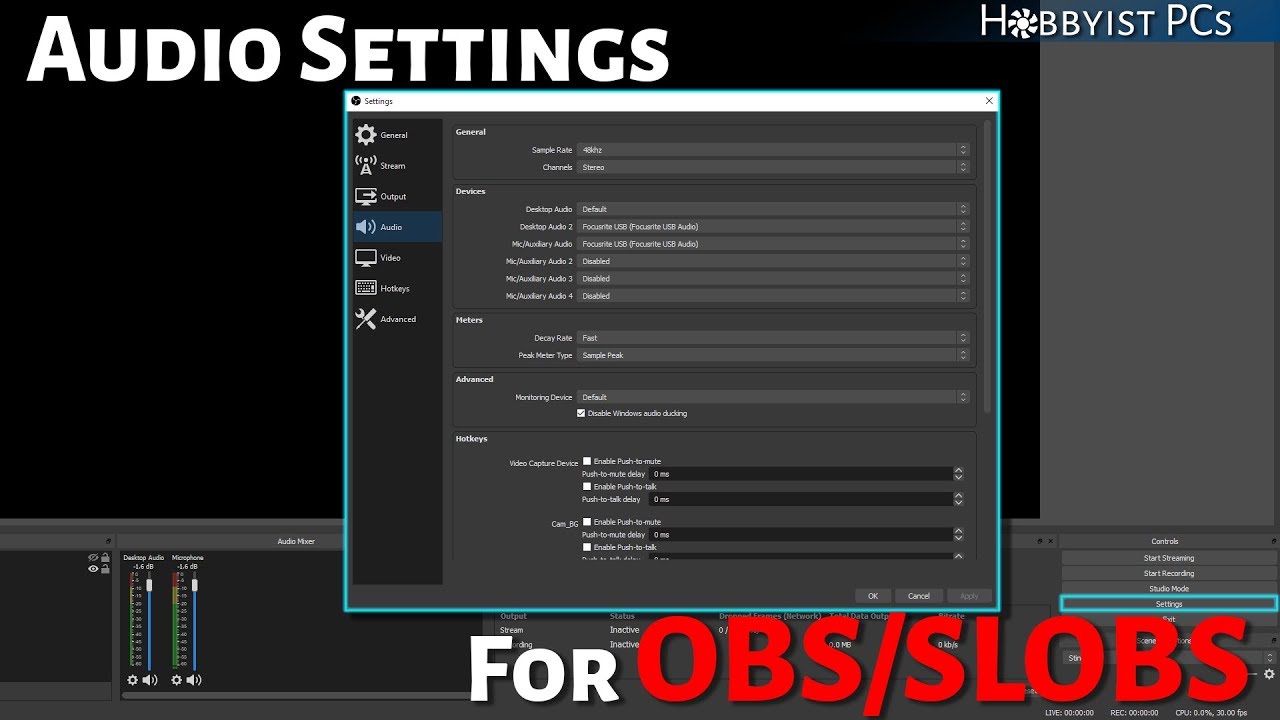
Step 4: Set Up Audio (Microphone + System Sound) Look at the Audio Mixer. You’ll see Desktop Audio (system sounds) and Mic/Aux (your voice). Drag the sliders so levels stay in the green-to-yellow range. For better quality, go to Settings → Audio and choose your exact microphone and speakers.
Step 5: Start Recording and Save the Video Click the big Start Recording button on the right. Do whatever you need on screen, then click Stop Recording. The file saves automatically as MP4 in your Videos folder (you can change the folder and quality in Settings → Output).
Real results I’ve achieved I recorded a 12-minute Excel tutorial that my whole team now uses daily. I captured a full Zoom training session and reviewed it later to take perfect notes. I also recorded a gaming session and turned the best moments into a short highlight video that friends loved.
That’s it — simple, free, and professional quality every time. Try it once and you’ll wonder how you ever lived without screen recording!
