

How to Merge Multiple PDFs into One?
2026-02-10How to Screen Record on Your Computer: Easy Step-by-Step Guide with Free OBS Studio
2026-02-12How to Use Absolute References in Excel: Step-by-Step Guide to Lock Cells in Formulas
I’ve been using Excel daily for more than ten years, and absolute references are one of the first things I teach anyone who wants to stop making formula mistakes. When I copy a formula and suddenly every number is wrong, I know I forgot to lock a cell. Let me show you exactly how I do it.
An absolute reference in Excel is a cell address that never changes when you copy the formula. You simply add dollar signs: $A$1 locks both the column and the row. Without the dollar signs, the reference is relative and moves with the formula.
Here are two questions I’m asked almost every week:
What’s the difference between relative and absolute references? Relative references (A1) automatically adjust when you copy the formula. Absolute references ($A$1) stay exactly the same.
When should I use mixed references? Use $A1 when you want the column fixed but the row to change, or A$1 when you want the row fixed but the column to change. I use these all the time when pulling data from a fixed column or row.
The benefits are huge. My formulas stay accurate no matter how many times I copy them. I save hours of manual fixes, avoid embarrassing errors in reports, and my spreadsheets become much easier to share and maintain.
Here’s exactly how I create absolute references every single time:
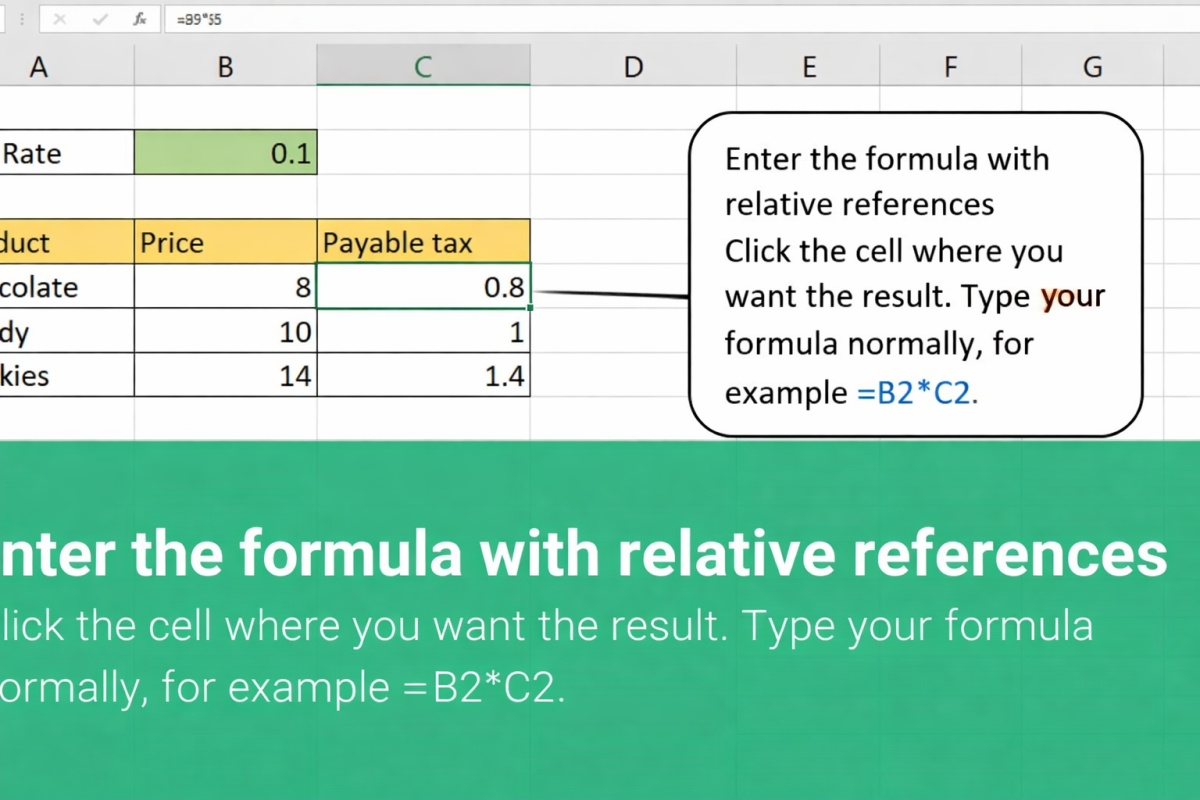
Step 1: Enter the formula with relative references Click the cell where you want the result. Type your formula normally, for example =B2*C2.
Step 2: Lock the reference with F4 Click inside the formula bar on the part you want to lock (for example, B2). Press the F4 key once → $B$2 (fully absolute). Press again for mixed options. This is my fastest trick.
Step 3: Copy the formula Select the cell, then drag the fill handle (small square at the bottom-right corner) down or across. Or press Ctrl + C and Ctrl + V.
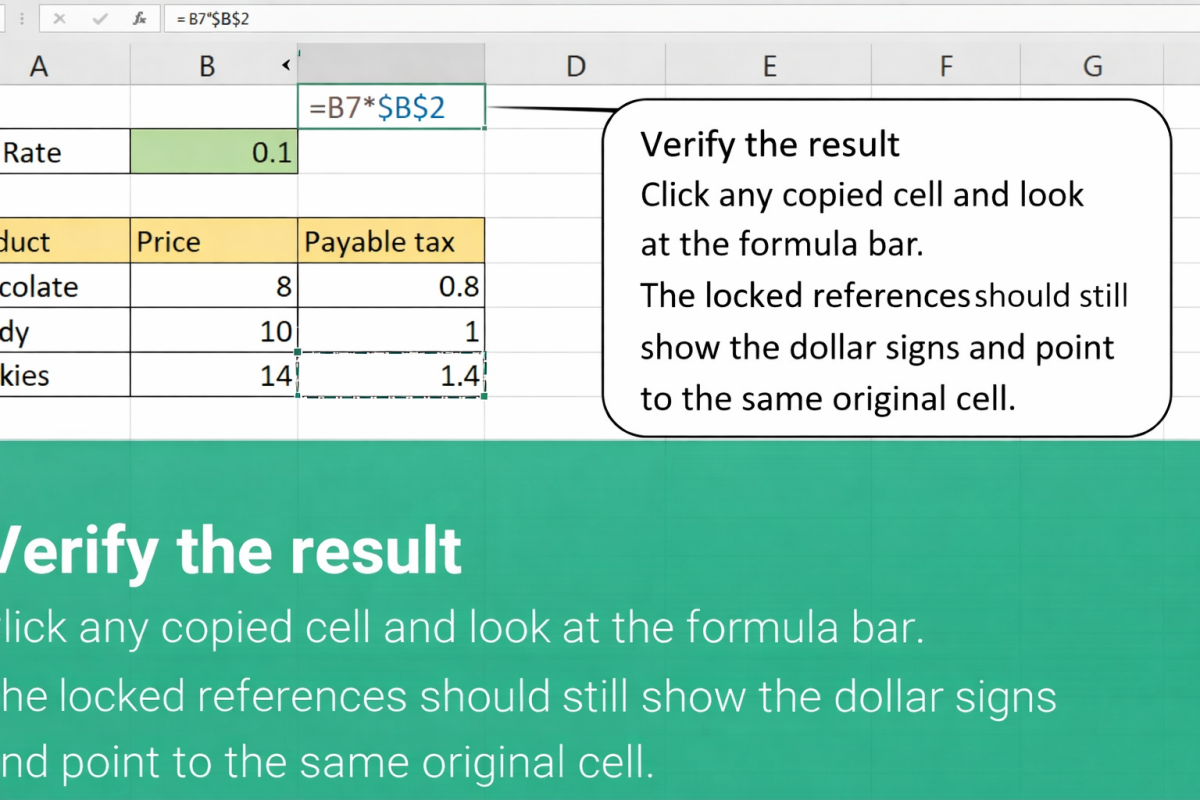
Step 4: Verify the result Click any copied cell and look at the formula bar. The locked references should still show the dollar signs and point to the same original cell.
Step 5: Test it Change the value in the locked cell. All formulas that use the absolute reference should update instantly.
I’ve used this exact method on real projects and the results speak for themselves. In a 500-row sales report, locking the commission rate with $B$1 let me copy the formula in seconds with zero mistakes. In a monthly budget tracker, mixed references ($A1) pulled the correct fixed-column data every time I dragged the formula down. In a team data-analysis sheet, absolute references stopped all the “#REF!” errors that used to appear when someone copied rows.
Try these five steps today and you’ll never go back to fixing broken formulas again. Absolute references are a small change that makes a massive difference in how clean and professional your Excel work looks.
